Duplicate Orders, Failed Payments and Dead Coupons at WooCommerce Checkout: A Diagnosis Order
A diagnosis order for three WooCommerce checkout complaints: duplicate orders, payments that fail but still charge, and coupons that seem broken. Tested on WooCommerce 11.2.1, including the case that does create duplicate orders.

Three checkout complaints arrive in the same week: a customer was charged twice, another says payment failed but the money left their account, and a third swears your coupon code does not work. They feel like three different problems, and store owners often attack them in the wrong order: switching payment plugins, clearing caches at random, or recreating coupons. This guide gives a diagnosis order instead, from the quickest checks to the slowest, with what each finding means and how to fix it.
We tested the parts we could reproduce on a clean store before writing: double clicks and double submits on both WooCommerce checkouts, and the exact messages WooCommerce shows for the most common coupon restrictions. The results are below, including one way to create a real duplicate order that WooCommerce does not stop.
The short answer
- Start with the evidence, not the fix. Open the orders, read the order notes and check your payment provider’s dashboard before changing anything.
- Duplicate orders come in three shapes. Two paid orders in the same minute, one failed order followed by a paid one, or a pending order that never updated. Each has a different cause.
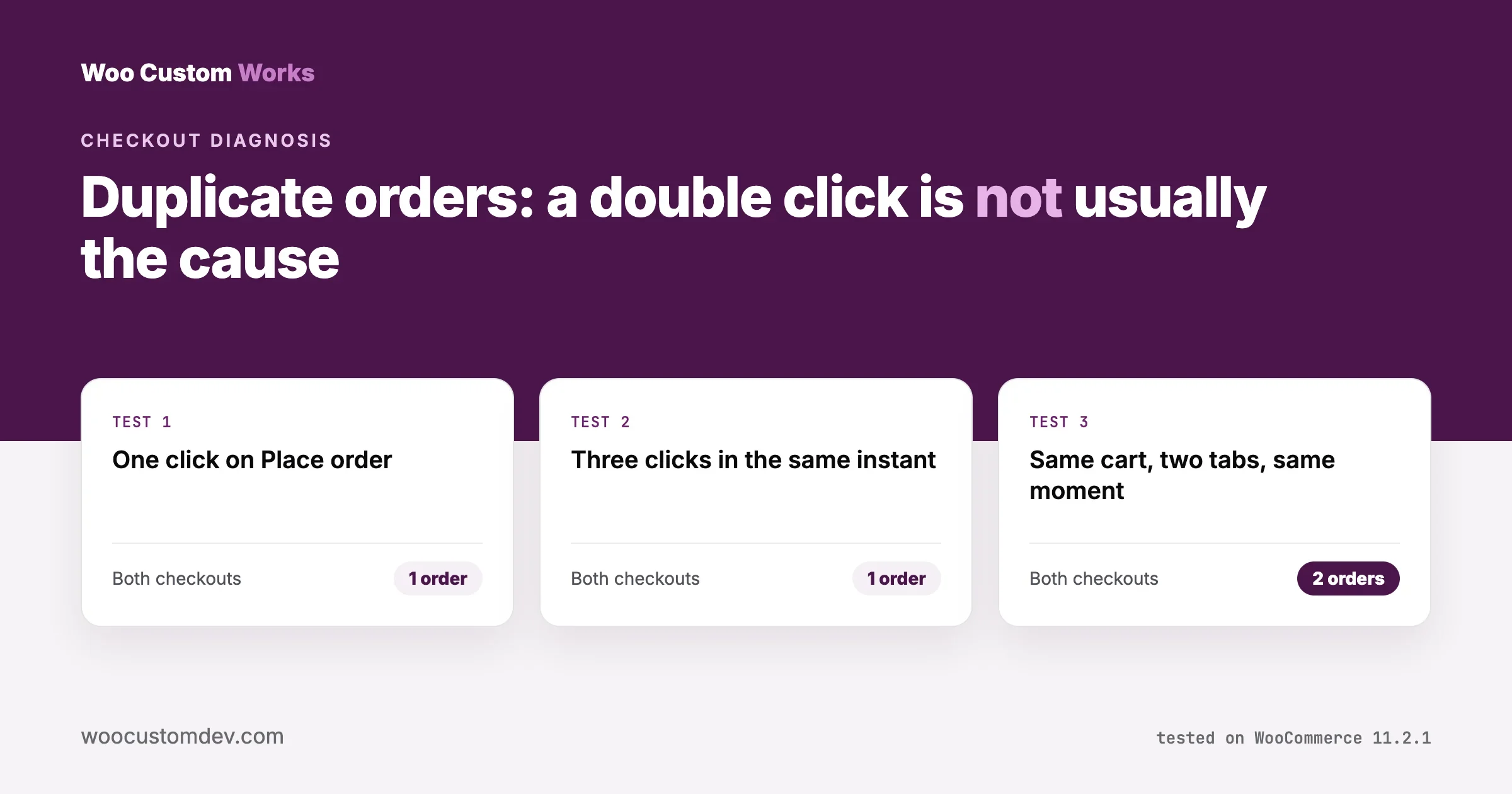
- A double click is usually not the cause. In our test, both WooCommerce checkouts turned rapid clicks into a single order. Submitting the same cart from two browser tabs at once did create two paid orders.
- “Payment failed but I was charged” usually means the payment provider could not report back to your store. Check the provider’s webhook status first.
- “The coupon does not work” is usually a restriction working as set, with a message the customer does not understand. The exact messages are in the table below.
Step 0: collect the evidence (10 minutes)
Before you touch settings, gather four things for each complaint:
- The orders. In WooCommerce, Orders, search by the customer’s email. Note each order number, its status and the time it was created.
- The order notes. Open each order and read the notes on the right. Payment plugins write what happened there: charges, failures, refunds, status changes.
- The payment provider’s view. In your Stripe, PayPal or other dashboard, search for the customer and count the actual charges. A duplicate order is not the same as a duplicate charge.
- The logs. WooCommerce, Status, Logs holds the logs payment plugins write when their logging option is on. Turn logging on in the gateway’s settings if it is off; it costs nothing and you will want it next time.
With these in front of you, sort the problem into one of the shapes below.
Duplicate orders: which shape is it?
What you see | Most likely cause | Go to |
|---|---|---|
Two or three paid orders for the same cart, created within the same minute | The same checkout submitted more than once at the same moment, often from two tabs, or a payment window that appeared to hang so the customer tried again | Shape A |
One Failed or Pending payment order, then a paid order minutes later | The first attempt failed or stalled and the customer tried again. Normal behaviour, as long as only one charge went through | Shape B |
A Pending payment order where the provider shows a successful charge | The payment succeeded but the provider could not tell your store | Shape C |
Shape A: two paid orders in the same minute
We tested this on a clean store: WordPress 7.1.3 and WooCommerce 11.2.1 with High-Performance Order Storage, using cash on delivery so payment timing did not interfere.
Test | Block checkout | Classic (shortcode) checkout |
|---|---|---|
One click on Place order | 1 order | 1 order |
Three clicks fired in the same instant | 1 order (the button disables itself) | 1 order |
The same cart submitted from two tabs at the same moment | 2 orders, created in the same second | 2 orders, created in the same second |
So a nervous double click is not what creates duplicates on a standard store; WooCommerce handles it. Two submissions of the same cart from separate pages are a different matter: WooCommerce treated them as two purchases. In real life that happens when a customer opens the checkout in a second tab, or when a payment window seems stuck and they go back and pay again.
There is an open WooCommerce report about this pattern with Stripe, Klarna and PayPal on the classic checkout (woocommerce issue 69865, opened 15 October 2026 and still open when we checked on 18 October). Its reporter could not reproduce it with fast double clicks either, which matches our result.
Check: are the duplicates the same items and total, created within seconds of each other? Does the provider show two charges or one?
Fix: refund the extra charge from the order itself (Refund button in the order, using the gateway’s automatic refund if it offers one) so the order, the gateway and your reports agree, then cancel the duplicate order. Tell the customer before they notice it on their statement.
Prevent: this is where most stores need a developer, because the protection belongs in code: refuse a second order for the same cart and customer within a short window, or show the first order instead. Until then, watch for the pattern with a weekly search of orders by email, and look for the “payment window looked stuck” complaints that send customers back to pay again, which point to Shape C.
Shape B: a failed order, then a paid one
This is WooCommerce doing its job. The first attempt failed (card declined, authentication abandoned, connection dropped) and the customer tried again. The failed order stays in your list as a record.
Check: the provider shows one successful charge. If so, there is nothing to refund. If failed orders pile up without a paid order after them, those are lost sales, not duplicates; our guide to silent money leaks in a WooCommerce store covers failing card payments, the 401 and 422 errors behind them, and following up on abandoned and failed orders.
Shape C: charged, but the order says Pending payment
Modern payment methods often confirm a payment after the customer has left the checkout: bank redirects, wallets, “buy now, pay later”. The provider then tells your store through a webhook, a message sent to your site in the background. If that message never arrives, the money is taken but the order never moves on, and the customer sees no confirmation. Many then pay again, which turns Shape C into Shape A.
Check, for Stripe: WooCommerce’s Stripe documentation describes the path: WooCommerce, Settings, Payments, Stripe, Settings; in Account details choose Configure connection, then confirm the webhook status shows Configured on both the Live and Test tabs. If it does not, use Reconfigure webhooks there. Other gateways have a similar status or test option in their settings or in the provider’s dashboard, where failed webhook deliveries are usually listed with the reason.
Common reasons webhooks fail:
- A security plugin or firewall blocking requests from the payment provider.
- Maintenance mode or a “coming soon” page answering instead of your store.
- A site that moved address, so the provider still calls the old one.
- Webhooks deleted or changed in the provider’s dashboard.
Fix: repair the webhook, then use the provider’s dashboard to resend the failed events, or update the stuck orders by hand after checking each payment. Do not mark an order paid without seeing the successful charge.
Step 2: is anything cached on the checkout?
The cart, checkout and My Account pages must never be served from a page cache, because they are different for every customer. WooCommerce marks these pages so that well-behaved caching plugins skip them, but server-level caches, CDN rules and “cache everything” settings can still catch them.
Symptoms of a cached checkout: customers see someone else’s cart total, a coupon appears applied when it is not, payment fails with a security or “session expired” message, or the checkout behaves differently logged in and logged out.
Check: open the checkout in a private window, add a product, and look at the response headers in the browser’s developer tools (Network tab, the checkout page request). A header showing a cache hit on the checkout is the problem. Also check your host’s caching panel and any CDN page rules for the cart, checkout and account paths.
Fix: exclude the cart, checkout and My Account pages, and the URLs payment providers call back on, from every cache layer. Our guide to WooCommerce caching strategies covers what to cache and what to leave alone.
Step 3: is something on the page breaking the checkout?
If payments fail for some customers but not others, the cause is often a script error on the checkout page: a theme feature, a marketing tag or a plugin that loads on every page.
Check: open the checkout, open the browser’s developer tools, choose the Console tab and place a test order. Red errors that appear when you click Place order point to the culprit by file name. Test on a phone too; mobile browsers and in-app browsers fail differently.
Fix: on a staging copy of the store, switch the theme to a default theme and disable plugins that do not touch the checkout, then turn them back on one at a time until the error returns. Never do this on the live store during trading hours.
Dead coupons: what the customer actually saw
Most “coupon not working” complaints are a restriction doing exactly what it was set to do, with a message that does not explain why. We created four coupons with common restrictions and asked WooCommerce 11.2.1 to validate each against a $150 order. These are the messages it returns:
Restriction | Message the customer sees | What it really means |
|---|---|---|
Minimum spend $200 | The minimum spend for coupon “spend200” is $200.00. | Clear. The cart is below the minimum. |
Exclude sale items, on a product that is on sale | Sorry, coupon “nosale” is not applicable to selected products. | The product is on sale, but the message never says so. This is the one customers report as broken. |
Allowed emails | Please enter a valid email at checkout to use coupon code “vipemail”. | The billing email is not on the coupon’s list. Customers often use a different email at checkout than the one you sent the code to. |
Usage limit per user: 1 | Valid the first time; then: Usage limit for coupon “onceonly” has been reached. | This customer already used it, possibly on an order they forgot or one that failed. |
How to check a coupon complaint in five minutes
- Ask for the exact message, or a screenshot. It tells you which restriction fired.
- Open Marketing, Coupons, and the coupon. Check the expiry date, Usage restriction (minimum and maximum spend, individual use, exclude sale items, products, categories, allowed emails) and Usage limits.
- Compare with the customer’s cart: are any items on sale or in an excluded category? Which email did they enter at checkout?
- Search their past orders for the coupon if a per-user limit is set.
Fixes that reduce coupon complaints
- State the conditions where you publish the code: “10% off orders over $200, not valid on sale items”.
- Avoid “Allowed emails” for codes you share in newsletters unless customers know to use the same address.
- Check the expiry date carefully. WooCommerce’s own help text says the coupon “will expire at 00:00:00 of this date”, so a code set to expire on 31 October stops working as 31 October begins, not at the end of that day. For a sale that ends on the 31st, set the 1st of the next month.
- If a coupon works in the cart but fails at checkout, suspect a rule that depends on checkout details: the billing email or a per-user limit.
Our guide to adding coupons to WordPress products walks through creating coupons and their restrictions.
The diagnosis order, on one page
Order | Check | Time | Finds |
|---|---|---|---|
1 | Orders, order notes, provider dashboard | 10 min | Which shape of duplicate, real double charges |
2 | Gateway webhook status and failed deliveries | 5 min | Charged but pending orders, repeat payments |
3 | WooCommerce, Status, Logs with gateway logging on | 10 min | Declines, errors, authentication failures |
4 | Cache headers on the checkout, host and CDN rules | 10 min | Wrong totals, session errors, phantom coupons |
5 | Browser console on desktop and phone | 15 min | Script errors stopping the payment |
6 | Coupon restrictions against the customer’s cart and email | 5 min | Coupons “not working” as set |
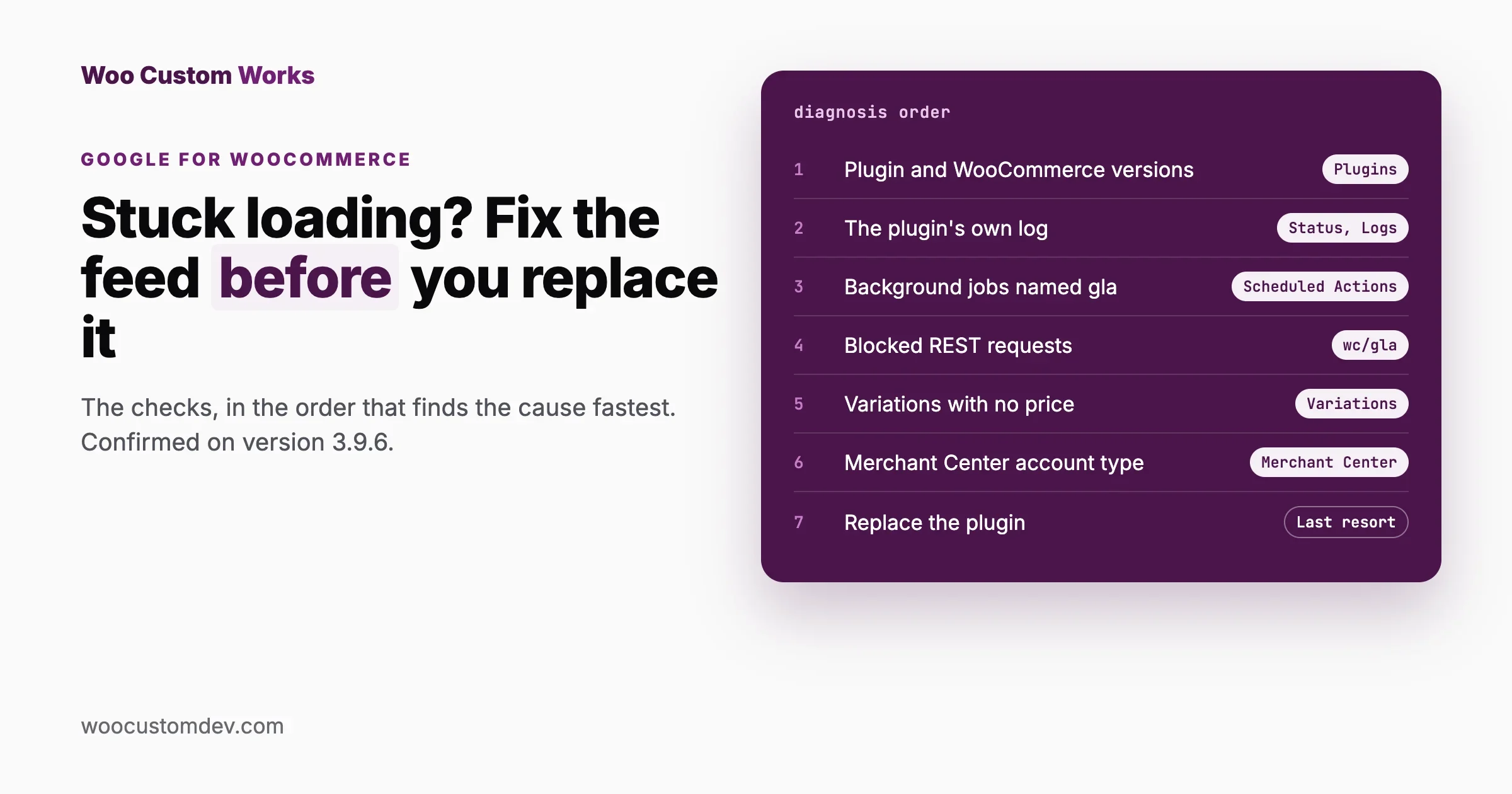
7 | Theme and plugin conflict test, on staging | 1 to 2 hours | Anything the first six missed |
Most problems surface in the first two rows. Only reach the conflict test when the evidence points there; it is the slowest step and the one that tempts people to make changes on the live store.
What to tell the customer
The technical fix matters less to the customer than hearing from you first. Short replies that work for each case:
Case | What to say |
|---|---|
Charged twice | “We found two orders from you a few seconds apart and have refunded the second payment of [amount]. Your bank may take a few days to show it. Your order [number] is going ahead as normal.” |
Charged, order shows pending | “Your payment came through; our system did not record it in time. We have confirmed order [number] and it is being prepared now. Nothing more to pay.” |
Payment failed, nothing charged | “The payment did not go through, so nothing was taken. If you would like to try again, this link takes you back to the order: [order payment link].” |
Coupon refused | “That code is for orders over [amount] / not valid on sale items / tied to the email we sent it to. Here is what would work for your cart: [option].” |
For a failed or pending order, WooCommerce gives each unpaid order its own payment link: open the order and use the “Customer payment page” link near the order status. Sending that link lets the customer pay for the same order instead of creating a new one, which avoids the next duplicate.
Prevent it next time
- Keep gateway logging on and look at WooCommerce, Status, Logs once a week.
- Check webhook status after every move: a new domain, a new firewall rule, a security plugin update, a switch from test to live.
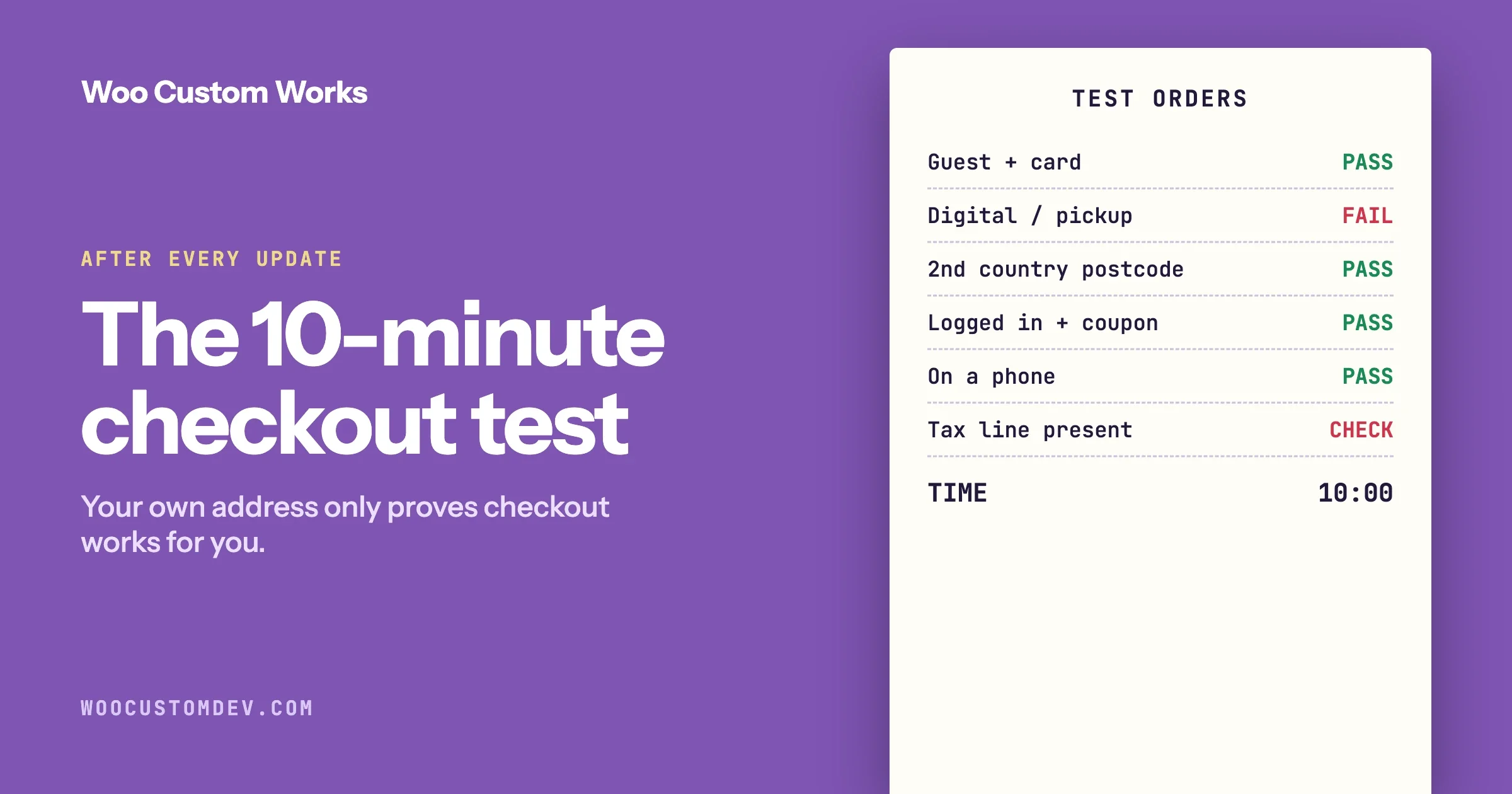
- Test checkout after every update to WooCommerce, the theme or a payment plugin, with a real low-value order on each payment method. Our checkout test after a WooCommerce update lists the steps.
- Search orders by email weekly for same-minute pairs, so duplicates are refunded before customers ask.
- Publish coupon conditions next to every code.
When to bring in a developer
The checks above are for the store owner. Bring in a developer when the evidence shows something you cannot change from settings: duplicates of shape A that keep happening and need protection in code, webhooks that fail with errors you cannot explain, a script conflict you can see but not remove, or custom checkout code nobody on your team understands. Hand over what you collected in Step 0 (order numbers, notes, the provider’s view and the logs); it saves hours. If you want a second pair of eyes, our WooCommerce development team works on checkout and payment problems on a staging copy of your store first, and our guide to briefing a WooCommerce developer lists what to include.
Frequently asked questions
Why does WooCommerce create duplicate orders?
In our test, rapid clicks on Place order created one order on both the block and classic checkouts. Two orders appeared when the same cart was submitted from two tabs at the same moment. In practice, duplicates also follow payments that appear stuck, where the customer goes back and pays again, and orders that never updated because the payment provider’s webhook did not arrive.
The customer was charged but the order says Pending payment. What happened?
The payment most likely succeeded but the provider could not report back to your store. Check the gateway’s webhook status (for Stripe: WooCommerce, Settings, Payments, Stripe, Settings, Configure connection) and the provider’s list of failed webhook deliveries.
Should I cancel or delete a duplicate order?
Refund the extra charge from the order, then cancel it. Keep it rather than deleting it, so your records match the payment provider’s.
Why does my WooCommerce coupon say it is not applicable to selected products?
One common reason: the coupon is set to exclude sale items and the cart has a product on sale. The message does not mention the sale, so check the coupon’s Usage restriction settings and the products in the cart.
Can caching cause failed payments?
Yes. If the checkout page is served from a cache, customers can get expired security tokens or someone else’s session details, and payments fail. Exclude cart, checkout and account pages from every cache layer.
How do I let a customer pay for a failed order without a new checkout?
Open the order in WooCommerce, Orders. While it is unpaid, a “Customer payment page” link appears next to the order status. Send that link to the customer: they pay for the same order, with the same items and total, so no second order is created. This is the simplest way to stop a failed payment from turning into a duplicate.
Do duplicate orders affect stock and reports?
Yes. A duplicate paid order reduces stock and counts in your sales reports until you refund and cancel it. That is another reason to find duplicates weekly rather than waiting for the customer to notice the second charge.
Where are WooCommerce payment logs?
Under WooCommerce, Status, Logs, once logging is turned on in the payment method’s settings.
How we tested this
On 18 October 2026 we used a local store with WordPress 7.1.3 and WooCommerce 11.2.1 (High-Performance Order Storage on). With cash on delivery, we placed orders with one click, with three clicks fired in the same instant, and from two tabs sharing one cart at the same moment, first on the block checkout and then on the classic shortcode checkout. We created four coupons with common restrictions and validated each with WooCommerce’s own coupon checks against a $150 order. Stripe webhook steps are from WooCommerce’s Stripe documentation, read the same day; we did not test live payment gateways.
Plugins we build and run
We maintain these ourselves, which is why we can support them on your site.
- BuddyNextThe self-hosted community engine for WordPress
- BuddyXFree community theme, Pro when you outgrow it
- ReignPremium community theme. Add pieces, build anything
- JetonomyCommunity forum and Q&A for WordPress
- EventonomyEvents and RSVPs for WordPress communities
- LearnomyCourses and learning communities on WordPress
- ListoraDirectories and listings your members can browse
- SnipShareCode sharing built for developer communities
- WB Ad ManagerAd placements that turn traffic into revenue
- WP Career BoardA job board your community actually uses
- WP Sell ServicesSell services with offers, orders, and payouts
- MediaVersePhotos, video, and media albums for members
- WB GamificationPoints, badges, and rewards that keep members active
- Product RoadmapPublic roadmaps with voting your users trust