5 Silent Money Leaks in a WooCommerce Store, and How to Fix Each One
Five quiet ways a WooCommerce store loses money: failing payments, mispriced shipping, stockouts, unrecovered orders and lost emails. Each one has a 2-minute check, a fix and a prevention step.

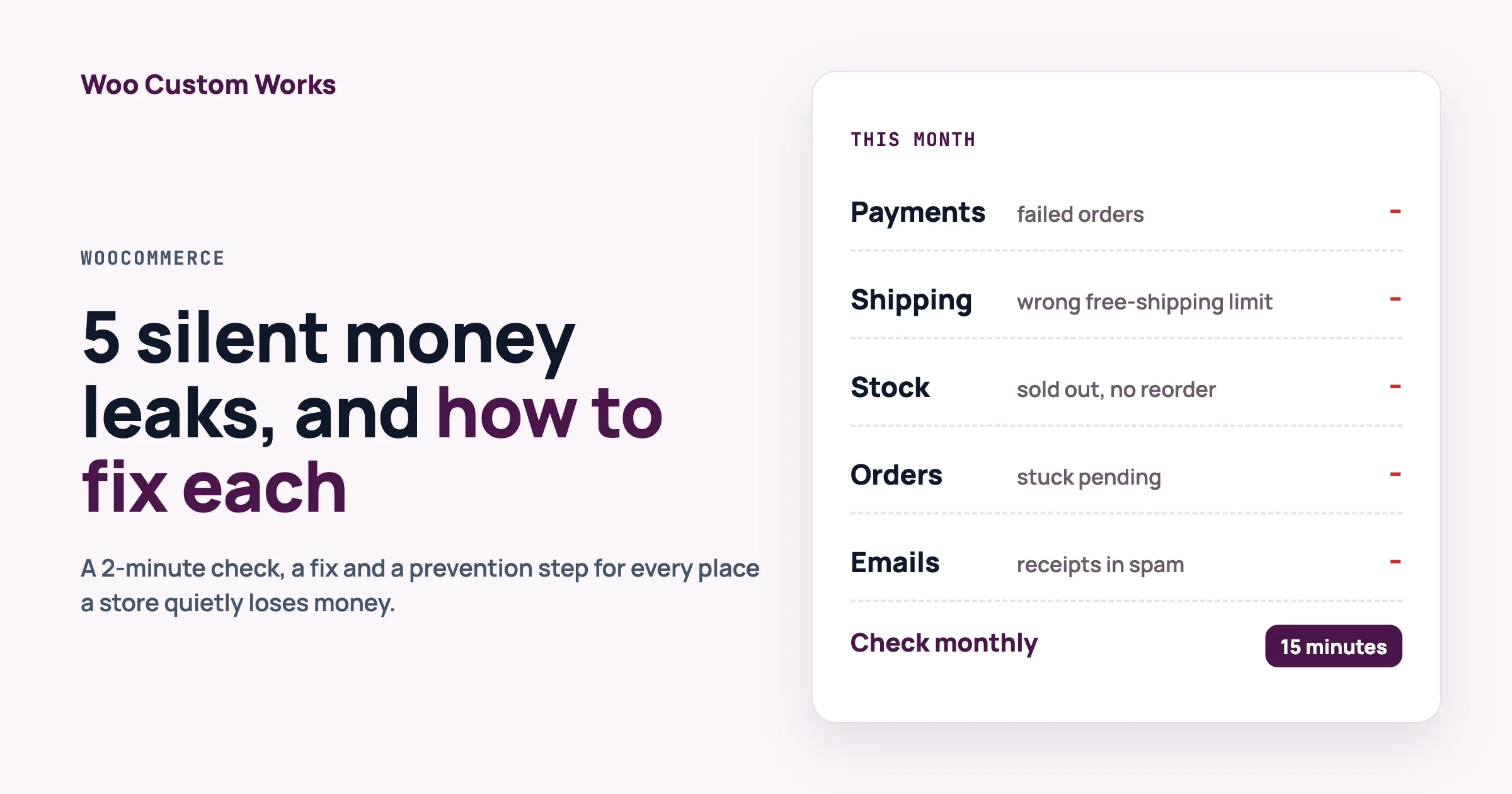
WooCommerce money leaks are rarely dramatic. They are quiet: a payment that fails and nobody hears about it, a shipping rate that is a little off, a best seller that sells out for two weeks, an order email that lands in spam. This guide walks through five of these leaks. For each one you get a 2-minute check, a fix, and a way to stop it coming back.
How do I find WooCommerce money leaks quickly?
Check five things every month: failed payments, shipping prices at your free-shipping limit, stock that sold out last month, orders stuck in pending or failed, and whether your order emails reach Gmail and Outlook. The whole check takes about 15 minutes. Most fixes are settings, not code.
We have put the settings paths in bold so you can follow along in your own admin. Where a fix needs a developer, we say so and we do not pretend a snippet is tested when it is not.
In this guide
- Leak 1: card payments that fail without anyone noticing
- Leak 2: shipping that is priced wrong in comma-decimal stores
- Leak 3: stockouts because low-stock alerts ignore supplier lead time
- Leak 4: abandoned and failed orders nobody follows up
- Leak 5: order emails that never reach the customer
- The 15-minute monthly money check
- FAQ
How we checked this: the settings names and defaults below were read from the WooCommerce 11.1.2 source code, and the bug status was read from the WooCommerce and PayPal Payments issue trackers on 5 October 2026. We did not run every step on a staging store for this article, so test each fix on staging first.
Leak 1: Why are card payments failing and I never hear about it?
A customer pays, the gateway says no, and the customer leaves. You see nothing unless you look. The order sits as Pending payment or Failed, and the sale is gone. This is the quietest leak because it looks like normal traffic that did not convert.
The 2-minute check
- Open WooCommerce › Orders and filter by Failed, then by Pending payment. Look at the last 7 days.
- Open WooCommerce › Status › Logs and pick the log for your gateway (for PayPal, the PayPal Payments log). Search for the words error, 401 and 422.
- Compare: how many failed orders did you get this week against a normal week?
What do 401 and 422 actually mean?
They are two different problems, and PayPal documents both in its API responses guide.
- 401 Unauthorized is an authentication problem. PayPal says authorization errors are usually access-token issues, so the fix is to make sure the token is present and has not expired. In a store this often means the connection between your site and PayPal needs to be renewed.
- 422 Unprocessable Entity means PayPal understood the request but refused to act on it. PayPal describes it as a request that is semantically incorrect or fails business validation. The cause is in the details of that order, not in your login.
For 422, the real cause varies. In the PayPal Payments plugin tracker, merchants have reported ITEM_TOTAL_MISMATCH when a discount coupon is used (the item totals did not add up to the order total), INSTRUMENT_DECLINED on card captures, and a blank 422 on card fields after one plugin update that stopped when the merchant rolled back a version. These are reports, not confirmed root causes, so treat them as clues to look for in your own log, not as a diagnosis.
The fix
- For 401: open the PayPal settings under WooCommerce › Settings › Payments, disconnect the account, and connect it again. That gives the plugin a fresh connection. Then place a small live test order.
- For 422: read the full line in the log. It names the issue code. Match the code against PayPal’s error list for the Orders API. If it names a total mismatch, test the same cart without the coupon.
- After any plugin update: if card payments fail but the PayPal button works, roll back the plugin to the previous version on staging and compare. Then contact the plugin support team with your WooCommerce system report. The plugin maintainers ask for this on their GitHub tracker.
- If orders get stuck rather than failing: a background-job backlog can delay status changes. Our guide on hidden Action Scheduler work behind a slow checkout shows how to spot it. Moving WordPress cron to a real server cron is described in the WordPress developer handbook and in our sister site’s guide on disabling WP-Cron in favour of a system cron.
Warning: a green “connected” badge in the plugin does not prove a payment will go through. Only a real test order proves that. PayPal Payments also has a troubleshooting button called “Simulate webhooks” that, according to an open report on the plugin tracker, has not worked correctly since version 3.3.1, so do not treat its result as proof either way.
Prevent it
Turn on the admin alert for failed orders. WooCommerce ships a Failed order email for admins. Open WooCommerce › Settings › Emails › Failed order, confirm it is enabled, and set the recipient to someone who reads it. In the source it is enabled by default and sends when an order moves from pending or on-hold to failed. Note what that means: it fires when the order is marked failed, so a customer who closes the tab on the payment page and leaves the order in Pending payment will not trigger it. That is why the weekly pending check in Leak 4 matters too.
Leak 2: Why is shipping priced wrong in my comma-decimal store?
If your store uses a comma as the decimal separator (1,50 instead of 1.50), a few shipping settings can behave in ways you do not expect. The symptoms are quiet: free shipping offered to carts below your minimum, or a percentage fee that is a little lower than you set. Nobody gets an error. You just earn less on shipping, or give more away.
What does the WooCommerce tracker say?
We checked the open reports on the WooCommerce GitHub tracker on 5 October 2026. Here is the honest status.
Problem | When it happens | Status |
|---|---|---|
Free-shipping minimum compared as text, so a 50 cart can get free shipping on a 100 minimum | The minimum is stored as | Open (issue 69235). A fix is in a draft pull request, not yet released |
Flat rate fee percent drops the decimals and charges 10% instead of 10.5% | Store uses a comma separator and the fee is typed with a comma | Open (issue 69233). A fix is in a draft pull request, not yet released |
Admin form sent formatted numbers to the server | Saving shipping method costs in the admin | Fixed by pull request 54181, merged February 2025 |
Local pickup VAT calculated wrongly with a comma separator (issue 39081) | Taxable local pickup with a comma cost | Closed in July 2026, with the maintainers pointing to the 54181 fix. We did not reproduce it, so test it yourself |
So the plain answer to “has a release fixed this?” is: the admin-form side was fixed in 2025, and the two newer reports above were still open and unreleased when we checked. The latest stable release at that time was 11.1.2. Check the release notes for your version before you rely on any of this.
The 2-minute check
- Open WooCommerce › Settings › Shipping and note your free-shipping minimum.
- Add a product to the cart that puts the total just below the minimum. Go to checkout as a guest with an address in that shipping zone.
- Confirm free shipping is not offered. Then add a little more so the total is exactly at the minimum, and confirm it is offered.
- For a percentage fee, place a test order and compare the shipping line with a hand calculation.
Test below the limit as well as above it. The tracker notes that the broken case is the cart below the threshold, and an earlier review only checked above it.
The fix
- Re-save the value through the admin screen. Open the free shipping method, retype the minimum, and save. The admin form converts the number before sending it. Then rerun the threshold test. If a migration or importer wrote the old value, this replaces it.
- For percentage fees: the open report says the field accepts the comma form but the fee calculation reads only a dot. We could not confirm a safe workaround from the tracker, so check your own result with a test order and, if it is off, ask a developer to look. We are not publishing a snippet for this because we have not tested one.
- If many stores or products were imported: a developer can check the stored option values in the database for comma-formatted numbers. They can then normalise them on read with the WooCommerce filter shown after this list. We verified the filter exists in the source. We have not tested a snippet against a store, so we are not printing one.
- Update when the fix ships, then run the test again.
The filter for free shipping options, for your developer:
woocommerce_shipping_free_shipping_instance_optionPrevent it
After every WooCommerce update, place three test orders: one below your free-shipping limit, one exactly at it, and one with a percentage fee. It takes five minutes on staging and it is the only way to catch this class of problem, because nothing shows an error.
Leak 3: Why do I keep running out of my best sellers?
WooCommerce can email you when stock gets low. The catch is that one number, the low stock threshold, applies to every product by default. A product that sells 20 a day and takes three weeks to restock needs a very different warning point from one that sells two a month. With the default, the alert comes too late for the first and too early for the second.
The 2-minute check
- Open WooCommerce › Settings › Products › Inventory. Note the Low stock threshold and whether notifications are enabled.
- Open Analytics › Stock and filter by out of stock. Compare against last month’s list.
- List your five best sellers and write down how many days your supplier needs to deliver.
The fix: a reorder point for each product
The reorder point is the stock level at which you should place the next order. The formula is simple.
Reorder point = (daily sales x supplier lead days) + safety stock
Safety stock = daily sales x safety days
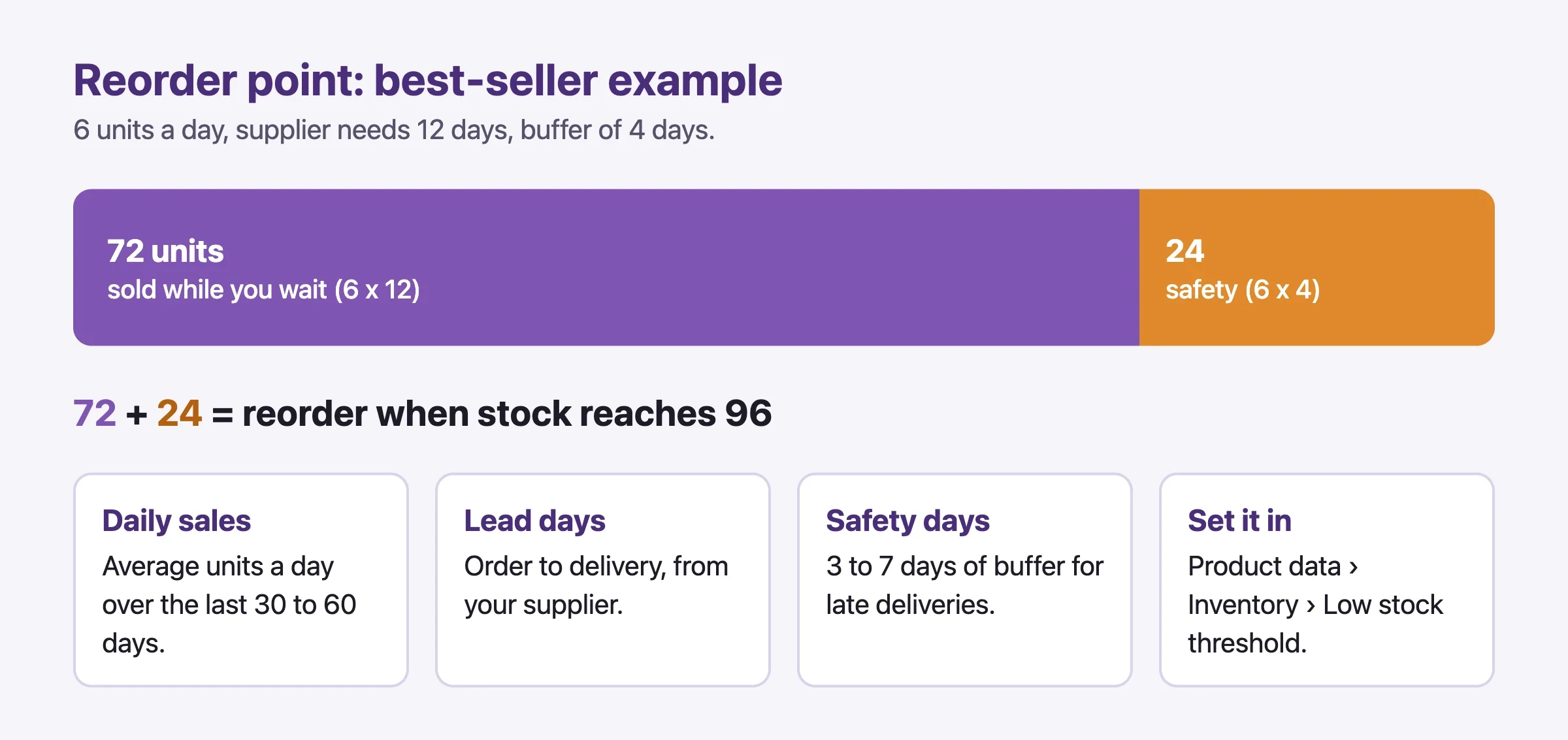
Daily sales is your average units sold per day over the last 30 to 60 days. Lead days is how long the supplier takes from order to delivery. Safety days is your buffer for a late delivery or a busy week. Pick 3 to 7 days for most products, more if your supplier is unreliable.
Here is a worked example with three products.
Product | Daily sales | Lead days | Safety days | Reorder point |
|---|---|---|---|---|
Best seller | 6 | 12 | 4 | (6 x 12) + (6 x 4) = 96 |
Steady item | 2 | 21 | 7 | (2 x 21) + (2 x 7) = 56 |
Slow item | 0.5 | 30 | 10 | (0.5 x 30) + (0.5 x 10) = 20 |
Read the first row like this: you sell 6 a day, the supplier needs 12 days, so you will sell 72 units while waiting. Add 24 units of buffer, and the warning should fire at 96. With the default threshold of 2, you would find out about the best seller long after it had sold out.
Where to set it in WooCommerce
- Open the product. In Product data › Inventory, turn on Manage stock.
- Enter the reorder point in Low stock threshold. For a variable product, each variation has its own threshold field, so set it per variation.
- Under WooCommerce › Settings › Products › Inventory, enable the low stock notification and set the Notification recipient(s) to a real inbox.
The product setting overrides the store-wide default, so you only need to set it on products where lead time matters. WooCommerce’s own setting text says you will be notified by email when product stock reaches the threshold.
Tip: review the numbers every quarter, not every year. Daily sales change with seasons and promotions, and a reorder point from last spring will be wrong by autumn.
Prevent it
Once a week, open Analytics › Stock and scan the low and out-of-stock lists for 5 minutes. Add the supplier lead days to a shared sheet so anyone can update a threshold. If you manage hundreds of products, a developer can set thresholds in bulk from a spreadsheet, which is part of what we do in our care plan.
Leak 4: What happens to orders that are abandoned or failed?
Some customers get to the payment step and stop. Some pay and the payment is declined. Both leave an order behind. If nobody looks, that is money and a warm customer gone.
The 2-minute check
- Open WooCommerce › Orders and filter by Pending payment, then Failed, for the last 14 days.
- Open a few. Do they share a payment method, a country or a product? A pattern points to a cause.
- Open WooCommerce › Settings › Products › Inventory and read Hold stock (minutes).
The fix
- Set the hold-stock time on purpose. The default is 60 minutes. WooCommerce describes it this way: stock is held for unpaid orders for that many minutes, and when the limit is reached the pending order is cancelled. A short time frees stock fast but cancels slow payers. A long time can hold the last unit of a popular item for someone who has left. For most stores 60 to 120 minutes works. Leave the field blank to switch the feature off.
- Send a payment reminder by hand for high-value orders. Open the pending order and use the order actions to email the order details to the customer. The customer can then use the payment link to pay. WooCommerce core does not send automatic payment-retry emails for ordinary one-off orders.
- Use a recovery email tool for the rest. Abandoned-cart plugins email customers who left items behind. We compared the options in our guide to cart abandonment plugins, and our sister site wppioneer has a step-by-step on recovering abandoned carts with automated email.
- Fix the cause, not only the symptom. If most failures come from one payment method, return to Leak 1.
Be careful with recovery emails. Only email people who gave you their address, follow your country’s marketing-email rules, and keep it to one or two reminders.
Prevent it
Put a 5-minute weekly review in the calendar: pending and failed orders, count and pattern. Write the count in a note. A rising count is your early warning.
Leak 5: Why are my order emails not reaching customers?
A customer who never gets the order confirmation thinks the order failed. They write to support, or they order again, or they ask for a refund. A customer who never gets the shipping email asks where the parcel is. WooCommerce sends these through WordPress, and by default WordPress sends mail through your web host, which many mailbox providers treat with suspicion.
The 2-minute check
- Place a test order to a Gmail address and an Outlook address. Do both emails arrive? Are they in the inbox or in spam?
- Open WooCommerce › Settings › Emails and make sure each email you rely on is enabled and has a valid recipient.
- Send a message from your site to a free mail checker and read its report on SPF, DKIM and DMARC.
The fix
- Send through a proper mail service, not the web host. Use an SMTP plugin connected to a transactional email service. Our sister site tweakswp has a full guide to WordPress email deliverability and SMTP.
- Set up SPF, DKIM and DMARC for your sending domain. These are records in your DNS that prove the email really came from you. Your email service shows the exact records to add. Google’s sender guidelines say all senders to Gmail need SPF or DKIM, and bulk senders need all three plus DMARC.
- Use a From address on your own domain. A store on yourshop.com sending as a free webmail address will often fail the checks.
- Retest with the same Gmail and Outlook test orders.
Prevent it
Install an email log so you can see what was sent and what failed. Run the Gmail and Outlook test order once a month and after any change to hosting, DNS or the SMTP plugin.
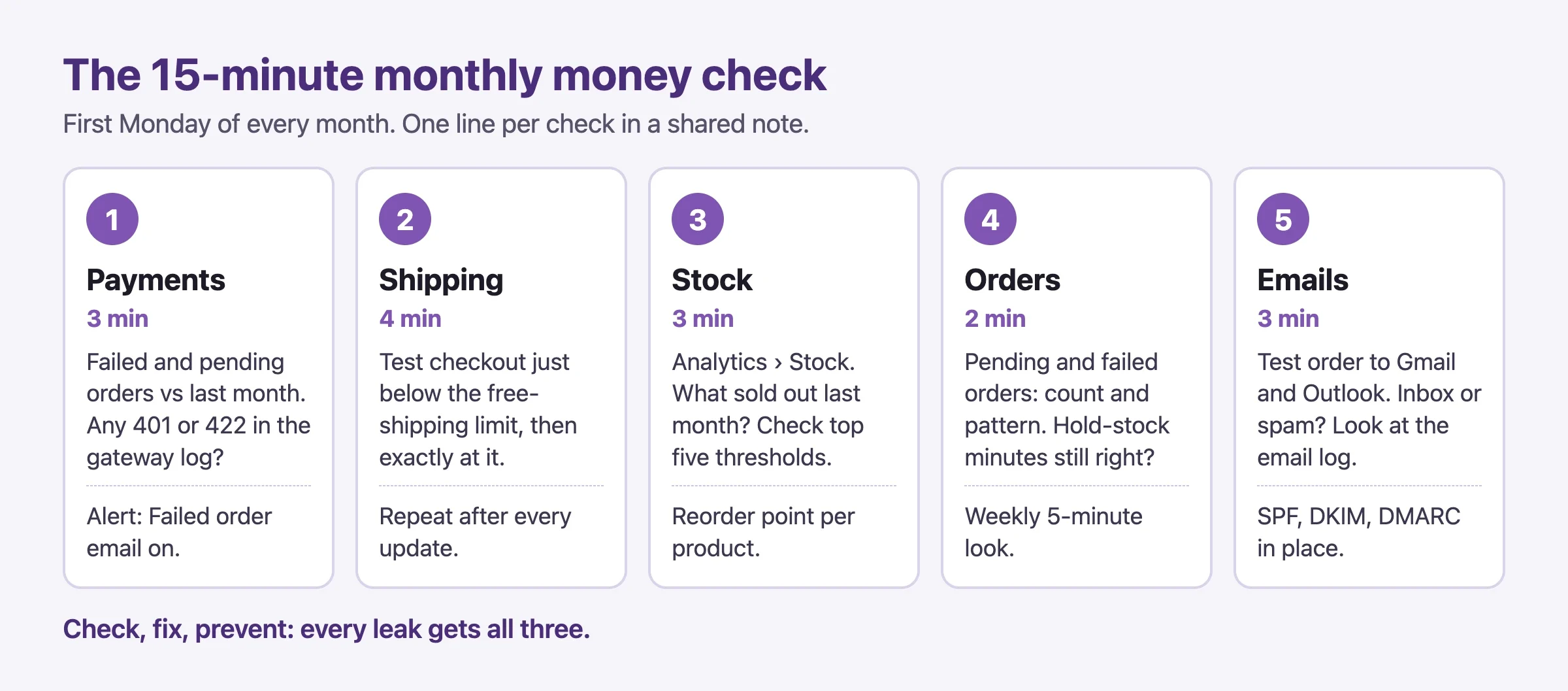
What is the 15-minute monthly money check?
Put these five steps in your calendar on the first Monday of each month.
- Payments (3 minutes): failed and pending orders this month against last month, and any 401 or 422 lines in the gateway log.
- Shipping (4 minutes): one test checkout just below your free-shipping limit and one at it.
- Stock (3 minutes): Analytics › Stock, sold-out products last month, thresholds for your top five.
- Orders (2 minutes): pending and failed orders with a pattern, and the hold-stock setting.
- Emails (3 minutes): one test order to Gmail and Outlook, and a look at the email log.
Write one line per check in a shared note. Over a year that note shows you which leak keeps coming back.
When don’t you need this?
If your store has fewer than ten orders a month, the stock and shipping parts are overkill. A quick weekly look at failed orders and one email test is enough. If you use a hosted platform, parts of this are handled for you, though payment and email checks still apply. And if your host or a care plan already monitors payments and mail, ask what they check so you do not double up.
FAQ
How often should I run the money check?
Monthly for most stores. Run the payment and email parts weekly during a sale and for two weeks after changing a plugin, host or theme.
Does a failed PayPal order always mean a PayPal problem?
No. A 401 points to the connection, but a 422 is about that specific order. The cause might be a coupon, a rounding difference, a declined card or a plugin version. Read the log line for the issue code before you change anything.
Is the free-shipping comma bug fixed?
Only partly, as far as the public tracker shows. The admin-form side was fixed in 2025. A report about stored values saved as text (for example through REST or an importer) and a report about percentage fees were both open on 5 October 2026, with fixes in draft. Test your own store at the limit.
Can I set one low stock level for the whole store?
Yes, in the Inventory settings. It is a fine start, but a per-product number based on supplier lead time works much better for products that sell fast or restock slowly.
Do I need a developer for any of this?
Not for the checks and most fixes. A developer helps when a bug needs code, when you must fix many stored values at once, or when you want bulk thresholds and monitoring set up once.
Want us to set this up for you?
We build and look after WooCommerce stores. If you would rather not run these checks yourself, we can set up the failed-order alerts, per-product reorder points, a shipping test routine and email authentication, then keep an eye on them. Talk to us about a store review and tell us which of the five leaks you suspect.
Sources we checked
- PayPal REST API responses (HTTP 401 and 422)
- WooCommerce issue 69235: locale-formatted free shipping minimum
- WooCommerce issue 69233: flat rate fee percent drops decimals
- WooCommerce pull request 54181: unformat shipping numbers before sending
- WooCommerce PayPal Payments issue tracker
- Google email sender guidelines
- WordPress handbook: hooking WP-Cron into the system task scheduler
Related reading
Plugins we build and run
We maintain these ourselves, which is why we can support them on your site.
- BuddyNextThe self-hosted community engine for WordPress
- BuddyXFree community theme, Pro when you outgrow it
- ReignPremium community theme. Add pieces, build anything
- JetonomyCommunity forum and Q&A for WordPress
- EventonomyEvents and RSVPs for WordPress communities
- LearnomyCourses and learning communities on WordPress
- ListoraDirectories and listings your members can browse
- SnipShareCode sharing built for developer communities
- WB Ad ManagerAd placements that turn traffic into revenue
- WP Career BoardA job board your community actually uses
- WP Sell ServicesSell services with offers, orders, and payouts
- MediaVersePhotos, video, and media albums for members
- WB GamificationPoints, badges, and rewards that keep members active
- Product RoadmapPublic roadmaps with voting your users trust