Using the Block Editor for WooCommerce Product Descriptions: What Works Now and How to Get It
WooCommerce turns the block editor off for products in code. Here is what works in 11.1.2, what happened to the newer product editor, and how to test blocks on staging.

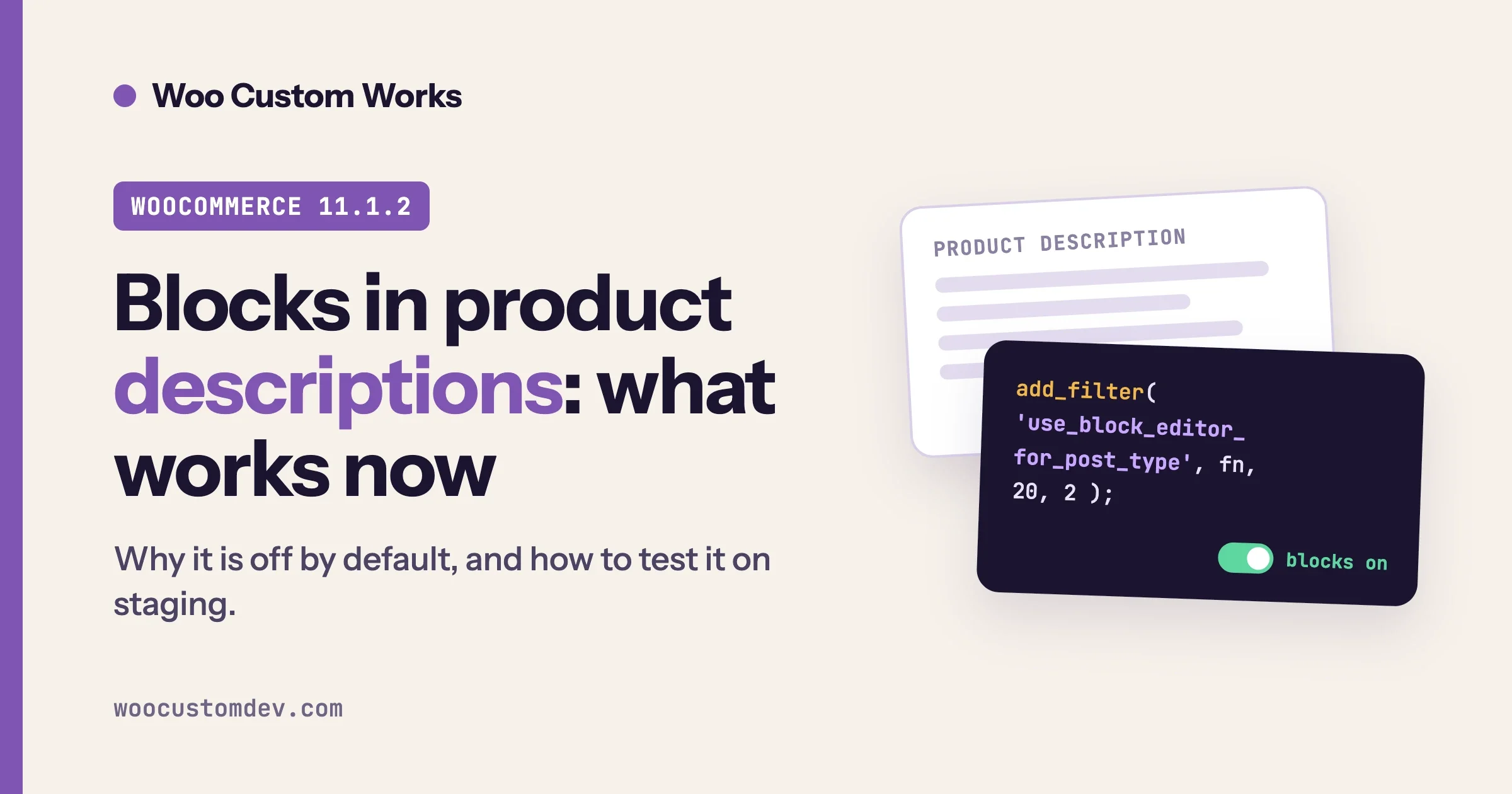
Right now, in WooCommerce 11.1.2, the block editor for WooCommerce product descriptions is switched off: the description is written in the classic editor. WooCommerce turns the block editor off for the product post type on purpose. The newer block-based product form that WooCommerce tried instead was deprecated in 10.9.0 and removed in 11.0.0, with no replacement. You can switch the block editor on for products with a short code filter, but WooCommerce offers no setting for it, so treat it as a change you test on staging first.
This guide explains what is true today and what is not, based on the WooCommerce source code rather than on forum rumours. It shows why the classic editor is used, what happened to the newer product editor, how descriptions are rendered on the storefront, how to enable blocks for the product post type, which parts of the product screen can break, and a staging test plan you can follow. It finishes with an honest view of who should and should not bother.
The topic is in the air because a well-known WooCommerce developer said publicly on X on 28 September 2026 that merchants still being unable to use the block editor for product descriptions in 2026 is not acceptable. Many store owners agree. Whether you do or not, the practical question stays the same: what can you do today, and what will it cost you?
Everything below was checked against the WooCommerce source on GitHub (stable release 11.1.2, whose readme says it is tested up to WordPress 7.1) in October 2026. We name the file for each code claim so a developer can check it. Where we have not tested something, we say so.
Can I use the block editor for WooCommerce product descriptions?
Yes, technically, but not through a setting. The block editor for WooCommerce product descriptions exists as a possibility, not as a feature. By default WooCommerce forces the classic editor on the product edit screen. The block editor becomes available only if code overrides that decision. The override is small, and WordPress core provides the filter for it, but WooCommerce does not document or support it as a feature, and its product screen was built around the classic form.
In practice you have three choices:
- Stay on the classic editor and build rich layouts in the theme or in block templates for the product page.
- Enable the block editor for products with a filter, accept that some parts of the screen stay classic, and test every extension you rely on.
- Wait. The newer product editor was removed, so no official replacement is on a visible path, and waiting is a choice about time rather than a plan.
The rest of this guide helps you pick between the first two.
Why does WooCommerce use the classic editor for products?
Because WooCommerce tells WordPress to. In includes/class-wc-post-types.php, the product post type is registered with the editor feature and with show_in_rest set to true. Those two settings are what normally make a post type eligible for the block editor. Then the same file adds a filter, with a docblock that reads “Disable Gutenberg for products”, on two hooks: use_block_editor_for_post_type and the older gutenberg_can_edit_post_type. The function behind them returns false whenever the post type is product and leaves every other post type alone.
So the block editor is not missing because it cannot work. It is switched off by an explicit line of WooCommerce code. That matters for two reasons. It means the decision can be reversed from outside WooCommerce without editing core files. It also means the choice was made on purpose, and the product screen is much more than a text box.
The product edit screen is a set of meta boxes. In includes/admin/class-wc-admin-meta-boxes.php WooCommerce adds the Product short description box, the Product data box and the Product gallery box, among others. Product data is where price, stock, shipping, attributes, variations and many extension fields live. These boxes were designed for the classic post form, not for a block canvas.
What happened to the newer WooCommerce product editor?
It was removed. The WooCommerce source now contains a folder named src/Admin/Features/ProductBlockEditor whose README says the product editor extension APIs were deprecated in WooCommerce 10.9.0 and the Product Block Editor was removed in WooCommerce 11.0.0 with no replacement. The files that remain are compatibility shims that exist only to prevent fatal errors in extensions that still reference the old PHP classes. The README also warns that the shims may be removed in a future version.
The release dates on GitHub put the timeline in plain view: 10.9.0 was published on 23 June 2026, and 11.0.0 on 4 August 2026. If you run WooCommerce 11 or later, the newer product form is simply not an option. If you still run an older version, you may have seen it as an optional or experimental feature, but building a workflow on it now would be building on something that was dropped.
This changes how to read the question. A year ago, “block editor for product descriptions” could mean either the old Gutenberg editor on the product post type or the newer product form. Today only the first one exists as a practical route. Any article that tells you to turn on a “new product editor” setting in a current WooCommerce version is out of date. Check your version under Plugins > Installed Plugins before following any advice.
What if my extension uses the old product editor APIs?
Ask the extension author. The shims prevent crashes but add no behaviour. Code that registered blocks or sections in the removed editor will load without fatal errors and do nothing useful. If a plugin you depend on advertises “product block editor support”, check its changelog for a release that addresses WooCommerce 11.
How are product descriptions shown on the storefront?
The description is stored in the product’s post_content field, and the storefront prints it through normal WordPress content handling. That is why block markup in a description can render correctly once it exists. Two paths matter, depending on your theme type.
- Classic themes. The Description tab uses the template
templates/single-product/tabs/description.php, which callsthe_content(). Any block markup in the description is rendered the same way it would be in a post. You can see how the tab area is customized in our guide to changing product page tab titles. - Block themes. WooCommerce ships a Product Description block (
woocommerce/product-description, described in its block.json as “Displays the description of the product”). It can be placed inside the Single Product block, the Product Template block and the core Post Template block.
The short description is different. It is stored in the product excerpt field and filtered through woocommerce_short_description. In includes/wc-core-functions.php WooCommerce adds do_blocks to that filter chain, so block markup in a short description would also be rendered on the storefront. But its edit box is a classic meta box: the code in class-wc-meta-box-product-short-description.php outputs a wp_editor field. Enabling the block editor for products does not turn the short description into a block field.
This split explains most of the confusion. Blocks in the description are possible on the storefront. The part that is missing is the editing experience, not the rendering.
How do I enable the block editor for WooCommerce product descriptions?
Add a filter that returns true for the product post type, later than WooCommerce’s own filter. WordPress runs filters on a hook in priority order, lowest number first. WooCommerce registers its filter at the default priority 10, so a filter at priority 20 sees WooCommerce’s answer and can override it. Put the code in a small custom plugin or a must-use plugin, not in a theme that may change:
<?php
/**
 * Plugin Name: Enable block editor for WooCommerce products
 * Description: Overrides WooCommerce's decision to disable the block editor for products.
 */

add_filter(
	'use_block_editor_for_post_type',
	function ( $use_block_editor, $post_type ) {
		return 'product' === $post_type ? true : $use_block_editor;
	},
	20,
	2
);
That is the whole mechanism. The filter name comes from WordPress core (see the WordPress developer reference for use_block_editor_for_post_type), and the override works because WooCommerce registers the product post type with editor support and REST enabled, as covered above.
Based on WooCommerce 11.1.2 source and WordPress core hook behaviour, October 2026. We read the code rather than running every extension combination, so test it on staging before it touches a live store.
Is this an officially supported setting?
No. It is a documented WordPress filter used on a WooCommerce post type. WooCommerce has no switch for it in WooCommerce > Settings, and we found no such option in the files we read. Do not trust any guide that names a checkbox for this unless it shows where the code reads that option.
How do I keep product layouts consistent once blocks are on?
Limit which blocks editors can insert on products. WordPress core provides the allowed_block_types_all filter for this. The example below allows only a short list of blocks on the product post type and leaves every other post type alone:
add_filter(
	'allowed_block_types_all',
	function ( $allowed, $context ) {
		if ( isset( $context->post ) && 'product' === $context->post->post_type ) {
			return array(
				'core/paragraph',
				'core/heading',
				'core/list',
				'core/image',
				'core/table',
				'core/columns',
				'core/column',
			);
		}
		return $allowed;
	},
	10,
	2
);
Based on the WordPress core filter signature, October 2026. Adjust the list to the blocks your design actually needs, and test it on staging with the same user roles your editors have.
A short list keeps pages consistent and keeps the editing screen simple for people who write product copy rather than design layouts. Add blocks one at a time when someone has a real need. If your store sells hundreds of similar products, pair the list with a few approved block patterns so every product page follows the same structure.
What about the other ways to get blocks into product pages?
If you only want rich layouts, you may not need the product editor at all. Options that keep the classic product screen:
- Build the layout in the product template. On a block theme, edit the single product template in the Site Editor and arrange blocks around the Product Description block.
- Add a content area after the summary with a hook such as
woocommerce_after_single_product_summary, and render a block pattern or reusable content there. A developer can set this up in an afternoon. The hook is covered in our WooCommerce hooks, architecture and REST API developer guide. - Use a plugin that applies the same kind of filter. Before installing one, check when it was last updated and whether it declares support for your WooCommerce version, because a plugin that was never updated after 11.0 may behave unpredictably.
What breaks when I enable the block editor for products?
The honest answer is that nobody can promise a clean result for your store, because the answer depends on your extensions. What we can describe is where the risk sits. Product data, short description and gallery are classic meta boxes. WordPress supports showing meta boxes under the block editor, and WooCommerce’s boxes are registered with add_meta_box, so they should still appear. But they were built for the classic page form, so each must be tested rather than assumed.
Part of the product screen | What we know from the code | What to test |
|---|---|---|
Description field | Becomes a block canvas. Existing text is wrapped in a Classic block when opened. | Open ten real products, check they look right, save without changes and compare the storefront. |
Short description | Stays a classic meta box with its own editor. It is not a block field. | Edit and save it, then view the product page. Check line breaks and links. |
Product data box | A meta box registered by WooCommerce. Price, stock, shipping, attributes and variations live here. | Save price, sale dates, stock, a variation and an attribute change. Reload and confirm values stuck. |
Product gallery box | A meta box in the side area. | Add, remove and reorder images. Set the product image. |
Extension fields | Extensions that add fields to the product screen use classic hooks and meta boxes. | Open every field your extensions add and save a product with each one filled in. |
Storefront output | Description tab prints content through | Check desktop and phone layouts, wide and full-width blocks inside the tab, and image sizes. |
Bulk edit and import | Not changed by the editor choice. They work on the same stored fields. | Run one small import on staging and view the results. |
Two more consequences deserve attention before you start.
Block markup lives inside the description. When an editor saves a block layout, the description holds block comments such as <!-- wp:paragraph -->. If you later switch back to the classic editor, the storefront still renders it, because the content filters still run, but your team will see those comments in the Text tab. Warn them, or they will delete lines they do not understand.
Your team gets more freedom than they may want. A block editor on products lets someone add columns, buttons and embedded media. That is useful for a designed landing-style product page. It is also a risk if ten people edit three thousand products and each uses a different layout. Decide your allowed blocks and patterns before you open the door.
How do I test this safely on staging?
Use a staging copy that matches production, enable the filter there only, and run a fixed checklist before you decide. If you do not have a staging process, set that up first. Our guide to WooCommerce staging, migration, CDN and database performance covers it.
- Clone production to staging with the same WooCommerce version, theme and plugin set. Block staging from search engines and from sending real emails and payments.
- Record the baseline. Note the WooCommerce version, the theme and the list of active plugins. Take screenshots of five product pages: simple, variable, grouped, external and one with the most extensions active.
- Install the filter as a separate plugin using the snippet above. A separate plugin means you can switch it off with one click.
- Open each of the five products and confirm the description opens in the block editor and the meta boxes appear below it.
- Edit and save with no content change. Reload the screen. Confirm price, stock, attributes, variations, gallery and short description are unchanged.
- Make a real change. Add a heading, an image and a two-column block to one description. Save and view the storefront at desktop and phone widths.
- Test your extensions. For every plugin that adds fields to the product screen, fill the field, save and check the output.
- Check the extras you rely on: your SEO plugin’s panel, structured data on the product page, product feeds and your page cache.
- Switch the plugin off and confirm the storefront still renders every product you edited. This proves your rollback.
- Write down the result. List what worked, what broke and what you would need to fix. Show the list to whoever owns the store before you decide on production.
Roll out to production only after the checklist passes, at a quiet time, with a fresh database backup, and with one named person responsible for watching the first day of edits.
Who should use the block editor for WooCommerce product descriptions, and who should not?
It is worth the effort if your product pages carry long, designed content: comparison tables, feature sections, video, FAQs and reusable layouts that your editors currently build with shortcodes or page builders. It is also worth it if the same patterns appear on many products, because block patterns let a team reuse them.
It is not worth it if you have a very large catalog with plain text descriptions, an import-driven workflow where nobody edits products by hand, or a product screen packed with extensions you cannot test. In those cases the safe move is to keep the classic editor and improve the storefront side instead. For large catalogs, scale and import speed matter more than the editor, which is a different problem covered in our guide to scaling WooCommerce to 100K products.
If you build custom product types with their own admin panels, test those first. The panels extend the classic Product data box, and our guide to custom WooCommerce product types shows how that code works so you know what to check.
One more thing to keep in mind. The fact that the filter works today does not guarantee the same behaviour in every future WooCommerce release. WooCommerce could change its product screen again. Keep the override small, in its own plugin, and re-test it at each major WooCommerce update.
When should I get a developer involved?
Bring in a developer when the change touches live revenue pages and the cost of a mistake is high. Typical triggers:
- You run extensions that add many product fields, and you cannot afford to lose saved data.
- You want layouts that only certain roles can edit, with a restricted set of allowed blocks.
- You need descriptions rendered from reusable patterns across thousands of products.
- You depend on the removed product editor in a custom extension and need a migration path.
- You want the same result without changing the editor, using template and hook work instead.
A good developer starts with the staging checklist above, then recommends one of the three choices with the reasons written down. Be wary of anyone who promises that the block editor will “just work” on a store with a full set of extensions without testing.
Frequently asked questions
Why can’t I use the block editor on WooCommerce products by default?
WooCommerce disables it in code. The file includes/class-wc-post-types.php adds a filter that returns false for the product post type on the block editor hooks, with the comment “Disable Gutenberg for products”.
Was the new WooCommerce product editor removed?
Yes. According to the README in the WooCommerce source, the Product Block Editor APIs were deprecated in 10.9.0 and the editor was removed in 11.0.0 with no replacement. Only compatibility shims remain.
Does the short description support blocks?
Block markup in a short description is rendered on the storefront, because WooCommerce adds do_blocks to the short description filter. But its edit box remains a classic editor field, even if you enable the block editor for the description.
Will my existing product descriptions break?
Existing descriptions are stored as ordinary content, so they continue to show on the storefront. In the block editor they open as a Classic block. Test your own products on staging to confirm they look the same.
Can I undo the change?
Yes. Remove the filter plugin. Descriptions still render, but any block markup remains as HTML comments visible in the classic editor’s Text tab.
Want help deciding or building this?
We test product-screen changes on staging against your real extensions and give you a written result before anything goes live. If you want the layout work done as well, we build the product templates, patterns and guard rails around it.
- WooCommerce customization for product page layouts, templates and admin screens.
- WooCommerce development services for custom extensions, product types and migrations.
Send us your WooCommerce version and a list of the plugins that touch your product screen. We will tell you which of the three choices we would test first.
Plugins we build and run
We maintain these ourselves, which is why we can support them on your site.
- BuddyNextThe self-hosted community engine for WordPress
- BuddyXFree community theme, Pro when you outgrow it
- ReignPremium community theme. Add pieces, build anything
- JetonomyCommunity forum and Q&A for WordPress
- EventonomyEvents and RSVPs for WordPress communities
- LearnomyCourses and learning communities on WordPress
- ListoraDirectories and listings your members can browse
- SnipShareCode sharing built for developer communities
- WB Ad ManagerAd placements that turn traffic into revenue
- WP Career BoardA job board your community actually uses
- WP Sell ServicesSell services with offers, orders, and payouts
- MediaVersePhotos, video, and media albums for members
- WB GamificationPoints, badges, and rewards that keep members active
- Product RoadmapPublic roadmaps with voting your users trust