Your WooCommerce Store Is Busy With Work Nobody Sees: Action Scheduler Backlogs and Add-to-Cart Crawl Traps Behind a Slow Checkout
Slow checkout but the gateway looks fine? Learn how to spot an Action Scheduler backlog and add-to-cart crawl traps, fix cron, clean actions safely and rate limit at the CDN.

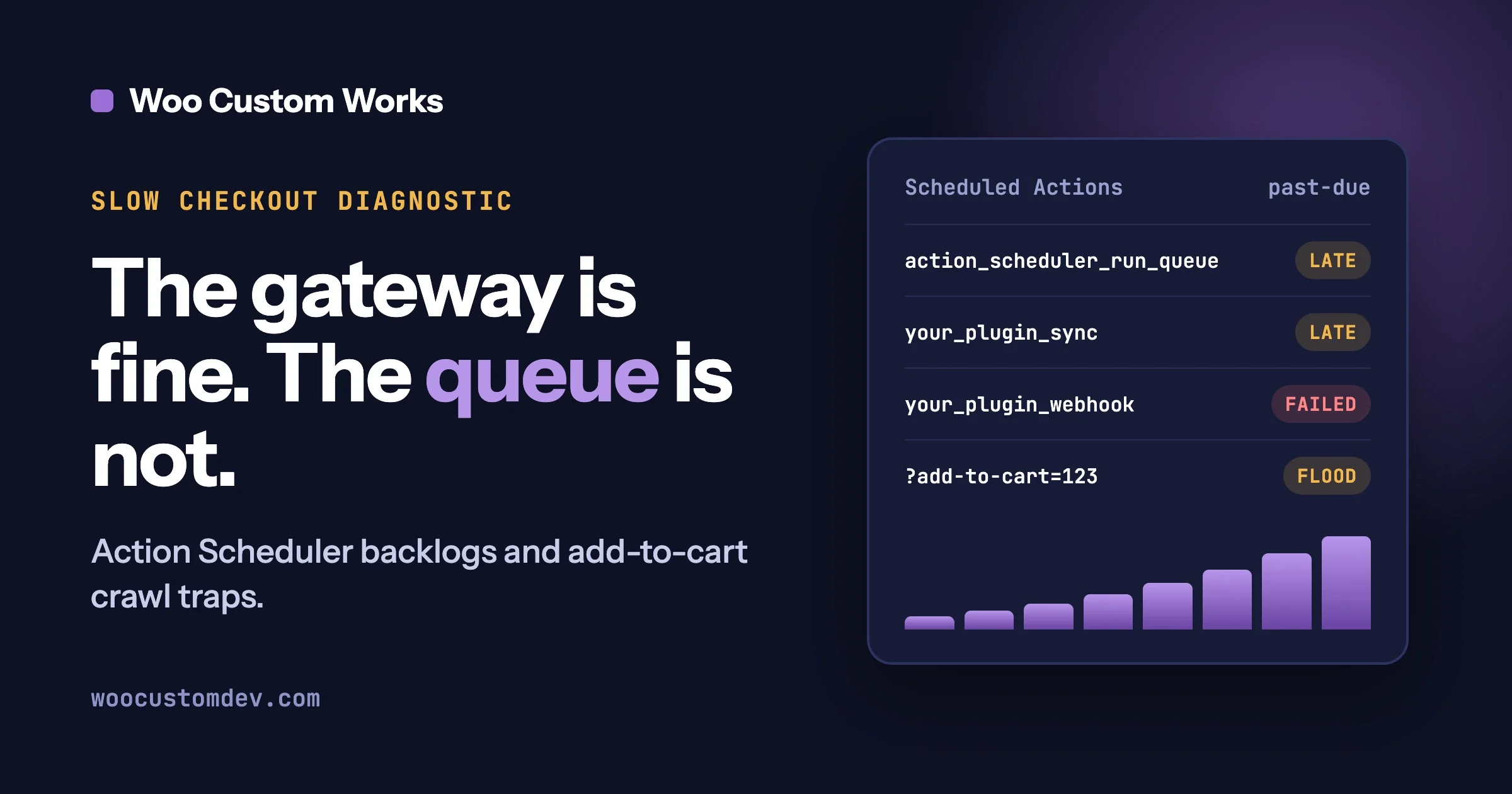
If your WooCommerce checkout is slow but your payment gateway says everything is fine, the cause is usually work nobody is looking at. Two things hide in plain sight: a growing Action Scheduler backlog that runs on WordPress’s default visitor-triggered cron, and floods of cheap, uncacheable requests such as ?add-to-cart= and remove_item= links that eat your PHP workers before a real customer reaches the payment step.
A WooCommerce checkout slow for no visible reason is rarely a mystery once you look at the queue and the request log. This guide shows where to see both problems in your own admin and logs, how to tell a crawl trap in your own markup from scripted abuse, and what to change first. It also covers moving to a real server cron, cleaning old actions without losing data you still need, and rate limiting expensive requests at the CDN. It ends with a 30-minute check you can run today and a plain list of when to hand this to a developer.
Everything about Action Scheduler and WooCommerce behaviour below was checked against the current source code (WooCommerce 11.1.2 and the Action Scheduler repository) in October 2026. Where we could not confirm a detail, we say so instead of guessing a number.
Why is my WooCommerce checkout slow when the payment gateway is fine?
Because the slow part is probably not the payment call. A checkout request needs a PHP worker, a database connection and a few hundred milliseconds of uncontested CPU. If background jobs or junk requests already occupy those workers, the customer waits in line before WooCommerce even starts talking to Stripe, PayPal or your card processor. The gateway dashboard looks clean because the gateway never saw the slow part.
The typical story we hear from store owners goes like this. Checkout feels fine most of the day, then random orders take far longer than they should. The admin sometimes crawls for no clear reason. Card payments occasionally time out, but the gateway log shows no error. Someone installs another speed plugin, nothing changes, and the problem returns a week later.
A WooCommerce checkout slow only at certain hours is the clearest hint of this. That pattern points at shared resources, not at one broken page. Two shared resources deserve a look before you touch anything else:
- The background queue. WooCommerce uses a job queue library called Action Scheduler for emails, webhooks, subscription renewals, stock syncs and many plugin tasks. If the queue grows faster than it drains, every request that touches it gets slower.
- Request load you did not plan for. Search crawlers, SEO tools and scripts can request add-to-cart and remove-from-cart URLs thousands of times. Each of those requests runs WordPress and WooCommerce code, and none of them can be served from a page cache.
We have lived through the second one on our own store, wbcomdesigns.com, where a flood of GET requests landed on the checkout page. That experience is why the advice on path-level rules later in this guide comes from handling it, not only from reading about it.
Reports of both problems have been appearing on Reddit’s r/woocommerce lately. We could not open those threads from our research environment, so we do not quote any numbers from them. The mechanics below do not depend on them: they come from reading how WooCommerce and Action Scheduler actually work.
What is Action Scheduler and why does it matter for checkout speed?
Action Scheduler is a job queue library that ships inside WooCommerce. It stores jobs (called actions) in database tables, each with a hook name, a scheduled time and a status. A queue runner picks up due actions in batches and executes them. Plugins use it to send emails later, retry webhooks, renew subscriptions, sync inventory, generate reports and import data in small pieces.
It matters for checkout because the queue runner shares PHP workers and the database with your customers. By default the runner is fairly polite. Reading the library’s source shows these defaults:
- The queue runner is attached to a WP-Cron event named
action_scheduler_run_queue, which Action Scheduler schedules as a recurring event. - One batch runs at a time by default (the
action_scheduler_queue_runner_concurrent_batchesfilter returns 1). - A batch stops when it hits the time limit, which defaults to 30 seconds and can be changed with the
action_scheduler_queue_runner_time_limitfilter. - A batch also stops when it reaches about 90 percent of the PHP memory limit.
- The default batch size is 25 actions, filterable with
action_scheduler_queue_runner_batch_size.
Those limits protect your store from a runaway queue, but they also cap how fast a backlog can drain. If your plugins create actions faster than 25-at-a-time batches can clear them, the queue grows. A growing queue means bigger table scans, longer claim queries and more time spent in the runner on every cycle. On a busy store that cost shows up as a slower admin and slower checkouts.
Where do I see an Action Scheduler backlog in WooCommerce?
Go to WooCommerce > Status > Scheduled Actions in the WordPress admin. The list has filter links at the top for All, Pending, Past-due, In-progress, Complete, Failed and Canceled, each with a count. A healthy store has a small Past-due count that clears itself within minutes. A backlog looks like a Past-due or Pending number that keeps climbing day after day.
Read the screen in this order:
- Past-due count. Past-due means the action was supposed to run already and has not. A handful is normal. A large number that never shrinks means the runner is not keeping up, or is not running at all.
- Oldest scheduled date in Pending. Sort or scan for the earliest date. If actions scheduled days ago are still pending, something is blocking the runner.
- Repeated hook names. Search for a hook name you see many times. One plugin creating tens of thousands of near-identical actions is a very common cause.
- Failed actions. Open a few and read the log lines at the bottom. Group them by hook. Failures that repeat with the same message point to a specific plugin or integration.
- In-progress actions that never finish. These can mean a job that crashes mid-run, for example on a PHP time or memory limit.
We do not give a single number for “too many”, because the right threshold depends on how fast your store creates actions. Watch the trend instead. If Pending plus Past-due is higher today than it was last week, and it is not a one-off bulk import, you have a backlog worth fixing.
What the filter counts tell you
What you see | Likely meaning | First step |
|---|---|---|
Past-due keeps growing, nothing in progress | The queue runner is not being triggered, often because WP-Cron is not firing | Check WP-Cron and move to a real server cron |
Pending is huge, one hook dominates | A plugin is creating more actions than the queue can drain | Identify the plugin by hook name, then ask its developer or tune its schedule |
Failed count keeps growing with the same error | An integration is broken: expired API key, blocked URL, bad data | Fix the cause before deleting anything |
In-progress items sit for a long time | A job is timing out or running out of memory | Check the PHP error log and the hook’s job size |
Complete is enormous | Old finished actions are piling up | Clean them in batches (see below) |
Why does WP-Cron on its default trigger make the backlog worse?
WordPress does not have a clock of its own. Its built-in cron, WP-Cron, checks for due events when a visitor loads a page and, if something is due, starts a separate request to run it. On a store with steady traffic that works most of the time. On a quiet store, due events wait until the next visitor arrives. On a busy store, many page loads can try to start cron at once, so cron work competes with the very requests it was meant to stay out of the way of.
Action Scheduler depends on that trigger by default. If cron is late, the queue runner is late, and the backlog grows. If cron fires too eagerly under load, the runner and your shoppers fight for the same workers. Neither case shows up as an error. You just see slowness.
There is a second effect. Some actions are the ones customers are waiting for: sending an order confirmation, kicking off a webhook to your fulfilment system, updating stock after a sale. When the queue is behind, those happen late, and store owners often read that as “checkout is broken” even though the order itself saved fine.
How do I move WooCommerce to a real server cron?
Turn off the visitor-triggered cron and have the server call WordPress’s cron runner on a fixed schedule instead, for example once a minute. This is a standard WordPress practice, described in the WordPress plugin handbook page on hooking WP-Cron into the system task scheduler. It makes background work arrive on time and keeps cron spawning off your customers’ page loads.
First, add this to wp-config.php above the line that says “That’s all, stop editing”:
define( 'DISABLE_WP_CRON', true );Then add a server cron entry. On a typical Linux host with WP-CLI installed, run crontab -e for the user that owns the site files and add:
* * * * * cd /path/to/your/site && wp cron event run --due-now > /dev/null 2>&1Replace /path/to/your/site with the folder that holds wp-config.php. If WP-CLI is not available on your host, a cron entry that requests wp-cron.php over HTTP is the usual alternative, and most managed hosts offer a “real cron” switch in their dashboard that does the same thing.
After the change, confirm it works:
wp cron event list --fields=hook,next_run_relative | head -20You should see action_scheduler_run_queue in the list, and its next run should stay within about a minute of now instead of drifting. Then watch the Past-due count in Scheduled Actions for a day. It should fall.
Verified against WordPress cron behaviour and the Action Scheduler source, October 2026. Test on staging first and keep the old wp-config.php line commented, not deleted, so you can roll back.
Should I run the queue from WP-CLI directly?
On large stores, yes, it can be worth it. The Action Scheduler WP-CLI documentation says WP-CLI is a better runner for long-running tasks, large queues and sites where other plugins use WP-Cron heavily, because a command-line run does not share the limits of a web request. The command is:
wp action-scheduler run --batch-size=100 --batches=0Here --batches=0 keeps going until no due actions remain. The command also accepts --hooks and --group to run only some actions, and --force to ignore the concurrent-batch limit. Use --force carefully: that limit exists to stop the server being overwhelmed.
One warning from the same documentation applies here. If you install the “Action Scheduler - Disable Default Queue Runner” plugin so only WP-CLI runs the queue, you must keep a scheduled WP-CLI run going. Otherwise nothing is processed. Also be careful with --hooks and --group if one action depends on another: running only part of a dependent pair out of order can cause odd results, which the documentation illustrates with subscription actions.
For most small and mid-size stores, the simple server cron above is enough. Reach for the WP-CLI runner when the queue still does not drain after cron is fixed.
How do I safely clean failed and completed actions?
Clean in small batches, after a database backup, and read the failed actions before you delete them. Completed and canceled actions are safe to remove once they are old, and Action Scheduler already does this for you. Failed actions are different: they are evidence of a broken integration, and deleting them hides the problem without fixing it.
Action Scheduler has a built-in cleaner. Reading its source, the default retention is one month for finished actions (the action_scheduler_retention_period filter) and three months for failed ones (the action_scheduler_retention_period_for_failed filter). If your table is far bigger than a month of activity should produce, either the cleaner is not getting a chance to run, or something creates actions at a rate the cleaner cannot match.
The WP-CLI clean command gives you manual control:
wp action-scheduler clean --status=complete,canceled --before='30 days ago' --batch-size=500 --pause=2Those options are documented in the Action Scheduler WP-CLI reference: --status takes a comma-separated list (the default is canceled and complete), --before limits the clean to actions scheduled before a date (the default is 31 days), --batch-size sets how many actions per status go in each batch, and --pause waits that many seconds between batches so the database can breathe.
A sensible order of work:
- Back up the database. Cleaning deletes rows, and there is no undo.
- Look before you delete. List a few failed actions and read them:
wp action-scheduler action list --status=failed --per_page=10 --fields=id,hook,scheduled_date
For stores with very large tables, the same approach applies, just more slowly. Large deletes are heavy queries. Run them off-peak, with a pause between batches, and never from a browser request that can time out halfway through.
If the table is already huge, our WooCommerce database optimization guide covers the wider database side, and the staging, migration, CDN and database performance guide shows how to rehearse clean-ups on a staging copy first.
Can one plugin flood the queue with actions?
Yes, and it is one of the most common causes. A plugin that schedules one action per product, per order or per customer can create tens of thousands of jobs from a single import or bulk edit. The hook name tells you who is responsible: most plugins prefix their hooks with their own name.
To find the culprit, search the Scheduled Actions screen by a hook fragment, or use WP-CLI to list pending actions for one hook:
wp action-scheduler action list --status=pending --hook=your_hook_name --per_page=10 --fields=id,hook,scheduled_dateOnce you know the plugin, the useful questions are: did it start creating actions after a recent update, does it have a setting for how often it syncs, and does its own documentation say how to stop old jobs from piling up? Do not remove the plugin blindly, because an in-use integration may depend on those jobs. Contact its support with the hook name and the rough count, which gets you a faster answer than “my site is slow”.
What is an add-to-cart crawl trap?
A crawl trap is a set of URLs that look different to a crawler but all do the same expensive thing. In WooCommerce, the classic trap is the add-to-cart URL. WooCommerce’s form handler reads an add-to-cart query parameter on any URL and, if the value is a product ID, tries to add that product to the cart. So a link like /shop/?add-to-cart=123 is not a page. It is an action, and the server runs real WooCommerce code to perform it.
Crawlers follow links. If your own markup or filters contain crawlable add-to-cart links, a crawler can request them over and over, combining them with sort orders, filter parameters and page numbers into a very large number of distinct URLs. The cart-removal link works the same way: WooCommerce looks for a remove_item query parameter, and checks a nonce only after the request has already reached the PHP handler.
Two details from the source code are worth knowing:
- On shop archive pages, WooCommerce builds each loop button as a plain link to the add-to-cart URL. When that URL differs from the product permalink, it adds
rel="nofollow"to the link. That is a hint to well-behaved crawlers, not a barrier, and it does nothing against tools that ignore it. - The “Enable AJAX add to cart buttons on archives” option (WooCommerce > Settings > Products > General) changes how the click behaves for shoppers. It does not remove the link from the page source, so a crawler can still see and request the URL.
The cost is not the single request. It is the volume. Every add-to-cart or remove-item request changes cart state, so a page cache cannot answer it. It runs through WordPress, WooCommerce and your plugins every time. Enough of them at once and your PHP workers are busy when a real customer clicks “Place order”.
How do I tell a crawl trap from scripted abuse?
Look at your access log, not your analytics. Analytics tools mostly ignore bots, so a flood can be invisible there. The access log shows every request, its path, its query string, its user agent and its status code. The question is whether the traffic follows links in your own pages (a trap) or hits endpoints directly with no browsing behind it (abuse).
Start with three counts on your web server’s log. These commands assume the common combined log format used by default on Nginx and Apache, and a log at the path shown (yours may differ):
# how many requests carry an add-to-cart parameter
grep -c 'add-to-cart=' /var/log/nginx/access.log

# which IPs send the most of them
grep 'add-to-cart=' /var/log/nginx/access.log | awk '{print $1}' | sort | uniq -c | sort -rn | head

# which user agents send them
grep 'add-to-cart=' /var/log/nginx/access.log | awk -F'"' '{print $6}' | sort | uniq -c | sort -rn | head
Then compare the patterns:
Signal | Points to a crawl trap | Points to scripted abuse |
|---|---|---|
User agents | Named search or SEO crawlers, or a few repeated agents | Random, blank or browser-like agents that change often |
URL shapes | Add-to-cart combined with sort, filter and page parameters from your own archive links | The same bare endpoint requested directly, over and over |
Rate per address | Low and steady from a few addresses | Often spread thinly over very many addresses |
Referrers | Often empty, but the URL matches a link that exists in your markup | Empty or fake, and the URL pattern never appears in your pages |
Timing | Follows a crawl pattern, steady for hours | Bursts, or starts suddenly and stops |
Be honest about the limits of this table. Some abuse imitates crawlers, and some crawlers are badly behaved. You do not need a perfect label before acting. Both problems get the same first fix, in the same order: remove the cause in your own markup, then limit the expensive actions at the edge.
What should I fix in my own markup first?
Stop offering the trap. If your pages do not contain crawlable add-to-cart links, well-behaved crawlers cannot walk into them, and the abusive traffic that remains is much easier to see. Work through this list on staging:
- Check where add-to-cart links appear. Archive loops, widgets, related products, filter plugins and theme builders can all print them. View source on a shop page and search for
add-to-cart=. - Keep these URLs out of filter links. Layered-navigation and sort links should never carry add-to-cart or remove_item parameters. If a filter plugin does that, report it to the plugin author.
- Add a robots.txt rule. Search engines that follow robots.txt will skip the URLs:
User-agent: *
Disallow: /*add-to-cart=
Disallow: /*remove_item=
This only affects crawlers that obey robots.txt. It does not stop scripts that ignore it.
Mark these responses as not indexable. A small snippet in a custom plugin sends a header on those requests:
add_action( 'send_headers', function () {
	if ( isset( $_GET['add-to-cart'] ) || isset( $_GET['remove_item'] ) ) {
		header( 'X-Robots-Tag: noindex, nofollow' );
	}
} );
This tells search engines not to index or follow the result. It does not reduce server work for requests that already arrived.
Use the AJAX add-to-cart option for shoppers if your theme supports it, so real customers do not trigger full-page add-to-cart requests.
Verified against WooCommerce 11.1.2 source, October 2026. Test the snippet on staging. Put it in a small custom plugin, not in a theme that may change.
None of these changes slow a real customer down. They only change what crawlers see. That is also why it pays to do them before blocking anything: you fix the cause without any risk of blocking a shopper.
How do I rate limit expensive actions without blocking real customers?
Match on what the request does, not on who sends it. Limit by path, query string and HTTP method at your CDN or web application firewall (WAF), and avoid rules based only on IP address or country. Traffic that comes from a very large number of addresses at a low rate per address slips under per-IP limits, and country blocks catch real shoppers while barely slowing a distributed script.
A rule built around the expensive action looks like this in plain words: for GET requests whose query string contains add-to-cart= or remove_item=, apply a request-rate limit, or a challenge, for any visitor who exceeds a threshold you choose from your own normal traffic. Real shoppers add a few items per session. Anything adding items at machine speed stands out.
Some practical points:
- Know your own legitimate endpoints. WooCommerce’s AJAX add-to-cart normally uses a POST request through the
wc-ajaxendpoint, not a GET withadd-to-cart=in the URL. A rule that only targets GET requests with the query parameter should leave normal AJAX buying alone. Confirm that on your own site before enforcing the rule. - Start in observe mode. Most CDNs and WAFs let a rule log or challenge before it blocks. Run it that way for a few days, check the log for any real customer who would have been caught, and only then switch to blocking.
- Challenge before you block where you can. A managed challenge costs a real person one click and costs a script a lot.
- Keep the checkout itself protected. Repeated GET or POST requests to checkout endpoints are a different problem from add-to-cart noise. Card-testing bots behave differently from crawlers, and our WooCommerce fraud prevention and chargeback guide covers rate limiting at the checkout layer in detail.
- Expect a few false positives. Corporate networks and shared addresses make many people look like one visitor. That is another reason to challenge first.
If you expect a traffic spike from a campaign or sale, plan these limits and the cron change before the event. Our guide on optimizing WooCommerce for high-traffic sales events walks through load testing and capacity planning.
What is a 30-minute check I can run on my own store?
You can answer the main question, “is hidden work slowing my checkout?”, in half an hour without installing anything. Do these in order and write down what you see:
- Minutes 0 to 5: look at the queue. Open WooCommerce > Status > Scheduled Actions. Note the Past-due, Pending, In-progress and Failed counts and the oldest pending date.
- Minutes 5 to 10: check cron. If you have shell access, run
wp cron event listand look foraction_scheduler_run_queue. Checkwp-config.phpforDISABLE_WP_CRON. If it is set, confirm a server cron really exists. If it is not set, you are on the visitor-triggered default. - Minutes 10 to 15: read one failed action. Open two or three and read the log. Note the hook and the message.
- Minutes 15 to 20: count add-to-cart requests. Run the
grep -ccommand from earlier on today’s access log and compare it with the number of orders you received. - Minutes 20 to 25: see who sent them. Run the IP and user-agent counts. Do the top entries look like crawlers, a few IPs, or a wide spread?
- Minutes 25 to 30: view source on a shop page. Search for
add-to-cart=to see whether your own markup offers the links, then decide which of the fixes above you will do first.
Write the numbers in a note with the date. A second reading a week later tells you more than any single snapshot, because it shows whether things are growing or stable.
When should I call a developer?
Call a developer when the fix needs server access, code changes or a judgement about live data you cannot undo. Plenty of this guide is safe for a store owner to do. Some parts are not. Hand it over if any of these is true:
- The Past-due or Pending count keeps growing after you fix cron.
- One plugin creates the flood and its settings offer no way to reduce it.
- Failed actions touch payments, subscriptions or stock, and you are not sure what is safe to delete.
- You cannot edit
wp-config.php, set up a server cron or read access logs on your host. - Your logs show tens of thousands of requests and you cannot tell what they are.
- Your checkout slows down during campaigns and you need a plan, not a guess.
- You have tried the fixes and checkout is still slow. That usually means the cause is somewhere else, such as a slow query, a heavy plugin or an undersized server.
A developer should start with measurements, not with changes. Ask for a short written report that shows the queue state, the cron setup, the request breakdown from the logs and a ranked list of fixes. If anyone proposes to “optimize everything” without those numbers first, treat that as a warning sign.
When is a WooCommerce checkout slow for some other reason?
If your store is small, your Scheduled Actions screen shows a short queue that clears quickly, and your access log shows no unusual add-to-cart traffic, hidden work is not your bottleneck. Look at the things that usually slow a small store instead: an oversized homepage, uncompressed images, slow hosting, a heavy theme or too many plugins loading on every page. A real server cron is still a good idea, but it will not change checkout speed on its own.
Also remember that slow card payments can be a gateway-side issue. If your gateway’s own status page shows delays, no change on your server will help.
Frequently asked questions
Is it safe to delete all Action Scheduler actions?
No. Deleting pending actions can remove real work such as subscription renewals. Deleting failed actions hides evidence of a broken integration. Clean old complete and canceled actions in batches after a backup, and read failed actions before you decide what to do with them.
Will a real server cron fix a WooCommerce checkout slow problem?
It fixes one cause: background jobs that run late or compete with shoppers on the default visitor-triggered trigger. It will not fix slow queries, heavy plugins or crawler floods. Treat it as a baseline that makes the other measurements easier to trust.
Where is the Action Scheduler screen in WooCommerce?
Go to WooCommerce > Status > Scheduled Actions. It lists every action with its hook, status and scheduled time, and it has filter links for Pending, Past-due, In-progress, Complete, Failed and Canceled.
Are add-to-cart requests from crawlers harmful?
They can be, because each one runs full WordPress and WooCommerce code and none can come from a page cache. A few are harmless. A flood can take up your PHP workers. Remove crawlable add-to-cart links from your markup, add robots.txt rules and limit the expensive action at the CDN.
Should I block by IP or country?
Not as the main control. Distributed traffic comes from many addresses at a low rate per address, and country blocks affect real customers. Limit by path, query string and method, and challenge before you block.
Need someone to check this on your store?
Our team reads the queue, the cron setup and the access logs, then gives you a short ranked list of fixes. If you want the changes made as well, we handle them on staging first and roll them out when you are happy with the results.
- WordPress maintenance services for ongoing monitoring of cron, queues and backups.
- WooCommerce development services for custom fixes, plugin work and performance changes.
Send us the store URL and a short note about when checkout feels slow. We will tell you what we would look at first.
Plugins we build and run
We maintain these ourselves, which is why we can support them on your site.
- BuddyNextThe self-hosted community engine for WordPress
- BuddyXFree community theme, Pro when you outgrow it
- ReignPremium community theme. Add pieces, build anything
- JetonomyCommunity forum and Q&A for WordPress
- EventonomyEvents and RSVPs for WordPress communities
- LearnomyCourses and learning communities on WordPress
- ListoraDirectories and listings your members can browse
- SnipShareCode sharing built for developer communities
- WB Ad ManagerAd placements that turn traffic into revenue
- WP Career BoardA job board your community actually uses
- WP Sell ServicesSell services with offers, orders, and payouts
- MediaVersePhotos, video, and media albums for members
- WB GamificationPoints, badges, and rewards that keep members active
- Product RoadmapPublic roadmaps with voting your users trust