WooCommerce Store Operations: Staging, Migration, CDN & Database Performance
A practical operations guide to WooCommerce staging workflows, migration gotchas (serialized data, order meta, gateway keys), CDN setup for product images, and database optimization tactics for orphaned order and session data.

Every WooCommerce store owner hits the same wall eventually. The setup that got the store live does not hold up once real order volume shows up. This is where WooCommerce store operations start to matter more than any single plugin choice. Staging environments drift out of sync with production. A migration corrupts serialized data and quietly breaks recurring payments. The wp_options table balloons past a gigabyte with expired transients nobody ever cleaned out. None of this shows up in a demo store. It shows up three months into running the real thing, usually right before a sale event when traffic and orders spike together.
This guide covers four operational areas. Each one reliably causes downtime, lost revenue, or SEO damage on a growing WooCommerce store: safe staging and production workflows, migration pitfalls specific to WooCommerce’s data model, CDN setup for product images, and the database bloat that eventually forces a real cleanup pass. Two scenarios below come from real support tickets. They land on a developer’s desk after something has already broken, because the theory only matters once you’ve seen what actually goes wrong.
Why WooCommerce Store Operations Are Riskier Than a Typical WordPress Site
A brochure site can tolerate a slightly stale staging clone or a messy database table. A store can’t. WooCommerce writes to the database constantly. Every cart update, every abandoned checkout, every webhook from a payment gateway adds a row. That write volume turns ordinary WordPress maintenance into work that needs a real plan.
Three things make WooCommerce different from a standard WordPress install:
- Live order data. Orders, refunds, and subscription renewals happen in real time. Any workflow that touches the database has to account for data created after a backup or clone was taken.
- Serialized PHP arrays everywhere. Cart contents, order line items, product meta, and gateway settings are often stored as serialized strings. Those strings are fragile during migration.
- External integrations with state. Payment gateways, shipping APIs, and tax services keep their own records tied to your site’s URL and API keys. Move the site without updating those references, and the integration breaks silently.
With that context, here’s what each operational area actually requires.
Safe Staging Workflows for a Live WooCommerce Store
The Core Problem: Order Data Desync
The standard WordPress staging pattern is simple. Clone production, make changes on staging, push staging back to production. That pattern is dangerous for a store. Say a customer places an order on the live site while you’re testing a plugin update on staging. If you later push staging back over production, that order disappears. So does the payment record, the inventory decrease, and any related account activity.
This isn’t a hypothetical case. It’s the single most common way store owners lose orders during routine maintenance. It usually isn’t discovered until a customer emails asking where their package is.
A Staging Workflow That Doesn’t Corrupt Orders
The fix is selective sync instead of a full database push-pull. In practice:
- Clone production to staging for code and theme testing. Treat the sync as one-directional, production to staging, by default.
- Never push a full staging database back to production. If a change needs to go live, deploy the code change directly and re-test on production during a low-traffic window. Or use a targeted SQL migration that only touches the tables the change actually affects.
- Exclude WooCommerce’s order tables (
wp_wc_orders,wp_wc_order_meta,wp_postmetaorder rows,wp_woocommerce_sessions) from any staging refresh script that runs on a schedule. That way a nightly staging rebuild can’t leak stale order state back toward production. - Mask sensitive data on staging. Replace live payment gateway keys with sandbox or test keys right after every clone. Scrub customer emails so test orders don’t trigger real emails to customers.
That last point matters more than it sounds. A staging environment with live Stripe or PayPal keys still active is a real liability, not just a testing inconvenience.
Staging Approach | Order Data Risk | Best For |
|---|---|---|
Full clone, bidirectional sync | High, orders can be overwritten | Never recommended for live stores |
Full clone, one-directional (prod → staging only) | Low, staging is disposable | Theme, plugin, and design testing |
Code-only deploy, no DB push | None, database is never touched | Feature releases, custom development |
Targeted table migration | Low, if scoped correctly | Schema changes, one-off data fixes |
WooCommerce Migration Gotchas
Migrating a WooCommerce store is a different job than migrating a static WordPress site. The extra risk comes from three places: serialized data, order meta, and payment gateway setup.
Serialized Data Corruption
WordPress stores a lot of structured data as PHP serialized strings. Those strings include exact character counts as part of their format. A generic search-and-replace tool that swaps oldsite.com for newsite.com, without recalculating those counts, will corrupt the string. WooCommerce leans on serialized data more than most plugins: product meta, cart session data, and order line items all use it. That’s why generic migration plugins cause more damage on a WooCommerce site than on a plain blog.
The fix is simple in principle. Always use a serialization-aware search-replace tool. WP-CLI’s wp search-replace handles this correctly out of the box. Never run a raw SQL find-and-replace against a WooCommerce database.
Order Meta and Custom Fields
Order data lives in one of two places, depending on the WooCommerce version. Older stores use wp_postmeta. Newer ones use the dedicated High-Performance Order Storage tables (HPOS). A migration plan written for the old structure will silently skip orders if the source site has already switched to HPOS. Before migrating, check which storage mode is active under WooCommerce → Settings → Advanced → Features. Confirm the migration tooling actually supports that mode. Custom order meta from other plugins, subscription IDs, checkout add-on fields, gift message text, needs a row-by-row check after migration. Don’t assume it copied over cleanly. The same staged testing and rollback discipline applies here that we cover in our WooCommerce Checkout Blocks migration guide, and it works just as well for a full site move as it does for a checkout redesign.
Payment Gateway Keys and Webhooks
Payment gateways tie their webhook URLs to a specific domain. Move the store to a new URL and forget to update that webhook endpoint, and payment confirmations stop arriving. So do renewal charges and refund alerts. The site looks fine. Checkout even appears to work. The failure stays invisible until a renewal date comes around and nothing charges.
A client came to us after a DIY migration to a new host. Everything looked normal for two weeks. Then subscription renewal revenue dropped to zero. The migration plugin had corrupted serialized gateway meta during the domain swap. That silently disabled the stored payment tokens for every existing subscriber. Recovering it meant rebuilding the token mapping from the payment processor’s own records, since the local copy was unusable. A pre-migration audit of serialized data and gateway webhooks would have caught this before go-live.
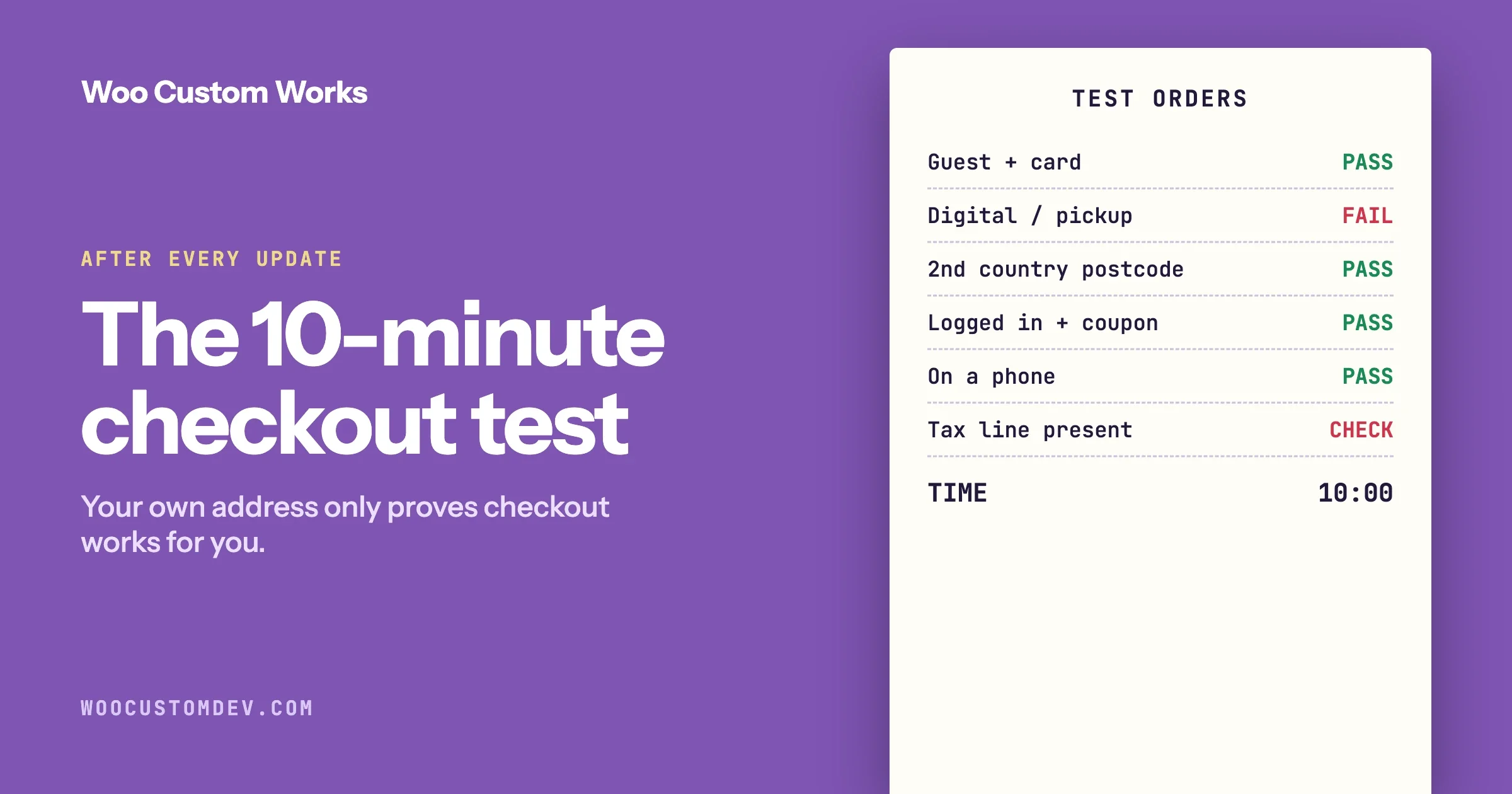
Before calling any WooCommerce migration finished, run through this checklist:
- Confirm the payment gateway’s webhook URL points at the new domain, inside the gateway’s own dashboard, not just in WordPress settings.
- Place a real test transaction through each active payment method. Include a subscription renewal if the store sells subscriptions.
- Spot-check ten to twenty recent orders for intact line items, correct totals, and readable customer addresses.
- Verify SSL, permalinks, and the WooCommerce REST API endpoints all resolve correctly on the new domain.
CDN Setup for Product Images
Why a CDN Matters More for a Store Than a Blog
A content blog might have a handful of images per post. A WooCommerce catalog can have five to ten images per product. Multiply that across hundreds or thousands of products, plus variation images for size and color, and the asset load gets heavy fast. That load hits exactly the pages where speed affects revenue most: product and category pages.
Slow product images cost sales two ways. Core Web Vitals scores drop, which hurts search rankings. And shoppers abandon a slow product page before they even see the “Add to Cart” button, which hurts conversion regardless of ranking.
Getting CDN Setup Right
A CDN in front of product images is only as good as its setup. A few details get missed often:
- Clear the cache on product updates. If a merchant swaps a product photo, the CDN needs to serve the new version, not a stale copy for the next 30 days. Set cache-busting on image URLs, or set the CDN to clear cached images on upload.
- Responsive image sizes. WordPress already generates multiple image sizes. Make sure the CDN and theme actually serve the right size per breakpoint, instead of shipping a full-resolution image to a mobile thumbnail slot.
- Modern formats. WebP or AVIF delivery, with a JPEG or PNG fallback for older browsers, typically cuts product image payload by 30-50% with no visible quality loss.
- Origin shield or offload. For catalogs with thousands of products, offloading images to object storage behind the CDN removes real load from the origin server during traffic spikes.
None of this is exotic. It’s mostly setup discipline, applied consistently, and checked again after every theme or plugin update that touches image markup. CDN setup is just one piece of the wider speed picture. Our WooCommerce Performance Checklist covers caching, HPOS, and Core Web Vitals in the same level of detail.
Database Bloat: Orphaned Order and Session Data
Where WooCommerce Databases Actually Bloat
Three sources account for most of the database bloat we see on established WooCommerce stores:
- Expired transients. WooCommerce and its extensions cache pricing, shipping rates, and API responses as transients in
wp_options. When the cron job that clears expired transients stops running, often from a broken or overloaded WP-Cron setup, they just pile up. - Abandoned cart sessions. Every visitor who adds something to a cart and leaves creates a row in
wp_woocommerce_sessionsor similar post meta. Without cleanup, months of abandoned sessions sit in the database untouched. - Orphaned order meta and post revisions. Failed orders, cancelled orders, draft orders from abandoned checkouts, and years of post revisions on product pages all add rows. Those rows serve no purpose but still get scanned on every query that touches those tables.
A Real Example: The 900MB wp_options Table
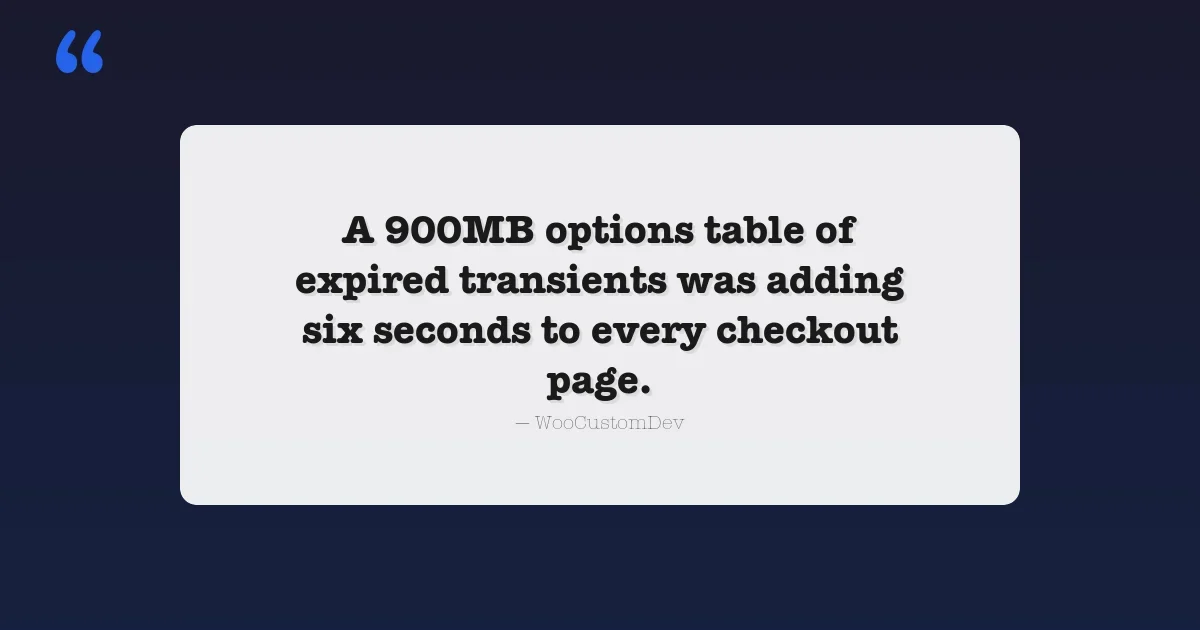
A mid-sized store came to us with checkout pages taking six to eight seconds to load. The wp_options table alone was over 900MB, almost all of it expired transients from a shipping rate plugin misconfigured for over a year. WordPress autoloads a chunk of that table on every page load. So the bloat wasn’t just slowing down admin screens, it was adding real, measurable delay to every storefront page. Clearing expired transients and fixing the autoload flags on the biggest remaining rows cut page load time by more than half. No code changes needed.Database Optimization Tactics: Indexing and Cleanup
Once bloat is identified, cleaning it up comes down to three repeatable tactics:
- Clean expired transients on a schedule. The wp-cli transient delete command handles this directly:
wp transient delete --expired
wp cron event run wc_cleanup_sessions- Add indexes on high-traffic query columns. Order lookups by status, customer, or date range are extremely common. If the store still uses legacy order storage in
wp_postmeta, confirm indexes exist on the meta_key and meta_value pairs that WooCommerce and any reporting plugins query most. Moving to HPOS, where WooCommerce ships purpose-built, properly indexed order tables, solves a large share of these problems by design. - Set a retention policy for sessions and logs. Configure WooCommerce’s session lifetime to something reasonable, 48 hours is a common default, instead of letting abandoned cart data pile up for years. Do the same for action-scheduler logs and any logging plugin that writes to the database.
Always run table cleanup after a fresh backup. Test it against a staging copy first if you can. Running an unfamiliar cleanup script directly against a live order database turns a manageable bloat problem into a much worse data-loss problem. For a deeper walkthrough of query monitoring, autoload cleanup, and MySQL server tuning at scale, see our full WooCommerce database optimization guide for high-volume stores.
A Practical WooCommerce Database Optimization Checklist
Work through this list once a quarter:
- Check
wp_optionstable size and the autoload total. Anything over a few hundred KB of autoloaded data on a busy store is worth investigating. - Confirm the transient cleanup cron is actually running, not just scheduled.
- Review abandoned cart and session row counts. Set an expiry policy if none exists.
- Verify the order storage mode, legacy or HPOS, and confirm indexes match that mode.
- Prune post revisions on high-traffic product pages.
- Re-run a staging clone test to confirm the order-table exclusion list still holds after any plugin changes.
- Spot-check that the CDN cache clears correctly after product image updates.
Where This Fits Into a Broader Infrastructure Strategy
Staging, migration, CDN setup, and database performance aren’t separate problems. They’re four symptoms of the same question: does the store’s infrastructure hold up as order volume grows, or does it start breaking under real traffic? A bad migration corrupts the same serialized data that bloats a poorly maintained database. A staging workflow that ignores order tables creates the exact conditions that lose orders during routine updates.
This is the kind of infrastructure work we spend most of our time on: planning migrations that don’t touch live order data, building staging environments a store owner can actually trust, and catching database performance problems before they turn into a six-second checkout page. If any of the scenarios above sound familiar, it’s usually worth a proper database and infrastructure audit before the next big traffic spike, not after.
Closing Thoughts
None of these four areas need exotic tooling. They need a workflow that respects what makes WooCommerce store operations different from a standard WordPress install: live order data, heavy use of serialized structures, and outside integrations that hold their own state. Get the staging workflow right. Treat migrations as WooCommerce-specific projects, not generic WordPress moves. Configure the CDN with product catalogs in mind. Keep the database lean on a schedule, instead of waiting for a six-second checkout page to force the issue.
Plugins we build and run
We maintain these ourselves, which is why we can support them on your site.
- BuddyNextThe self-hosted community engine for WordPress
- BuddyXFree community theme, Pro when you outgrow it
- ReignPremium community theme. Add pieces, build anything
- JetonomyCommunity forum and Q&A for WordPress
- EventonomyEvents and RSVPs for WordPress communities
- LearnomyCourses and learning communities on WordPress
- ListoraDirectories and listings your members can browse
- SnipShareCode sharing built for developer communities
- WB Ad ManagerAd placements that turn traffic into revenue
- WP Career BoardA job board your community actually uses
- WP Sell ServicesSell services with offers, orders, and payouts
- MediaVersePhotos, video, and media albums for members
- WB GamificationPoints, badges, and rewards that keep members active
- Product RoadmapPublic roadmaps with voting your users trust