WooCommerce Checkout Blocks: Complete Migration Guide from Classic Checkout
Migrate WooCommerce from the classic shortcode checkout to the Checkout block: compatibility checks, steps, how to switch back, hooks that stop working and their block equivalents. Checked 15 November 2026.

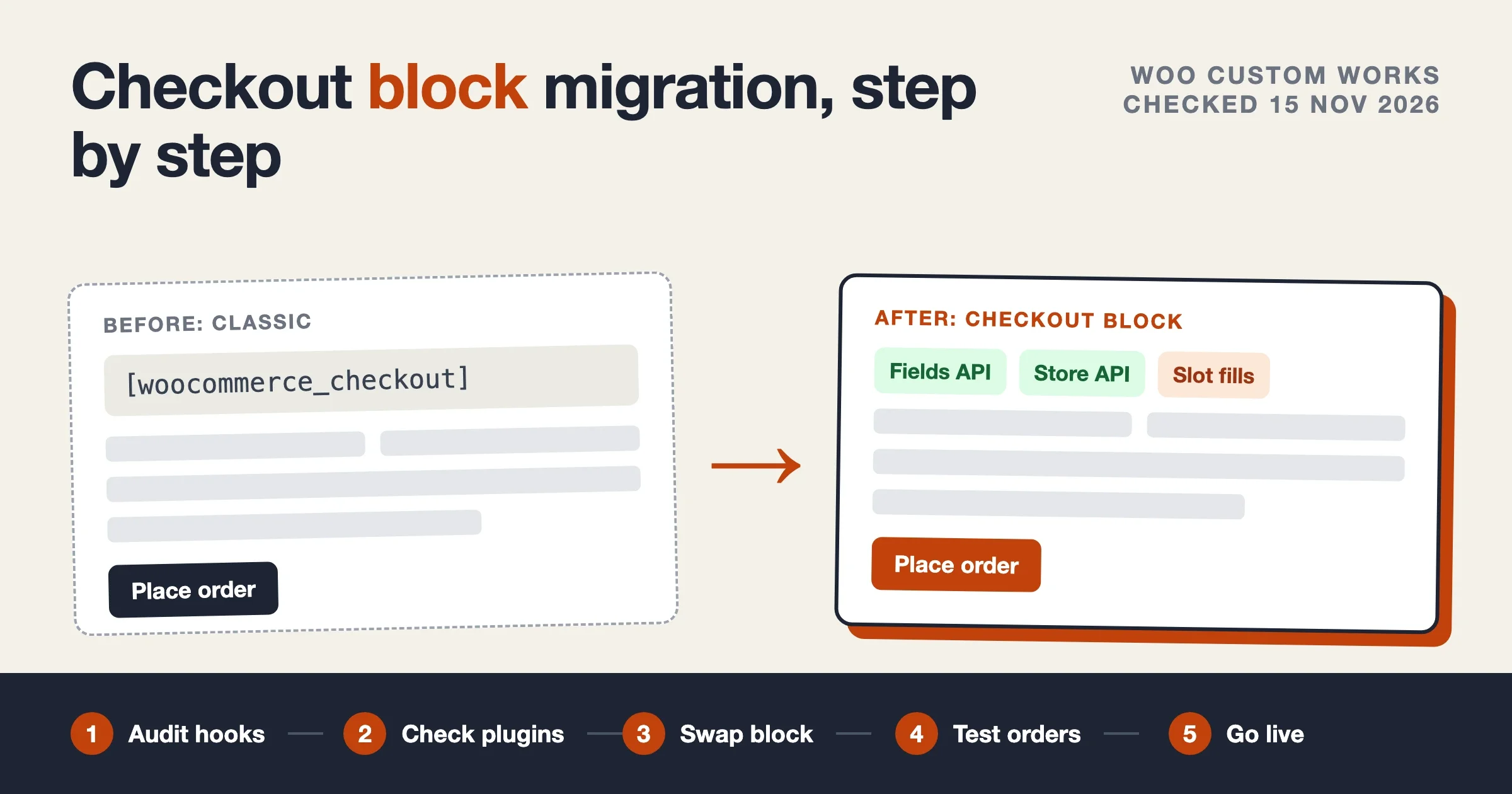
Yes, you can move a classic shortcode checkout to the Checkout block without losing orders, and for most stores it takes an afternoon on a staging copy. The real work is not the page swap. It is the code and plugins that relied on classic checkout hooks, because several of those hooks never run in the block checkout. This guide was checked against the official WooCommerce developer docs and the WooCommerce GitHub repository on 15 November 2026, when the current release was WooCommerce 11.3.0 (published 11 November 2026).
Below we cover what changed for new stores, how to check your extensions before you touch anything, the migration steps in order, how to switch back, which hooks stop working and what replaces them, how to add and validate custom fields with the Additional Checkout Fields API, and the mistakes people report most often on GitHub. We say “checked against the docs” because we read and compared the documentation and source. We did not run every snippet on a test store for this refresh.
Is the Checkout block the default checkout now?
For new stores, yes. WooCommerce’s own documentation says stores started after WooCommerce 8.3 (released in November 2023) get the Cart and Checkout blocks as the default experience. Older stores keep whatever their Checkout page already contains, which is usually the [woocommerce_checkout] shortcode. WooCommerce does not rewrite an existing Checkout page for you, so a store that has run since 2021 can still be on the classic checkout today.
That matters for two reasons. First, the block checkout is where WooCommerce puts new checkout features and fixes, so a classic page falls further behind with each release. Second, plugin authors now test against the block first. If you are on the shortcode, expect more “works on blocks, partly works on classic” notes in changelogs, not fewer.
The classic shortcode checkout is not removed. You can stay on it, and the switch back is one click, covered further down. The question is whether staying costs you more than migrating, and the decision table later in this post helps you answer that for your store.
Will my plugins and payment gateways work in the Checkout block?
Check this before you migrate, not after. A plugin that only hooks into the classic checkout will not break your site, but the part of it that touches checkout may simply stop showing. The most common case is a payment gateway that has no block integration: it can disappear from the list of payment options, and if every active gateway is in that state, customers see “There are no payment methods available”.
WooCommerce documents two checks, and we add a third that costs nothing.
- Before you install or migrate: open each checkout-related extension’s changelog and product page and look for Cart and Checkout block support. If it is unclear, ask the developer.
- In the editor: open the Checkout page in the editor and select the Checkout block or one of its inner blocks. WooCommerce shows a warning naming active extensions that declared themselves incompatible. A warning you dismissed earlier may not come back, and if names are hidden you can expand the count to see them.
- On staging: place a real test order with each payment method you offer, with a coupon, with each shipping method and as a guest and a logged-in customer. Our 10-minute checkout test lists the order we use.
An extension that declares itself incompatible is not always broken. It means the developer has not told WooCommerce it works with blocks. Treat the warning as a reason to test that extension first, then decide whether to wait for an update, replace it, or stay on the classic checkout for now.
How do I migrate from the classic checkout to the Checkout block?
Do this on a staging copy first, then repeat on live in a quiet hour. Take a backup before each run. The steps below are in the order that causes the fewest surprises.
- List everything custom on checkout. Search your theme, child theme and plugins for the checkout hooks in the table further down. Every match is something to re-home or drop. Also list any CSS that targets classic checkout selectors, because the block checkout uses different markup.
- Check extension compatibility using the three checks above. Update everything first so you are testing current versions.
- Edit the Checkout page. On a block theme go to Appearance, Editor, Pages, select Checkout and click the edit icon. On a classic theme go to Pages, All Pages and edit the Checkout page. If the page holds the shortcode, replace it with the Checkout block. WooCommerce’s guidance is that Cart and Checkout work together, so plan to move both pages in the same pass.
- Set up the block in the editor. Use the block’s sidebar and the inner blocks to control which sections show. The Checkout block handles settings such as company, second address line and phone field visibility itself, which replaces the old customizer-based approach.
- Move custom fields to the Additional Checkout Fields API (next section but one) and move any order-saving code to the Store API hooks.
- Move layout additions (banners, trust badges, extra text) to inner blocks or slot fills.
- Run the test checklist near the end of this post, then repeat the same pass on live.
If your store sells to the EU or UK and collects a VAT number or a tax ID at checkout, treat that field as step one, not step five. It is the field people most often lose in this migration, and losing it can have legal consequences. Register it through the new API and test that it appears on the order, in the admin and in the order emails before anything else.
How do I switch back to the classic checkout?
Switching back is supported and takes a couple of minutes. WooCommerce documents this path:
- Open the Checkout page in the editor (Appearance, Editor, Pages on a block theme, or Pages, All Pages otherwise).
- Open the List View and select the Checkout block.
- Use the Transform button at the far left of the block toolbar and choose Classic Shortcode.
- Click Save, then do the same on the Cart page. Cart and Checkout work together, so revert both.
There is also a shortcut. The Payment Options inner block has a setting in its sidebar that switches the page back to the classic checkout in one click, and the incompatibility warning offers a “Switch to classic checkout” button.
Two cautions. Anything you added only for the block checkout, such as fields registered through the Additional Checkout Fields API, stops being collected on the classic page, so old and new orders can look different. And if you tested the switch back and forth on a live store, look at fee and tax lines afterwards: one GitHub report from a 9.6 beta describes tax fee amounts missing after switching between the legacy and block checkout (see the mistakes box below).
Which classic checkout hooks stop working in the block checkout?
Many of them, and that is the part that surprises people. The Checkout block does not render the classic checkout template, so hooks that print content around the template’s sections never fire. WooCommerce maintains a “Hook alternatives” page in its repository that lists each hook as fully supported, partly supported or not supported, and what to use instead. We read it on 15 November 2026. Here are the ones we see most often in client code.
Classic hook | In the block checkout | What to use instead |
|---|---|---|
| Partly supported | You can add fields with the Additional Checkout Fields API. Editing or removing core fields is not supported. |
| Not supported | No direct equivalent. Add an inner block to the Checkout Fields block, positioned by the merchant in the editor. |
| Not supported | Same as above: inner blocks, or the order information block for fields. |
| Not supported | Inner block in the Checkout Fields or Payment block, placed by hand. |
| Not a direct match | Validate registered fields with the field validation actions. Other checks are limited, see the validation section. |
| Does not fire on Store API requests |
|
| Listed as not supported |
|
| Not supported | Set values on the customer object. The block respects what is on the customer and cart when it loads. |
| Not supported | Edit the button text in the editor. |
| Not supported | The |
| Not supported | The |
| Not supported | The |
| Not supported | Not used. The block does not refresh through classic AJAX fragments. |
| Partly or not supported | Gateways register with the blocks in JavaScript. Hiding a gateway in PHP may not work. |
Read the “Not a direct match” and “Listed as not supported” rows as a warning, not a verdict. The hooks page says some sections are still work in progress, and the block checkout changes between releases, so check the page again for your WooCommerce version before you rewrite code. Our Store API developer guide covers the endpoints these replacement hooks sit behind.
A related point that trips up developers: server-side hooks that were carried over into the blocks, such as the cart lifecycle actions (woocommerce_before_calculate_totals, woocommerce_cart_calculate_fees), keep working. Fees and price changes you apply in PHP on those hooks still show in the block checkout. The break is mainly in hooks that print HTML at fixed points in the old template.
How do I add custom checkout fields to the Checkout block?
Use the Additional Checkout Fields API. You register a field with woocommerce_register_additional_checkout_field() on the woocommerce_init action, not earlier, because registering too early can cause initialization and translation problems. The documented field types are text, select, checkbox and date.
Every field needs an id made of a namespace and a name separated by a slash, a label and a location. The location decides where it shows and where the value is saved:
Location | Where it appears | What is saved |
|---|---|---|
| Top of the form, beside email | Saved to the shopper’s account and the order. |
| In both the shipping and billing address forms | Saved to the customer and the order, as two separate values (shipping and billing). |
| The order information block, last step by default | Saved to the order only. Not pre-filled on later orders. |
A field can only be in one location. An address field shows in both address forms, so you collect two values. If you want one value per order, use order.
Here is the documented pattern for a select field in the order information section, such as a “How did you hear about us?” question.
add_action(
	'woocommerce_init',
	function () {
		woocommerce_register_additional_checkout_field(
			array(
				'id'          => 'namespace/how-did-you-hear-about-us',
				'label'       => 'How did you hear about us?',
				'placeholder' => 'Select a source',
				'location'    => 'order',
				'type'        => 'select',
				'options'     => array(
					array( 'value' => 'google', 'label' => 'Google' ),
					array( 'value' => 'friend', 'label' => 'From a friend' ),
					array( 'value' => 'other', 'label' => 'Other' ),
				),
			)
		);
	}
);
Checked against the WooCommerce developer docs on 15 November 2026. Replace namespace with your own plugin prefix, and test on staging before you copy it to a live store.
How do I read a field value later?
The docs recommend the helper methods over reading meta keys directly, because the storage can change. The class is CheckoutFields and the method is get_field_from_object. For an order field it looks like this:
use Automattic\WooCommerce\Blocks\Package;
use Automattic\WooCommerce\Blocks\Domain\Services\CheckoutFields;

$field_id        = 'namespace/how-did-you-hear-about-us';
$order           = wc_get_order( 1234 );
$checkout_fields = Package::container()->get( CheckoutFields::class );
$value           = $checkout_fields->get_field_from_object( $field_id, $order, 'other' );
For address fields you pass 'billing' or 'shipping' as the last argument. For contact and order fields the docs use 'other'. One more detail from the docs: a checkbox read directly from meta comes back as "1", "0" or an empty string, and only the helpers turn that into a boolean.
If your classic setup used a plugin to add fields, check whether it has a block version before you write code. Several checkout manager plugins now support the block checkout, but each states its own support level, so read the changelog. For a deeper look at the classic approach, which is still valid on the shortcode, see our guide to customizing the WooCommerce checkout page.
How do I validate and save checkout data in the block checkout?
There are two layers. Fields you registered through the API get sanitization and validation hooks. Everything else goes through Store API hooks that fire when the block places the order.
Sanitizing and validating registered fields
Sanitize first, then validate. Sanitizing only reshapes the value, for example removing spaces and upper-casing. Validation decides whether it is acceptable. The docs give two single-field hooks:
woocommerce_sanitize_additional_fieldis a filter that receives the value and the field id and returns the cleaned value. You can also pass asanitize_callbackwhen you register the field.woocommerce_validate_additional_fieldis an action that receives aWP_Errorobject, the field id and the value. You add errors to the object it receives. Returning a newWP_Errordoes not work.woocommerce_blocks_validate_location_address_fields(and the matching hooks forcontactandother) validate a field against the other fields in the same location, such as checking a confirmation field matches.
add_action(
	'woocommerce_validate_additional_field',
	function ( WP_Error $errors, $field_key, $field_value ) {
		if ( 'namespace/gov-id' === $field_key ) {
			if ( ! preg_match( '/^[A-Z0-9]{5}$/', $field_value ) ) {
				$errors->add( 'invalid_gov_id', 'Please check the format of your ID.' );
			}
		}
	},
	10,
	3
);
The docs example uses a pattern without anchors. We anchored it here so a longer string does not pass. Use a unique error code, ideally prefixed with your plugin namespace, because two plugins using the same code can overwrite each other’s message.
Reacting when the order is placed
The block checkout places orders through the Store API, so the classic order hooks do not fire. The docs list three replacements:
Store API hook | Fires when |
|---|---|
| The order has been placed. |
| The customer is updated with data from the checkout request. |
| Order meta is being updated from the request. |
For cart-level validation, the same docs point to woocommerce_store_api_validate_cart_item as a better fit than woocommerce_check_cart_items in some cases. And if your front-end code needs to change the cart on the server, for example to apply a coupon when a box is ticked, the documented route is extensionCartUpdate on the JavaScript side paired with woocommerce_store_api_register_update_callback in PHP.
If you build a headless storefront on the same endpoints, our Next.js and Store API guide shows how the cart and checkout calls fit together.
How do I add content around checkout sections?
With JavaScript, not PHP. The block checkout gives you three tools, and the docs describe each.
- Inner blocks. You register a block as a child of a Checkout block, then the merchant places it in the editor. This is the closest thing to the old “print something after this section” hooks, but the merchant controls position.
- Slot and Fill. You render a React component into a named slot. The docs name slots such as
ExperimentalOrderMeta,ExperimentalOrderShippingPackagesandExperimentalDiscountsMeta, and they map several old cart hooks to them. The “Experimental” prefix is part of the real name, so check the available slot fills page for your version before you depend on one. - Checkout filters. You register a callback with
registerCheckoutFiltersto change values such as the item name or whether the remove link shows.
This is a front-end build step. The docs recommend @wordpress/scripts and the WooCommerce dependency extraction plugin, which means a store with only a child theme and snippets has no build pipeline for this. That is a real cost to count when you decide how much customization the block checkout is worth for you.
Will my payment gateway work in the Checkout block?
Only if the gateway registers with the blocks. The docs are direct about this: adding the payment method in PHP is not enough, the developer must also register a React component that shows in the Payments block. A gateway that never did this does not appear in the block checkout, which is why the compatibility check comes first.
Most large gateways have block support today, but support differs by feature. Express payment buttons, saved cards, local payment methods and subscriptions each have their own status per vendor, so test the exact flows you use. If you run a custom or regional gateway of your own, read our walkthrough on building custom payment gateways for regional checkout and then add the block integration from the payment method integration page in the docs.
Filtering which gateways show is also different. The docs have a separate filtering page for the Checkout block, and manipulating gateways with the classic woocommerce_available_payment_gateways filter is only partly supported. If you hide gateways by country or cart contents today, that code needs a second look.
Common mistakes people report
These are recurring problems from the WooCommerce GitHub issue tracker and the official docs, paraphrased, with the issue or page linked. We checked each link on 15 November 2026. Some issues are closed, and some are older than a year, so treat them as patterns to avoid rather than open bugs.
- Expecting classic hooks to run. A developer reported that checkout hooks such as
woocommerce_checkout_processstopped firing after WooCommerce made the block checkout the default for new stores. The behaviour matches the documented hook status. Issue 41763 (opened November 2023, closed). - Using
wc_add_notice()and expecting the same result. A shipping extension team reported that info and success notices they showed on classic checkout did not appear the same way on the blocks. The hook alternatives page confirms notices are only added on page load and notices raised during API requests wait for the next full page load. Issue 44431 (opened February 2024, closed). - Switching back and forth on a live store. One report describes fee and tax lines missing after switching from the legacy checkout to the block checkout in a 9.6 beta. Check totals after any switch. Issue 54750 (opened January 2025, closed).
- Hiding or changing core fields with the old filters. The docs state that changing existing core fields and removing billing or shipping addresses with
woocommerce_checkout_fieldsis not supported. Plan around the block’s own field settings. Hook alternatives page (checked 15 November 2026). - Shipping a gateway without a block integration. The payment method simply does not show, and with only such gateways active customers see no payment methods. The docs ask developers to register a React component for the Payments block. WooCommerce documentation on Cart and Checkout blocks (checked 15 November 2026).
- Putting HTML in item data and losing it. The block checkout strips most HTML from cart item metadata and keeps only
a,b,em,i,strong,br,abbrandspan. Styled item data fromwoocommerce_get_item_datawill look plainer. Hook alternatives page (checked 15 November 2026).
The pattern behind most of these is the same. The code that worked on the shortcode was never wrong, it just runs in a different place now. Search your code for each classic hook before the migration and you avoid most of this list.
Should I migrate now or stay on the classic checkout?
There is no deadline from WooCommerce that forces you off the shortcode, so this is a business decision. Use the table as a starting point.
Your situation | Our suggestion |
|---|---|
New store, no custom checkout code | Use the Checkout block. It is the default and the path WooCommerce documents. |
Standard store, a few plugins that all declare block support | Migrate on staging, test, then go live. Low risk. |
Many snippets on classic hooks, no developer on hand | Stay on classic for now. List the hooks, estimate the rewrite, then migrate in a planned window. |
A key gateway or checkout plugin without block support | Stay on classic until the vendor ships support, or replace the plugin. |
Collects VAT numbers, gift messages or compliance fields | Migrate only after the Additional Checkout Fields API covers every field, with a test of orders, admin and emails. |
Big sale or Black Friday in under two weeks | Do not change checkout now. Migrate after the sale. |
Black Friday is 27 November 2026. A checkout change that is untested the week before a sale is the wrong risk to take, even if the migration itself is small.
What should I test before going live with the Checkout block?
Run these on staging and again on live right after the change. Use real test cards or the gateway’s test mode, never real customers.
- A guest order and a logged-in order, each with a different address.
- Each payment method you offer, including any express payment button.
- Each shipping method and local pickup if you use it, with a country change in the middle of checkout.
- A coupon, a coupon that should fail, and a free-shipping threshold.
- Every custom field: it shows, it validates, it saves, and the value appears in the order screen, the order email and any export or integration that reads it.
- Tax and fee lines on the order summary and on the confirmation page.
- The page at 390px wide on a phone, with the keyboard open, because the block checkout lays out differently from the shortcode.
- Your analytics and tracking events. Scripts that read classic checkout selectors need updating.
Keep the classic page content copied somewhere safe until you are happy, so the switch back is a paste and not a rebuild.
When does it make sense to ask for help?
If your store has more than a handful of checkout customizations, a gateway you built yourself, or a compliance field you cannot afford to lose, our team at Woo Custom Works can audit the hooks, map each to a block replacement and run the migration on staging. It is one option next to doing it in house or asking the plugin authors, and for a simple store you probably do not need us. Whoever does the work, ask for a list of every hook found and its replacement before any change goes live.
Frequently asked questions
Is the classic checkout deprecated?
We found no statement in the docs we checked on 15 November 2026 that removes or deprecates the shortcode checkout. WooCommerce does make blocks the default for new stores and documents the switch back to classic, so both paths are supported today.
Do I need to know React to use the Checkout block?
No, if you only configure it in the editor. Yes, or a developer who does, if you want to add components with slot fills, register checkout filters or build a payment method integration.
Can I still use PHP snippets to add checkout fields?
You can register fields in PHP with the Additional Checkout Fields API. The old filters that rewrite the whole checkout field array do not apply to the block checkout.
Will my existing orders change when I migrate?
No. Existing orders stay as they are. New orders use the block checkout, so any custom data you collect must be registered through the new API to be saved.
Does the block checkout work with Store API integrations and headless sites?
The block checkout runs on the Store API, and that is the same API headless storefronts call. It is the reason the Store API hooks replace the classic order hooks.
How long does a migration take?
For a store with no custom checkout code, an afternoon including tests. For a store with many hooks and plugins, plan days to weeks, driven by the number of hooks to rewrite and the plugin updates you wait for. That is our experience estimate, not a WooCommerce figure.
Sources we checked
All checked on 15 November 2026. Where a page changes often, check it again for your own WooCommerce version.
- WooCommerce documentation: Cart and Checkout blocks (default for stores started after 8.3, compatibility warnings, switching back to classic).
- WooCommerce repository: Hook alternatives (status of classic hooks in the blocks).
- WooCommerce repository: Migrated legacy hooks.
- WooCommerce repository: Additional checkout fields (registration, locations, validation, helper methods).
- WooCommerce repository: Blocks extensibility FAQ (cart updates from the client).
- WooCommerce releases on GitHub (11.3.0 published 11 November 2026).
Plugins we build and run
We maintain these ourselves, which is why we can support them on your site.
- BuddyNextThe self-hosted community engine for WordPress
- BuddyXFree community theme, Pro when you outgrow it
- ReignPremium community theme. Add pieces, build anything
- JetonomyCommunity forum and Q&A for WordPress
- EventonomyEvents and RSVPs for WordPress communities
- LearnomyCourses and learning communities on WordPress
- ListoraDirectories and listings your members can browse
- SnipShareCode sharing built for developer communities
- WB Ad ManagerAd placements that turn traffic into revenue
- WP Career BoardA job board your community actually uses
- WP Sell ServicesSell services with offers, orders, and payouts
- MediaVersePhotos, video, and media albums for members
- WB GamificationPoints, badges, and rewards that keep members active
- Product RoadmapPublic roadmaps with voting your users trust