WooCommerce Order Status Page: Stop 'Where Is My Order?'
WISMO emails are a missing-information problem. See what they cost, what a good WooCommerce order status page shows, when a plugin is enough and when a custom build pays off.

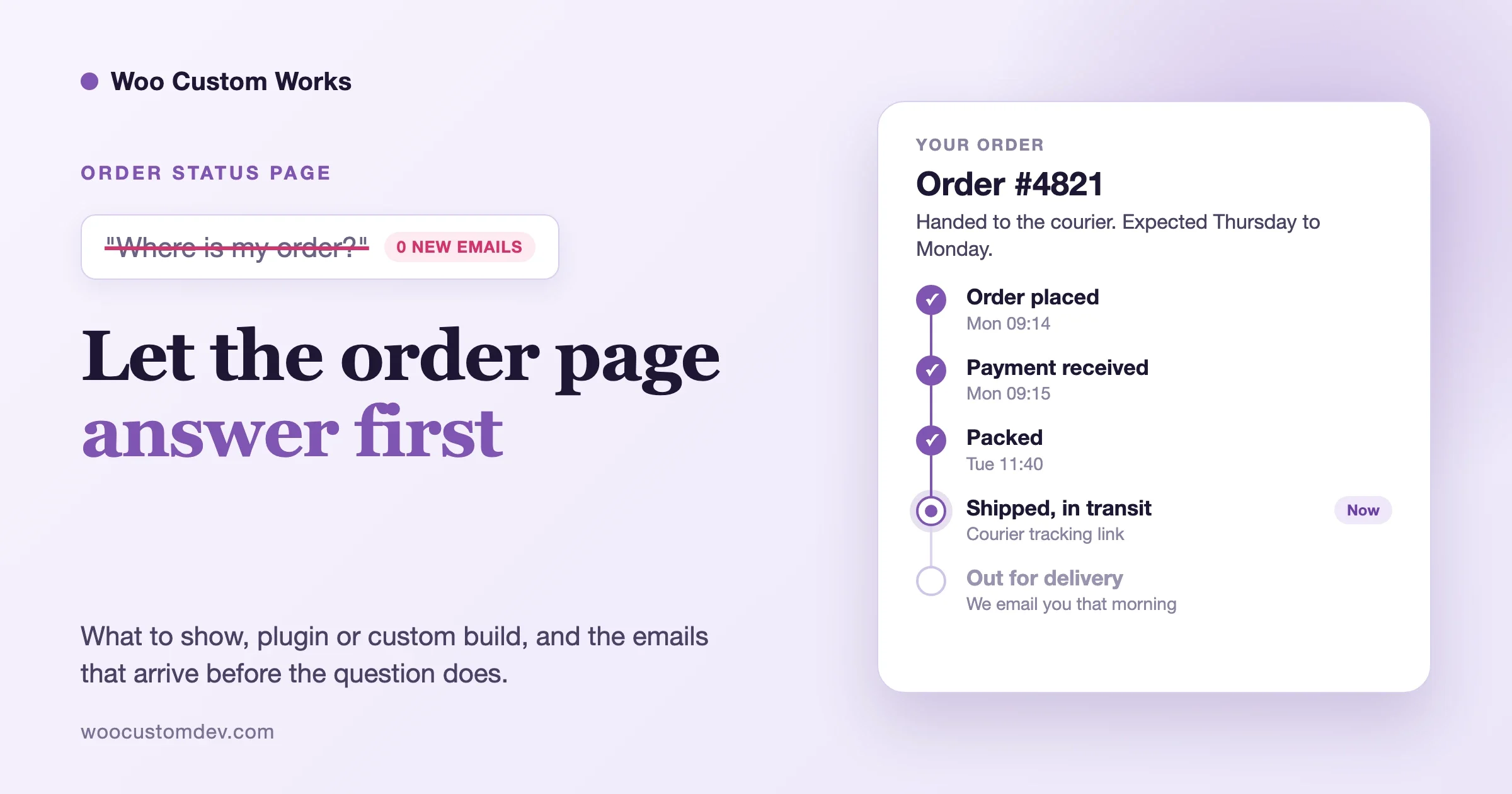
Every store owner knows the email. Subject line: “Where is my order?” Body: two lines, sometimes one. The customer paid four days ago, nothing has arrived, and the order confirmation said nothing useful about what happens next.
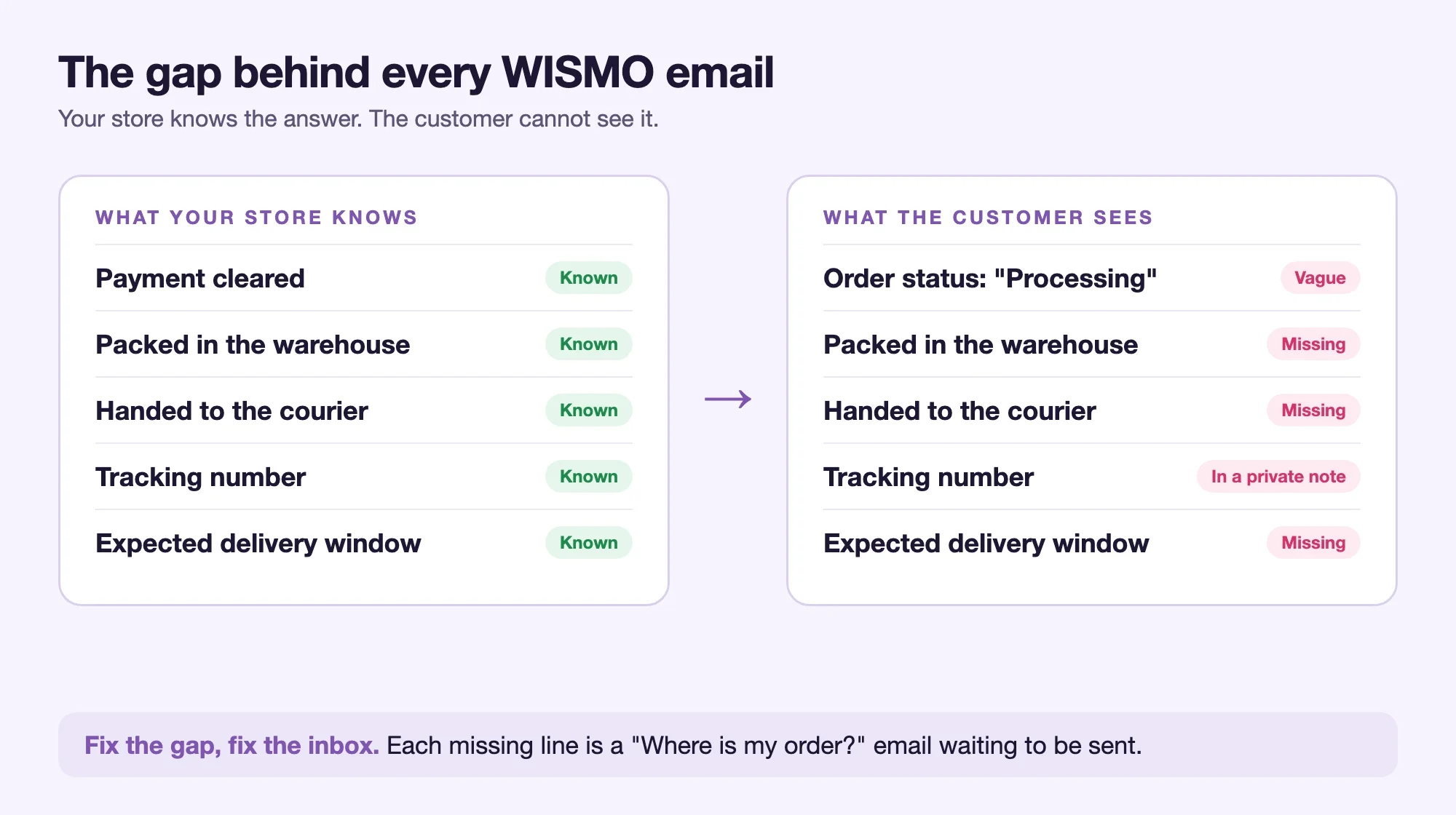
The answer to that email is almost always sitting in your store already. The order is packed, or it is with the carrier, or it is waiting on a payment that has not cleared. The customer just cannot see it. A self-serve WooCommerce order status page fixes that by putting the answer where the customer already looks, before they reach for the contact form.
This guide is the support-cost and build side of that problem. If you want a side-by-side of ready-made plugins, we already published our roundup of WooCommerce order tracking plugins. Here we cover what these emails really cost you, what a good status page contains, what WooCommerce does on its own, and when it makes sense to build something custom.
Key takeaways
- WISMO emails are a missing-information problem, not a shipping problem: your store knows the answer and the customer cannot see it.
- A good status page shows plain-language status, a tracking link, a delivery window, the next step and a way to get help.
- WooCommerce gives you a guest lookup form and My Account pages, but no carrier, tracking number or estimate field.
- Fix wording and emails first, add a plugin next, and build custom only when split shipments, a 3PL or a portal justify it.
What is a “where is my order” email really telling you?
Short answer: it is not a shipping complaint. It is a missing-information complaint. Customers write these emails when they cannot tell what state the order is in, what happens next, or when to expect it. Support teams call this WISMO, short for “where is my order.”
That distinction matters because it changes the fix. If the cause were slow shipping, you would fix shipping. When the cause is silence, you fix communication: the status page, the emails and the wording of each status.
Read your last twenty WISMO emails and you will usually find the same few situations:
- The order is in Processing and the customer reads that as “nothing is happening.”
- The order shipped, but the tracking number lives only in a note the customer never saw.
- The carrier shows “label created” for three days, and the customer assumes the parcel is lost.
- The order is split into two shipments and only one email went out.
- The customer paid by bank transfer, the order is On hold, and nobody told them why.
- A guest checkout customer cannot find their order at all because they have no account.
Each of those is a gap between what your system knows and what your customer can see. Closing the gap is the whole project.
How much do these emails actually cost your store?
You do not need a study to price this. You need your own numbers and one line of arithmetic.
Take the number of WISMO emails you get in a normal month. Multiply by the minutes each one takes to read, look up, answer and close. Multiply by the hourly cost of whoever answers them. That is the direct cost. A store with 120 such emails a month and six minutes per ticket spends twelve hours a month on a question the system could answer. Those figures are only an example. Replace them with yours.
The direct cost is the smaller part. Three indirect costs usually matter more:
- Peak season multiplies it. Black Friday is 27 November 2026. Order volume jumps, carriers slow down, and WISMO volume rises faster than orders do because delays and silence arrive together.
- Every anxious email is a refund risk. A customer who cannot see progress is a customer who opens a chargeback dispute with their bank. Our post on reading your Black Friday payment statement covers what disputes cost you in fees on top of the sale.
- Your best support person is busy answering the same question. The slow, thoughtful replies that win repeat customers get squeezed out.
A quick way to measure it today: search your support inbox for “where is”, “tracking” and “not arrived” over the last 30 days, then tag each hit by cause. Two or three causes will dominate. That list is your build brief.
What should a good WooCommerce order status page show?
Short answer: five things, in plain words. The current status written the way a person would say it, the tracking link with the carrier name, an expected delivery window, what happens next, and how to get help if something looks wrong.
Here is what each element does and the support question it removes.
| Element | What the customer sees | Question it answers |
|---|---|---|
| Plain-language status | “Packed and waiting for the courier” instead of “Processing” | “Has anything happened yet?” |
| Tracking link | Carrier name, tracking number, one click to the carrier page | “Where is the parcel right now?” |
| Delivery window | “Expected Thursday to Monday” | “When will it arrive?” |
| Next step | “We email you when it leaves our warehouse” | “Do I need to do anything?” |
| Help and returns | Contact link and return window, shown only when relevant | “What if it is late or wrong?” |
Two design rules save more tickets than any feature:
- Write status text for a stranger. “On hold” means something precise to a developer. To a customer it sounds like a problem. “Waiting for your bank transfer to arrive” tells them what is happening and that it is normal.
- Show the timeline, not only the current state. A short list of dated events (order placed, payment received, packed, shipped, out for delivery) tells the customer the order is moving even on a day when nothing new happens.
Keep the page boring and fast. It should load without a login wall for guest customers, work on a phone, and answer in under a second. Nobody checking their order wants a hero banner.
What does WooCommerce already give you for order tracking?
More than most owners realise, and less than customers expect. It helps to know exactly where the built-in features stop before you pay for anything.
The My Account order page
Logged-in customers can open My Account, Orders and view any order. That page shows the order status, the items and the totals. It also fires an action called woocommerce_view_order at the end, which is where plugins and custom code add extra content such as tracking details.
The order tracking form shortcode
Core WooCommerce ships a shortcode named [woocommerce_order_tracking]. Drop it on a page and it shows a form with two fields: Order ID (the placeholder tells customers it is in their confirmation email) and Billing email. After submitting, the customer sees one line: the order number, the date it was placed and the current status, followed by an “Order updates” list. That list is built from order notes you flagged as notes to the customer.
This is the guest-friendly option, and it works without an account. It is also bare. It shows the raw status name and nothing about a carrier, a tracking number or an estimate unless you put those into customer notes by hand.
The default statuses
WooCommerce documents eight default order statuses: Draft, Pending payment, Processing, Completed, On hold, Failed, Cancelled and Refunded. Notice what is missing. There is no “Shipped,” no “Out for delivery,” no “Partially shipped,” and no “Delayed.” Processing and Completed are the two states most orders live in, and both are vague. Processing covers everything from “just paid” to “in the courier’s hands.” Completed is when WooCommerce sends the completed-order email, which many stores trigger at dispatch and which customers reasonably read as “delivered.”
Emails
WooCommerce sends transactional emails on status changes, and you control them under WooCommerce, Settings, Emails. If an email seems missing, open WooCommerce, Status, Logs and look at the transactional-emails source, which records whether each email was sent, failed, disabled or skipped. Customer notes also trigger an email of their own, which becomes useful later in this guide.
The gap
Put it together and the picture is clear. The data model has no place for a carrier, a tracking number or an estimated date. The statuses are coarse. The guest lookup is minimal. Everything customers want to see is something you have to add.
Where are your customers getting stuck? A 20-minute check
Before changing anything, find out which of the gaps is costing you. This takes twenty minutes and needs no code.
- Pull the last 30 days of WISMO emails. Search the inbox for “where is my order”, “tracking”, “when will”, “not received”. Export or copy the subjects.
- Tag each one by cause. Use plain labels: “no tracking number sent,” “tracking says nothing is moving,” “split shipment,” “payment pending,” “cannot find my order,” “late.”
- Check order age at the time of the email. Open each order and compare the email date with the order date and dispatch date. Emails sent within a day of payment point to missing reassurance. Emails sent after dispatch point to missing tracking.
- Place a test order as a guest and as a customer. Follow it through your own statuses. Open every email and the My Account page. Ask what a stranger would understand at each step.
- Click your own tracking link. If the number is in a private note, or the link opens a carrier page in the wrong language, you have found a ticket generator.
Most stores find that one or two causes account for most emails. “No tracking number sent” and “payment pending” are the usual leaders. Fix those first.
Fix 1: Settings and wording before any plugin
You can often remove a third of WISMO emails without installing anything. Work through this list in order.
Add the order tracking page for guests
Create a page called “Track your order,” add the [woocommerce_order_tracking] shortcode, and link it from your header or footer and from every order email. Guest customers get a way in, and logged-in customers get a shortcut.
Put the link in the emails
Edit your processing and completed email text (WooCommerce, Settings, Emails) so each one says what happens next and links to the tracking page. One extra sentence in a processing email, such as “We will email you again the moment your order leaves our warehouse,” removes the most common anxious message.
Stop using Completed for dispatch
If your team marks orders Completed when the parcel is handed over, customers get a “your order is complete” email that sounds like delivery. Either reword that email to say “your order is on its way” or add a custom Shipped status (see the next section).
Use customer notes on purpose
On every order screen there is a note box. A note added as a Note to customer emails the customer and also appears in the “Order updates” list on the tracking page and under the order in My Account. That means a plain-text note such as “Shipped with Royal Mail, tracking RM123456789GB” already works as a very crude tracking system. It is manual and it does not scale, but it beats silence.
Set expectations at checkout
Say your handling time and delivery window on the product page, in the cart and on the thank-you page. Our guide to checkout notices and the thank-you page shows the hooks for it. A customer who was told “ships in 2 to 3 working days, arrives in 3 to 6” does not write on day four.
Prevention for this layer
Place a test order once a quarter and read every message as the customer would. Wording drifts, templates get overridden by themes, and an email that worked in March may have been disabled in a plugin update. The 10-minute routine in our post-update checkout test is a good place to bolt this check on.
Fix 2: When a plugin is the right answer
Short answer: use a plugin when you ship from one place, with a handful of carriers, and your team can type or paste a tracking number. That describes most small and mid-sized stores.
The official WooCommerce Shipment Tracking extension is the reference example of this approach. According to its documentation, it adds a provider, tracking number, tracking link and shipped date to an order. You add these from a panel on the order screen, and you can add more than one tracking number per order. The details then appear on the customer’s order page in My Account and in customer emails generated after you save them. The docs note that saving the tracking details does not send an email by itself, but changing the order to Completed does. For carriers that are not in the dropdown, you choose a custom provider and supply the name and the full tracking URL.
Other plugins add dispatch statuses, carrier lookups and branded tracking pages. We compared the field in our order tracking plugin roundup, so we will not repeat the list here. Our custom order status plugins comparison covers the “Shipped” and “Partially shipped” statuses that core lacks.
Before you buy, run these four tests on any plugin:
- Guests. Can a customer without an account see the status and tracking?
- Split orders. Does it handle two parcels, two carriers and one order?
- Automation. Can the tracking number arrive from your shipping tool, or does someone have to paste it?
- Emails. Does it send a message when the carrier status changes, or only when you save the order?
If a plugin fails the second or third test and those are your real problems, you are shopping for a custom build, not a better plugin.
Fix 3: What a custom WooCommerce order status page involves
Custom work earns its cost in specific situations. You have several warehouses or drop-shippers, you work with carriers that plugins do not cover, your orders include services or subscriptions with their own milestones, or you want the status page to match your brand and sit inside a customer portal. We describe the broader pattern in custom order workflows with automated status transitions.
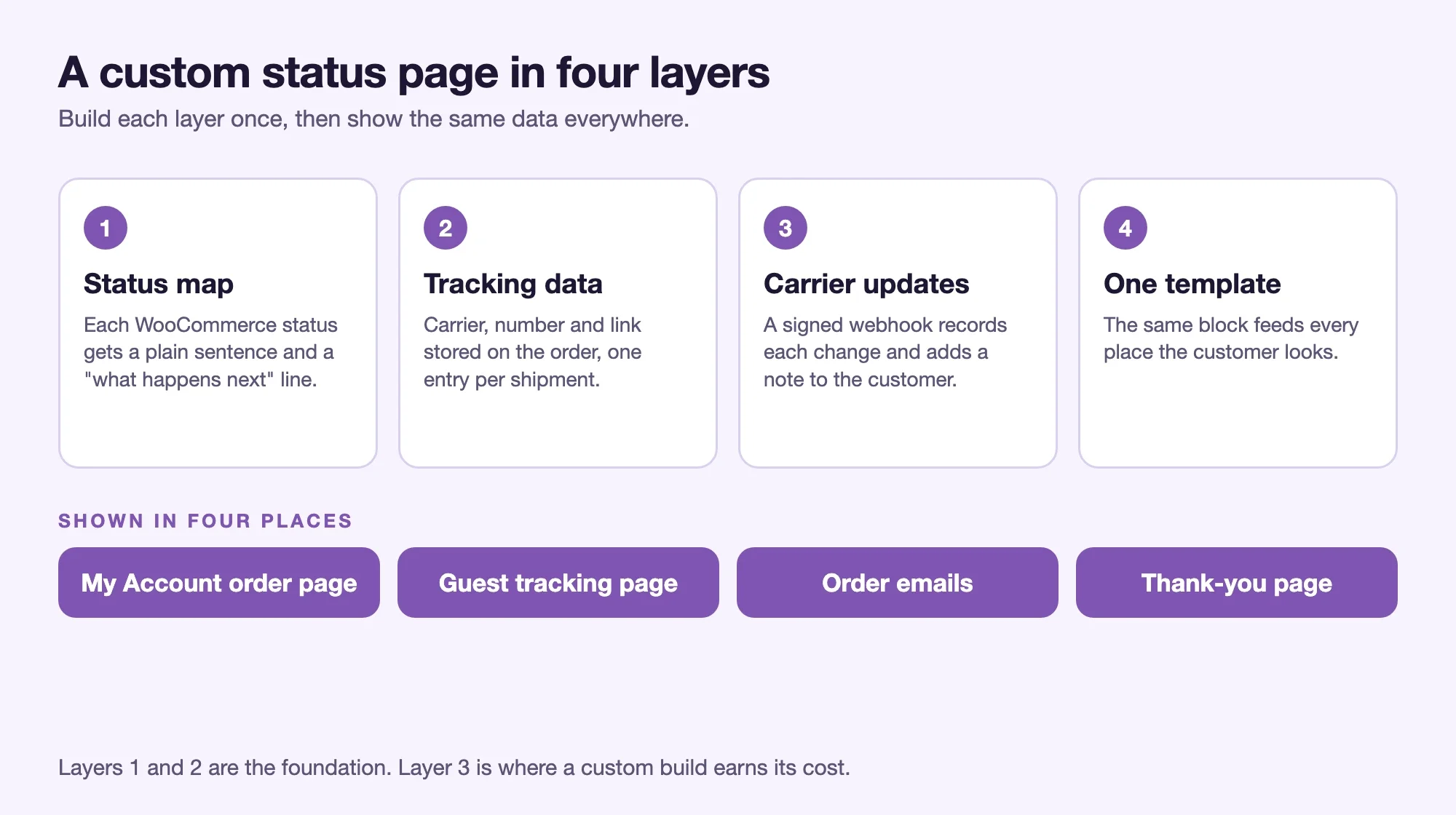
A well-built status page has four layers. Think of them as a short pipeline.
Layer 1: A status map in plain words
Keep the WooCommerce statuses as the source of truth, and map each one (plus any custom statuses) to a customer-facing sentence and a “what happens next” line. That mapping lives in one place so support, emails and the page always agree.
Here is a minimal version that adds customer-friendly text above the order details in My Account. It uses the woocommerce_view_order action mentioned earlier.
add_action( 'woocommerce_view_order', 'mystore_order_status_message', 5 );

function mystore_order_status_message( $order_id ) {
	$order = wc_get_order( $order_id );
	if ( ! $order ) {
		return;
	}

	$messages = array(
		'pending'    => __( 'We are waiting for your payment. Your order is not packed yet.', 'mystore' ),
		'on-hold'    => __( 'We are waiting for your payment to clear. Nothing is needed from you.', 'mystore' ),
		'processing' => __( 'Payment received. We are packing your order and will email you when it ships.', 'mystore' ),
		'completed'  => __( 'Your order has been handed to the courier. Use the tracking link below.', 'mystore' ),
		'cancelled'  => __( 'This order was cancelled. If that is a surprise, contact us.', 'mystore' ),
		'refunded'   => __( 'This order was refunded. Banks can take several days to show it.', 'mystore' ),
	);

	$status = $order->get_status();
	if ( isset( $messages[ $status ] ) ) {
		printf( '<p class="mystore-order-status">%s</p>', esc_html( $messages[ $status ] ) );
	}
}
Treat the wording as placeholders. Use your real handling times, and test every line with someone who does not work in your store.
Layer 2: A home for tracking data
Store the carrier, tracking number and tracking URL as order meta, using the order object’s own methods so the data works with both the older post-based storage and High-Performance Order Storage. One shipment per order is simple. Multiple shipments need a small structured list, with each entry holding carrier, number, items and status.
Layer 3: Updates that arrive without anyone typing
This is where carrier tracking services come in. We cover them in the next section. The result you want: when the carrier reports a change, your store records it on the order and the customer sees it.
Layer 4: Display in every place the customer looks
The same data should show on the My Account order page, on the guest tracking page, in the order emails and on the thank-you page. Build it once as a template part and call it from all four. That avoids the usual failure where the page says “shipped” and the email says nothing.
How do carrier tracking APIs fit in?
Short answer: a tracking service watches the carrier for you and tells your store when something changes. You hand it a tracking number, and it sends your store a message each time the parcel moves.
Services in this category include EasyPost, AfterShip and Shippo. We will describe the one whose documentation we checked directly so you can see the shape of the thing. EasyPost’s tracker documentation describes it like this:
- You create a tracker by sending a tracking code and, ideally, a carrier name. The carrier is optional, but the docs recommend providing it because some tracking codes are ambiguous.
- Duplicate protection exists. Submitting the same code and carrier again within three months returns the original tracker.
- Each tracker has a status from a fixed list: unknown, pre_transit, in_transit, out_for_delivery, delivered, available_for_pickup, return_to_sender, failure, cancelled and error. A finer status_detail field carries values such as label_created, delayed and lost.
- An estimated delivery date is included “if available” from the carrier. Treat that as a hint, not a promise.
- Updates reach you as webhook events once webhooks are enabled.
Other services use different names for the same ideas, so check the documentation of whichever you choose rather than copying field names from here. The architecture is the same everywhere: create a tracker when you ship, receive webhooks when it moves, translate the carrier’s status into one of your own plain-language messages.
Here is a skeleton of the receiving end in WooCommerce. The field names in the payload are placeholders, because every provider names them differently. The important parts are the signature check and the customer note.
add_action( 'rest_api_init', function () {
	register_rest_route( 'mystore/v1', '/tracking-update', array(
		'methods'             => 'POST',
		'callback'            => 'mystore_handle_tracking_update',
		'permission_callback' => 'mystore_verify_tracking_signature',
	) );
} );

function mystore_verify_tracking_signature( WP_REST_Request $request ) {
	// Replace with the signature scheme your provider documents.
	$secret = defined( 'MYSTORE_TRACKING_SECRET' ) ? MYSTORE_TRACKING_SECRET : '';
	if ( '' === $secret ) {
		return false;
	}
	$expected = hash_hmac( 'sha256', $request->get_body(), $secret );
	return hash_equals( $expected, (string) $request->get_header( 'x-signature' ) );
}

function mystore_handle_tracking_update( WP_REST_Request $request ) {
	$data   = $request->get_json_params();
	$code   = isset( $data['tracking_code'] ) ? sanitize_text_field( $data['tracking_code'] ) : '';
	$status = isset( $data['status'] ) ? sanitize_key( $data['status'] ) : '';

	$orders = wc_get_orders( array(
		'limit'      => 1,
		'meta_key'   => '_mystore_tracking_number',
		'meta_value' => $code,
	) );
	if ( empty( $orders ) ) {
		return new WP_REST_Response( array( 'ok' => true ), 200 );
	}

	$order = $orders[0];
	$notes = array(
		'out_for_delivery' => __( 'Your parcel is out for delivery today.', 'mystore' ),
		'delivered'        => __( 'Your parcel was delivered.', 'mystore' ),
		'failure'          => __( 'The carrier could not deliver your parcel. We are checking with them.', 'mystore' ),
	);

	if ( $order->get_meta( '_mystore_tracking_status' ) !== $status ) {
		$order->update_meta_data( '_mystore_tracking_status', $status );
		$order->save();
		if ( isset( $notes[ $status ] ) ) {
			$order->add_order_note( $notes[ $status ], 1 ); // 1 = note to customer.
		}
	}

	return new WP_REST_Response( array( 'ok' => true ), 200 );
}
Three details in that skeleton decide whether it survives real traffic. It rejects unsigned requests. It answers 200 even when it finds no matching order, so the provider does not retry forever. And it only writes a note when the status actually changed, because providers resend events.
What carrier data cannot do
Be honest with customers about what the data is. “Label created” can sit for days before a parcel is scanned. Estimated dates move. Some carriers report in the local language, and some report almost nothing for the last mile. Your wording should say “the carrier reports” rather than “your parcel will arrive on,” and the page should keep your own contact route visible. Our post on multi-carrier shipping API integrations goes deeper on rates and labels, which is the other half of the same integration.
Which emails answer the question before the customer asks it?
A status page only helps customers who go and look. Emails reach the ones who do not. The goal is that the right message arrives at the moments when a customer would otherwise wonder.
Map the moments, then check each has a message:
- Order received. States the handling time, the delivery window and the tracking page link.
- Payment pending or on hold. Explains what is being waited on. This is the email most stores forget.
- Shipped. Carrier name, tracking number, a working link, and the expected window.
- Out for delivery. Short. Many customers only need this one.
- Delayed. Sent by you when you spot a problem, ahead of the customer noticing it.
- Delivered. Confirms arrival and offers the return and help links.
In code, WooCommerce gives you clean attachment points. The action woocommerce_order_status_changed receives the order ID, the old status, the new status and the order object, which is where you trigger a custom message. WooCommerce also fires a specific action for each transition in the form woocommerce_order_status_{from}_to_{to}, such as processing to completed. For adding tracking details inside existing emails, woocommerce_email_after_order_table runs after the items table in the order emails and is the usual spot.
A note to customer is the lightest way to send a custom message. Calling add_order_note( $note, 1 ) on the order stores the note and triggers the customer note email, and the same text appears in the “Order updates” list on the tracking page. One call updates the email, the page and the order history.
Resist the urge to send an email for every carrier scan. Customers tune out, and mail providers start to treat you as noisy. Send on the changes people care about: shipped, out for delivery, delayed, delivered, failed.
Plugin or custom build: how do you decide?
Run through this comparison honestly. Most stores belong in the left column, and that is fine.
| Situation | Plugin route | Custom build |
|---|---|---|
| One warehouse, one or two carriers | Good fit | Usually more than you need |
| Staff paste tracking numbers by hand | Good fit | Only if volume makes typing the bottleneck |
| Tracking comes from a shipping tool or 3PL | Check the plugin supports that tool | Strong fit via webhook or API |
| Split shipments, multiple suppliers | Test carefully, often weak | Strong fit |
| Services, bookings or subscriptions with milestones | Rarely fits | Strong fit |
| Status page must live inside a branded customer portal | Limited by plugin templates | Strong fit |
| Marketplace with several vendors shipping separately | Depends on the marketplace plugin | Often needed |
| Tight budget, low ticket volume | Start here | Wait |
One rule of thumb we use with clients: if a person on your team spends more than a few hours a week on WISMO emails or on copying tracking numbers between systems, the maths for automation starts to work. Below that, settings and a plugin are the sensible spend.
Not sure whether a plugin is enough?
Send us your last 30 days of WISMO emails and the carriers you use. We will tell you honestly whether settings and a plugin will do, or whether a custom build pays for itself.
How do you keep the page working at peak?
A status page earns its keep in the busiest week of the year, which is also when it is most likely to fail. Build for that week.
Do not let caching serve one customer another customer’s order
Order pages and the tracking result are personal. Page caching and CDN rules must skip the My Account area and the tracking page results. Ask your host or CDN settings to exclude those paths, then test by viewing an order in a private window and again as a different user. This is a privacy matter first and a convenience matter second.
Guard the guest lookup
The guest form works because it needs both the order ID and the billing email. Keep it that way. Do not build a lookup that works on order number alone, because order numbers are guessable. Add rate limiting on the form so that someone cannot try thousands of combinations. Our post on stopping bot attacks and fake orders covers the checkout side of the same defence.
Make webhooks idempotent
Providers retry, and they sometimes send events out of order. The skeleton above compares the new status with the stored one before writing. Keep that habit. Also log each incoming event for a few weeks, so that when a customer says “it said delivered but it was not,” you can see what the carrier really sent.
Test with the messy cases, not the clean ones
Place test orders for: a guest customer, a split shipment, a partial refund, a cancelled order, a failed delivery and an order with a bank transfer payment. The clean case always works. The messy ones create the tickets.
Decide what the page says when data is missing
Carrier APIs go down and tracking numbers get mistyped. The page should degrade to something useful: the order status in plain words, the date it was shipped, a link to the carrier site, and your contact route. A blank box or a raw error message just produces another email.
Measure the result
Record your WISMO count for the month before the change and for the month after. Count by cause, using the same labels as in your 20-minute check. If “no tracking number sent” dropped and “tracking says nothing is moving” did not, you know the next fix is about wording and expectations, not data.
Where does a status page fit with your wider support setup?
It sits in front of your helpdesk, not instead of it. Customers who find their answer never open a ticket. Customers who do write still need an agent who can see the order, its tracking and its history on one screen. We wrote about that agent-side view in our guide to helpdesk, live chat and FAQ plugins for WooCommerce. The same tracking data that powers the customer page should feed the agent view, so both sides read from one record.
A good order of operations for most stores:
- Fix the wording of statuses and emails this week.
- Add the guest tracking page and link it everywhere.
- Add tracking numbers to orders in a structured way, through a plugin or your shipping tool’s own connector.
- Only then decide whether automatic carrier updates or a custom page justify a build.
Can our team build the order status page for you?
Yes. If your WISMO emails come from split shipments, a 3PL or supplier feed, a service-style order flow, or a customer portal that needs to look like your brand, this is the kind of work our team does for WooCommerce stores. We start with the 20-minute check above on your real support history, so the brief comes from your tickets and not from a feature list. Then we either configure what you already have or build only the layer you are missing.
If you want to talk it through, see our WooCommerce developer page or send us a note through the contact page. Tell us roughly how many WISMO emails you get a month and which carriers or systems you use, and we will tell you honestly whether a plugin is enough. Sometimes it is.
Get the order status page built
We start with the 20-minute check on your real support history, then configure what you have or build only the missing layer.
Frequently asked questions
What does WISMO mean?
WISMO stands for “where is my order.” Support teams use it for any customer message asking about order status or delivery progress.
Does WooCommerce have order tracking built in?
It has a status page and a guest lookup form, but not carrier tracking. The shortcode [woocommerce_order_tracking] shows a form that asks for the order ID and billing email, then displays the order number, date and current status plus any notes you marked as notes to the customer. Carrier names, tracking numbers and delivery estimates need a plugin or custom code.
Can guests see their order status without an account?
Yes. Add the order tracking shortcode to a page. Guests enter their order ID and billing email to see the status. Link the page from your emails, because guests do not have a My Account area to browse.
How do I add a tracking number to a WooCommerce order?
The simplest way is a shipment tracking plugin, which adds a tracking panel to the order screen. The official Shipment Tracking extension lets you pick a provider or enter a custom provider and URL, and shows the details in My Account and in customer emails. Without a plugin, you can send the number as a note to the customer.
Why does a customer’s order stay in Processing so long?
Processing means payment was received and the order is waiting to be fulfilled. WooCommerce has no separate “shipped” status by default, so many stores leave orders in Processing until the whole order is complete. A custom Shipped status or clearer email wording fixes the confusion.
What is the difference between the Completed email and a shipping email?
By default WooCommerce sends the completed-order email when an order reaches Completed. If your team uses Completed to mean “dispatched,” reword that email to say the order is on its way and include the tracking link. Otherwise customers will read it as proof of delivery.
Do I need a carrier tracking API?
Only if you want the page and emails to update by themselves as the parcel moves. If you ship a few dozen orders a week and a person adds the tracking number, a plugin or manual notes are enough. The API pays off when volume, multiple carriers or a 3PL make manual entry the bottleneck.
How accurate are the estimated delivery dates from tracking services?
They come from the carrier and are not guaranteed. EasyPost’s documentation, for example, describes its estimated delivery date as the one provided by the carrier “if available.” Present it as an expected window, and keep a contact route visible for late parcels.
Will a custom status page slow my store?
Not if it is built properly. The page reads data stored on the order, not a live call to the carrier each time a customer loads it. Carrier updates arrive in the background through webhooks. Exclude the page from public caching so customers never see someone else’s order.
How many emails should I send about one order?
Send on changes customers care about: order received, payment pending, shipped, out for delivery, delayed, delivered and failed delivery. Sending on every carrier scan creates noise and trains customers to ignore you.
Plugins we build and run
We maintain these ourselves, which is why we can support them on your site.
- BuddyNextThe self-hosted community engine for WordPress
- BuddyXFree community theme, Pro when you outgrow it
- ReignPremium community theme. Add pieces, build anything
- JetonomyCommunity forum and Q&A for WordPress
- EventonomyEvents and RSVPs for WordPress communities
- LearnomyCourses and learning communities on WordPress
- ListoraDirectories and listings your members can browse
- SnipShareCode sharing built for developer communities
- WB Ad ManagerAd placements that turn traffic into revenue
- WP Career BoardA job board your community actually uses
- WP Sell ServicesSell services with offers, orders, and payouts
- MediaVersePhotos, video, and media albums for members
- WB GamificationPoints, badges, and rewards that keep members active
- Product RoadmapPublic roadmaps with voting your users trust