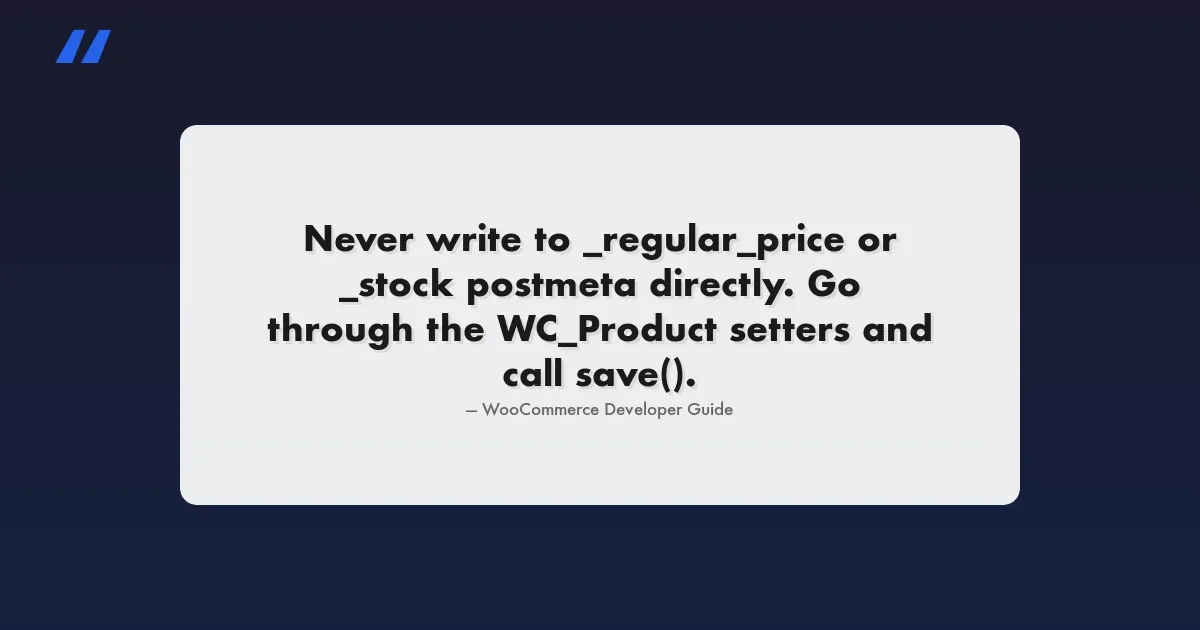
Purple, a Block Theme or a Custom WooCommerce Build?
WooCommerce's Purple theme is in beta. What is in it, what we saw on the demo store, and how to choose between Purple, a block theme and a custom build.

If you are starting a simple WooCommerce store on a current version of WordPress, Purple is worth testing on a staging copy first, because it is free, made by WooCommerce, and built on the same blocks your cart and checkout already use. If you have an existing store on a classic theme with custom checkout code, do not switch for its own sake. And if your store’s value is in how it differs from everyone else’s, with trade pricing, a configurator or a checkout that follows your own process, a custom block theme built for you is still the right starting point. Purple is in beta, so today it is something to evaluate, not something to move a live store onto.
This guide explains what Purple is, what we found when we read its code and walked through WooCommerce’s own demo store, how to choose between Purple, another block theme and a custom build, and how to test any of them safely. One limit up front: we have not installed Purple on a client store or run it under real orders. Where we describe the theme, we say whether it comes from WooCommerce’s announcement, from the theme’s files, or from the public demo.
In this guide
- What Purple is, and what “beta” means for you
- What is in the theme: requirements, templates and patterns
- What we saw on WooCommerce’s demo store
- The three starting points, compared
- Which one fits your store: a decision table
- If you already run a store on a classic theme
- A staging test checklist
- What to ask a theme developer before hiring
- Questions people ask
What is Purple?
Purple is WooCommerce’s first official block theme. WooCommerce announced it for beta testing on 15 September 2026 and describes it as “the open source WooCommerce starter theme made by Woo”. Until now WooCommerce’s own theme was Storefront, a classic theme from before the block editor could build whole sites.
A block theme is a WordPress theme where the header, footer, shop page, product page and every other template are made of blocks you can edit in the Site Editor, without code. A classic theme builds those templates in PHP files, and changing them means editing code or adding a plugin.
From the announcement, Purple includes:
- templates for most block-enabled WooCommerce pages
- ten colour palettes and ten font pairings
- custom styles for WooCommerce and WordPress core blocks
- a pattern library for stores: product grids, filters, collections, calls to action and product detail pages
The announcement also explains why Purple looks thin beside Storefront and its paid add-ons. Features that once needed a Storefront extension, such as a product hero, a custom homepage, a product gallery, a mini-cart or an advanced header, are now things WooCommerce’s blocks do in any block theme. In WooCommerce’s words, “a good block theme is intentionally lean and modular.”
What does beta mean here?
WooCommerce says Purple is available from GitHub for now, and that after this round of testing it will be offered through the WordPress Theme Directory and the WooCommerce Marketplace “for easier automatic updates”. In practice:
- You install it by downloading a zip, not from the Themes screen.
- Updates are manual until it reaches the directory.
- Templates, patterns and styles can still change between versions. If you customise a template in the Site Editor and the theme’s version of that template changes, your customised copy stays as it was and does not pick up the improvement.
The theme is moving quickly. Its repository shows three releases in ten days: 1.0.1 on 30 September, 1.0.2 on 7 October and 1.0.3 on 9 October 2026.
What is in the theme?
These details come from the theme’s own files in the repository, at version 1.0.3.
Requirements
Requirement | Minimum |
|---|---|
WordPress | 7.1 |
WooCommerce | 11.1 (declared compatible up to 11.2) |
PHP | 7.4 |
The theme’s readme says to install and activate WooCommerce before activating the theme. The WordPress 7.1 requirement is the one that will stop older stores: if you are still on 6.x or 7.0, you cannot run Purple until you upgrade. Check your versions under WooCommerce > Status.
Templates
The theme ships block templates for these store pages: the shop archive, single product, cart, checkout, order confirmation, product search results and product attribute archives. It also has a coming-soon template, a front page, blog templates, a 404 page, and three page layouts (blank, no title, and with a cover image).
There are separate template parts for the add-to-cart area of each product type: simple, variable, grouped and external. That matters if you sell variable products, because the variation selector is one of the places older themes and newer blocks most often disagree.
What has changed since the first beta
The changelog for the three releases is short and practical: the theme now warns about its WooCommerce requirements, search blocks were replaced with product search, palette colours were given names that describe their role, active filters now show on mobile and tablet, and header spacing was reduced on several screens. Those are the fixes of a theme being used and adjusted, which is what a beta is for.
Known issues
The repository had three open issues when we looked. One is relevant to a specific setup: a report that a product cannot be added to the cart when the One Page Checkout extension is active. If you use that extension, test this before anything else. An open issue is a report, not a confirmed defect, and it may be fixed by the time you read this, so check the issue list yourself.
What did we see on the demo store?
WooCommerce runs a public preview site. We walked through it at desktop width and at 390 pixels, a common phone width. This is what a shopper would meet.
- Shop page. A product grid with filters for price, rating, colour and stock status, a results count and a sorting menu. The filters are WooCommerce’s newer Product Filters blocks, with a price slider and removable chips for active filters.
- Phone layout. Two products per row, a filter button that opens the filters in place of a sidebar, and no sideways scrolling.
- Product page. A gallery with next and previous controls, price, rating, a short summary, variation selection shown as chips, a stock indicator, a quantity selector, then description, specifications, related products and reviews.
- Cart. The block-based cart, with a mini-cart in the header.
- Product types. The demo’s menu links to a subscription product, a bundle and a digital gift card alongside ordinary products, so the templates are shown with more than simple products.
What a demo cannot tell you: how the theme behaves with your extensions, your payment gateway, your product data or your traffic. We could not test checkout on the demo because checkout needs a cart with items and a real payment setup. That is what your own staging test is for.
What are the three starting points?
Purple | Another block theme | A custom block theme | |
|---|---|---|---|
Who makes it | WooCommerce | A theme company or the WordPress project | A developer, for you |
Cost of the theme | Free | Free or paid | A project quote |
Store templates included | Yes, shop to order confirmation | Varies. Some rely on WooCommerce’s default templates. | Whatever your store needs |
Follows new WooCommerce block features | Likely first, since the same company builds both | Depends on the theme’s maintainer | When your developer updates it |
How different your store looks | Palettes, fonts and patterns you rearrange | The theme’s own style, adjustable | Built around your brand |
Fits unusual layouts or flows | Within what blocks allow | Within what blocks allow | Yes, including custom blocks |
Status today | Beta | Stable options exist | Takes weeks to build |
Who maintains it | WooCommerce | The theme’s author | You, through a developer or care plan |
One point runs through that table. All three are block themes, so they use the same cart, checkout and product blocks from WooCommerce. The theme decides how the store looks and how its pages are arranged. It no longer decides what the store can do, which is a real change from classic themes, where features and appearance were tied together.
Which one fits your store?
Your situation | Start from | Why |
|---|---|---|
New store, simple catalogue, small team, no developer | Purple on staging now. Launch on it once it leaves beta, or on a stable block theme if you cannot wait. | Free, covers every store page, and stays aligned with WooCommerce. |
New store launching this month | A stable block theme | A beta theme can change under you during launch. |
Store with subscriptions, bookings or bundles | Purple or a block theme, tested with those extensions first | The extension’s own templates and blocks are what need checking, more than the theme. |
Trade or wholesale store with price lists per customer | A custom block theme | Account, quote and reorder screens are your core pages, and no starter theme designs those for you. |
Checkout that follows your own process: extra steps, approvals, custom fields | A custom block theme with checkout work | The theme is the small part. The checkout changes are development either way. |
Brand-led store where the look is the selling point | A custom block theme | Ten palettes and ten font pairings produce a good store, not a distinctive one. |
Agency building stores for clients | Purple as a base to study and extend | WooCommerce says developers and agencies can use it “as a starting point for bespoke store designs”. |
Working store on a classic theme, no complaints | Stay where you are | See the next section. |
What if you already run a store on a classic theme?
Then the question is whether to move to a block theme at all, and Purple arriving does not change the answer much.
Reasons to move: you want to edit your header, shop layout or product page without calling a developer. Your theme is no longer updated. You want WooCommerce’s newer blocks, such as the product filters and the block checkout, and your theme’s templates override them. Or you are planning a redesign anyway.
Reasons to wait: the store works and converts. Your checkout has custom PHP attached to classic checkout hooks. Your theme or its child theme carries years of small fixes nobody has documented. You depend on an extension that has not been updated for block cart and checkout.
What a move involves. Switching from a classic theme to a block theme is not a setting. Template overrides in your old theme, which are the files in its woocommerce/ folder, do not carry over. Widgets are replaced by blocks. Menus need rebuilding as navigation blocks. Custom code in the old theme’s functions.php has to move to a plugin or it disappears with the theme. If your checkout is still the classic shortcode version, moving to the block checkout is a separate decision with its own testing. Extensions written for the classic checkout may behave differently or not show at all in the block version.
How to check where you stand.
- Go to WooCommerce > Status and scroll to Templates. It lists every WooCommerce template your theme overrides. A long list means more to rebuild.
- Open your cart and checkout pages in the editor. If each shows a single shortcode, you are on the classic versions. If you see Cart and Checkout blocks, you are already on the block versions.
- List the extensions that add anything to product, cart or checkout pages. For each, check its documentation for block cart and checkout support.
- Search the active theme’s folder for a
functions.phpwith store-related code. Note what it does.
If that list is short, a move is a tidy project. If it is long, treat the move as a rebuild with a budget and a test plan. Our post on using the block editor for product descriptions covers another part of the same shift.
How do you test Purple, or any block theme, safely?
On a staging copy of your store, never on the live site. Work through this list and write down what breaks.
Before you install
- Confirm WordPress is 7.1 or later and WooCommerce is 11.1 or later on the staging copy. Purple will not run below those.
- Take a backup of the staging copy, so you can return to the starting point between tests.
- Turn off outgoing email and put payment gateways in test mode, so staging orders do not reach customers or charge cards.
- Screenshot your current shop, a product page, the cart and the checkout, at desktop and phone width. These are your comparison.
After you activate the theme
- Shop page. Do products, prices and sale badges show? Do filters work, and do they work on a phone?
- Each product type you sell. Simple, variable, grouped, external, subscription, bookable, bundled. Can you choose options and add each one to the cart?
- Extensions that add to the product page. Product options, size charts, wishlists, reviews with photos. Are they still there?
- Cart. Quantity changes, coupon field, shipping estimate, cross-sells.
- Checkout. Place a full test order with each payment method you offer. Check every custom field, the shipping options, tax, and the confirmation page. This is the test that matters most.
- Order emails. Do they arrive and look right? Email templates are separate from the theme, but confirm it.
- My Account. Orders, addresses, downloads, subscriptions.
- Search. Does product search return products?
- Speed. Compare load time on the shop and a product page with your screenshots’ originals, on a phone connection.
- Keyboard and screen reader basics. Can you reach add-to-cart and complete checkout using only the Tab and Enter keys?
Our 10-minute checkout test has the exact orders to place. If checkout passes with every payment method and extension you rely on, the theme is a candidate. If anything fails there, stop and find out why before you look at design.
Customising without painting yourself into a corner
- Change colours and fonts through Styles in the Site Editor, where a change applies everywhere. Avoid setting colours block by block.
- Edit templates only where you need to. Each template you customise stops receiving the theme’s later improvements to that template, which matters more during a beta.
- Keep a note of every template and part you change, so you can review them after a theme update.
- Put custom code in a small plugin, not in the theme, so it survives a theme change.
What should you ask a theme developer before hiring?
If the decision table pointed you to a custom build, these questions separate a developer who builds for the way WooCommerce works now from one still building the old way.
- Will this be a block theme, and will my team be able to edit the header, shop and product layouts in the Site Editor? If the answer involves a page builder plugin or “send us the changes”, ask why.
- Which WooCommerce blocks will the cart and checkout use, and how will my custom checkout requirements be added? You want to hear about the block checkout and its supported extension points, not edits to WooCommerce’s own files.
- Where will custom code live? The right answer is a separate plugin for functionality, with the theme handling presentation.
- How are colours, spacing and type defined? Look for a single settings file,
theme.json, so a brand change is one edit and not a hunt through stylesheets. - How will you test it? Ask for the list: product types, payment methods, phone widths, keyboard use, and a real test order through every gateway.
- What happens when WooCommerce releases a major version? Someone has to check the theme against it. Agree who, and whether that is in a care plan.
- Who owns the code and the design files at the end? You should, in writing.
- Can I see a store you built that is at least a year old? A year shows whether a build survives updates.
What would we do?
For a new, simple store: install Purple on staging this week, run the checklist, and decide at launch time based on whether it has left beta. For an existing store that works: leave it, and do the four-step check above so you know how big a move would be when the time comes. For a store whose checkout, pricing or brand is the business: plan a custom block theme, and use Purple as a reference for how WooCommerce expects a block store to be put together.
Whichever you choose, the checkout test decides. A theme that looks right and takes money correctly through every payment method you offer is ready. One that fails a test order is not, however good the product page looks.
Questions people ask
What is the Purple theme for WooCommerce?
Purple is WooCommerce’s first official block theme, announced for beta testing in September 2026. It is a free, open source starter theme with templates for shop, product, cart and checkout pages, ten colour palettes, ten font pairings and a library of store patterns.
Is Purple free?
Yes. It is open source and available from WooCommerce’s theme repository on GitHub during the beta. WooCommerce says it will be added to the WordPress Theme Directory and the WooCommerce Marketplace after testing.
Is Purple ready for a live store?
WooCommerce describes it as being in beta testing, and its templates and styles are still changing between releases. Test it on a staging copy now. For a store launching immediately, a stable block theme is the safer choice until Purple reaches the Theme Directory.
What does Purple require?
At version 1.0.3 the theme’s files state WordPress 7.1 or newer, WooCommerce 11.1 or newer, and PHP 7.4 or newer. WooCommerce must be installed and active before you activate the theme.
Does Purple replace Storefront?
WooCommerce calls Storefront its classic flagship theme and Purple its first official block theme. The announcement does not say Storefront is being retired. If your store runs well on Storefront, nothing requires you to move.
Should I switch my existing store to a block theme?
Only for a reason: you want to edit layouts without a developer, your theme is no longer maintained, or you are redesigning anyway. A switch means rebuilding template overrides, menus and widget areas and re-testing checkout, so plan it as a project on a staging copy.
When is a custom WooCommerce theme worth paying for?
When the parts of your store that earn money are the parts a starter theme does not design: trade accounts and price lists, a checkout with your own steps, product configurators, or a brand where the look itself sells. For a standard catalogue, a good free block theme is enough.
If you would like a second opinion on which starting point suits your store, or a block theme built and tested around your checkout, our WooCommerce development services page explains how we work.
Plugins we build and run
We maintain these ourselves, which is why we can support them on your site.
- BuddyNextThe self-hosted community engine for WordPress
- BuddyXFree community theme, Pro when you outgrow it
- ReignPremium community theme. Add pieces, build anything
- JetonomyCommunity forum and Q&A for WordPress
- EventonomyEvents and RSVPs for WordPress communities
- LearnomyCourses and learning communities on WordPress
- ListoraDirectories and listings your members can browse
- SnipShareCode sharing built for developer communities
- WB Ad ManagerAd placements that turn traffic into revenue
- WP Career BoardA job board your community actually uses
- WP Sell ServicesSell services with offers, orders, and payouts
- MediaVersePhotos, video, and media albums for members
- WB GamificationPoints, badges, and rewards that keep members active
- Product RoadmapPublic roadmaps with voting your users trust