WooCommerce Is Raising Its PHP Floor: Check Your Store, Talk to Your Host, and Decide If the Plan Still Fits
Your store will not break, but on PHP 7.4 or 8.0 it will stop getting WooCommerce updates. Check in 30 seconds, test on staging, and decide if your plan fits.

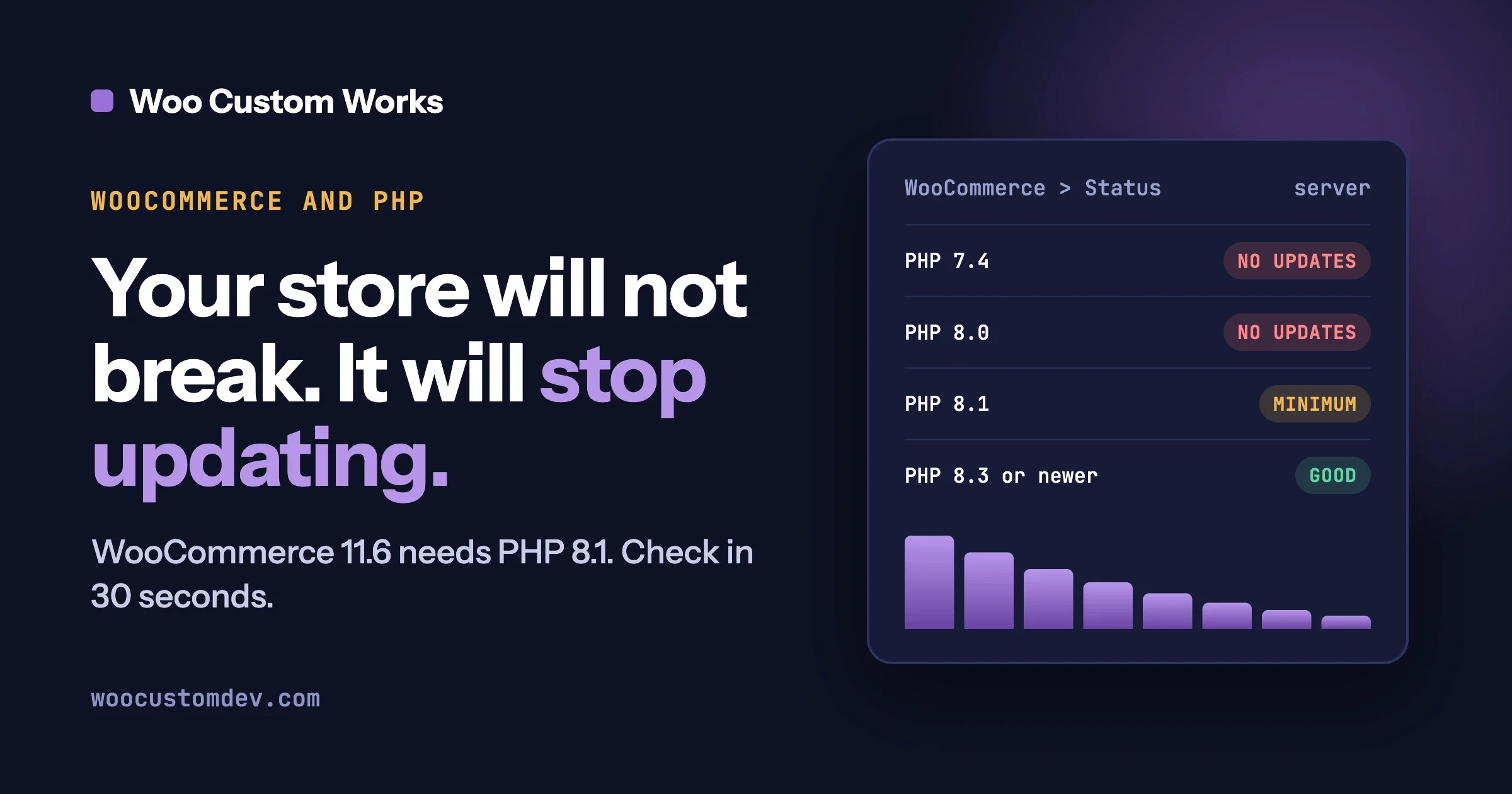
Your store will not break on the day WooCommerce raises its PHP floor. If your site runs on PHP 7.4 or 8.0, it will quietly stop being offered new WooCommerce versions once 11.6 ships, and it will keep running on the last version it could install. Checking your PHP version takes about 30 seconds, and the fix is a planned PHP upgrade that you test on a copy of your store first.
This guide is written for the person who owns the store, not for the person who writes the code. Each problem comes with how to check it, fix it and stop it coming back. It is general information, not legal or financial advice, and your host and developer know your setup better than we do.
In this guide
- How to see your PHP version in about 30 seconds
- What WooCommerce announced, and what happens to a store on older PHP
- The risk of staying on the last supported WooCommerce version
- The questions to ask your host, word for word
- How to test on a staging copy before you switch
- How to tell whether a slow store needs a bigger plan or something else
- A one-page checklist and the questions people ask most
How can you check your PHP version in 30 seconds?
Log in to your WordPress admin and go to WooCommerce, then Status. The System Status report opens, and under the Server Environment section it shows the PHP version your hosting server is running. WooCommerce describes that line as the “version of PHP installed on your hosting server” in its System Status documentation.
What you are looking for is the first two numbers. 7.4 or 8.0 means your store is on a version that WooCommerce will stop supporting in a future release. 8.1 or higher means you meet the new minimum. If you see 8.1, you meet the minimum, but a newer version is a better target (see below).
Take a screenshot or use the copy option: the same report lists your memory limit and PHP time limit, and a host or developer will ask for it. It also gives you a “before” record.
If you cannot log in to the admin, or the Status screen is missing, ask your host which PHP version is assigned to your site. Hosts show this in their control panel, and support can tell you in one message.
What did WooCommerce actually announce?
On 29 September 2026 the WooCommerce Developer Blog published a post titled “New Requirement for WooCommerce 11.6: PHP 8.1+”. It says WooCommerce 11.6, planned for February 2027, will require PHP 8.1 or newer. The post is aimed at developers, but its plain meaning for an owner is simple: PHP 7.4 and 8.0 are being dropped.
The date matters, because it changed. An earlier post, published on 8 September 2026 and titled “Proposed change: Requiring PHP 8.1 or newer for WooCommerce 11.5 and beyond”, proposed making the change in WooCommerce 11.5, which it described as targeted for January 2027. That was a proposal. The later post replaces it: the requirement now lands one release later, in 11.6, planned for February 2027. If you wrote down January, use February. Release months are plans and can move, so check the Developer Blog again before setting a hard deadline.
The reasoning given in the later post is that PHP 7.4 and 8.0 have reached the end of upstream security support, meaning the PHP project itself no longer fixes security problems in them. Raising the floor also lets WooCommerce and its extension developers update their own dependencies and use newer PHP features.
How many stores are affected?
The post says approximately 7% of tracked stores are on PHP 7.4 and 2% are on PHP 8.0. For stores that have updated recently, it says the combined figure is closer to 6% and has been declining steadily. It also adds a caution that matters for how you read these numbers: usage tracking is opt-in, so the figures are a sample and not a count of every WooCommerce store. Do not read them as “9% of all stores”; they only show that older PHP is a minority situation.
Will a notice show up in the admin?
Yes. The post says WooCommerce 11.3 will add a dismissible admin notice for stores running PHP 7.4 or 8.0. Closing a notice does not change your PHP version, so treat it as the reminder to start this plan.
What actually happens to a store on old PHP?
Nothing dramatic happens on the day. The WooCommerce post is explicit that the PHP requirement change will not deactivate an existing WooCommerce installation. Your shop keeps taking orders, your products stay online and your customers see no banner.
What changes is which updates your store is offered. WordPress normally prevents an update to a plugin version if your server does not meet the PHP requirement the plugin declares. Once WooCommerce 11.6 declares PHP 8.1 as its minimum, a store on PHP 7.4 or 8.0 will simply not be offered that update. The earlier proposal described the same mechanism: stores that do not meet the requirement would stay on their existing version and keep receiving dot releases for it, but must upgrade PHP to reach newer releases. A dot release is a small follow-up version, such as a fix between two larger releases.
The later post says stores on PHP 7.4 or 8.0 can keep updating WooCommerce through the rest of the year, up to version 11.5, while they prepare their hosting environment. So there is a window, and the sensible move is to use it.
Is it safe to stay on the last supported WooCommerce version?
For a while, yes. For a long time, no. Staying on WooCommerce 11.5 while you plan is reasonable, and the announcement describes that window. The trouble starts if “short-term” turns into “next year”. Here is what freezing means in practice.
- Extension updates can get ahead of you. The later post notes that extensions targeting WooCommerce 11.6 and newer can use modern PHP features, while extensions that still support older versions may need extra compatibility code. A plugin you rely on may eventually release a version that needs a newer WooCommerce than the one you are stuck on.
- Fixes stop reaching you. Whatever WooCommerce fixes after 11.5 will not be offered to a store that cannot install it.
- The PHP itself is unsupported. PHP 7.4 and 8.0 no longer get security fixes from the PHP project. The server software under your store is the unpatched part.
- The later you move, the bigger the jump. A later, bigger jump means testing more changes at once.
Which PHP version should a store move to?
The WooCommerce minimum is PHP 8.1, but aim at a version that will stay supported after you finish testing. The php.net supported versions page lists:
PHP version | Active support until | Security support until |
|---|---|---|
8.2 | 31 Dec 2024 | 31 Dec 2026 |
8.3 | 31 Dec 2025 | 31 Dec 2027 |
8.4 | 31 Dec 2026 | 31 Dec 2028 |
8.5 | 31 Dec 2027 | 31 Dec 2029 |
PHP 8.1 no longer appears in that table of supported versions at all. So moving “just to 8.1” would meet the WooCommerce requirement and still leave you on a version PHP no longer lists as supported.
Active support means the PHP project fixes bugs and security issues. Security support means only critical security fixes. PHP 8.2 reaches the end of security support on 31 December 2026, so moving to 8.2 now buys you only a few months. Of the versions in the table, 8.3 and 8.4 are the realistic targets for most stores today, and 8.5 is the newest. The right pick for you depends on what your theme and extensions have declared they support, which is exactly what the staging test below tells you. Ask your developer or the extension vendors before you choose, and prefer the newest version that passes your test.
What should you ask your host?
Your host controls the PHP version, so this is a conversation, not a setting you fix yourself. Open a support ticket or chat and ask the following questions. Copy them as written.
- “Which PHP versions do you offer on my plan?” You want to see 8.3 or newer in the list. If the newest option is 8.1 or lower, that tells you something about the host.
- “Can the PHP version be changed for this one site only, and changed back?” Many hosts let you choose per site in a control panel. Being able to go back quickly is your safety net if something misbehaves after the change.
- “Do you offer a staging copy of my store, and does it follow the same PHP setting as production?” A staging site is a private copy of your store used for testing. You need to be able to change PHP on the copy without touching the live store.
- “What is the CPU, memory and process limit on my plan, and what happens when the site reaches it?” The answer is often a number of simultaneous PHP processes or a share of server CPU. Ask whether reaching the limit slows the site, queues requests or shows errors to visitors.
- “Do you offer a persistent object cache, and is it included?” We explain what that is in the diagnostic section. You only need to know whether the option exists and what it costs.
- “Can you run a real server cron job for WordPress?” Again, explained below. A yes or no is enough for now.
- “Do you take a backup before a PHP change, and how is it restored?” Take your own backup as well, but ask.
Keep the replies. If the answers to questions 1, 2 and 3 are all “no”, you have found the real decision in this guide: whether the plan is the right place for your store. If most are yes, a PHP change is a routine afternoon of testing.
How do you test the change on a staging copy?
Never change PHP on a live store as your first test. Make a staging copy, switch it to the newer PHP, and run through what your customers and team actually do, so any broken extension is found while only you can see it.
Before you start
- Take a full backup of the live store and note where it is stored. Save today’s System Status report.
- Update WordPress, WooCommerce, the theme and extensions on the staging copy first. Old extensions are the most common reason a PHP upgrade fails.
- Turn on error logging on staging and keep the log open while you click. Use your payment gateway’s test mode, never real cards.
What to click
- Browse and search. Open the home page, a category, a product with variations and the search results. Look for blank sections and broken layouts.
- Add to cart. Add a simple and a variable product, change quantities, apply a coupon.
- Check out with a test payment, using your gateway’s test mode, as a guest and as a logged-in customer, with each payment and shipping method.
- Log in as a customer. Reset a password, open My Account, view an order.
- Check the emails: new order, completed, refunded, password reset. Mail is a common casualty of server changes.
- Run your special flows: a test subscription and its renewal, a booking and its cancellation, memberships, downloads, custom product builders.
- Do an admin pass. Create a product, edit an order, issue a test refund, then read the Status report again.
What to watch while you click
- A white screen or “critical error”. Usually an extension or theme is not ready for the new PHP. The log names the file.
- Deprecation notices in the log. PHP is telling a developer that some code uses a feature that will stop working in a future version. Not a failure today, but send the line to the plugin’s vendor.
- Emails that never arrive, and anything slower than your “before” record.
When something fails
Write down what you clicked, what happened and the log line. Then update the extension (a newer version may already support the newer PHP), ask the vendor for a fix with the log line in hand, or replace it. A custom plugin can usually be adjusted by your developer. When staging passes everything, schedule the live change for a quiet hour, take a fresh backup, switch PHP, and repeat a short version of the clicks on the live site. If something is wrong, switch back.
Is the plan still big enough?
A PHP upgrade is often the moment owners start wondering about hosting, especially if the store already feels slow or orders sit “processing” for a long time. But a slow store has several possible causes, and hosting is the most expensive one to change, so check it last. The order below goes from cheapest and most common to most expensive. Write down what you find at each step.
We have already written about the background work that builds up behind a slow checkout. Read “Your WooCommerce Store Is Busy With Work Nobody Sees: Action Scheduler Backlogs and Add-to-Cart Crawl Traps Behind a Slow Checkout“ for that story. Here we give only the order to check things in and how to tell a hosting limit from everything else.
Step 1: Read the logs first
Ask your host where the PHP error log is, and look at your WooCommerce and plugin logs. Look for repeated messages about the same plugin, memory being exhausted, or a request taking too long. A repeated error from one plugin points to that plugin, not the plan. Memory or time limit messages can point to the plan, but they can also point to one heavy plugin. Fix the plugin first, and have someone read the log after each update.
Step 2: Separate “past due” from “pending” in Scheduled Actions
WooCommerce does a lot of work in the background (subscription renewals, emails, update checks) using a job queue called Action Scheduler. You can see it at WooCommerce, Status, Scheduled Actions, or under Tools, Scheduled Actions. The Action Scheduler documentation says this screen lets you run a pending action, view actions by status such as failed or in-progress, sort and search them, and read the log entries for one action to find out why it failed.
A pending action is waiting for its time or its turn. A long list of pending actions with future dates is normal, because renewals due next month are pending. A past-due action is one whose scheduled time has already arrived but which has not run. A few that clear within minutes are normal. Past-due actions that stay put, or keep growing, mean the queue is not being processed fast enough, or at all. (The documentation we read describes the screen and the statuses above but gives no formal definition of “past due”, so this is our plain-English reading of what you see on screen.)
Sort by scheduled date and ask: is the oldest unfinished action minutes old or days old? Are the failed ones all from one plugin? Failures from a single plugin point to that plugin. Old, unprocessed actions across many hooks point to the queue itself, which leads to the next two steps.
Step 3: Check how often cron really runs
The queue only moves when something starts it. The Action Scheduler documentation says it attempts to run every minute by attaching to a hook scheduled with WP-Cron, WordPress’s built-in scheduler. The WordPress developer documentation says WP-Cron runs when someone loads a page. It is not a clock on the server, so a quiet site, or one where full-page caching serves most visitors without running PHP, may trigger it less often than you expect.
The WordPress documentation’s remedy is to turn off the page-load trigger and call WP-Cron from the server’s own scheduler (a real cron job). You add this line to wp-config.php:
define( 'DISABLE_WP_CRON', true );and schedule a request to wp-cron.php from the server. The documentation shows the pattern with wget. For a store, the schedule is every minute (the five stars at the start mean “every minute of every hour of every day”):
* * * * * wget --delete-after https://YOUR_SITE_URL/wp-cron.phpThis is the documented pattern, and the exact way to add a cron job differs from host to host, so ask your host or developer to set it up. Never disable WP-Cron without adding the real cron job, or scheduled tasks stop running.
If past-due actions keep growing while a real cron job already runs every minute, cron cadence is not the bottleneck and the cause lies further down this list. If no real cron job exists and the oldest past-due action is hours old, cron is the likely culprit, and it is a cheap fix.
Step 4: Know the queue’s defaults
The Action Scheduler documentation says it claims a batch of 25 actions and keeps processing until it uses 90% of available memory or has been processing for 30 seconds, in a single concurrent queue, to avoid consuming many connections or processes on your web server. Its performance page calls these defaults more conservative than many servers could support. So a large backlog on default settings clears slowly even on a healthy server. For large queues the documentation recommends WP-CLI (the WordPress command line tool), and lists wp action-scheduler run with a default batch size of 100. We have not run it for this article; your developer or host would. The same page warns that raising concurrent batches can substantially increase server load and take down a site, so leave tuning to someone who can watch the server.
Step 5: Check whether HPOS is on
HPOS stands for High-Performance Order Storage. WooCommerce’s documentation says it stores orders in dedicated tables with dedicated indexes, and that it is enabled by default for new installations from WooCommerce 8.2 onward. Existing stores must switch it on, at WooCommerce, Settings, Advanced, Features. If an extension that uses the older storage is detected, the documentation says the switch is disabled and you can view the list of problem extensions. Its compatibility mode synchronises orders to the posts table by scheduling background actions that backfill 25 orders at a time, so switching creates its own background work for a while. Do the PHP change and the HPOS change as two separate steps, each tested on staging. We cannot tell you how much faster HPOS makes your store without measuring it.
Step 6: Ask about an object cache
Every page asks the database the same questions again and again. An object cache keeps recent answers in memory so the database is asked less often. A persistent one keeps them between visits and needs a service such as Redis or Memcached, which your host has to provide. If your host offers one, it is often cheaper than a bigger plan and helps most on pages that cannot be fully cached, such as cart, checkout and My Account. This is a general WordPress technique, not a measured promise for your store, so compare the same pages before and after on staging.
Step 7: Only then, look at hosting
If the store still struggles after all that, hosting is a fair suspect. We give no number of orders or visitors where a plan stops being big enough, because none applies to every store: a store with a few heavy extensions can need more than a larger, leaner one. The pattern is what helps.
Signs that point to hosting limits
- Past-due actions keep growing even though a real cron job runs every minute and no single plugin is failing.
- The host’s dashboard shows you reaching the CPU, memory or process limit, and the slow moments line up with those readings.
- Memory or time limit errors appear across many plugins, and your plan does not allow raising the limit.
- Visitors see errors or a resource limit message when traffic rises, for example during a sale.
- The same slowness appears on staging with extra plugins off and a default theme.
- Your host confirms throttling. Many shared plans cap CPU use per account.
Signs that do not point to hosting
- One plugin produces most of the errors or failed actions.
- Past-due actions are minutes old and clear on their own.
- No real cron job exists and the oldest past-due action is hours old.
- The slowness started right after one change, such as a plugin update or theme edit.
- Only one page type is slow, which usually means a specific query or template.
- Only logged-in customers or the admin are slow, while cached visitor pages look fast.
A bigger plan can help even when hosting was not the root cause, because headroom hides inefficiency, but the cost returns at the next traffic bump. Keep your findings: they tell you what to repair on the new plan too.
One-page checklist
Step | What to do | Done when |
|---|---|---|
1 | Read the PHP version at WooCommerce, Status | You have a saved copy of the report |
2 | Choose a target PHP version | Your theme and extensions support it |
3 | Ask the host the seven questions | You have written answers |
4 | Back up the live store | You know how to restore it |
5 | Create staging, update everything, switch PHP | Staging runs the newer PHP |
6 | Run the click test and read the log | Every test passes, log is clean |
7 | Fix or replace failing pieces, test again | Staging passes a second run |
8 | Switch PHP on the live store in a quiet hour | A short click test passes on live |
9 | Review Scheduled Actions, cron, HPOS, object cache | Past-due items are not growing |
10 | Revisit hosting only if the signs point there | Decision recorded with your notes |
11 | Re-check the WooCommerce Developer Blog | The planned month has not moved |
Questions people ask
Will the store stop working when WooCommerce 11.6 is released?
No. WooCommerce states that the change will not deactivate an existing installation. A store on PHP 7.4 or 8.0 keeps running, is not offered the 11.6 update, and can keep updating up to 11.5.
When exactly is the change?
WooCommerce 11.6 is planned for February 2027, per the Developer Blog post of 29 September 2026. An earlier proposal named 11.5 and January 2027 and was replaced. Planned months can shift, so check the blog before relying on a date.
Is PHP 8.1 enough?
It meets the WooCommerce minimum, but PHP 8.1 is no longer on the php.net list of supported versions. PHP 8.3 and 8.4 are better targets for most stores if your theme and extensions support them. Your staging test settles it.
Can the store owner upgrade PHP without a developer?
Often yes, because many hosts offer a PHP selector in the control panel. The hard part is knowing your extensions will cope, so test on staging first with a backup in place.
The host only offers PHP 7.4 or 8.0. What now?
Ask whether a newer version exists on another plan. If not, the plan is the problem and moving hosts is a legitimate answer, as a planned migration with a staging copy and not as an emergency.
Is a slow store caused by old PHP?
It might contribute, but slow stores usually have several causes. Follow the order in this guide and do not buy a bigger plan on a guess.
Where to get help
If you would rather not run these checks and tests yourself, that is a normal thing to hand to a developer, and it is the kind of routine work our WordPress maintenance services cover: checking your setup, testing a PHP change on a copy of your store, and fixing what a newer version breaks. If you have a specific extension or customisation that stops working on newer PHP, our WooCommerce development services page explains how we approach that kind of repair. Or send us a message with your System Status report and we will tell you what we see.
Plugins we build and run
We maintain these ourselves, which is why we can support them on your site.
- BuddyNextThe self-hosted community engine for WordPress
- BuddyXFree community theme, Pro when you outgrow it
- ReignPremium community theme. Add pieces, build anything
- JetonomyCommunity forum and Q&A for WordPress
- EventonomyEvents and RSVPs for WordPress communities
- LearnomyCourses and learning communities on WordPress
- ListoraDirectories and listings your members can browse
- SnipShareCode sharing built for developer communities
- WB Ad ManagerAd placements that turn traffic into revenue
- WP Career BoardA job board your community actually uses
- WP Sell ServicesSell services with offers, orders, and payouts
- MediaVersePhotos, video, and media albums for members
- WB GamificationPoints, badges, and rewards that keep members active
- Product RoadmapPublic roadmaps with voting your users trust