Fixing WooCommerce Product Search: Built-In, a Plugin, a Hosted Service or Your Own Search Server
Customers cannot find products? Check the symptoms in five minutes, fix the data, then pick the smallest search tool that solves the rest.

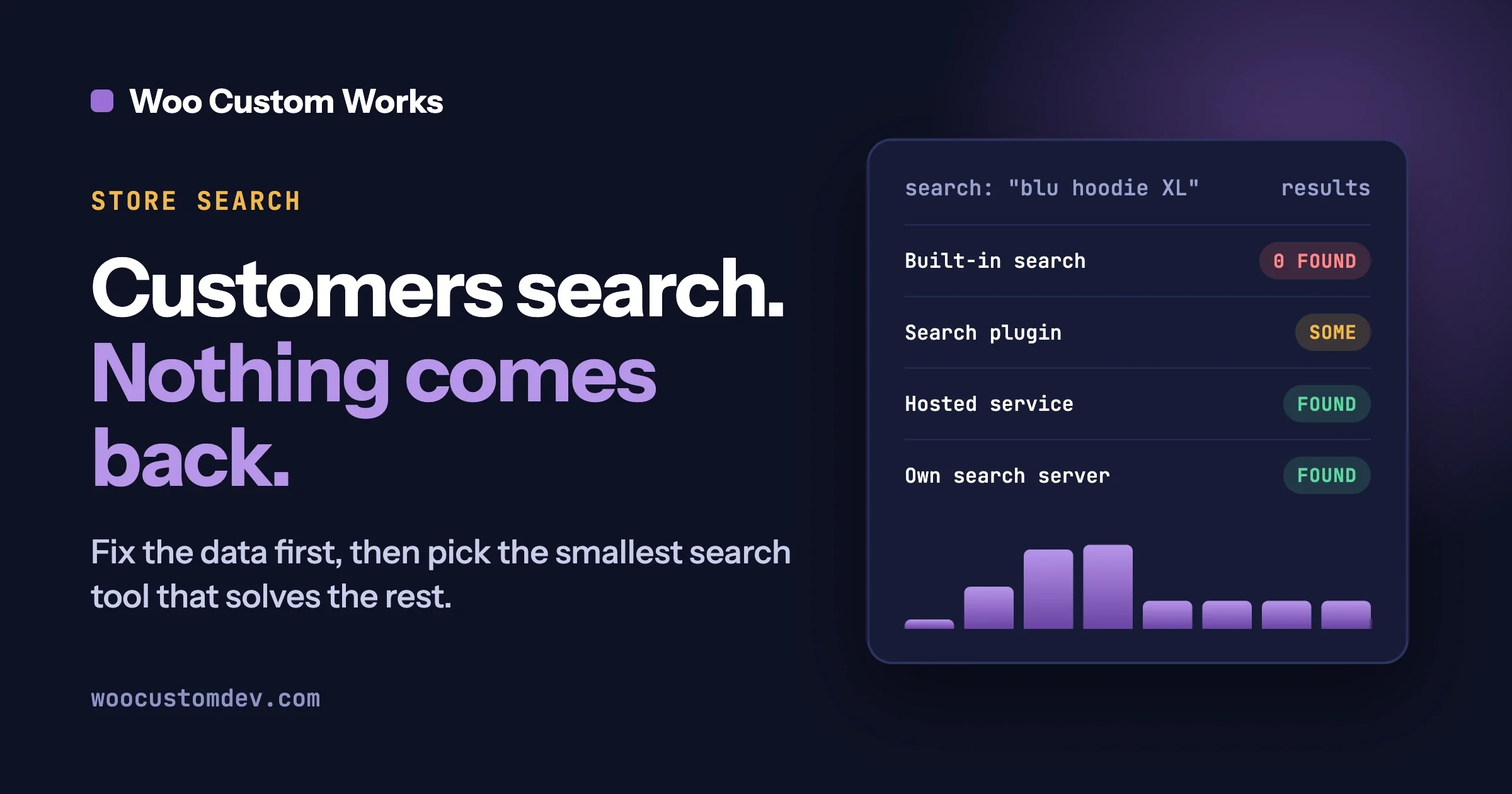
Most WooCommerce store search problems come from three things: the search box only reads product titles and descriptions, it has no tolerance for typos, and it cannot narrow results by attributes such as size or colour. Fix the product data first, because that costs the least and helps every option below. Then pick the smallest tool that solves what is left.
In this guide
- How to tell, in five minutes, whether your search is costing you sales
- Why the default search behaves the way it does
- How to fix your product data so search works better with no new software
- Four options: improved built-in search, a search plugin, a hosted search service, and your own search server such as Meilisearch
- A decision table by catalogue size, how customers search, and who looks after the store
- How we approach a store search project
Why does WooCommerce search miss products that are clearly in the shop?
Because the default search is simple. When a shopper types a word, WordPress looks for that exact string of letters inside three places on each product: the title, the short description (WordPress calls it the excerpt) and the main description. That is what the WordPress code does, and WooCommerce’s storefront search builds on the same three fields.
Three consequences follow from that design.
- It only reads titles and descriptions. A colour or size that lives only in a product attribute, a tag, a category or a custom field is not looked at by the standard search. The SKU (the stock code you give each product) is also not part of the standard storefront query we read. WooCommerce’s admin and REST product search does include SKUs, but that is a different code path from the search box your customers use.
- It has no typo tolerance. It matches by simple substring. If the shopper types “sneekers” and your product says “sneakers”, the letters do not match and the result is empty.
- It does not filter by attribute. WooCommerce does have attribute filtering for the shop (called layered navigation), but it is separate from the search box. Typing “blue” does not read your Colour attribute, and the results page does not offer “narrow by size” unless your theme or a filter block adds it.
None of this means the built-in search is broken. It was designed to be small and to run everywhere. The question is whether your catalogue and your customers have outgrown it.
How do you know if store search is costing you sales?
Run these four checks. Each takes about five minutes and needs no developer. Use a private browser window, on a phone as well as a computer.
Check 1: Do customers find a product when they type its exact name?
Pick ten products, including best sellers. Type each name into the search box exactly as it appears on the product page, and write down any that do not come first. This is the most serious failure, because the shopper already knows what they want.
Fix: change the title or description so it contains the words a customer would type (see the data section below). Prevent: add a title check to your product-adding routine.
Check 2: What happens when the word is misspelled?
Take five product names and drop or swap one letter in each. Type them in. If every one returns “no results”, your search has no typo tolerance, which is normal for the default search. Whether that matters depends on your products.
Fix: add the common misspelling to the description or tags as a cheap workaround, or pick a tool in options 2 to 4 that handles typos. Prevent: review the zero-result searches (Check 4) every month.
Check 3: Does searching a size, colour or material do anything?
Type “red”, “large” or “cotton”, whichever your shop sells by. If you get nothing, or a random mix, the attribute is not part of what search reads.
Fix: write the attribute into the title or short description for your top products, or use a search tool that reads attributes. Prevent: when you add a product, enter the attribute in both places.
Check 4: Is it slow on a large catalogue?
Search for a common word on a phone connection and count the seconds. Several seconds on a catalogue of many thousands of products suggests the database is working hard on every search.
Fix: first rule out general slowness (hosting, caching, heavy plugins), because search is often blamed for problems that are elsewhere. If search alone is slow, move to option 3 or 4. Prevent: test search speed again after each large product import.
How do you read what customers actually search for?
If your site uses an analytics tool that records site search, read it. Google Analytics 4, for example, has an enhanced measurement event called view_search_results. By default it fires when a visitor lands on a page whose address contains a query parameter such as q, s, search, query or keyword, and it fills a “Search term” report. WordPress search uses the s parameter, so this usually works without extra setup, but check that site search is switched on in your analytics settings.
What to look for in that report:
- The top twenty searches. Run each one yourself. Anything that returns nothing or the wrong thing is your priority list.
- Searches that are not products. “Shipping”, “returns”, “size guide” tell you what information customers cannot find elsewhere.
Without analytics, search your shop for each top product and note which ones fail. We give no figure for what bad search costs, because it depends on your shop and we have no source we would stand behind. Measure your own, before and after any change.
Should you fix product data before buying any search tool?
Yes. Every option below searches the words you give it, and a powerful engine pointed at vague records returns vague results quickly. Cleaning the data is the cheapest step and still helps if you change tools later.
Start with your best sellers and most-searched products.
- Titles. Write the title the way a customer would say it. “Men’s waterproof hiking boots, brown” is searchable. “HB-4471” is not.
- Short descriptions. The short description is one of the three fields the default search reads, so use it. Add the plain words a customer might use that the title leaves out: the synonym (“couch” next to “sofa”), the use (“for wide feet”) and the colour or size in words.
- SKUs. Keep a clear, consistent pattern. The default storefront search does not read SKUs, so if code searches matter to you, that is a reason to look at option 2 or beyond.
- Attributes. Use proper product attributes (Colour, Size, Material) instead of putting those words only in the description. Attributes are what filters and every better search tool read. Keep values tidy: “Navy” and “navy blue” and “Dark blue” for the same colour split your filters into three.
- Tags and categories. Use tags for the words customers use that do not belong in the title.
How to check it worked: repeat Checks 1 to 3 on the products you edited. How to prevent the data drifting back: write a one-page product entry guide for whoever adds products, and review new products monthly.
Option 1: How far can the built-in search and the Product Search block go?
Quite far for a small shop, but not as far as stores with big catalogues need. Everything in this option is free and already in WooCommerce.
What you get. WooCommerce has a Product Search results template and a Product Search block that adds a search box to a page. WooCommerce’s documentation describes the block as a box that lets customers search for products by keyword, with settings for text colour, background colour and width. It can sit in the “no results” part of the results template, and results can sort by relevance. It is a styling tool, not a search-quality tool.
What it cannot do. The block changes how the box looks. It does not change what the search reads, and it adds no typo tolerance or attribute search.
When it is enough.
- A catalogue of a few hundred products with clear titles.
- Customers who search by product name or category word.
- No attribute or SKU searching needed.
Signs you have outgrown it. Your zero-result searches (from your analytics) are mostly valid products, your customers search by size or colour, or you have many thousands of products.
Option 2: What does a search plugin on the same server add?
This class of plugin replaces the way WordPress finds products, but keeps everything on your existing hosting and your existing database. It builds its own search index inside your database and changes what gets searched and how results are ranked.
What this class of plugin typically adds:
- More fields. Search that also reads attributes, tags, categories, SKUs and custom fields. As one example, the documentation for the WooCommerce Product Search extension on woocommerce.com says its weights apply to matches in product titles, excerpts, contents, tags, categories, attributes and SKU.
- Weighting. You decide a title match counts for more than a description match. In that same extension’s documentation, titles carry the highest default weight, then excerpts, then tags, while content defaults to zero. The point is that weighting is a setting you control.
- Search as you type, and sometimes filters beside the results.
The trade-off. The work still happens on your own server and database. On a quiet store that is fine. On a busy or very large store, searches compete with checkout and admin work for the same resources, so if search is slow because of the server, this option can make it worse.
How to judge a search plugin before you install it. Open its page on wordpress.org and look at four things:
- Last updated. A plugin not updated in the last year is a risk with WooCommerce, which changes often. We would not recommend one.
- Tested up to. It should name a recent WordPress version.
- Active installs and reviews. A larger base means more people have already found the problems. A very small one makes you an early tester.
- Support forum. Are questions answered and resolved?
Then test it on a copy of your store (a staging site), not on the live shop, with your real product data.
When it fits: a catalogue up to a few thousand products, customers who search by attribute or SKU, and a server that is not already under strain.
Option 3: When does a hosted search service make sense?
A hosted search service is a company that runs the search engine for you. Your store sends it a copy of your product data, and when a shopper searches, the results come from the service instead of from your database. Algolia describes itself as a hosted search and retrieval platform to which you send records through an API, and ElasticPress, a plugin we read about below, can connect to a hosted service called ElasticPress.io.
What it adds.
- Search speed that does not depend on your hosting, plus typo tolerance, attribute filtering and ranking controls, depending on the service.
What it costs, in ways other than money.
- Dependency. If the service is down, changes its terms, changes its pricing or closes, your search is affected.
- Data sharing. A copy of your product data lives with a third party. Product data is usually public anyway, but check what the plugin sends. Some can also send orders or customer details, which you may not want to share. Read the service’s privacy terms. This is not legal advice; ask your own adviser if it matters.
- Ongoing charges. Hosted search is usually billed on usage, so check the vendor’s current pricing page before you commit. We quote no figures.
ElasticPress and Elasticsearch. ElasticPress is the best-known WordPress plugin here. Its wordpress.org page shows about 8,000 active installs, an update on 10 September 2026 and a “tested up to” of WordPress 7.1.3, and it has a WooCommerce feature for filtering product results. Its FAQ says it connects a site either to the ElasticPress.io hosted service or, for advanced users, to an Elasticsearch server you run yourself, with security and configuration considerations. That makes it a bridge between options 3 and 4.
When it fits: a busy store with a large catalogue, a team without server skills, and a budget for a monthly service.
Option 4: What does running your own search server involve?
Running your own search server means installing a search engine on a server you control, filling it with your product data, and pointing your shop’s search at it. Meilisearch is one such engine. It is open source, and its documentation describes it as a single program with a REST API (a way for other software to talk to it) that returns results quickly even with large amounts of data.
Typesense is another open-source engine in this category (its repository is under the GPL-3.0 licence), and Algolia is the hosted counterpart. We name them only to show the category exists, and we have not tested any of them for this guide.
What does it add?
- Typo tolerance. In Meilisearch it is on by default. Its documentation says it accepts one typo for words of five or more characters and two typos for words of nine or more, and you can turn it off for particular attributes or words (useful for product codes).
- Filters and facets. Facets are the filter lists you see beside results, such as “Colour: Blue (12), Red (8)”. In Meilisearch, an attribute has to be declared as filterable before it can be used that way, and results can return a count for each value.
- Control of ranking. Seven built-in ranking rules decide the order of results, and you can reorder them.
- Speed on large catalogues. Its documentation says results typically arrive in under 50 milliseconds. That is the vendor’s claim about its engine, not a measurement of any store.
What does it ask of the store?
This is the most work of the four options, and we would not hide that. Here is what is involved.
- Somewhere to run it. A server or managed host that stays on, has enough memory for your index, and is secured with HTTPS. Someone must own it.
- Indexing products and variations. Each product, and usually each variation, has to be turned into a record and sent to the engine. Decisions come up straight away: variations as separate records or folded into the parent, which attributes are searchable or only filterable, and which products are excluded.
- Keeping stock and price in sync. This is the part that goes wrong most often. Every time a product changes (an edit, an order that reduces stock, a sale price starting, a bulk import), the search record must be updated, or the search shows a stale price or a sold-out product. A good setup updates on every change, re-indexes fully on a schedule as a safety net, and checks for drift.
- Filters and the results page. Declaring filterable attributes, building the filter interface, and making the results page look like the rest of your theme.
- Keys. Meilisearch uses a master key and API keys. Its security documentation says the master key is for managing API keys, not for ordinary searches, that the admin key must not be exposed on a public front end, and that only the search key (and the chat key, if used) is meant for the browser. For a store: the server-side plugin writes products with the admin key, the browser receives only a search-only key, and no other key appears in page source. Check by viewing your page source.
- Backups. A snapshot is an exact copy of the database, quick to restore, but it only works with the same Meilisearch version. A dump is a portable export that is re-indexed on import and can be loaded into newer versions. The documentation suggests scheduled snapshots, a backup before any upgrade, and copies stored off the server.
- Upgrades. Meilisearch databases are only compatible with the version that created them. Its documentation describes upgrading with a flag called - upgrade-db or, as a fallback, with a dump, and warns that upgrades are not atomic, so a snapshot comes first. Skipping several versions may require changes to the code that talks to it.
- Monitoring. Know when the server is down, and make sure the shop falls back to the standard search when it is.
For reference, these are the two documented commands that matter most, shown as an illustration only. We have not run them for this guide, so treat them as a pointer to the official documentation and not as a recipe. Your developer will use the version-specific instructions.
# Create a snapshot (documented in the Meilisearch upgrade guide)
curl -X POST 'MEILISEARCH_URL/snapshots' -H 'Authorization: Bearer API_KEY'

# Start the newer program against an older database (documented)
meilisearch --upgrade-db
Is Meilisearch really free to use in a store?
Read the licence before relying on it. Here is exactly what we found on 8 October 2026. The Meilisearch pricing page says: “Meilisearch is open source under the MIT license. You can deploy it on your own infrastructure with no usage limits.” The repository’s LICENSE file is more detailed. It says that parts of the work fall under the Meilisearch Enterprise Edition and are licensed under the Business Source License 1.1, and that the other parts are under the MIT licence, with the identifier “MIT AND BUSL-1.1”. The separate enterprise licence file says production use of the enterprise-licensed files needs a commercial licence agreement. The pricing page lists some features, such as sharding and replication, under its Enterprise plan.
We have not established which individual features fall on which side, and we are not lawyers. Your developer should confirm from the licence files that the features you use are on the free side.
What WordPress plugins connect WooCommerce to Meilisearch?
Plugins exist, but the field is young and small. We read these wordpress.org pages on 8 October 2026:
- Scry Search: Meilisearch for WordPress. About 30 active installs, last updated 1 October 2026, tested up to WordPress 7.1.3, requires PHP 8.1. It describes WooCommerce products as a supported post type and lets the site owner set searchable and filterable fields in the admin.
- CelerSearch. About 30 active installs, last updated 20 August 2026, tested up to 7.1.3. Its page describes indexing WooCommerce products including variations, real-time sync on publish and update, and a fallback to native WordPress search when the Meilisearch server is unreachable.
- Yuto - Meilisearch Integrator. About 60 active installs, last updated 22 August 2025, tested up to 6.8.11. That is over a year without an update, so we do not recommend it.
These numbers mean you would be one of very few stores using them. You would rely on a small team, so test thoroughly on staging. We have not tested any of these plugins, and we are not recommending one over another.
When it fits: a large catalogue, customers who rely on filters, a need for typo tolerance and speed, and either in-house technical skill or a partner who will run it. If none of those is true, option 2 or 3 is a better use of your money and attention.
What about search that understands meaning, not just words?
That is a further step, using embeddings (text turned into numbers a computer can compare) so that “gift for dad” can find suitable products. We cover it in our earlier guide, Building AI-Powered WooCommerce Search with Semantic Embeddings. Treat it as the advanced route, after typo tolerance, clean data and filters.
Which option should a store choose?
Use this table as a starting point. It is a guide, not a rule, and your own search data should overrule it.
Your situation | How customers search | Who looks after the store | Start with |
|---|---|---|---|
Up to a few hundred products | By product name or category | You, or a part-time helper | Option 1 plus clean data |
A few hundred to a few thousand products | By name, with some size, colour or SKU searches | You plus an occasional developer | Option 2, tested on staging |
A few thousand products | Heavy use of filters and attributes | A developer on call | Option 2 or 3 |
Many thousands of products, a busy server | Typos, filters and speed all matter | No server skills in-house | Option 3, a hosted service |
Many thousands of products, complex catalogue | Typos, facets, custom ranking | A developer or partner who will run a server | Option 4, with a tested sync and backups |
Two stores with the same number of products can need different tools. If a row of the table matches you but the “who looks after the store” column does not, trust the last column: a tool nobody maintains will be worse than a simpler one that is looked after.
How do we approach a store search project?
This is our approach only, not a claim about past results.
- Audit the search terms. We start with what your customers search for, from your analytics or by trying your top products ourselves. We list the failures: no result, wrong result, slow result.
- Fix the data. We agree short rules for titles, descriptions, attributes and tags and apply them to the products that matter most.
- Pick the option. We match the remaining failures to the smallest option that handles them, and we tell you if the built-in search is enough. We also tell you what the option would involve for your team, including who keeps it running.
- Build and test on staging. We set it up on a copy of your store with your real products, variations and stock changes.
- Measure before and after. We record the same set of searches before and after, so the decision is based on your own store’s results.
This guide is general information about the tools it names, based on the documentation we read on 8 October 2026. Software changes, so check each vendor’s current documentation and licence before you decide.
Questions people ask
Is WooCommerce’s built-in search good enough?
For a small catalogue with clear product titles, usually yes. It reads titles, short descriptions and descriptions, which is enough when customers search by product name. It is not enough if customers search by attribute, make typos often, or you have a large catalogue.
Is Meilisearch needed, or is a plugin enough?
A plugin is enough for most stores. Meilisearch fits large catalogues where typo tolerance, filters and speed matter and someone can run the server. If nobody on your team can look after a server, choose a plugin or a hosted service.
Is Meilisearch free for a business?
Its pricing page says it is open source under the MIT licence and free to self-host, but its repository also contains files under a Business Source License that require a commercial agreement for production use. Read the licence before relying on it, and ask your developer to confirm that the features you use are on the free side.
Is it safe to put a search key in the browser?
Yes, if it is the search-only key. The master key and admin keys must never reach the browser. A developer should confirm this by checking your page source before launch.
Will a better search raise my sales?
We cannot promise that, and we have not cited a figure in this guide because we do not have a source we would stand behind. What you can do is measure: record failed searches and conversions on search users before the change, and compare after.
If your customers cannot find your products and you would like a second opinion on which option fits, our WooCommerce development services page describes how we work on stores, and you can reach us through the contact page. Send us your top search terms and the number of products you sell, and we will tell you plainly whether you need a new tool at all.
Plugins we build and run
We maintain these ourselves, which is why we can support them on your site.
- BuddyNextThe self-hosted community engine for WordPress
- BuddyXFree community theme, Pro when you outgrow it
- ReignPremium community theme. Add pieces, build anything
- JetonomyCommunity forum and Q&A for WordPress
- EventonomyEvents and RSVPs for WordPress communities
- LearnomyCourses and learning communities on WordPress
- ListoraDirectories and listings your members can browse
- SnipShareCode sharing built for developer communities
- WB Ad ManagerAd placements that turn traffic into revenue
- WP Career BoardA job board your community actually uses
- WP Sell ServicesSell services with offers, orders, and payouts
- MediaVersePhotos, video, and media albums for members
- WB GamificationPoints, badges, and rewards that keep members active
- Product RoadmapPublic roadmaps with voting your users trust