Essential WooCommerce Email & SMS Marketing Plugins Guide
A practical WooCommerce dev-consultancy guide to transactional email templates, automated email marketing flows, SMS order notifications, and the deliverability and compliance basics every store needs to get right.

A customer places an order on your WooCommerce store. Thirty seconds later, a plain, unbranded confirmation email lands in their inbox. The subject line just says “Thank you for your order.” There’s no sign of your brand voice anywhere. That single email is often the highest-open-rate message you will ever send a customer. It beats any newsletter. It beats any promo blast. It beats any abandoned cart nudge. Most stores waste it. This guide walks through the full stack of WooCommerce email marketing plugins and SMS tools a store actually needs. That means transactional template customization, automated marketing flows, SMS order notifications, and the deliverability groundwork that keeps all of it out of the spam folder.
We work with store owners every week who have three or four marketing plugins installed. Each one fights for control of the same email. None of them handle SMS. Nobody is sure why open rates are falling. The goal here isn’t to sell you another plugin. It’s to map out what each layer of the stack actually does, which plugins handle it well, and where the plugin approach runs out of road.

Why Transactional Emails Deserve as Much Attention as Marketing Emails
Marketing emails get the budget and the design time. Transactional emails don’t. Order confirmations, shipping updates, refund notices, password resets, these get whatever WooCommerce ships with by default. That’s a plain white template with your store name in a small header, and not much else. It’s a missed opportunity. Transactional emails have open rates that regularly top 60–80%. A typical promotional campaign gets 15–25%.
Every transactional email is also a trust signal. A branded, well-formatted order confirmation reassures a first-time buyer that they bought from a real business. A vague, unstyled one does the opposite. This matters most for higher-ticket purchases, where buyer’s remorse and “did that actually go through?” anxiety are real.
Transactional Email Template Customization
WooCommerce’s built-in email system covers the basics: new order, processing, completed, refunded, cancelled, failed. But the default templates are kept simple on purpose, so any theme can override them. Customizing them properly means going beyond swapping a logo. It means touching three areas: order confirmation, shipping and tracking, and refunds and cancellations.
Order Confirmation Emails
This is the email customers reread while waiting for delivery. It needs to answer questions before they’re asked: what was ordered, when it will arrive, how to track it, and how to reach support. Beyond WooCommerce’s default order table, a well-built confirmation template typically adds:
- A branded header with your logo, primary brand color, and a short reassurance line (“Your order is confirmed and being prepared”)
- Estimated delivery or processing window, even if it’s a range rather than a firm date
- Cross-sell or “you might also like” product blocks from the same category, kept small so they don’t distract from the order details
- A visible support contact and order-tracking link, not buried in footer text
Plugins like YITH WooCommerce Email Templates, Kadence WooCommerce Email Designer, and Decorator for WooCommerce give you a visual builder for this. That beats editing PHP template overrides by hand. It’s the right call for most stores, since it keeps the customization update-safe.
Shipping & Tracking Notifications
“Your order has shipped” is arguably more valuable to the customer than the confirmation email. It’s the moment they start actively expecting a delivery. Plugins such as AfterShip, Advanced Shipment Tracking for WooCommerce, and YITH WooCommerce Shipping Tracking add a tracking-number field to the order screen. They generate a dedicated shipped-notification email with a tracking link and estimated arrival window. Pair that with a branded template, and you’ve replaced a generic status update with something that cuts down “where is my order” support tickets on its own. If you’re running a multi-vendor marketplace, shipping-status logic gets more complex still. See our guide to vendor-specific WooCommerce shipping rules and zones for how that layers on top of standard tracking notifications.
Refund & Cancellation Emails
Refund and cancellation emails get the least design attention of any transactional message. That’s backwards, because this is the moment a customer is most likely to be frustrated. A clear, calm, well-branded refund confirmation helps. Show the amount, the reason if one was given, and when the money will land back on their card. This cuts down follow-up “did my refund actually happen” emails, and it lowers chargeback risk too.
“The refund email is a trust-recovery moment, not an afterthought. Get it wrong and you turn a returning customer into a one-star review.”, a pattern we see across nearly every WooCommerce store audit we run.
Scenario: A Store Needing Branded HTML Transactional Emails
A mid-sized home goods retailer came to us using WooCommerce’s stock email templates across the board. Their brand identity was warm, editorial, and photography-led. None of that showed up in their emails, which still looked like a 2012 default WordPress theme. We rebuilt the four highest-volume templates: confirmation, processing, shipped, and refunded. We used a shared HTML/CSS header and footer system, added cross-sell blocks by product category, and matched the fonts and colors to their site. Support tickets asking “did my order go through?” dropped within the first month. The confirmation email finally looked like it came from a real, trustworthy business.
Automated Email Marketing Flows for WooCommerce
Transactional emails are reactive. They fire because something happened. Marketing automation is proactive. It fires because a customer’s behavior suggests an opportunity. For WooCommerce, two flows consistently deliver the best return: abandoned browse/cart recovery, and post-purchase sequences.
Abandoned Browse and Cart Recovery
Cart abandonment on ecommerce sites averages around 70%. That means most of the traffic you paid for or earned never converts on the first visit. A cart-recovery sequence typically looks like this:
- 1 hour after abandonment: a gentle reminder email, no discount, just “you left something in your cart”
- 24 hours later: a follow-up that answers objections, shipping cost, return policy, reviews for the specific product
- 48–72 hours later: a final nudge, sometimes with a small time-limited incentive if margin allows
Browse abandonment targets visitors who viewed products but never added to cart. It sits a step earlier in the funnel. It converts at a lower rate, but at higher volume. Run it as a lighter-touch, lower-frequency sequence rather than skipping it entirely.
Post-Purchase Sequences
The sale isn’t the end of the relationship. It’s the start of the next one. A solid post-purchase flow includes a review request, timed to arrive after expected delivery, not immediately. It includes a “how to get the most out of your purchase” email for complex products. It also includes a cross-sell or replenishment email timed to the product’s usage cycle, 25 days after a coffee subscription purchase, 90 days after a skincare product, and so on.
Popular Plugins Compared
Plugin | Best For | Notable Strength |
|---|---|---|
Klaviyo for WooCommerce | Data-driven stores wanting deep segmentation | Advanced flow builder, strong analytics, SMS in the same platform |
Mailchimp for WooCommerce | Stores already on Mailchimp for general email | Simple setup, wide template library |
AutomateWoo | Stores wanting automation to live natively inside WordPress | No external platform dependency, workflow builder tied directly to WooCommerce order/customer data |
Omnisend | Stores that want email and SMS unified from day one | Pre-built WooCommerce automation templates, SMS included in core plans |
None of these is universally “best.” It depends on whether you want automation logic living inside WordPress (AutomateWoo), or in an external platform with its own segmentation engine (Klaviyo, Omnisend). It also depends on whether SMS needs to live in the same tool as email. For a deeper side-by-side comparison beyond the four above, see our 12 Best WooCommerce Email Marketing Plugins for Customer Engagement roundup.
SMS Notifications for Order Status
Why SMS Complements Email
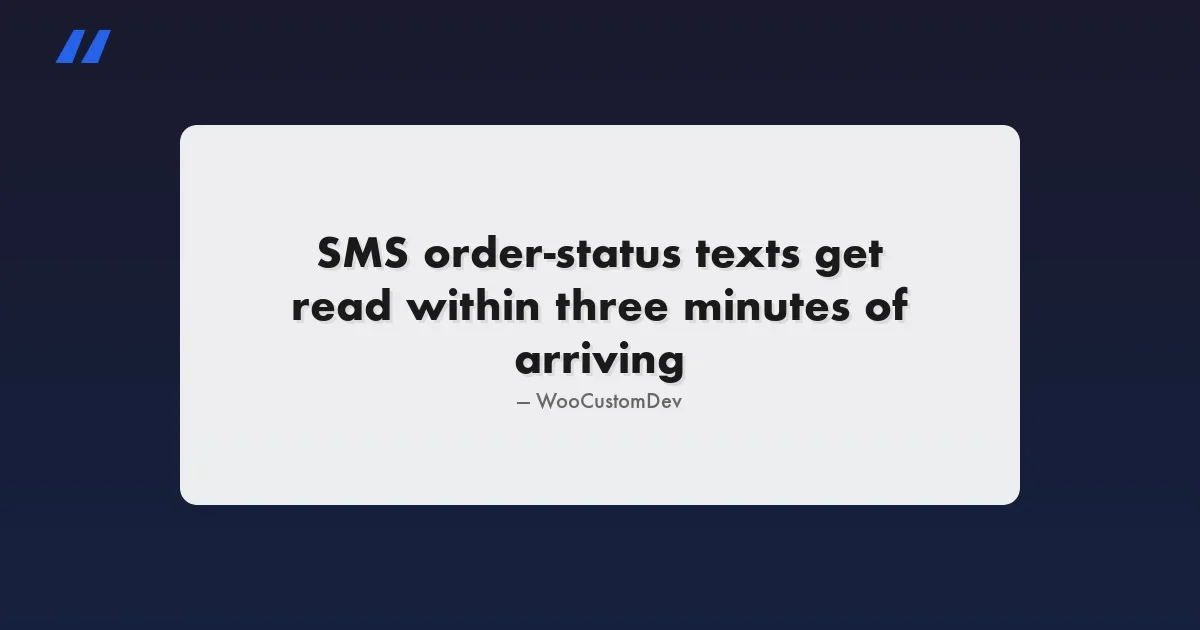
Email open rates for marketing content hover around 15–25%, even though transactional messages do much better. SMS open rates for order-status updates commonly top 90%. Most texts get read within three minutes of arriving. For time-sensitive updates, “your order shipped,” “your delivery is arriving today,” “your order was delayed”, SMS closes a gap that email can’t close on its own, no matter how well it’s designed. It isn’t a replacement for email. It’s a second, faster channel for the few moments where speed actually matters to the customer.
Popular SMS Plugins and Integrations
- SMSBump / Yotpo SMS Marketing – strong automation and segmentation, built specifically for ecommerce order events
- Twilio SMS Notifications for WooCommerce – developer-friendly, ideal when you already use Twilio elsewhere or need fully custom trigger logic
- WP SMS – a general WordPress SMS plugin with WooCommerce order-status triggers built in, good for stores that want a lighter footprint
- Omnisend / Klaviyo SMS – useful if you’re already running email automation through either platform and want SMS unified in the same flow builder
Most of these plugins map cleanly to WooCommerce’s standard order statuses: processing, completed, on-hold, refunded. So the setup for standard status-change texts is usually straightforward. Custom statuses are harder, “out for delivery,” “ready for pickup,” “backordered.” Most SMS plugins don’t support them without extra configuration or custom trigger code.
Scenario: A Store Adding SMS Shipping Updates
A furniture and appliance retailer we worked with had a real problem. Large-item deliveries went through a third-party freight carrier, and delivery windows could shift by a day with little notice. Email wasn’t cutting it. Customers weren’t checking their inbox on delivery day, and support fielded a steady stream of “where is my delivery” calls. We connected the freight carrier’s status updates to a custom order status in WooCommerce. We wired that status change to trigger an SMS through Twilio, so customers got a same-day text the moment the delivery window was confirmed. This kind of setup is far easier on stores already running High-Performance Order Storage (HPOS), since custom statuses sync predictably instead of fighting legacy post-meta writes. Delivery-day support calls dropped noticeably within the first few weeks. Customers had the information before they felt the need to call and ask for it.
Deliverability and Compliance Basics
None of the above matters if the emails land in spam, or the texts break messaging rules. Deliverability and compliance are the unglamorous foundation the rest of the stack sits on.
SPF, DKIM, and DMARC Explained
These three DNS records tell receiving mail servers that your emails really come from your domain, and haven’t been altered in transit:
- SPF (Sender Policy Framework) lists which mail servers can send email for your domain. Without it, receiving servers can’t verify your sending source.
- DKIM (DomainKeys Identified Mail) adds a cryptographic signature to outgoing messages. The receiving server can then confirm the content wasn’t changed after it left your server.
- DMARC (Domain-based Message Authentication, Reporting and Conformance) tells receiving servers what to do when an email fails SPF or DKIM checks, quarantine it, reject it, or let it through. It also reports spoofing attempts against your domain.
Most WooCommerce deliverability problems trace back to one thing: sending transactional email straight from PHP’s default mail function, instead of through a dedicated SMTP or transactional email service. Postmark, SendGrid, and Amazon SES are common choices. Set up SPF, DKIM, and DMARC properly on whichever one you pick. If confirmation emails are landing in spam, check this first, not the template design. SendGrid’s plain-English guide to what SPF, DKIM, and DMARC actually do is a solid reference if you want the technical deep dive.
Opt-In Requirements
Transactional emails don’t need marketing opt-in, since they’re tied to a purchase the customer already made. Marketing emails and SMS both do need it, and the rules differ by channel and region:
- Email marketing under GDPR (EU customers) and similar laws generally requires clear, affirmative consent, captured separately from checkout itself. Use a checkbox that’s unchecked by default, not a pre-ticked box buried in the terms.
- SMS marketing under TCPA (US) requires express written consent that specifically covers text messages, separate from email consent. Every message needs clear opt-out instructions, like a STOP keyword.
- CAN-SPAM (US email) requires a working unsubscribe link, accurate sender information, and honoring opt-outs within a set window, typically ten business days. SendGrid’s CAN-SPAM Act overview covers the specifics.
The practical takeaway: capture email and SMS consent as two separate checkboxes at checkout or account creation. Log the timestamp and source of consent. Make sure every marketing message, not transactional, includes a working unsubscribe or STOP mechanism. Most of the plugins listed above handle opt-out links and STOP keywords automatically. But checkout-side consent capture is usually something you need to set up on purpose, not something you can assume is already on.
Common Mistakes That Land Emails in Spam
- Sending transactional and marketing email from the same subdomain without separate reputation management
- No DKIM/SPF alignment after switching SMTP providers
- Image-heavy emails with little actual text content, which spam filters flag more often
- Sudden volume spikes from a domain with no sending history
- Purchased or scraped contact lists mixed into the same sending pool as real customer data
Choosing the Right WooCommerce Email Marketing Plugins
There’s no single “best” combination of WooCommerce email marketing plugins. But a sensible default for most stores looks like this:
- Transactional email design: Kadence WooCommerce Email Designer or YITH WooCommerce Email Templates for the visual builder, paired with a dedicated transactional SMTP service (Postmark or SES) for delivery
- Marketing automation: AutomateWoo if you want everything native to WordPress, Klaviyo or Omnisend if you want a dedicated platform with deeper segmentation and built-in SMS
- SMS: whichever platform your email marketing tool already supports (Omnisend, Klaviyo), to avoid managing a third, disconnected system, or Twilio directly if your triggers are non-standard
Fewer, well-integrated tools beat stacking four plugins that each partially do the job. Overlapping plugins tend to overwrite each other’s email hooks. That’s the single most common issue we see when auditing a store’s email setup for the first time.
When Off-the-Shelf Plugins Hit Their Limits
For most stores, the plugins above cover the full stack without needing a single line of custom code. We typically get pulled in as developers when a store’s needs sit outside what any plugin’s template editor or trigger system was built to handle. Some examples: a transactional email that needs live inventory or subscription-renewal data the plugin doesn’t expose. An automation trigger tied to a custom order status from a third-party fulfillment integration. An SMS flow that needs to branch on logic, product category, customer lifetime value, delivery region, that no visual builder supports. In those cases, custom email-template and automation-trigger development sits on top of the existing plugin stack, rather than replacing it. The goal is closing the specific gap, not rebuilding the whole system.
Quick Implementation Checklist
- Rebuild your four highest-volume transactional templates (confirmation, shipped, refunded, failed payment) with real branding
- Move transactional sending off default PHP mail and onto a dedicated SMTP/transactional service
- Verify SPF, DKIM, and DMARC records are correctly configured for your sending domain
- Set up a basic three-touch abandoned cart sequence if you don’t have one running
- Add a post-purchase review-request and replenishment flow timed to your product’s usage cycle
- Capture email and SMS consent as separate, explicit checkboxes at checkout
- Add SMS for the two or three moments where speed genuinely matters, typically shipped and out-for-delivery
- Audit your current plugin stack for overlapping hooks before adding a new tool
Most of this is achievable with the right combination of plugins and a few hours of configuration. If a plugin’s template editor or automation builder can’t express what your business needs, a non-standard order status, third-party fulfillment data, or branching SMS logic, that’s usually the signal it’s time for a short custom development engagement rather than another plugin.
Plugins we build and run
We maintain these ourselves, which is why we can support them on your site.
- BuddyNextThe self-hosted community engine for WordPress
- BuddyXFree community theme, Pro when you outgrow it
- ReignPremium community theme. Add pieces, build anything
- JetonomyCommunity forum and Q&A for WordPress
- EventonomyEvents and RSVPs for WordPress communities
- LearnomyCourses and learning communities on WordPress
- ListoraDirectories and listings your members can browse
- SnipShareCode sharing built for developer communities
- WB Ad ManagerAd placements that turn traffic into revenue
- WP Career BoardA job board your community actually uses
- WP Sell ServicesSell services with offers, orders, and payouts
- MediaVersePhotos, video, and media albums for members
- WB GamificationPoints, badges, and rewards that keep members active
- Product RoadmapPublic roadmaps with voting your users trust