How to Set Up WooCommerce for Food Delivery with Zone-Based Ordering and Time Slots
<p>Configure WooCommerce for food delivery with zone-based routing, time slot pickers, kitchen display integration, and real-time tracking. Built for restaurants and dark kitchens that need more than what the standard plugins provide.</p>

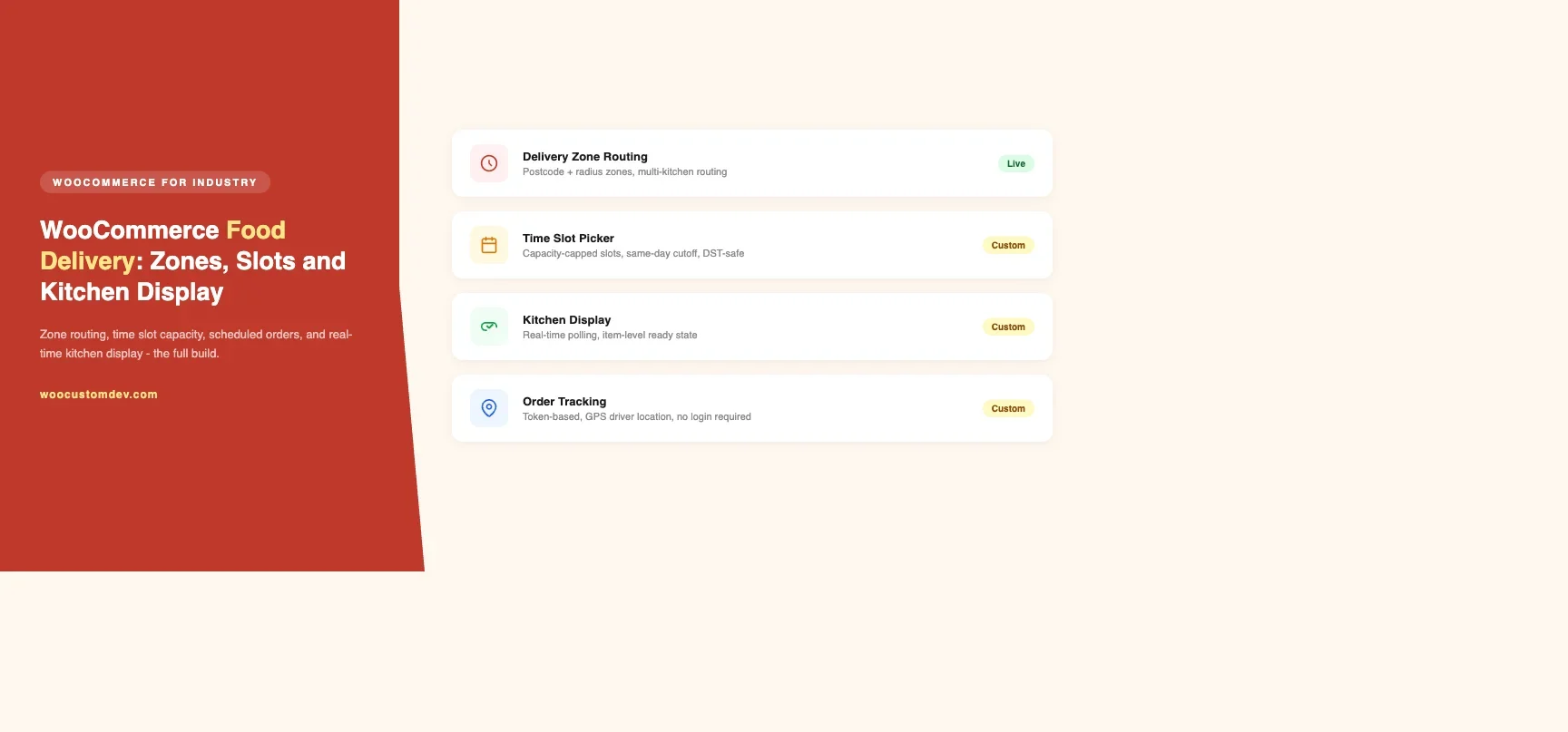
I have set up WooCommerce for food delivery twice now, and both times the client came to me after trying a plugin-only solution that broke when they tried to add a second delivery zone. The problem is not that WooCommerce plugins for food delivery are bad. It is that food delivery has real business logic - delivery zones that change by time of day, minimum order amounts per zone, time slots that fill up and need to be capped, kitchen capacity limits - and most plugins treat these as optional extras. This guide covers how I actually build food delivery ordering on WooCommerce, including the parts where you have to write custom code to fill the gaps that plugins leave open.
What Food Delivery Ordering Actually Requires
Before touching any plugin, map out the business requirements with the client. Food delivery operations have more variables than most e-commerce stores:
- Delivery zones – geographic areas defined by postcode, radius, or polygon, each with different fees and minimum order amounts
- Time slot management – available windows for delivery, capacity per slot, cutoff times for same-day orders
- Schedule ordering – orders placed now for delivery tomorrow or next week
- Minimum order thresholds – different per zone, sometimes per time of day
- Kitchen display integration – orders need to reach the kitchen in real time, not just as WooCommerce emails
- Real-time order tracking – customers expect to see their order status update without refreshing the page
- Menu availability by time – breakfast menu items that disappear after 11am, lunch specials that start at noon
Most WooCommerce food delivery plugins handle zones and time slots adequately. The kitchen display and real-time tracking almost always require custom work.
Delivery Zone Setup
WooCommerce Shipping Zones as the Foundation
WooCommerce has built-in shipping zones that work for delivery area management. Go to WooCommerce > Settings > Shipping and create a zone for each delivery area. You can define zones by country, state, postcode, or postcode range. For city-level delivery (restaurants typically deliver within 5-15km), postcode ranges work reasonably well in most countries.
For each zone, add a “Flat rate” shipping method and set the delivery fee. You can add multiple flat rate methods per zone if you want to offer express delivery at a premium. The WooCommerce zone system handles the postcode lookup automatically at checkout.
Radius-Based Zones with Custom Code
Postcode-based zones have a problem: postcodes are not circular. A restaurant in the middle of a city may want to deliver to all addresses within 5km, but the postcode boundaries do not map cleanly to a 5km radius. For radius-based zones, you need to replace the WooCommerce zone lookup with a distance calculation.
The approach I use: store the restaurant’s coordinates in a WordPress option (lat/lng), then hook into the WooCommerce shipping zone matching with a custom shipping method that calculates the straight-line distance from the customer’s address to the restaurant. If the distance exceeds the configured radius, the method returns no rates. The Google Maps Geocoding API or OpenStreetMap Nominatim gives you address-to-coordinates conversion.
For multi-location restaurants (dark kitchens with 3-4 locations serving different areas), I build a zone router that finds the nearest kitchen to the customer’s address and assigns that kitchen’s stock to the order. This requires custom order meta to track which kitchen is fulfilling each order.
Time Slot Picker Implementation
Plugin Options Compared
Plugin | Zone-Specific Slots | Capacity Limits | Blackout Dates | Best For |
|---|---|---|---|---|
Iconic WooCommerce Delivery Slots | Yes | Yes | Yes | Multi-zone operations |
WooCommerce Order Delivery | Limited | Yes | Yes | Single-zone restaurants |
Custom build | Yes (fully custom) | Yes (complex logic) | Yes | Complex capacity rules |
Iconic Delivery Slots has better zone integration - you can configure different slot availability per WooCommerce shipping zone. This means your zone A (city center) can have 30-minute slots while zone B (suburbs) has 60-minute slots.
Custom Time Slot System
When the plugins do not fit - usually because the client has complex capacity logic like “max 20 orders per 30-minute slot but only 8 of those can be hot food because of oven capacity” - I build a custom time slot system. The data structure is a custom database table with columns: slot_date, slot_start, slot_end, zone_id, total_capacity, current_count, hot_food_capacity, hot_food_count.
The slot picker at checkout is a React component (or vanilla JS for simpler builds) that fetches available slots via a WP REST endpoint. When a customer selects a slot and places an order, the order_placed hook decrements the capacity count. If the count hits zero before the order is confirmed, the system returns the slot to available and asks the customer to select again. This uses a short-lived lock (30 seconds) during payment processing to avoid overselling.
Same-Day Cutoff Logic
Every food delivery operation has a same-day cutoff time - orders placed after 2pm cannot be delivered today. The time slot plugin handles this by showing only future slots, but you need to configure the lead time correctly. For hot food delivery, a 45-minute lead time is typical (30 minutes to prepare plus 15 minutes to deliver).
The edge case that plugins miss is DST transitions and timezone handling. WooCommerce stores all dates in UTC but your restaurant operates in local time. Make sure the slot configuration and cutoff times are defined in the local timezone, not UTC. I have seen food delivery stores inadvertently offer 3am delivery slots because the timezone was misconfigured.
Order Scheduling for Future Delivery
Schedule ordering - placing an order now for delivery tomorrow or next week - requires storing the delivery date/time in order meta and then surfacing it correctly in the WooCommerce order management interface and in kitchen communications. The delivery date picker plugins handle the storage.
What they typically do not handle well is the order management view. By default, scheduled orders show up in WooCommerce with their order date (when they were placed), not their delivery date. For a restaurant kitchen, the delivery date is the relevant date. I add a custom column to the WooCommerce orders list that shows delivery date/time, and a delivery date filter so the kitchen can pull up “all orders for today” with a single click.
Scheduled orders also need a different email flow. The customer should receive a confirmation email immediately with their order number and delivery slot, and a reminder email 2 hours before delivery. The reminder email requires a WP-Cron job that runs every 30 minutes, checks for orders with delivery times in the next 2-2.5 hours, and sends the reminder to those that have not had one sent yet.
Minimum Order Amount by Zone
WooCommerce has a global minimum order amount setting in WooCommerce > Settings > General. For food delivery with multiple zones, you need per-zone minimums - deliveries further away have higher minimums to cover the delivery cost. The built-in setting does not support this.
The solution is a WooCommerce validation hook. The woocommerce_check_cart_items action fires on cart and checkout page loads. Hook into it, get the customer’s selected shipping zone from the WooCommerce session, look up the minimum order amount for that zone from a settings array, and add a notice if the cart total is below the minimum. Block checkout by adding a wc_add_notice with type “error” if the validation fails.
Store the per-zone minimum amounts in a WooCommerce settings page so the client can manage them without touching code. Each row in the settings table maps a WooCommerce shipping zone ID to a minimum order amount.
Kitchen Display Integration
The Gap in WooCommerce Order Management
WooCommerce order management was designed for e-commerce warehouse operations, not restaurant kitchens. The default order list is functional but not optimized for food service. Kitchen staff need to see new orders the moment they come in, see them grouped by delivery time slot, and mark individual items as prepared without navigating through the full order detail page.
There are two approaches: use a dedicated kitchen display system (KDS) with a WooCommerce integration, or build a custom kitchen view inside WordPress.
Third-Party KDS Integration
Square for Restaurants, Toast KDS, and Lightspeed Restaurant all have WooCommerce integrations via third-party plugins or webhooks. The webhook approach is the most reliable: configure WooCommerce to fire a webhook on order status change, and have the KDS receive and process those webhooks.
WooCommerce webhook delivery is not real-time guaranteed. The safer pattern is to queue the webhook payload in a custom table and process it with WP-Cron every 30 seconds. This decouples the checkout flow from the KDS delivery.
Custom Kitchen Display in WordPress
For clients who want the kitchen display within WordPress and do not need a dedicated KDS, I build a custom kitchen display page using a WP REST endpoint and periodic JavaScript polling. The kitchen page is a full-screen view accessible at a custom admin URL, showing orders grouped by delivery time slot.
The JavaScript polls the REST endpoint every 15 seconds for new orders or order updates. When a new order arrives, a sound notification plays and the order card appears at the top of the current time slot column. This custom approach integrates naturally with WooCommerce’s order status system. The kitchen display updates order status from “processing” to “ready for pickup” (a custom status registered with register_post_status), which triggers the customer notification and driver dispatch webhook.
Real-Time Order Tracking
Customers expect to track their food delivery in real time. The simplest implementation is a status page that auto-refreshes every 30 seconds and shows the current order status. For most restaurant operations, this is adequate - the status transitions are “order received”, “preparing”, “out for delivery”, “delivered” and each takes several minutes, so 30-second polling is fine.
The customer tracking page URL should be accessible without login. Store a unique tracking token in order meta (generated at order creation with wp_generate_password(32, false)) and include it in the order confirmation email as a URL parameter. The tracking endpoint verifies the token against the order ID and returns the current status data.
For GPS tracking of the delivery driver, you need a driver mobile app or a simple web app that sends the driver’s GPS coordinates to a WP REST endpoint every 30 seconds. The customer tracking page picks up these coordinates and shows the driver’s location on a map. A simple mobile web app with GPS access works for most operations - you do not need native apps unless you have specific push notification requirements.
Menu Availability by Time
Restaurants commonly have time-limited menu items - breakfast items that stop being available at 11am, lunch specials from noon to 3pm, evening specials after 5pm. WooCommerce does not have built-in scheduled product availability. The solution is a combination of product scheduling and cart validation.
Store availability windows as custom product meta: available_from (time of day), available_until (time of day), available_days (array of day numbers). A shortcode or block checks these fields before displaying the add-to-cart button and shows “Available from 12:00 PM” when the item is not currently available.
For scheduled orders (ordering today for delivery tomorrow), the availability check needs to use the delivery time, not the current time. If a customer is placing a scheduled order at 10pm for delivery at 8am, breakfast items should be available. Implement this by checking the selected delivery slot time against the product availability windows rather than the current server time.
Delivery Fee Calculation
Basic delivery fees are flat rate per zone, as covered in the zone setup section. A custom shipping method class (extending WC_Shipping_Method) can implement any fee calculation logic: distance-based fees, time-of-day surcharges, surge pricing during peak hours, discounted delivery for orders above a threshold.
The fee calculation runs at cart and checkout page load, which means it needs to be fast. Do not make external API calls (like Google Maps Distance Matrix) synchronously in the shipping calculation. Cache the distance calculation in a transient keyed to the customer’s postcode for 24 hours - the delivery distance for a given postcode does not change day-to-day.
Testing a Food Delivery Build
Food delivery stores have time-sensitive functionality that is easy to break and hard to notice without targeted testing. My testing checklist for a food delivery WooCommerce build:
- Place an order for each delivery zone and verify the correct fee and minimum order threshold
- Place orders for every available time slot and verify slot capacity decrements correctly
- Test the same-day cutoff by placing an order just before and just after the cutoff time
- Place a scheduled order for the next day and verify the reminder email fires at the correct time
- Test a failed payment on a time-slot order and verify the slot capacity is released
- Test an order cancellation and verify the slot capacity is released
- Verify menu items unavailable at the current time do not show add-to-cart
- Verify scheduled orders respect delivery time for menu availability, not current time
- Load the kitchen display with 10+ simultaneous orders and verify performance
- Test the tracking page on mobile with a slow 3G simulation
Operational Considerations
WooCommerce food delivery stores have operational patterns different from retail stores. Three things that catch restaurant operators off guard:
WP-Cron reliability. WP-Cron runs on page load, not on a real schedule. If your site has low traffic at 2am, the cron jobs that close off same-day slots or send reminder emails may not fire on time. Set up a real server cron that calls wp-cron.php every minute: * * * * * wget -q -O - https://yoursite.com/wp-cron.php?doing_wp_cron >/dev/null 2>&1. Disable the default WP-Cron by setting define('DISABLE_WP_CRON', true); in wp-config.php once the server cron is running.
Order volume spikes. Food delivery gets busy at meal times. 12pm-1pm and 6pm-8pm will see 5-10x the order volume of off-peak hours. Make sure your hosting can handle the concurrent order placements. Object caching (Redis or Memcached) is not optional for food delivery stores - without it, the time slot availability check becomes a slow database query under load.
Stock management for food items. If you are using WooCommerce stock to track ingredient availability (you have 50 portions of the burger), the stock count needs to account for orders in processing that have not yet been fulfilled. For food the hold window should be much shorter than the default 60 minutes since unpaid food orders are usually abandoned quickly.
For stores with complex WooCommerce product data, the patterns in our guide on WooCommerce product add-ons and custom fields apply to building menu items with modifiers (extra toppings, dietary notes, portion sizes).
Payment Handling for Food Orders
Food delivery operations often run on payment-on-delivery models alongside online payment. WooCommerce supports both: the “Cash on Delivery” gateway handles pay-on-delivery, and Stripe or PayPal handles online payment. The wrinkle is that scheduled orders placed days in advance may have payment failures by the delivery date - the card used at order time may have expired or been declined when you attempt to capture funds.
If you need to capture funds at the time of delivery rather than at order placement, you need a payment gateway that supports authorization-only transactions. Stripe supports this with the payment_intent_data capture_method set to manual. The flow is: authorize funds at checkout (card check passes, no money moves), capture at the point of delivery confirmation.
Summary: Plugin vs. Custom
Scenario | Recommended Approach | Timeline |
|---|---|---|
Single-location, standard zones, basic slots | WooCommerce Zones + Iconic Delivery Slots | 1 week |
Multi-location dark kitchens | Custom zone router + custom slot system | 4-6 weeks |
Complex capacity logic (hot food limits) | Custom time slot system | 2-3 weeks |
Real-time GPS tracking + KDS | Custom build | 4-6 weeks |
For a single-location restaurant with straightforward zone-based delivery and standard time slots, the combination of WooCommerce shipping zones plus Iconic Delivery Slots (or WooCommerce Order Delivery) gets you 80% of the way there in a week. The kitchen display is the main gap - use WooCommerce order notes and the default orders list as a starting point and upgrade later.
For multi-location dark kitchens, restaurants with complex capacity logic, or any operation that needs real-time kitchen display and GPS tracking, budget for custom development. The data model for multi-kitchen order routing and the capacity-based slot system are not problems that off-the-shelf plugins solve reliably. The custom build takes 4-6 weeks and will handle the edge cases that break plugin-only setups at scale. Wbcom Designs provides WooCommerce build services for food delivery and other complex order fulfillment projects.
Plugins we build and run
We maintain these ourselves, which is why we can support them on your site.
- BuddyNextThe self-hosted community engine for WordPress
- BuddyXFree community theme, Pro when you outgrow it
- ReignPremium community theme. Add pieces, build anything
- JetonomyCommunity forum and Q&A for WordPress
- EventonomyEvents and RSVPs for WordPress communities
- LearnomyCourses and learning communities on WordPress
- ListoraDirectories and listings your members can browse
- SnipShareCode sharing built for developer communities
- WB Ad ManagerAd placements that turn traffic into revenue
- WP Career BoardA job board your community actually uses
- WP Sell ServicesSell services with offers, orders, and payouts
- MediaVersePhotos, video, and media albums for members
- WB GamificationPoints, badges, and rewards that keep members active
- Product RoadmapPublic roadmaps with voting your users trust