How to Build a WooCommerce Fashion Store with Size Guides and Visual Swatches
<p>Build a WooCommerce fashion store that converts - from color and size swatches to interactive size guide tables, lookbook galleries, quick view, wishlist, and outfit builder. Real implementation depth from stores we have shipped.</p>

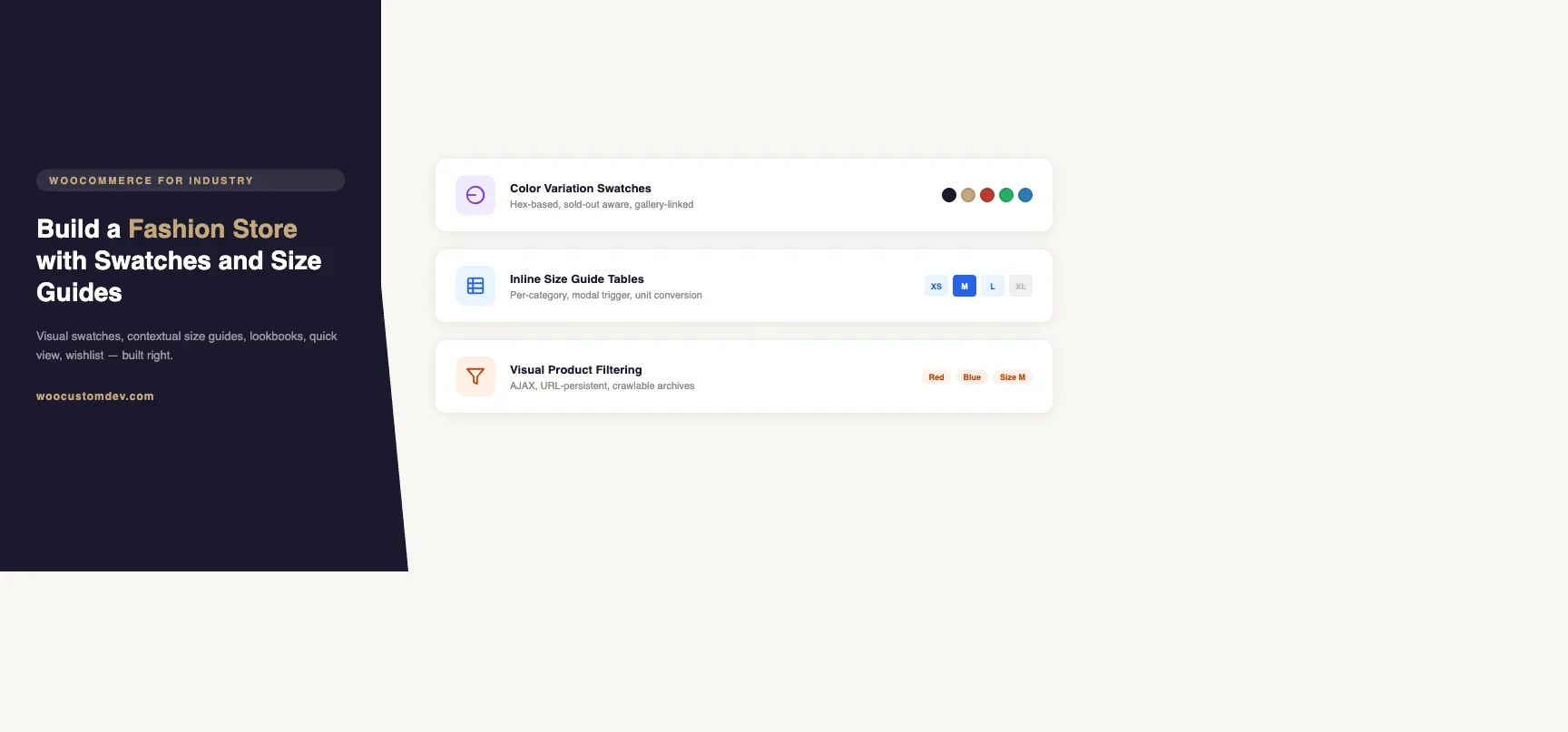
I have built WooCommerce fashion stores where the default product page was a conversion dead end. Shoppers landed on a product, saw a dropdown that said “Select a size,” had no idea what that size meant for this brand, and left. The plugin-first answer is always “install WooCommerce Variation Swatches.” That works until it doesn’t - until you need swatches that update the product image, size guides that vary by product line, a lookbook that sells the outfit not just the SKU, and a wishlist that survives logout. This guide covers how I actually build these systems for fashion clients, starting from WooCommerce core and layering custom code where the plugins stop.
What a Fashion Store Needs That Default WooCommerce Does Not Provide
Default WooCommerce product variations render as select dropdowns. For a fashion store, that is the worst possible UX. Shoppers expect to tap a color dot and see the product change. They expect a size chart inline, not buried in a tab they will never find. Here is the gap list I work through on every fashion project:
- Visual swatches - color swatches with sold-out strike-through, size swatches with tooltips
- Size guide tables - per-category or per-product guides with measurement conversions
- Image galleries per variation - clicking a color shows only that color’s images
- Quick view modal - browse mode add-to-cart without leaving the shop grid
- Wishlist with cross-session persistence - survives both guest and logged-in states
- Outfit builder / cross-sells - shop the look, complete the outfit
- Visual filtering - filter by color, size, or material from the shop archive
You can handle the first three with off-the-shelf plugins. The last four require custom work if you want them to behave correctly at scale. If you are extending the product data layer for any of these, the patterns in our guide to WooCommerce product add-ons and custom fields apply directly.
Setting Up Color and Size Swatches
The Plugin Foundation
For most fashion stores, I start with Variation Swatches for WooCommerce by Emran Ahmed (free version covers the basics) or WooCommerce Variation Swatches Pro by getwooplugins.com. Both convert your variation attribute dropdowns into visual swatches. The setup is straightforward: go to Products > Attributes, edit your Color attribute, and change the type from “Select” to “Color.” Then assign hex values to each term.
For size attributes, change the type to “Label” rather than color. This renders a box with the size text - S, M, L, XL - rather than a dropdown. Sold-out sizes get a diagonal strike-through automatically with most swatch plugins.
Custom Swatch Behavior via Hooks
Where the plugins fall short is when you need swatches to control more than just the variation selection - for example, triggering a gallery swap, or showing a “Only 2 left” badge without a page reload. I handle this with a small JavaScript layer hooked into the WooCommerce variation found/reset events.
The key WooCommerce JS events for swatch behavior are woocommerce_variation_has_changed, found_variation, and reset_data. Hook into these on the single product page to update any UI element that depends on the selected variation.
For a recent fashion client, I loaded variation data via a REST endpoint rather than the default wc_variation_form approach. This reduced page weight by 40% on products with 60+ variations by lazy-loading variation data on first swatch interaction instead of embedding the full JSON on page load.Building Size Guide Tables That Actually Work
The Wrong Approach: Static Page or Tab Content
Most stores handle size guides by adding a “Size Guide” tab to every product page that links to a static size chart page. Shoppers never click it. The conversion data on that approach is brutal - typically under 3% of product page visitors open the size guide tab. The guide needs to be inline and contextual.
Custom Product Meta for Per-Category Size Guides
The approach that works is storing size guide data as a custom field on the product, and rendering it as an inline modal triggered by a “Size Guide” link next to the size swatch. Here is how I structure it:
- Register a custom post type for size guides, or use product categories with a custom term meta
- I prefer term meta because it lets me assign one size guide to an entire category (Tops, Bottoms, Shoes) and override at the product level for brands that run small or large
- Store the size guide as a JSON structure: measurement columns (US, UK, EU, chest, waist, hip), rows per size, and optional brand-specific notes
- Build the admin UI as a metabox with a repeater field built on ACF or a custom solution depending on the client’s preference
On the product page, a small PHP filter hooks into the size attribute HTML to append a “Size Guide” anchor. Clicking it opens a CSS modal that renders the table from the JSON data. No page load, no separate tab, no navigating away.
Measurement Conversion Logic
For stores selling internationally, the size guide needs to show conversions. I build a simple JavaScript conversion function rather than storing duplicate data. The size guide JSON stores one canonical set of measurements (typically EU), and the JS converts based on a locale preference stored in a cookie or WordPress user meta. The user sets their preferred measurement system once (US/UK/EU/CM/IN) and every size guide across the store respects it.
Lookbook Galleries and Visual Product Presentation
Variation-Specific Image Galleries
WooCommerce core supports a single featured image per variation. For fashion stores, you need a full gallery per color - typically 4 to 8 images showing front, back, detail, and lifestyle shots for each colorway. The standard approach is the WooCommerce Additional Variation Images plugin, but the free version has limitations around gallery ordering and lightbox behavior.
For custom builds, I store gallery image IDs in a serialized meta field keyed to variation ID. A jQuery handler listens for the found_variation event and swaps the visible gallery images. The critical part is preloading the next color’s images when a user hovers over a different color swatch - this removes the visible flash between gallery swaps on slower connections.
Lookbook Implementation
A lookbook gallery is editorial content that happens to contain shoppable products. The implementation I use most often is a custom post type called “Look” with an ACF relationship field pointing to WooCommerce products. Each look has a hero image with hotspot coordinates stored as percentage-based X/Y values on the product relationship.
When the lookbook page renders, the hero image gets CSS position-relative and each hotspot gets an absolutely positioned button at the stored coordinates. Clicking a hotspot opens a quick-view panel showing that product’s swatches, price, and an add-to-cart button. The shopper never leaves the lookbook.
The trickiest part of lookbooks is mobile. Hotspot coordinates that work on desktop collapse into an unusable cluster on a 390px screen. On mobile, I render a swipeable product carousel below the hero image instead of hotspots - same relationship field, different render.
Quick View Modal
Quick view is one of those features that seems simple until you build it properly. The requirement is: show a product’s swatches, gallery, size guide link, price, and add-to-cart without a page navigation. The wrong implementation loads a full WooCommerce single product template in an AJAX modal - this gets you a working quick view but with the full page weight of a product page loaded 10 times per browse session.
The correct implementation is a dedicated AJAX endpoint that returns only what the quick view needs: the variation form HTML, the first gallery image, the price range, and the size guide trigger. I register this as a custom WP REST endpoint at /wp-json/wcfd/v1/quick-view/{product_id}. The response is JSON with pre-rendered HTML fragments for each section. Total response size for a typical product is under 8KB versus 80-150KB for a full template load.
The add-to-cart in quick view fires through the standard WooCommerce AJAX endpoint (?wc-ajax=add_to_cart), so mini-cart updates work without any extra wiring. After add-to-cart succeeds, I close the modal and animate the cart count update.
Wishlist with Cross-Session Persistence
Plugin Options and Their Limits
YITH WooCommerce Wishlist is the category leader. The free version stores wishlists in a database table and ties them to user accounts. The problem: logged-out wishlists are stored in a cookie or session, and when a guest converts to a registered user, the merge logic is unreliable. I have seen stores lose guest wishlists at the account creation step, which is a conversion killer because the wishlist is often what motivated the account creation.
Custom Wishlist with Token-Based Guest Persistence
For clients where wishlist conversion matters, I build a custom solution around a unique token stored in a first-party cookie. The token maps to a row in a custom database table with product IDs and variation IDs. When a guest creates an account, the merge is explicit: the registration hook checks for an existing token cookie and migrates all wishlist entries to the new user ID. This merge is deterministic - there is no session timeout race condition.
The wishlist page is a shortcode-rendered table showing product image, name, price, stock status, and an add-to-cart button. I also include a “Share Wishlist” link that generates a public URL from the token - useful for gift registries and social sharing. The shared URL renders a read-only wishlist view with add-to-cart buttons.
Outfit Builder and Cross-Sell Logic
“Complete the Look” and outfit builders increase average order value without being pushy. The simplest implementation is a hand-curated relationship field on each product pointing to 2 to 4 complementary items. This works for small catalogs but does not scale.
For larger catalogs, I use a tag-based approach. Products get tags for style (casual, formal, streetwear), occasion (work, weekend, evening), and palette (earth tones, brights, neutrals). The outfit builder query pulls products that share at least 2 of 3 tags with the current product, filtered to different product categories (so you get a shoe recommendation on a top, not another top).
The “shop the outfit” UI renders as a horizontal scrollable strip of product cards below the main product description. Each card has a swatch selector and a direct add-to-cart button. The shopper can add the top and the shoes to cart from a single product page. I track which combinations convert with WooCommerce order item meta and use that data to tune the recommendations manually each season.
Visual Product Filtering
The default WooCommerce product filter widgets are checkbox lists. For fashion, shoppers filter visually - they want to click a color swatch in the sidebar and see the shop grid update. This requires a filtered AJAX reload of the product grid, and the filter state needs to persist in the URL so that filtered pages are shareable and indexable.
I build visual filters as a combination of:
- Color filter - swatch dots using the same hex values from your product attributes, rendered as radio-style toggles
- Size filter - label buttons showing available sizes, with sold-out sizes grayed but still selectable to show upcoming restocks
- Price range slider - noUiSlider or similar, AJAX-connected to the product grid
- Sort control - dropdown, not the WooCommerce default widget which has poor mobile UX
The filter state serializes to URL query parameters: ?filter_color=red,blue&filter_size=M,L&min_price=50&max_price=200. Server-side rendering with pushState URL updates on filter change is my preferred approach over client-side only because server-rendered archives are crawlable.
FiboSearch or FacetWP cover this well out of the box if the budget allows. FacetWP in particular handles the URL state management correctly and integrates with WooCommerce product taxonomies without custom query work.
Performance at Fashion Store Scale
Fashion stores have specific performance challenges that general WooCommerce performance advice does not address well. Three that bite consistently:
Variation Data JSON Size
WooCommerce embeds variation data as a JSON object in a script tag on every product page. For a product with 10 colors times 6 sizes (60 variations), that JSON is typically 15-30KB unminified. For 200 variations, it can hit 80-100KB. The solution is lazy variation loading: remove the data from the initial page load and fetch it via AJAX on first swatch interaction.
Image Gallery Weight
Fashion products with 5 colors and 6 images per color means 30 images per product. Load all of them on page load and you have a page that weighs several megabytes. The fix is lazy loading the gallery images for non-selected colors and using responsive image srcsets generated by WooCommerce’s built-in regenerate thumbnails process. Use wp_get_attachment_image with size woocommerce_single rather than full resolution images.
Shop Archive Queries
Fashion archives with visual filters run complex queries - multiple taxonomy joins, meta queries for price filtering, and stock status checks. Without proper object caching, each filtered page view runs 8-15 database queries that can take 200-500ms each. The fix is Redis or Memcached object caching with targeted invalidation keys per category and attribute combination. When a product stock status changes, invalidate only the cache keys that include that product’s category and size terms, not the entire product cache.
Putting It Together: A Typical Fashion Store Build Sequence
- Set up WooCommerce product attributes for Color and Size, configure term-level data (hex codes for colors, display labels for sizes)
- Install a variation swatches plugin, configure global display settings, test sold-out behavior
- Build the size guide system: custom post type or term meta, admin UI for guide data, frontend modal trigger wired to the size attribute swatch group
- Configure variation image galleries: install the additional images plugin or build the custom meta solution, set up the gallery swap JavaScript
- Build the quick view endpoint and modal: REST route, JSON response structure, frontend modal with variation form
- Set up wishlist: plugin or custom token-based system depending on client requirements
- Build outfit builder: tag-based relationship queries, frontend strip component, transient caching
- Set up visual filters: FacetWP or custom filter widgets, URL state serialization, AJAX product grid refresh
- Performance pass: lazy variation data, gallery image optimization, object cache configuration
- QA at 390px, 768px, and 1440px viewport widths with actual product data loaded
The full build for a mid-size fashion store (500-2000 SKUs, 3-4 product categories, international sizing) takes 6-8 weeks including QA. The plugin-only route takes 2-3 weeks but leaves gaps in the wishlist merge behavior, the size guide contextual placement, and the performance edge cases. The custom route pays for itself in conversion rate over the first 6 months.
Common Mistakes and How to Fix Them
Mistake | Symptom | Fix |
|---|---|---|
Swatches do not reflect stock status | Sold-out combos still selectable | Enable stock management at variation level in WooCommerce product data panel |
Size guides show wrong units | US shoppers see EU sizing | Build measurement preference into size guide from day one with JS conversion |
Quick view breaks cart count | Mini-cart does not update after add-to-cart | Bind to the |
Filters that create thin pages | Filtered archive with 0-2 products indexed by Google | Add noindex meta tag to filtered archives with fewer than 6 products |
Choosing Between Plugin-Only and Custom Development
Criteria | Plugin-Only | Custom Development |
|---|---|---|
Catalog size | Under 200 products | 200+ products |
Currencies | Single currency | Multiple currencies |
Sizing | One size standard | International sizing needed |
Variations per product | Under 30 | 30+ variations |
Lookbook / editorial | Not needed | Required |
Gift registry / shared wishlist | Not needed | Required |
If three or more of those custom criteria apply to your project, custom development is worth scoping. If fewer than three, the plugin combination of Variation Swatches Pro plus YITH Wishlist Pro plus FacetWP usually gets them 80% of the way there at a fraction of the cost.
Next Steps
If you are building a WooCommerce fashion store and hitting the limits of the plugin-only approach, the areas to tackle first are the size guide placement (highest conversion impact for lowest dev effort) and the variation image gallery (second highest impact). The wishlist and outfit builder are phase-two work once the core product discovery experience is solid.
If you need help scoping or building any of these features for a fashion client, get in touch through our contact page. We scope custom WooCommerce fashion store projects starting with a technical requirements session to map your exact needs before any code is written. Our full walkthrough on scaling WooCommerce to handle large product catalogs covers the caching layer that underpins the archive query performance discussed above.
Plugins we build and run
We maintain these ourselves, which is why we can support them on your site.
- BuddyNextThe self-hosted community engine for WordPress
- BuddyXFree community theme, Pro when you outgrow it
- ReignPremium community theme. Add pieces, build anything
- JetonomyCommunity forum and Q&A for WordPress
- EventonomyEvents and RSVPs for WordPress communities
- LearnomyCourses and learning communities on WordPress
- ListoraDirectories and listings your members can browse
- SnipShareCode sharing built for developer communities
- WB Ad ManagerAd placements that turn traffic into revenue
- WP Career BoardA job board your community actually uses
- WP Sell ServicesSell services with offers, orders, and payouts
- MediaVersePhotos, video, and media albums for members
- WB GamificationPoints, badges, and rewards that keep members active
- Product RoadmapPublic roadmaps with voting your users trust