How to Sell Software Licenses with WooCommerce Using Custom License Key Generation
<p>Build a complete WooCommerce software licensing system with custom license key generation, activation limits, domain validation, an update server, and license renewal workflows. Covers what plugins handle and where custom code takes over.</p>

Selling software licenses through WooCommerce looks straightforward until you try to implement activation limits per license, per-domain validation, and an update server that only delivers updates to active licenses. The plugins that handle simple serial keys break down quickly when the business requirements get specific. I have built WooCommerce licensing systems for three clients now, ranging from a simple WordPress plugin shop to a SaaS company with tiered license plans. This guide covers what I actually did, including which parts the plugins handle well and where you need custom code.
What Software License Sales Actually Require
Before looking at any plugin or code, nail down exactly what your licensing system needs to do. Most software licensing setups share these requirements:
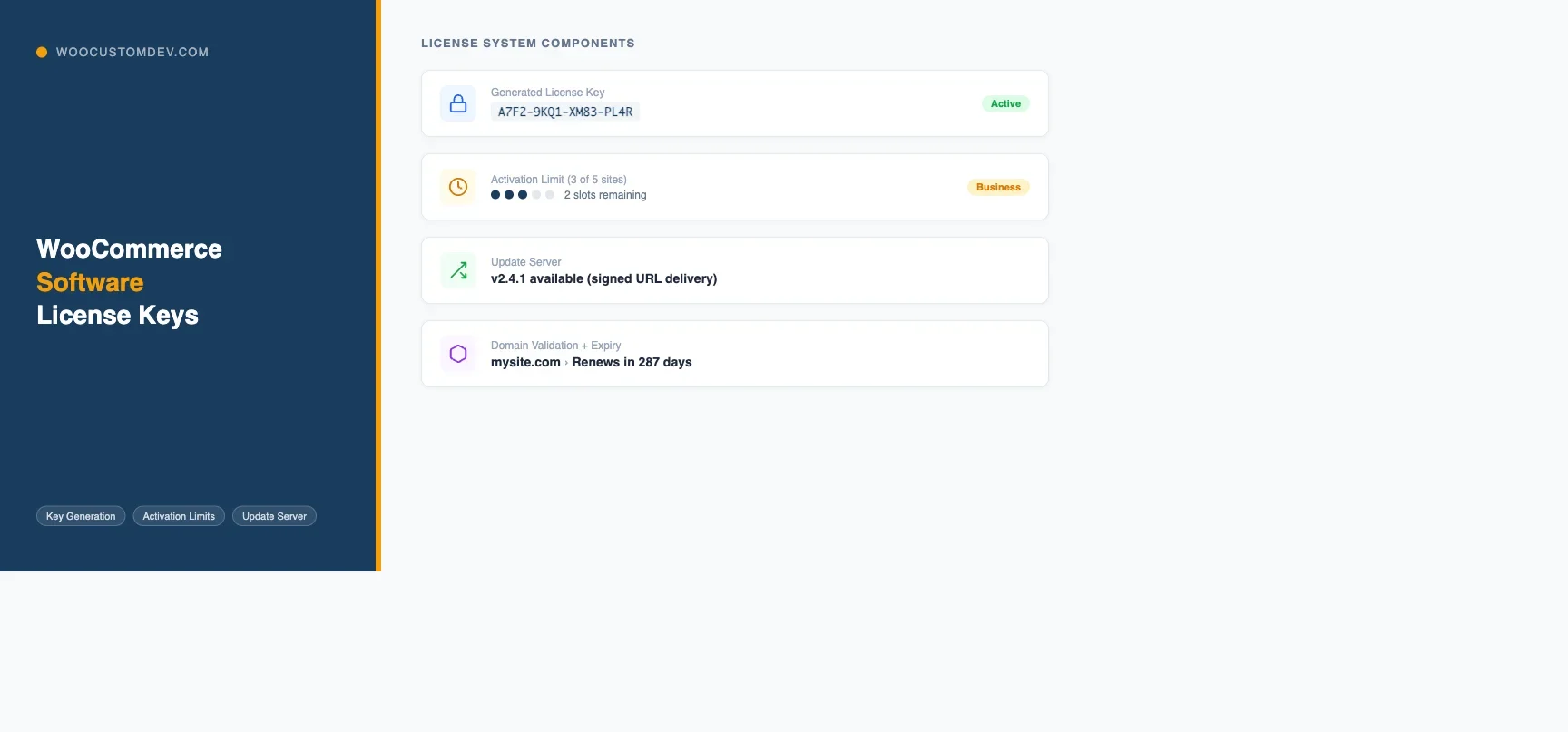
- License key generation – unique keys delivered to the customer after purchase
- Activation limits – how many sites or devices can activate a single license
- Domain or device validation – checking that the activating domain matches an approved list
- Deactivation – allowing customers to move a license from one site to another
- Update server – delivering software updates only to customers with active licenses
- License renewal – handling expiry and the renewal purchase flow
- License management dashboard – a customer-facing page showing all licenses and their activation status
The key decision point is whether you need domain-locked licenses. If you are selling WordPress plugins where a license covers N sites, domain validation is essential. If you are selling a desktop application, device fingerprinting is more relevant. This guide focuses on the WordPress plugin use case since that is the most common setup I see on WooCommerce.
Plugin Options for WooCommerce License Management
Plugin | Best For | Update Server | Activation API | Limitation |
|---|---|---|---|---|
WooCommerce License Manager | WordPress plugin sellers | Yes (built-in) | Yes (REST) | Basic domain matching only |
WooCommerce Serial Numbers | Product keys, game codes | No | No | No activation state tracking |
Custom build | SaaS, tiered plans, high volume | Yes (custom) | Yes (custom) | Development cost |
WooCommerce License Manager
The WooCommerce License Manager plugin (by Tytus Kurek, available on the WooCommerce marketplace) is the most feature-complete option for WordPress plugin sellers. It handles license key generation on purchase, activation/deactivation via REST API, expiry management, and it has built-in support for the WordPress Plugin Update Checker library. The activation API is compatible with what Plugin Update Checker expects, so connecting your plugin to the license manager for update delivery is mostly configuration rather than custom code.
The activation domain check is basic - it stores the activating URL but does not do strict domain matching. For strict domain-based licensing, you need custom validation logic on top of what the plugin provides.
WooCommerce Serial Numbers
WooCommerce Serial Numbers (by Pluginever) takes a different approach: you either pre-generate serial keys and store them in bulk, or use a pattern-based generator. It is simpler than WooCommerce License Manager and better suited for selling product keys (software serial numbers, activation codes for non-WP software) rather than managing ongoing activation states. There is no built-in update server integration.
For clients selling product keys for desktop software or games, WooCommerce Serial Numbers is the cleaner fit. For WordPress plugin sales with update delivery, WooCommerce License Manager is the better starting point.
Custom License Key Generation
Key Format Design
The license key format matters for usability and for encoding information. A common format for WordPress plugin licenses is groups of alphanumeric characters separated by hyphens: XXXX-XXXX-XXXX-XXXX. This is easy to copy-paste and visually distinct.
For most setups, a random key is the right choice. Use wp_generate_password(32, false) for the raw key material, then format it into groups with hyphens. Store the key hashed in the database (SHA-256 is fine - you do not need bcrypt for license keys since they are not passwords and you often need to display the original key to the customer).
Hooking Into WooCommerce Order Completion
License keys should be generated when an order moves to “completed” status, not at payment - payment can be received but then refunded, and you do not want an active license for a refunded order. The hook to use is woocommerce_order_status_completed.
Loop through the order items, check if each product has a license type flag, generate a key for each qualifying item, store the license record in a custom table, and attach the license key to the order item meta. The custom table should track: license_key, order_id, product_id, customer_id, status, activation_count, activation_limit, expiry_date, created_at.
Activation Limits and Domain Validation
The Activation API
The activation process runs when the customer installs your plugin on their site and enters their license key in the plugin settings. The plugin makes an API call to your server with the license key and the activating site’s URL. Your server checks the key, checks whether the activation limit has been reached, records the activation, and returns a success or failure response.
Build this as a WP REST endpoint on your WooCommerce store. The endpoint accepts the license key and site URL as POST parameters, runs the validation, and returns a JSON response. The customer’s plugin stores the response locally to avoid making the activation call on every request - typically cached in a WordPress transient.
Domain Matching Logic
When a customer activates on dev.client.com and then on client.com, should those count as one activation or two? My default answer is two unless the client specifically requests subdomain collapsing. Subdomain collapsing strips www. and dev. prefixes, then compares the root domain.
Most plugin shops accept that dev and production count as separate activations, and offer a second activation for free on request. It prevents abuse without penalizing legitimate customers.
Deactivation Flow
Deactivation is the inverse: the customer’s plugin sends a deactivation request with the license key and site URL, your server deletes the activation record, and the activation count decrements. Deactivation should also be available from the customer’s WooCommerce account page - a license dashboard where they can see all active domains and manually deactivate any of them. This covers customers who delete a site and lose access to the plugin settings.
Building the Update Server
What the Update Server Does
WordPress checks for plugin updates by calling the WordPress.org API. For commercial plugins not on the .org repo, you replace this API call with your own server. The update check happens roughly every 12 hours, passing the current plugin version and the site URL. Your update server responds with the latest available version info - and gates the response based on license validity.
The standard library for this is Plugin Update Checker by YahnisElsts (yahnis-elsts/plugin-update-checker on GitHub). It handles the WordPress-side integration: registering the custom update API URL, handling the version comparison, and showing the update notice in the WordPress admin. Your job is to build the server-side API that Plugin Update Checker calls.
Update API Endpoint
The update API endpoint receives a request with the plugin slug, the current version, and the license key. Check the license key against your license table: is it valid, not expired, and is the requesting URL an active activation? If yes, return the latest package info. If no, return a response indicating the license is inactive, which suppresses the update in WordPress.
The download URL in the update response should be a signed URL, not a permanent link. Generate a time-limited token (valid for 15 minutes) that authorizes a single download of the package file. Store zip files outside the web root and serve them through PHP using readfile() rather than exposing a direct URL.
Version Management
Build a simple admin interface in WooCommerce for version management: a custom settings tab where you upload a new plugin zip and enter the version number. On upload, the system extracts the version from the plugin header, validates it is higher than the current version, stores the file path, and updates the “current version” record. Old version files are kept for a configurable retention period in case you need to serve a rollback.
License Renewal
Renewal vs. Subscription
Model | How it works | Best for | Requires |
|---|---|---|---|
WooCommerce Subscriptions | Automatic recurring billing | B2C SaaS, consumer software | WooCommerce Subscriptions plugin |
Manual renewal | Customer buys renewal product | B2B, invoice/PO customers | Custom hook on order completion |
For the subscription model, hook into the woocommerce_subscription_renewal_payment_complete action to extend the license expiry date when a renewal payment succeeds. The extension period should match the subscription interval - for annual subscriptions, add 365 days from the current expiry date, not from today, so that an early renewal does not shorten the coverage period.
Expiry Notifications
Send expiry reminder emails at 30 days, 7 days, and 1 day before expiry. Use WP-Cron for this: a daily cron job that queries licenses expiring in exactly 30 days, 7 days, and 1 day, then fires the appropriate email for each. The reminder email should include the renewal link.
The renewal product should be a separate WooCommerce product (or variation) that, on purchase, extends the license rather than creating a new one - this keeps the customer’s existing activations intact. When a license expires, the update server stops serving updates for that key, and the plugin on the customer’s site shows an admin notice with a renewal link.
Customer-Facing License Dashboard
The WooCommerce My Account page is the right home for the customer’s license dashboard. Add a custom My Account endpoint using add_rewrite_endpoint and register it in WooCommerce via the woocommerce_account_menu_items and woocommerce_account_{endpoint}_endpoint hooks.
The dashboard page shows all licenses associated with the customer account: the license key (truncated with a copy button), the product it covers, the expiry date, and a list of active domains with deactivate buttons. The deactivate button sends an AJAX request to your deactivation endpoint. On success, the activation is removed and the activation count decrements, freeing up a slot for a new activation.
Handling License Transfers and Refunds
Refund Handling
When an order is refunded, the associated licenses should be deactivated and revoked. Hook into woocommerce_order_refunded – this fires when a refund is recorded against an order. Check if the refund covers the full order amount and set the license status to “revoked” if so. Revoked licenses should fail the update API check immediately, not just at the next periodic check.
License Transfers Between Accounts
Occasionally a customer needs to transfer a license to a colleague’s account - a common scenario in agencies where the developer who bought the license has left. The simplest approach is a manual admin process: an admin updates the customer_id on the license record in the WordPress admin. Build a simple meta box on the license edit screen that allows reassignment. Do not automate this - license transfers have fraud risk, and manual review by support staff is worthwhile.
Tiered Licensing
Tier | Sites / Activations | WooCommerce Variation | Feature Gating |
|---|---|---|---|
Personal | 1 site | Variation A | Basic features |
Business | 5 sites | Variation B | All features |
Developer | Unlimited | Variation C | All features + priority support |
Implement tiers with WooCommerce product variations, where each variation has a custom meta field for the activation limit. The license generation code reads this meta field to set the activation_limit on the license record.
For feature-gating by tier, the validation endpoint can return the license tier in its response. The customer’s plugin stores the tier locally and uses it to gate features. This is simpler than making a license API call on every feature use - once the license is validated on activation, the tier is cached locally until the next license check.
Security Considerations
License key systems are a common fraud target. Rate limiting, audit logging, and HTTPS-only endpoints are not optional extras - they are the baseline.
- Rate limit the activation endpoint. More than 10 activation attempts per hour from the same IP or for the same license key is a signal of key cracking or sharing. Block the IP temporarily and alert the customer.
- Log all activation and deactivation events with timestamps, IPs, and user agents. This gives you an audit trail for fraud investigations and for customer support disputes.
- Do not expose the license key in URLs. POST it only, never as a query string parameter. URLs get logged in access logs and browser history.
- Use HTTPS everywhere. Your license API endpoints should redirect HTTP to HTTPS with a 301, not serve HTTP at all.
- Validate the activating URL format. Reject activations from localhost, IP addresses, and clearly invalid URLs unless you have a specific reason to allow them.
Testing a License System Build
License systems have many edge cases that are easy to miss. My standard test run for a WooCommerce license implementation:
- Complete a purchase and verify the license key appears in the confirmation email and My Account dashboard
- Activate the license on a test site and verify the activation count increments
- Try to activate beyond the limit and verify the API returns the correct error
- Deactivate from the dashboard and verify the count decrements
- Trigger a refund and verify the license is revoked and the update API stops serving updates
- Simulate license expiry by manually setting the expiry date to yesterday and verify update delivery stops
- Purchase a renewal and verify the expiry date extends correctly
- Run the expiry notification cron manually and verify emails fire for licenses at 30, 7, and 1 day
- Test the update API with an invalid license key and verify it returns an appropriate error, not a 500
- Test the activation endpoint with 50 concurrent requests for the same license and verify no race condition allows over-activation
The race condition test at the end is the one most developers skip and then get burned by in production. Two customers activating the same shared key simultaneously should not both succeed if one would bring the count over the limit. Use a database-level transaction with a SELECT FOR UPDATE on the license record to prevent this.
Bundle Entitlements
When you start selling multiple products with overlapping features (a bundle that includes plugin A and plugin B), you need entitlement records that map one purchase to multiple license grants. A single order for a bundle product should generate two license keys, one per plugin, each with its own activation limit and expiry date.
The entitlement approach also handles upgrades cleanly. When a customer upgrades from Personal to Business, the upgrade order should find their existing Personal license, bump the activation limit from 1 to 5, and extend the expiry date rather than issuing a new key. This keeps their existing activations intact and avoids requiring them to re-enter a new key on all their sites.
Plugin vs. Custom: Where the Line Is
For a straightforward WordPress plugin shop selling personal/developer licenses, WooCommerce License Manager handles the core workflow well. You will need custom code for:
- Strict domain matching with subdomain collapsing
- Time-limited signed URLs for update package delivery
- Rate limiting and fraud detection on the activation endpoint
- Feature-gating by license tier in the customer’s plugin
- Custom expiry notification emails with renewal deep links
- Bundle entitlements that generate multiple license keys from one order
For a SaaS product with multiple plans, complex entitlement logic, or high activation volume (thousands of activations per day), the plugin approach hits its limits. At that point, building a dedicated licensing microservice and connecting it to WooCommerce via webhooks is a better architecture than trying to make WooCommerce do everything.
The post-purchase delivery patterns for license keys overlap with broader WooCommerce order fulfillment logic. Our guide on custom WooCommerce order workflows with automated status transitions covers the hook architecture for post-completion actions that applies directly to license key delivery and revocation.
For extending what gets stored on each order item, the patterns in our guide on WooCommerce product add-ons and custom fields cover how to extend the order data model and attach license key meta to order items for confirmation email delivery. If you need a team to scope and build a complete licensing system rather than assembling it yourself, Wbcom Designs provides WooCommerce development services for custom license management builds.
Plugins we build and run
We maintain these ourselves, which is why we can support them on your site.
- BuddyNextThe self-hosted community engine for WordPress
- BuddyXFree community theme, Pro when you outgrow it
- ReignPremium community theme. Add pieces, build anything
- JetonomyCommunity forum and Q&A for WordPress
- EventonomyEvents and RSVPs for WordPress communities
- LearnomyCourses and learning communities on WordPress
- ListoraDirectories and listings your members can browse
- SnipShareCode sharing built for developer communities
- WB Ad ManagerAd placements that turn traffic into revenue
- WP Career BoardA job board your community actually uses
- WP Sell ServicesSell services with offers, orders, and payouts
- MediaVersePhotos, video, and media albums for members
- WB GamificationPoints, badges, and rewards that keep members active
- Product RoadmapPublic roadmaps with voting your users trust