Give WooCommerce Clients a Project Status Portal


Clients Want Visibility, Not More Emails
Every WooCommerce agency knows the pattern. A client hires you to build their store. Two weeks in, the emails start: “How is the project going?” “What is the status of the checkout redesign?” “When will the product import be done?” “Can you send me an update?”
You respond with a detailed email. The client reads half of it, forwards it to their business partner with the wrong context, and both of them reply with follow-up questions you already answered. Three days of email threading later, you have spent more time reporting on work than doing it.
This is not a communication problem. It is a visibility problem. Your clients do not actually want more emails. They want a window into the project’s progress that they can check on their own time, without bothering you, without waiting for a reply, without parsing through email threads.
The Product Roadmap plugin solves this by turning your WordPress site into a self-service project status portal. Clients log in, see exactly where things stand, and get the transparency they are craving, without a single status update email from you.
Designing a Client Portal with the Product Roadmap Plugin
A client portal does not need to be complicated. At its core, it needs to answer three questions: What is being worked on? What is finished? What is coming next? The Product Roadmap plugin answers all three with a single embedded board.
The Architecture
Here is how the setup works. You create a dedicated WordPress page for each client (or a single page with board-specific shortcodes if using the Pro version). The page is password-protected or restricted to specific user roles. On that page, you embed the roadmap board using a shortcode. The board displays all project items organized by status.
The client logs in with their WordPress account, navigates to their project page, and sees a visual representation of every deliverable. No training required. No new tools to learn. If they can use a website, they can use this portal.
Choosing the Right View
The plugin offers multiple display modes. For client portals, the timeline view is often the best choice. It shows items arranged chronologically with clear start and end dates, giving clients an intuitive sense of project progression.
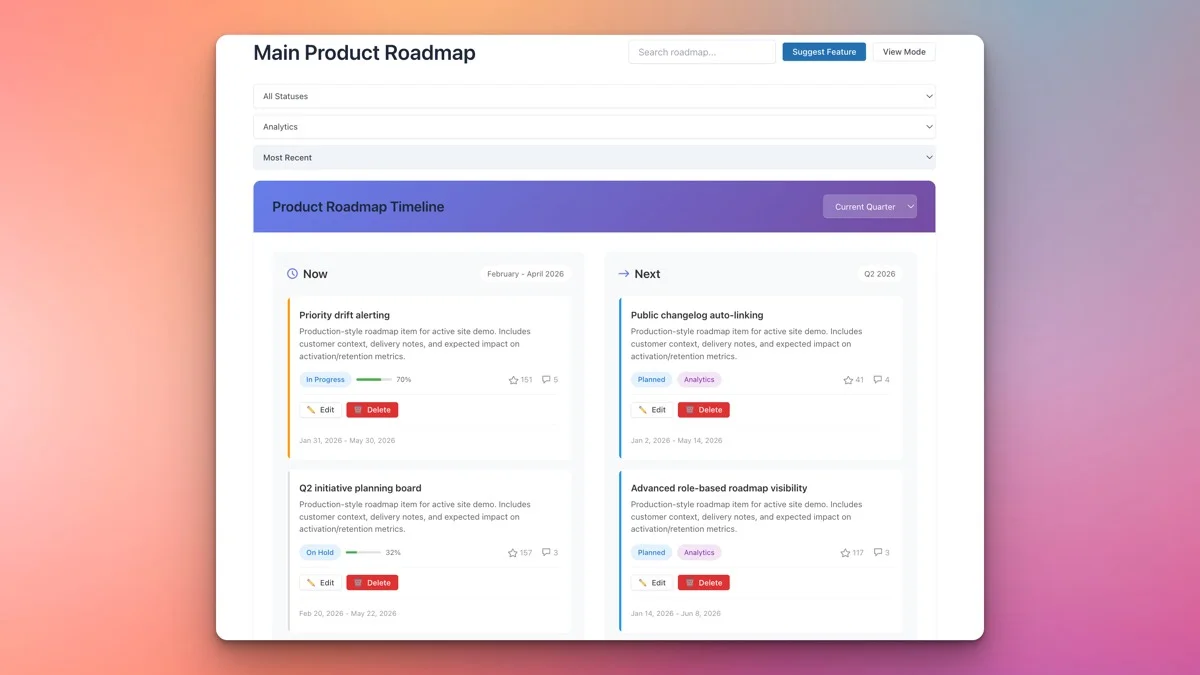
The kanban view works well for clients who think in terms of workflow stages. If your client is familiar with tools like Trello or Asana, the column-based layout will feel immediately familiar. The list view is best for clients who want a simple, scannable summary without visual complexity.
Per-Client Boards with Custom Statuses
Every WooCommerce project is different. A store migration has different phases than a custom theme build. A WooCommerce subscription setup has different milestones than a performance optimization engagement. The Product Roadmap Pro version lets you create separate boards for each client, each with its own set of custom statuses.
Tailoring Statuses to the Project
For a WooCommerce store build, you might define statuses like:
- Discovery, Initial requirements gathering and site audit
- Design Mockups, Visual designs being created and reviewed
- Development, Active coding and configuration
- Content Migration, Moving products, pages, and media
- QA Testing, Internal testing before client review
- Client Review, Awaiting client feedback and approval
- Launch Prep, DNS, SSL, performance optimization
- Launched, Live and operational
For a WooCommerce optimization project, the statuses might be:
- Audit, Analyzing current performance and identifying bottlenecks
- Recommended, Optimization proposed but not yet started
- In Progress, Currently implementing the optimization
- Staging Test, Verifying improvement on staging
- Deployed, Live on production
- Monitoring, Tracking metrics post-deployment
Each board uses the statuses that match its project type. Clients see terminology that makes sense for their specific engagement, not a generic one-size-fits-all workflow.
Board-Level Access Control
With separate boards, you eliminate the risk of one client seeing another client’s project. Each board is embedded on its own page, and page-level access controls ensure that Client A never stumbles into Client B’s deliverables. WordPress’s built-in page visibility settings handle this without any custom code.
Structuring Milestones as Roadmap Items
The key to an effective client portal is deciding what to show. You do not want to expose every internal task, clients do not need to know that you spent two hours debugging a WooCommerce hook conflict. They need to see meaningful milestones that map to the deliverables they are paying for.
Granularity Guidelines
Aim for 15 to 30 items per project board. Fewer than 15, and the board looks sparse and uninformative. More than 30, and it becomes overwhelming. Each item should represent a deliverable or milestone that the client can understand without technical context.
Good milestone examples for a WooCommerce build:
- Homepage design mockup
- Product category page template
- Shopping cart and checkout flow
- Payment gateway integration (Stripe)
- Shipping zone configuration
- Product import (500 SKUs)
- Email notification templates
- Mobile responsive testing
- Performance optimization pass
- Launch day go-live
Each of these is meaningful to the client. They can see that “Payment gateway integration” moved from “Development” to “QA Testing” and understand that progress is happening without needing a technical explanation.
Using Descriptions for Context
Each roadmap item supports a full description field powered by the WordPress block editor. Use this to add context that helps clients understand what each milestone involves. A brief paragraph explaining “This milestone covers integrating Stripe for credit card payments and Apple Pay, including test transactions on the staging environment” gives the client confidence that you are thorough without overwhelming them with code-level details.
Progress Bars for Completion Tracking
Clients love progress indicators. There is something deeply satisfying about watching a progress bar fill up. The Product Roadmap plugin supports this through its status-based tracking system.
How Progress Is Calculated
When items move through statuses, the overall completion percentage updates automatically. If you have 20 items on a board and 14 are in your final “Completed” status, the board shows 70% completion. This gives clients an at-a-glance understanding of where the project stands without counting individual items.
Leveraging Visual Indicators
Each status can be assigned a color. Use a logical color progression, grey for “Not Started,” blue for “In Progress,” amber for “Review,” green for “Complete.” This visual language transcends text and gives clients an immediate emotional read on the project. A board full of green items feels good. A board full of blue items signals active momentum. Clients absorb this intuitively.
Weekly Snapshot Conversations
Instead of writing status update emails, schedule a weekly five-minute call where you and the client look at the board together. Walk through what moved since last week, what is coming up, and any blockers. The visual board becomes the conversation anchor, eliminating the need for slides, documents, or email summaries. Five minutes replaces an hour of writing and reading.
Target Dates That Clients Can Track
Every WooCommerce client cares about deadlines. “When will my store launch?” is the first question and the last question. The Product Roadmap plugin supports target dates on each item, giving clients a clear timeline they can reference anytime.
Setting Realistic Dates
Add target dates to your major milestones. Be conservative rather than optimistic, it is better to deliver early than to have a board full of overdue items. When a date needs to change, update it on the board with a note in the item’s description explaining why. Clients handle date changes far better when they see the updated timeline immediately rather than learning about it in a surprised email two days after the original deadline passed.
Timeline View for Date-Focused Clients
The timeline view is particularly effective for clients who think in terms of calendar dates. It renders items along a horizontal timeline, making it obvious which deliverables are due when. Clients can quickly identify clusters of activity and quiet periods. This view answers the perpetual question “What are you working on this week?” without anyone needing to ask it.
Overdue Item Visibility
When an item passes its target date without moving to a completed status, it becomes visually distinct. This transparency builds trust rather than eroding it. Clients see that you are tracking the same deadlines they are, and they can see when something slips. Proactive visibility into delays is far more professional than hoping the client does not notice.
Role-Based Access: Controlling Who Sees What
Not everyone should see the same information. Your internal team needs to see technical notes, time estimates, and internal comments. Your clients need to see milestones, statuses, and target dates. The Product Roadmap plugin leverages WordPress’s role-based access system to handle this cleanly.
For Your Internal Team
Administrators and editors get full access to the backend roadmap interface. They can create items, edit descriptions, change statuses, manage categories, and configure board settings. They see the complete picture, including any internal-only items you choose not to display on the frontend.
For Client Users
Create WordPress accounts for your clients with the Subscriber or a custom role. These users can log in, view the embedded roadmap page, vote on items (if you enable voting for their role), and leave comments. They cannot edit items, change statuses, or access the WordPress admin. They see exactly what you want them to see, nothing more.
Custom Roles for Project Managers
If your agency has project managers who need to update statuses but should not have full admin access, consider creating a custom WordPress role with specific capabilities. The Product Roadmap plugin respects WordPress capabilities, so you can fine-tune who can do what at a granular level. Combined with the frontend manage mode, project managers can update the roadmap from the frontend without ever seeing the WordPress dashboard.
Comments for Structured Communication
Email threads are where project context goes to die. A conversation about the checkout flow gets buried in a thread that started about the homepage banner. Three weeks later, no one can find the decision that was made.
Item-Level Comments
The Product Roadmap plugin supports comments on individual items. This means the conversation about “Payment gateway integration” stays attached to the “Payment gateway integration” item. When someone needs to reference that discussion six weeks later, they know exactly where to find it.
Client Communication Workflow
Encourage clients to leave feedback as comments on specific items rather than sending emails. When a client has a question about the product import milestone, they comment on that item. Your team responds on the same item. The entire conversation is contextual, searchable, and permanently attached to the relevant deliverable.
This does not eliminate all email, high-level strategic discussions still belong in meetings or email. But operational project communication (“Can we add Apple Pay?”, “The shipping zones look wrong”, “This mockup needs a darker header”) benefits enormously from being anchored to specific roadmap items.
Comment Notifications
WordPress’s built-in comment notification system means both you and the client get email alerts when new comments are posted. The email serves as a nudge to check the portal, not as the communication medium itself. The conversation lives on the roadmap, and the email is just the doorbell.
Embedding on a Password-Protected Page
The simplest way to create a client portal is to embed the roadmap on a password-protected WordPress page. Here is the step-by-step process.
Step 1: Create the Page
Create a new WordPress page with a clear title like “Project Status: [Client Name].” This becomes the client’s dedicated portal URL.
Step 2: Add the Roadmap Shortcode
Insert the Product Roadmap shortcode into the page content. If using the Pro version with multiple boards, specify the board ID in the shortcode to display the correct board for this client.
Step 3: Set Page Visibility
You have several options for restricting access:
- Password protection, WordPress’s built-in page password feature. Simple but shares a single password among all viewers.
- Private page, Only logged-in users with the appropriate role can see the page.
- Membership plugin, If you already use a membership or access control plugin, restrict the page to the client’s user group.
For most agencies, creating a WordPress account for the client and setting the page to “Private” provides the best balance of security and usability. The client bookmarks the URL, logs in once, and has persistent access to their project status.
Step 4: Brand the Experience
Add your agency branding to the page. Include your logo, a brief welcome message, and contact information for the project manager. This small touch transforms a functional tool into a branded client experience. Clients feel like they have a dedicated portal rather than a page on a shared website.
Step 5: Share the Access
Send the client their credentials and the portal URL. Include a brief orientation, “Bookmark this page. Log in anytime to see the latest project status. Click any item for details. Use the comment section to leave feedback on specific deliverables.” That is the entire onboarding.
Improving Client Retention with Transparency
Here is the business case for building a client portal, beyond the obvious time savings.
Retention Through Visibility
Clients leave agencies when they feel out of the loop. The number one complaint in agency-client relationships is poor communication. A project status portal directly addresses this by making communication passive and continuous. The client never has to wonder what is happening because the answer is always one click away.
Upsell Through Demonstrated Value
When a client watches their WooCommerce store come together milestone by milestone, they see the volume of work involved. Twenty completed items with descriptions, dates, and status changes tell a story of thorough, professional execution. This tangible evidence of value makes the conversation about a maintenance retainer or Phase 2 project much easier.
Referrals Through Experience
A professional client portal is a differentiator. Most agencies send weekly email updates. You give clients a dedicated, branded status page they can check anytime. When they tell a colleague about their experience working with your agency, the portal becomes a memorable detail. “They gave us this portal where we could see everything in real time” is a powerful referral statement.
Reduced Scope Creep Through Documentation
When every deliverable is documented as a roadmap item with a description and status, scope becomes visible. If a client asks for something that was not in the original agreement, you can point to the board: “Here are the 25 deliverables we agreed on. The feature you are requesting would be item 26. Want to add it to a Phase 2 board?” The roadmap becomes a living scope document that both parties reference.
Scaling the Portal Approach
One client portal is useful. A standardized portal system across all clients is transformative.
Template Boards
Once you have established a workflow that works, create template boards for your most common project types. A “WooCommerce Store Build” template with 20 pre-defined milestones, appropriate statuses, and placeholder descriptions saves you 30 minutes of setup on every new project. Clone the template, customize the details, and the portal is ready before the kickoff call.
Onboarding Automation
Integrate portal creation into your client onboarding workflow. When a new project kicks off, create the board, set up the page, generate the client’s WordPress credentials, and send the welcome email with portal access. Automating these steps ensures every client gets the same professional experience regardless of which project manager is handling their account.
Post-Launch Transition
After a WooCommerce store launches, transition the project board into a maintenance board. Change the statuses to reflect ongoing support: “Reported,” “Investigating,” “Scheduled,” “Fixed,” “Monitoring.” The client’s portal URL stays the same, but the board evolves to match the new relationship. This continuity signals long-term commitment and naturally transitions the client from project mode to retainer mode.
Getting Started
Building a client portal with the Product Roadmap plugin is straightforward and the return on investment is immediate. The first time a client checks their portal instead of sending a “What’s the status?” email, the plugin has already paid for itself in saved time and reduced friction.
Start with one client. Set up their board, embed it on a protected page, and share access. Watch how it changes the dynamic of your working relationship. Then roll it out to every client project.
Your clients want to feel informed. Your team wants to stop writing status emails. A project status portal gives both sides exactly what they need.
Get the Product Roadmap plugin and start building your client portal today.
Plugins we build and run
We maintain these ourselves, which is why we can support them on your site.
- BuddyNextThe self-hosted community engine for WordPress
- BuddyXFree community theme, Pro when you outgrow it
- ReignPremium community theme. Add pieces, build anything
- JetonomyCommunity forum and Q&A for WordPress
- EventonomyEvents and RSVPs for WordPress communities
- LearnomyCourses and learning communities on WordPress
- ListoraDirectories and listings your members can browse
- SnipShareCode sharing built for developer communities
- WB Ad ManagerAd placements that turn traffic into revenue
- WP Career BoardA job board your community actually uses
- WP Sell ServicesSell services with offers, orders, and payouts
- MediaVersePhotos, video, and media albums for members
- WB GamificationPoints, badges, and rewards that keep members active
- Product RoadmapPublic roadmaps with voting your users trust