How We Fixed 87% Checkout Abandonment on a WooCommerce Booking Site (And How You Can Too)

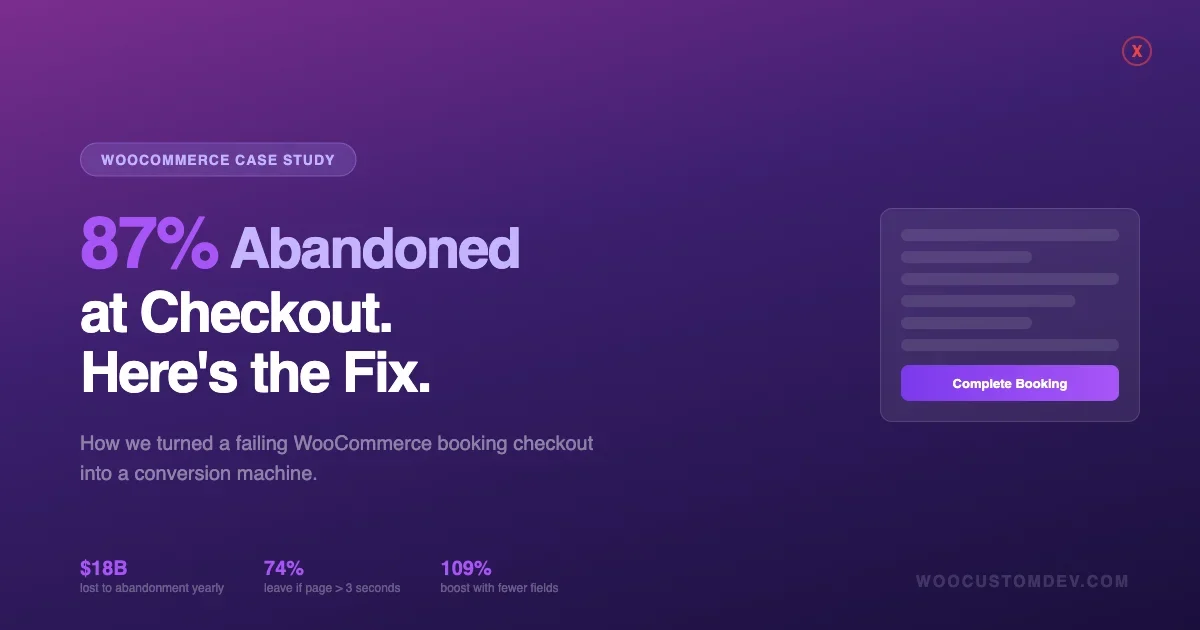
For every 10 customers who load your WooCommerce checkout page, 7 of them leave without completing their purchase. On booking sites - where date pickers, time slots, and deposit calculations add extra cognitive load - that number climbs even higher. One WooCommerce booking site documented an 87% checkout abandonment rate before they overhauled their entire checkout flow.
This is not a listicle of generic “add trust badges” advice. This is a technical deep-dive into exactly what causes WooCommerce checkout abandonment, what the fixes look like in code and configuration, and how to measure whether your changes actually work. We will cover speed optimization, checkout simplification, payment gateway selection, booking-specific UX failures, and abandoned cart recovery - with real WooCommerce settings, code snippets, and plugin recommendations throughout.
If you run a WooCommerce store - especially one that sells bookings, appointments, or services - this guide will save you thousands in lost revenue.
87%
Checkout abandonment rate on a WooCommerce booking site before optimization
The $18 Billion Problem: Why WooCommerce Checkout Abandonment Matters
Cart abandonment is not a minor UX inconvenience. It is a revenue crisis that affects every WooCommerce store, regardless of size or industry.
The numbers tell a brutal story:
- Average WooCommerce cart abandonment rate: ~70% - meaning the majority of customers who add items to their cart never complete their purchase
- $18 billion per year is lost globally to cart abandonment across ecommerce
- Nearly half of all abandonments happen because unexpected costs (shipping, taxes, fees) appear at checkout
- 22% of shoppers abandon because the checkout process is too long or complicated
- 18% leave due to payment security concerns
- 74% of shoppers will abandon if page load times exceed 3 seconds
For booking and service-based WooCommerce sites, the problem is compounded. You are not just asking someone to click “Buy Now” - you are asking them to pick a date, select a time slot, understand deposit vs. full payment, review a cancellation policy, and potentially create an account. Each additional decision point is another opportunity for the customer to leave.
$18 Billion
Lost globally to cart abandonment every year
The Dev.to Case Study: From 87% to Recovered
A WooCommerce booking site documented their full optimization journey on Dev.to. Their starting point: an 87% checkout abandonment rate, which is significantly above the already-painful industry average.
Their checkout had the classic problems: slow load times, forced account creation, a confusing multi-step process, no digital wallet options, and booking-specific UX issues that made customers second-guess their purchase. Over several months, they systematically addressed each friction point - and the results were dramatic.
What makes this case study valuable is not just the outcome, but the methodology. They did not throw random plugins at the problem. They audited, measured, fixed, and re-measured. That is the approach we will follow in this guide.
What Reddit Store Owners Are Saying
The frustration is real in the WooCommerce community. In a recent r/woocommerce thread titled “Many visits but not many conversions” (39 comments), a store owner described getting consistent traffic but erratic sales - some days zero conversions, then five in an hour. The responses were illuminating: slow checkout pages, lack of guest checkout, missing trust signals, and poor mobile experience were the most commonly identified culprits.
Another thread about WooPayments holding funds for 8 months highlights a different dimension of the problem - payment gateway trust. When your payment processor freezes funds, it directly impacts your ability to maintain a healthy checkout experience, and customer-facing payment failures become a direct cause of abandonment.
“I get 200+ visitors a day and some days literally zero sales. Then randomly I’ll get 5 orders in an hour. It’s the checkout - I can feel it.” - r/woocommerce store owner
Strategy 1: Speed Optimization - The 3-Second Rule
Nothing kills conversions faster than a slow checkout page. This is not an opinion; it is backed by hard data.
74%
of shoppers abandon checkout if load time exceeds 3 seconds
Why WooCommerce Checkouts Are Slow
WooCommerce checkout pages are inherently heavier than regular pages. They load payment gateway scripts, run cart calculations server-side, validate coupons, check stock levels, and often load additional plugin scripts for things like address autocomplete, date pickers, and custom fields.
Common culprits include:
- Too many plugins loading scripts on checkout - every plugin that enqueues JavaScript or CSS on the checkout page adds to load time
- Unoptimized payment gateway scripts - Stripe, PayPal, and others load external scripts that can add 1-2 seconds
- No page caching - while you should not cache the checkout page itself (it contains dynamic cart data), the assets it depends on should be cached and optimized
- Large DOM from unnecessary checkout fields - every custom field plugin adds markup and scripts
- Booking plugin overhead - calendar widgets, availability checks via AJAX, and time slot rendering can add significant load time
How to Fix Checkout Speed in WooCommerce
Step 1: Audit what is loading on your checkout page.
Open your checkout page in Chrome DevTools, go to the Network tab, and filter by JS and CSS. You will likely be surprised by how many scripts are loading that have nothing to do with checkout.
Use this snippet in your theme’s functions.php to dequeue unnecessary scripts on the checkout page:
add_action( 'wp_enqueue_scripts', 'woocustomdev_optimize_checkout_scripts', 99 );
function woocustomdev_optimize_checkout_scripts() {
    if ( ! is_checkout() ) {
        return;
    }

    // Dequeue scripts that are not needed on checkout.
    wp_dequeue_script( 'wc-cart-fragments' );
    wp_dequeue_style( 'contact-form-7' );
    wp_dequeue_script( 'contact-form-7' );

    // Add more handles as you identify them in DevTools.
}
Step 2: Optimize payment gateway loading.
If you use Stripe, enable their optimized loading mode. In WooCommerce > Settings > Payments > Stripe, check “Inline Credit Card Form” which loads fewer scripts than the legacy form.
For PayPal, use the Smart Payment Buttons SDK which only loads the buttons needed for your configuration rather than the full SDK.
Step 3: Enable AJAX-based cart updates.
WooCommerce’s cart and checkout can be configured to update via AJAX instead of full page reloads. This is especially critical for booking sites where changing a date or time slot should not reload the entire page.
// Enable AJAX add to cart on single product pages.
add_theme_support( 'wc-product-ajax-add-to-cart' );
Step 4: Server-side optimization.
- Use PHP 8.2+ (significant performance improvement over PHP 7.x)
- Enable OPcache with at least 256MB memory
- Use object caching (Redis or Memcached) for WooCommerce sessions
- Consider a CDN for static assets
woocommerce_checkout_before_order_review hook to lazy-load the order review section. This keeps the initial page load fast while the order summary loads asynchronously after the main form renders.
Step 5: Mobile checkout speed.
Mobile users have less patience and slower connections. Your checkout must be fast on a 4G connection, not just fiber broadband.
- Test with Chrome DevTools throttled to “Fast 3G”
- Target under 2 seconds for First Contentful Paint on mobile
- Use
loading="lazy"on any images in the checkout (trust badges, logos) - Minimize the number of third-party scripts - each one is a network request on a potentially slow connection
Strategy 2: Simplify the Checkout - Fewer Fields, More Conversions
The relationship between checkout form length and conversion rate is not linear - it is exponential. Every unnecessary field you add does not just slightly reduce conversions; it significantly increases the probability of abandonment.
109%
Conversion boost when checkout forms have 15 or fewer fields
The Default WooCommerce Checkout Problem
Out of the box, WooCommerce asks for:
- First name, last name
- Company name
- Country
- Street address (two lines)
- City, state, postcode
- Phone
- Order notes
- Plus any shipping fields if shipping is enabled
That is already 12+ fields before any customization. For a booking site, you might also be adding date selection, time slot, number of participants, special requirements, and more. You can easily hit 20+ fields, which is a conversion killer.
How to Simplify Your WooCommerce Checkout
Remove unnecessary fields with WooCommerce’s built-in filter:
add_filter( 'woocommerce_checkout_fields', 'woocustomdev_simplify_checkout' );
function woocustomdev_simplify_checkout( $fields ) {
    // Remove company field - rarely needed for B2C.
    unset( $fields['billing']['billing_company'] );

    // Remove second address line.
    unset( $fields['billing']['billing_address_2'] );

    // Remove order notes - use a separate contact form instead.
    unset( $fields['order']['order_comments'] );

    // For digital/booking products, remove all shipping fields.
    if ( woocustomdev_cart_is_virtual() ) {
        unset( $fields['shipping'] );
        unset( $fields['billing']['billing_address_1'] );
        unset( $fields['billing']['billing_city'] );
        unset( $fields['billing']['billing_postcode'] );
        unset( $fields['billing']['billing_country'] );
        unset( $fields['billing']['billing_state'] );
    }

    return $fields;
}

function woocustomdev_cart_is_virtual() {
    $start = true;
    foreach ( WC()->cart->get_cart() as $cart_item ) {
        if ( ! $cart_item['data']->is_virtual() ) {
            $start = false;
            break;
        }
    }
    return $start;
}For booking sites specifically: If you are selling appointments or services (not physical products), you can strip the checkout down to just name, email, phone, and payment. That is 4 fields plus the payment form - a dramatically simpler experience than the default.
WooCommerce Blocks Checkout vs. Classic Checkout
WooCommerce has been gradually replacing the classic shortcode-based checkout with a block-based checkout. Here is how they compare for abandonment reduction:
Feature | Classic Checkout | Blocks Checkout |
|---|---|---|
Field customization | Via | Limited, requires block modifications |
Multi-step layout | Requires plugins or custom code | Native step-based layout |
Express payments | Plugin-dependent | Built-in support for Apple Pay, Google Pay |
Performance | Depends on theme/plugins | Generally faster, React-based |
Customization depth | Full control via hooks and filters | More restrictive, block-based |
Booking plugin compatibility | Mature, well-supported | Still catching up, some plugins incompatible |
Our recommendation for booking sites in 2026: Start with the Blocks checkout for its built-in express payment support and cleaner UX. Fall back to classic checkout only if your booking plugin does not support blocks yet.
To enable the Blocks checkout:
- Go to Pages > Checkout in WordPress admin
- Replace the
[woocommerce_checkout]shortcode with the Checkout block - Test thoroughly - some plugins that hook into classic checkout will not work with blocks
Single-Page vs. Multi-Step Checkout
For most WooCommerce stores, a single-page checkout converts better than a multi-step process. The customer can see everything at once, which reduces anxiety about hidden costs or unexpected fields.
However, for booking sites with complex configurations (date + time + participants + add-ons + payment), a well-designed multi-step checkout can actually perform better because it breaks the cognitive load into digestible chunks:
- Step 1: Booking details (date, time, participants)
- Step 2: Your information (name, email, phone)
- Step 3: Payment
The key word is “well-designed.” A multi-step checkout that makes you click through 5 pages with a progress bar that barely moves is worse than a long single page.
Plugins that handle this well:
- Flux Checkout for WooCommerce - replaces the entire checkout with a modern, single-page or multi-step design. Removes all unnecessary fields by default.
- CheckoutWC - another checkout replacement that focuses on conversion optimization with a Shopify-like design.
- CartFlows - funnel builder that includes optimized checkout templates.
Strategy 3: Guest Checkout - The Single Biggest Quick Win
Forcing account creation at checkout is the number one cause of cart abandonment. It is so impactful that enabling guest checkout often produces measurable results within days.
Forced account creation is the #1 cause of cart abandonment in WooCommerce. Customers want to buy, not create another password they will forget.
Why Store Owners Force Account Creation (And Why They Shouldn’t)
The argument for requiring accounts is usually: “We need their account for order history, booking management, and remarketing.” This is valid - but the solution is not to block the sale.
The right approach:
- Allow guest checkout - let the customer buy without an account
- Auto-create an account after purchase - WooCommerce has a built-in setting for this
- Send the account credentials in the order confirmation email - the customer gets their account without any extra friction during checkout
WooCommerce Settings for Guest Checkout
Go to WooCommerce > Settings > Accounts & Privacy:
- Allow customers to place orders without an account: Check this box
- Allow customers to create an account during checkout: Check this box (optional, not required)
- When creating an account, automatically generate an account username: Check this box
- When creating an account, automatically generate an account password: Check this box
For the best experience, also enable:
// Auto-create account for guest orders (post-purchase).
add_filter( 'woocommerce_checkout_registration_required', '__return_false' );

// Pre-populate checkout fields for returning customers via email lookup.
add_filter( 'woocommerce_checkout_get_value', 'woocustomdev_prefill_checkout', 10, 2 );
function woocustomdev_prefill_checkout( $value, $input ) {
    if ( is_user_logged_in() ) {
        return $value;
    }

    // Check if we have a returning customer cookie.
    $email = isset( $_COOKIE['woocustomdev_customer_email'] )
        ? sanitize_email( wp_unslash( $_COOKIE['woocustomdev_customer_email'] ) )
        : '';

    if ( empty( $email ) ) {
        return $value;
    }

    $customer = get_user_by( 'email', $email );
    if ( ! $customer ) {
        return $value;
    }

    $meta_key = str_replace( 'billing_', '', $input );
    $meta     = get_user_meta( $customer->ID, 'billing_' . $meta_key, true );

    return $meta ? $meta : $value;
}
For Booking Sites: The Account Dilemma
Booking sites have a legitimate need for customer accounts - customers want to view upcoming bookings, reschedule, and cancel. But this still does not justify forcing account creation before the first purchase.
The pattern that works best:
- Customer books as a guest
- Order confirmation email includes a “Create your account to manage bookings” link
- The account is pre-populated with their order and booking data
- Returning customers can log in for a faster rebooking experience
This approach captures the same data while removing the friction from the initial conversion.
Strategy 4: Digital Payment Methods - Apple Pay, Google Pay, and Beyond
In 2026, not offering digital wallet payments is leaving money on the table. Customers expect to pay with a single tap, especially on mobile devices where typing card numbers is painful.
Why Digital Wallets Reduce Abandonment
Digital wallets solve multiple abandonment causes simultaneously:
- No typing card numbers - reduces friction and errors
- No billing address entry - the wallet provides it automatically
- Built-in trust - Apple Pay and Google Pay have strong brand trust
- Mobile-optimized - one tap to pay on the device they are already using
- Faster checkout - total checkout time drops from 2-3 minutes to under 30 seconds
Setting Up Stripe Payment Request API in WooCommerce
Stripe’s Payment Request API enables Apple Pay, Google Pay, and Microsoft Pay through a single integration.
- Install and activate WooCommerce Stripe Payment Gateway
- Go to WooCommerce > Settings > Payments > Stripe
- Enable “Payment Request Buttons”
- Choose button locations: Product page, Cart, Checkout
- Select button style and size
Important configuration notes:
- Apple Pay requires domain verification - Stripe handles this automatically, but you need an SSL certificate
- Google Pay works without additional verification
- The buttons only appear on supported browsers and devices - this is normal behavior
- Test on an actual iPhone and Android device, not just desktop Chrome
// Customize where payment request buttons appear.
add_filter( 'wc_stripe_show_payment_request_on_checkout', '__return_true' );
add_filter( 'wc_stripe_show_payment_request_on_cart', '__return_true' );
add_filter( 'wc_stripe_show_payment_request_on_product', '__return_true' );

// Adjust the button style.
add_filter( 'wc_stripe_payment_request_button_type', function() {
    return 'buy'; // Options: default, buy, donate, book.
} );'book' – the Apple Pay button will display “Book with Apple Pay” instead of “Buy with Apple Pay.” This small detail reinforces the booking context and improves click-through rates.
Payment Gateway Comparison for Booking Sites
Not all payment gateways are equal for booking and service-based WooCommerce stores. Here is how the major options compare:
Gateway | Digital Wallets | Deposits/Partial Pay | Recurring | Hold & Charge | Fees |
|---|---|---|---|---|---|
Stripe | Apple Pay, Google Pay, Link | Via plugin | Yes (Subscriptions) | Yes (authorize then capture) | 2.9% + 30c |
PayPal | PayPal, Venmo | Limited | Yes | Yes | 3.49% + 49c |
Square | Apple Pay, Google Pay | Yes (native) | Yes | Yes | 2.6% + 10c |
WooPayments | Apple Pay, Google Pay | No | Yes | Yes | 2.9% + 30c |
Mollie | Apple Pay, iDEAL, Bancontact | Via plugin | Yes | Yes | Varies by method |
For booking sites, Stripe is the strongest choice because:
- Authorize-then-capture lets you hold payment and only charge when the booking is confirmed
- Stripe Connect enables marketplace-style payouts if you have multiple service providers
- The Payment Request API (Apple/Google Pay) is the most mature implementation
- Stripe’s fraud detection (Radar) is industry-leading
Strategy 5: Trust Signals - The 28% Conversion Boost
Trust is not a soft metric. Trust signals placed correctly on a checkout page can improve conversion rates by 28% or more. On booking sites - where customers are paying for a future experience they cannot see or touch - trust is even more critical.
28%
Conversion improvement from properly placed trust signals
What Trust Signals Actually Work
Not all trust signals are created equal. Here is what the data supports:
High Impact:
- SSL certificate badge near the payment form - customers look for the lock icon
- Money-back guarantee - “100% refund within 30 days, no questions asked”
- Customer reviews/testimonials - ideally near the order summary, not buried on a separate page
- Recognized payment logos - Visa, Mastercard, AmEx, plus digital wallet logos
- “Secure checkout” messaging - simple text above the payment form
Moderate Impact:
- Trust badges from third parties (Norton, McAfee, BBB) - these work less than they used to, but still have some impact
- Live chat widget - knowing they can get help if something goes wrong
- Order count or social proof (“1,247 bookings this month”)
Low Impact (Skip These):
- Generic stock photos of happy people
- Overly designed trust badges that look fake
- Too many badges (more than 3-4 starts to look desperate)
Adding Trust Signals to WooCommerce Checkout
Method 1: Using WooCommerce hooks (no plugin needed)
// Add trust signals below the payment form.
add_action( 'woocommerce_review_order_after_submit', 'woocustomdev_checkout_trust_signals' );
function woocustomdev_checkout_trust_signals() {
?>
<div class="woocustomdev-trust-signals" style="margin-top: 20px; text-align: center; padding: 16px; background: #f9f9f9; border-radius: 8px;">
<p style="margin: 0 0 8px; font-size: 14px; color: #666;">
<span style="color: #28a745;">🔒</span>
Secure 256-bit SSL encrypted checkout
</p>
<p style="margin: 0 0 8px; font-size: 14px; color: #666;">
✅ 30-day money-back guarantee
</p>
<p style="margin: 0; font-size: 13px; color: #999;">
Trusted by 5,000+ customers
</p>
</div>
<?php
}
// Add testimonial near order review.
add_action( 'woocommerce_checkout_before_order_review_heading', 'woocustomdev_checkout_testimonial' );
function woocustomdev_checkout_testimonial() {
?>
<div style="background: #f0f7ff; border-radius: 8px; padding: 16px; margin-bottom: 20px; font-size: 14px;">
<p style="margin: 0; font-style: italic; color: #333;">
"Best booking experience I've had online. Simple, fast, and I got my confirmation instantly."
</p>
<p style="margin: 8px 0 0; font-size: 12px; color: #666;">
- Sarah M., verified customer
</p>
</div>
<?php
}Method 2: For WooCommerce Blocks Checkout
If you are using the Blocks checkout, you will need to use the woocommerce_blocks_checkout_enqueue_data filter or create a custom block to inject trust signals. The simplest approach:
// Register a custom block area below the checkout form.
add_action( 'woocommerce_blocks_loaded', function() {
    add_action(
        'woocommerce_blocks_checkout_block_registration',
        function( $integration_registry ) {
            // Register trust signal integration.
        }
    );
} );
For most stores, adding trust signals via CSS and the classic hooks is simpler and equally effective.
Booking-Specific Trust Signals
For booking sites, customers have unique anxiety points:
- “What if I need to cancel?” - Display your cancellation policy clearly on the checkout page, not hidden in terms and conditions
- “Will I get a confirmation?” - Add text like “Instant email confirmation with all booking details”
- “Is this date actually available?” - Show real-time availability confirmation before they enter payment details
- “What exactly am I paying for?” - Show a clear booking summary: date, time, duration, number of people, total price
Strategy 6: Booking-Specific Checkout Issues (The Hidden Conversion Killers)
Generic ecommerce checkout advice only gets you so far. Booking sites have unique friction points that standard WooCommerce optimization guides completely miss.
Problem 1: Calendar and Date Picker UX
Most WooCommerce booking plugins ship with functional but poorly designed date pickers. Common issues:
- Too small on mobile - tiny calendar grids that are impossible to tap accurately on a phone
- No visual availability cues - all dates look the same, so customers click unavailable dates and get error messages
- Slow AJAX loading - each month navigation triggers a server request to check availability
- No timezone handling - for online services, customers book in the wrong timezone
How to fix it:
// Improve booking calendar mobile UX.
add_action( 'wp_head', 'woocustomdev_booking_calendar_styles' );
function woocustomdev_booking_calendar_styles() {
    if ( ! is_checkout() && ! is_product() ) {
        return;
    }
    ?>
    <style>
        /* Make calendar cells larger on mobile. */
        @media (max-width: 640px) {
            .wc-bookings-date-picker .ui-datepicker td {
                padding: 8px !important;
                font-size: 16px !important;
            }
            .wc-bookings-date-picker .ui-datepicker {
                width: 100% !important;
            }
        }

        /* Visual cues for availability. */
        .wc-bookings-date-picker .bookable a {
            background: #d4edda !important;
            color: #155724 !important;
            font-weight: 600;
        }
        .wc-bookings-date-picker .fully_booked a {
            background: #f8d7da !important;
            color: #721c24 !important;
            text-decoration: line-through;
        }
        .wc-bookings-date-picker .partial_booked a {
            background: #fff3cd !important;
            color: #856404 !important;
        }
    </style>
    <?php
}
Problem 2: Time Slot Confusion
When a booking site offers multiple time slots, the presentation can make or break the conversion. Common failures:
- Showing times in 24-hour format when your audience uses 12-hour
- Listing 50 available slots in a dropdown (overwhelming)
- Not showing duration alongside the time
- Not grouping slots by morning/afternoon/evening
Better approach:
Instead of a dropdown with “09:00, 09:30, 10:00, 10:30...” - present time slots as visual buttons grouped by time of day:
<div class="time-slot-grid">
    <h4>Morning</h4>
    <div class="slot-group">
        <button class="time-slot available">9:00 AM</button>
        <button class="time-slot available">9:30 AM</button>
        <button class="time-slot available">10:00 AM</button>
        <button class="time-slot booked" disabled>10:30 AM</button>
    </div>
    <h4>Afternoon</h4>
    <div class="slot-group">
        <button class="time-slot available">1:00 PM</button>
        <button class="time-slot available">1:30 PM</button>
        <button class="time-slot available">2:00 PM</button>
    </div>
</div>
Problem 3: Deposit vs. Full Payment Clarity
Many booking sites offer a deposit option - pay 20% now, the rest later. But when this is poorly communicated, it causes confusion and abandonment.
Common mistakes:
- Showing two prices without explaining why
- Defaulting to full payment with deposit hidden in a collapsed section
- Not explaining when the remaining balance is due
- Using jargon like “partial payment” instead of “deposit”
Best practice implementation:
// Clear deposit messaging on checkout.
add_action( 'woocommerce_review_order_before_payment', 'woocustomdev_deposit_clarity' );
function woocustomdev_deposit_clarity() {
    // Check if any cart item uses deposits.
    $has_deposit = false;
    foreach ( WC()->cart->get_cart() as $item ) {
        if ( isset( $item['deposit_amount'] ) && $item['deposit_amount'] > 0 ) {
            $has_deposit = true;
            break;
        }
    }

    if ( ! $has_deposit ) {
        return;
    }
    ?>
    <div style="background: #e8f4fd; border: 1px solid #0077b6; border-radius: 8px; padding: 16px; margin-bottom: 20px;">
        <h4 style="margin: 0 0 8px; color: #0077b6;">Payment Options</h4>
        <p style="margin: 0; font-size: 14px; color: #333;">
            <strong>Pay deposit now:</strong> Secure your booking with a small deposit.
            The remaining balance is due 24 hours before your appointment.<br>
            <strong>Pay in full:</strong> Complete your payment now and you are all set.
        </p>
    </div>
    <?php
}
Problem 4: Cancellation Policy Visibility
Customers booking services want to know they can cancel or reschedule before they commit. Hiding your cancellation policy in a terms-and-conditions link increases abandonment.
Display cancellation policy prominently on checkout:
add_action( 'woocommerce_checkout_before_terms_and_conditions', 'woocustomdev_cancellation_policy' );
function woocustomdev_cancellation_policy() {
    ?>
    <div style="background: #f8f9fa; border-radius: 8px; padding: 16px; margin-bottom: 16px; font-size: 14px;">
        <strong>Cancellation Policy</strong>
        <ul style="margin: 8px 0 0; padding-left: 20px;">
            <li>Free cancellation up to 48 hours before your appointment</li>
            <li>50% refund for cancellations within 24-48 hours</li>
            <li>No refund for cancellations within 24 hours</li>
        </ul>
    </div>
    <?php
}
Strategy 7: Abandoned Cart Recovery - Getting Them Back
Even with a perfectly optimized checkout, some customers will leave. Abandoned cart recovery is your safety net - and it can recover 5-15% of lost sales.
How Abandoned Cart Recovery Works in WooCommerce
- Track the abandonment - capture the customer’s email when they enter it in the checkout form (before they complete the purchase)
- Wait - do not send an email immediately. Wait 30-60 minutes in case they come back on their own
- Send a recovery email - remind them what they left behind, with a direct link back to their cart
- Follow up - send 2-3 emails over the next 48 hours, with increasing urgency or a discount incentive
WooCommerce Abandoned Cart Plugins That Actually Work
After testing dozens of options, here are the plugins that deliver real results:
1. AutomateWoo ($99/year)
The most comprehensive WooCommerce-native abandoned cart solution. Tracks cart abandonment, sends recovery emails, and includes advanced segmentation. Built by the same team behind WooCommerce Subscriptions, so integration is flawless.
Key features:
- Captures emails before checkout completion
- Multi-email recovery sequences
- SMS recovery (via Twilio integration)
- Coupons that auto-expire for urgency
- Detailed conversion tracking
2. CartFlows + CartFlows Pro ($239/year)
Not just abandoned cart recovery - it is a complete funnel builder. If you want to optimize the entire checkout experience plus recover abandonment, CartFlows is a strong choice.
Key features:
- Checkout page replacement with optimized templates
- One-click upsells post-purchase
- A/B testing for checkout designs
- Abandoned cart recovery emails
- Cart abandonment tracking with analytics
3. Retainful (Free tier available, Pro from $19/month)
Lightweight option with a generous free tier. Good for smaller stores that want abandonment recovery without the complexity of AutomateWoo.
Key features:
- Automatic recovery emails
- Exit-intent popups
- Next-order coupons
- Drag-and-drop email builder
- WooCommerce-native integration
4. WooCommerce Built-in Recovery (Coming Soon)
WooCommerce has been working on built-in abandoned cart recovery. Check the WooCommerce roadmap for the latest status - this could eliminate the need for a third-party plugin entirely.
Recovery Email Sequence That Works
Based on real data from WooCommerce stores:
Email 1 (30-60 minutes after abandonment):
- Subject: “Did something go wrong?”
- Tone: Helpful, not salesy
- Content: “We noticed you did not complete your booking. If you ran into any issues, we’re here to help.”
- Include: Direct link back to their cart, support email/chat
Email 2 (24 hours):
- Subject: “Your [service/product name] is still waiting”
- Tone: Gentle reminder
- Content: Show what they left behind with images and details
- Include: Social proof (“Join 5,000+ happy customers”), cart link
Email 3 (48 hours):
- Subject: “Last chance - 10% off your booking”
- Tone: Urgency + incentive
- Content: Time-limited discount code
- Include: Cart link with auto-applied coupon
Transactional Email Quality
A Reddit discussion on transactional email revealed that many WooCommerce stores use the default WooCommerce email templates, which are ugly, hard to customize, and often end up in spam.
For recovery emails to work, they need to actually reach the inbox. Use a transactional email provider:
- Postmark - highest deliverability rates, best for transactional email
- SendGrid - good balance of price and features
- Mailgun - developer-friendly, strong API
- Amazon SES - cheapest at scale, but requires more setup
Avoid using your hosting server’s mail() function - it has terrible deliverability and is the most common reason recovery emails fail silently.
Strategy 8: Custom Checkout Fields - What to Add and What to Remove
The most impactful checkout optimization is not about adding fancy features - it is about removing everything that is not absolutely necessary for completing the purchase.
Fields to Remove (Do It Today)
Field | Why Remove It | Impact |
|---|---|---|
Company name | Most B2C stores do not need it | Removes cognitive friction |
Address line 2 | Rarely used, confuses some customers | Cleaner form |
Phone number | Only if you do not need it for shipping/booking | One less required field |
Order notes | Use a post-purchase survey instead | Removes an open text field |
Shipping fields | Not needed for digital products or services | Dramatic simplification |
Fields to Add Strategically
Some fields actually improve conversions because they address customer anxiety:
Field | When to Add | How to Implement |
|---|---|---|
“How did you hear about us?” | Always (but make it optional) | Dropdown, 5-6 options max |
Booking summary confirmation | Booking sites | Read-only field showing date/time/details |
Preferred contact method | Service businesses | Radio: Email / Phone / WhatsApp |
Special requirements | Booking sites | Optional textarea, collapsed by default |
WooCommerce Custom Checkout Field Implementation
Here is a production-ready snippet for adding a strategic field:
// Add a "How did you hear about us?" field.
add_action( 'woocommerce_after_order_notes', 'woocustomdev_referral_source_field' );
function woocustomdev_referral_source_field( $checkout ) {
    woocommerce_form_field(
        'referral_source',
        array(
            'type'     => 'select',
            'class'    => array( 'form-row-wide' ),
            'label'    => 'How did you hear about us?',
            'required' => false,
            'options'  => array(
                ''                => 'Select an option (optional)',
                'google'          => 'Google Search',
                'social_media'    => 'Social Media',
                'friend'          => 'Friend / Family',
                'returning'       => 'I\'m a returning customer',
                'other'           => 'Other',
            ),
        ),
        $checkout->get_value( 'referral_source' )
    );
}

// Save the field value.
add_action( 'woocommerce_checkout_update_order_meta', 'woocustomdev_save_referral_source' );
function woocustomdev_save_referral_source( $order_id ) {
    if ( isset( $_POST['referral_source'] ) ) {
        update_post_meta(
            $order_id,
            '_referral_source',
            sanitize_text_field( wp_unslash( $_POST['referral_source'] ) )
        );
    }
}

// Display in admin order details.
add_action( 'woocommerce_admin_order_data_after_billing_address', 'woocustomdev_display_referral_source' );
function woocustomdev_display_referral_source( $order ) {
    $source = get_post_meta( $order->get_id(), '_referral_source', true );
    if ( $source ) {
        echo '<p><strong>Referral Source:</strong> ' . esc_html( $source ) . '</p>';
    }
}
Strategy 9: WooCommerce + Booking Plugin Integration Pain Points
If you run a WooCommerce booking site, you have probably experienced the unique frustration of booking plugins not playing well with the checkout flow. Here are the most common integration issues and how to solve them.
WooCommerce Bookings (by WooCommerce)
Common issue: Cart expiration conflicts. WooCommerce Bookings holds a time slot for 60 minutes by default, but if the customer takes longer at checkout, the slot can expire mid-purchase, causing a confusing error.
Fix:
// Extend booking hold duration to 120 minutes.
add_filter( 'woocommerce_bookings_remove_inactive_cart_interval', function() {
    return 120; // Minutes.
} );
Common issue: Double bookings when multiple customers checkout simultaneously for the same time slot.
Fix: Enable the “Check availability on checkout” option in WooCommerce > Bookings > Settings. This performs a final availability check before processing the order, preventing double bookings at the cost of a slightly slower checkout.
YITH WooCommerce Booking & Appointment
Common issue: The booking form does not pass data cleanly to the checkout, causing missing booking details in the order.
Fix: Verify that the booking data is attached to the cart item meta:
// Debug: log booking data in cart.
add_action( 'woocommerce_checkout_create_order_line_item', function( $item, $cart_item_key, $values, $order ) {
    if ( isset( $values['yith_booking_data'] ) ) {
        foreach ( $values['yith_booking_data'] as $key => $value ) {
            $item->add_meta_data( '_yith_booking_' . $key, $value );
        }
    }
}, 10, 4 );
Amelia (Standalone Booking Plugin)
Amelia operates outside of WooCommerce by default but has a WooCommerce integration mode. When enabled, the booking flow uses WooCommerce checkout instead of Amelia’s built-in payment form.
Common issue: Amelia’s integration creates a hidden WooCommerce product for each service, and the checkout displays this generic product name instead of the actual booking details.
Fix: Use the woocommerce_cart_item_name filter to replace the generic product name with the actual booking details:
add_filter( 'woocommerce_cart_item_name', 'woocustomdev_amelia_cart_item_name', 10, 3 );
function woocustomdev_amelia_cart_item_name( $name, $cart_item, $cart_item_key ) {
    if ( isset( $cart_item['ameliaBooking'] ) ) {
        $booking = $cart_item['ameliaBooking'];
        $name    = sprintf(
            '%s  -  %s at %s',
            esc_html( $booking['serviceName'] ?? $name ),
            esc_html( $booking['bookingStart'] ?? '' ),
            esc_html( $booking['locationName'] ?? '' )
        );
    }
    return $name;
}
Strategy 10: Measuring and Testing Your Checkout Optimization
Implementing these changes without measuring their impact is flying blind. Here is how to set up proper measurement for your WooCommerce checkout optimization.
Setting Up WooCommerce Checkout Tracking
Google Analytics 4 Enhanced Ecommerce:
WooCommerce’s Google Analytics integration (or MonsterInsights / GA Google Analytics) can track the following checkout events:
begin_checkout- customer starts checkoutadd_shipping_info- customer enters shipping detailsadd_payment_info- customer enters payment detailspurchase- order completed
The drop-off between these events tells you exactly where customers are leaving.
Server-side tracking for accuracy:
Client-side GA tracking misses customers who have ad blockers. For accurate abandonment data, implement server-side tracking:
// Track checkout step completion server-side.
add_action( 'woocommerce_checkout_order_processed', 'woocustomdev_track_checkout_complete' );
function woocustomdev_track_checkout_complete( $order_id ) {
    $order = wc_get_order( $order_id );
    if ( ! $order ) {
        return;
    }

    // Log completion for your analytics.
    $data = array(
        'order_id'   => $order_id,
        'total'      => $order->get_total(),
        'items'      => $order->get_item_count(),
        'payment'    => $order->get_payment_method(),
        'timestamp'  => current_time( 'mysql' ),
        'user_agent' => isset( $_SERVER['HTTP_USER_AGENT'] )
            ? sanitize_text_field( wp_unslash( $_SERVER['HTTP_USER_AGENT'] ) )
            : '',
    );

    // Store in custom table or send to analytics endpoint.
    update_post_meta( $order_id, '_checkout_tracking_data', $data );
}
A/B Testing Your Checkout
Do not guess - test. Here are the highest-impact checkout elements to A/B test:
- Single-page vs. multi-step checkout - test which converts better for your specific audience
- Number of form fields - try removing 2-3 fields and measure impact
- Payment button text - “Complete Booking” vs. “Pay Now” vs. “Confirm & Pay”
- Trust signal placement - above payment form vs. below vs. sidebar
- Guest checkout default - is the “Create account” checkbox checked or unchecked by default?
WooCommerce A/B testing options:
- Google Optimize (free) - works with WooCommerce but requires setup
- Nelio A/B Testing ($49/month) - WordPress-native A/B testing with WooCommerce support
- CartFlows Pro ($239/year) - built-in A/B testing for checkout pages
Key Metrics to Track
Metric | What It Tells You | Target |
|---|---|---|
Cart abandonment rate | Overall checkout health | Below 60% |
Checkout step drop-off | Where customers leave | Identify the biggest leak |
Time to checkout complete | Friction level | Under 2 minutes |
Mobile vs. desktop conversion | Mobile UX quality | Within 20% of desktop |
Payment method usage | Which options are popular | Add what customers want |
Recovery email conversion | Email sequence quality | 5-15% recovery rate |
Putting It All Together: Your WooCommerce Checkout Optimization Checklist
Here is the prioritized action plan, ordered by impact and effort:
Quick Wins (Under 1 Hour)
- Enable guest checkout in WooCommerce settings
- Remove unnecessary checkout fields (company, address line 2, order notes)
- Add a cancellation policy summary on the checkout page
- Add “Secure checkout” text near the payment button
- Check that your checkout loads under 3 seconds on mobile
Medium Effort (1-4 Hours)
- Set up Stripe Payment Request API for Apple Pay/Google Pay
- Dequeue unnecessary scripts from the checkout page
- Add trust signals below the payment form
- Improve date picker mobile UX with CSS customizations
- Install and configure an abandoned cart recovery plugin
Larger Projects (4+ Hours)
- Switch to WooCommerce Blocks checkout (if plugins are compatible)
- Implement a multi-step checkout for booking sites
- Set up proper GA4 Enhanced Ecommerce tracking
- Build an A/B testing framework for checkout elements
- Create a custom time slot selection UI
Ongoing Optimization
- Review abandonment data weekly
- Send and refine recovery email sequences
- Test new checkout layouts quarterly
- Monitor payment gateway performance (decline rates, errors)
- Collect and display fresh customer testimonials
22%
of customers abandon checkout because it was too complicated. Simplify or lose them.
Final Thoughts: Checkout Optimization Is Never Done
The Dev.to case study did not fix their 87% abandonment rate with a single change. It was a systematic process of identifying friction points, fixing them, measuring results, and iterating. Your WooCommerce checkout optimization journey will look the same.
Start with the quick wins - guest checkout, fewer fields, faster load times. These changes cost nothing and often produce immediate results. Then move to payment method expansion and trust signal implementation. Finally, invest in proper tracking and testing so you can measure the impact of every change.
The stores that win at checkout optimization are not the ones with the fanciest plugins or the most expensive themes. They are the ones that measure obsessively, remove friction relentlessly, and never stop testing.
Your checkout is the last thing between a visitor and a paying customer. Make it effortless.
Every field you remove, every second you shave off load time, and every trust signal you add is not just a UX improvement - it is directly more revenue in your WooCommerce store.
Sources and Further Reading:
- How We Fixed 87% Checkout Abandonment on a WooCommerce Booking Site (Dev.to)
- WooCommerce Checkout Flow Optimization Guide (Essential Blocks)
- WooCommerce Checkout Optimization Strategies (WPFunnels)
- WooCommerce Checkout: Increase Conversions (YITH)
- Best WooCommerce Abandoned Cart Plugins (Omnisend)
- WooCommerce Checkout Optimization (StackWC)
Related Reading
Plugins we build and run
We maintain these ourselves, which is why we can support them on your site.
- BuddyNextThe self-hosted community engine for WordPress
- BuddyXFree community theme, Pro when you outgrow it
- ReignPremium community theme. Add pieces, build anything
- JetonomyCommunity forum and Q&A for WordPress
- EventonomyEvents and RSVPs for WordPress communities
- LearnomyCourses and learning communities on WordPress
- ListoraDirectories and listings your members can browse
- SnipShareCode sharing built for developer communities
- WB Ad ManagerAd placements that turn traffic into revenue
- WP Career BoardA job board your community actually uses
- WP Sell ServicesSell services with offers, orders, and payouts
- MediaVersePhotos, video, and media albums for members
- WB GamificationPoints, badges, and rewards that keep members active
- Product RoadmapPublic roadmaps with voting your users trust