Add Post-Purchase Surveys to WooCommerce Checkout

Why Post-Purchase Is the Best Moment to Survey Customers
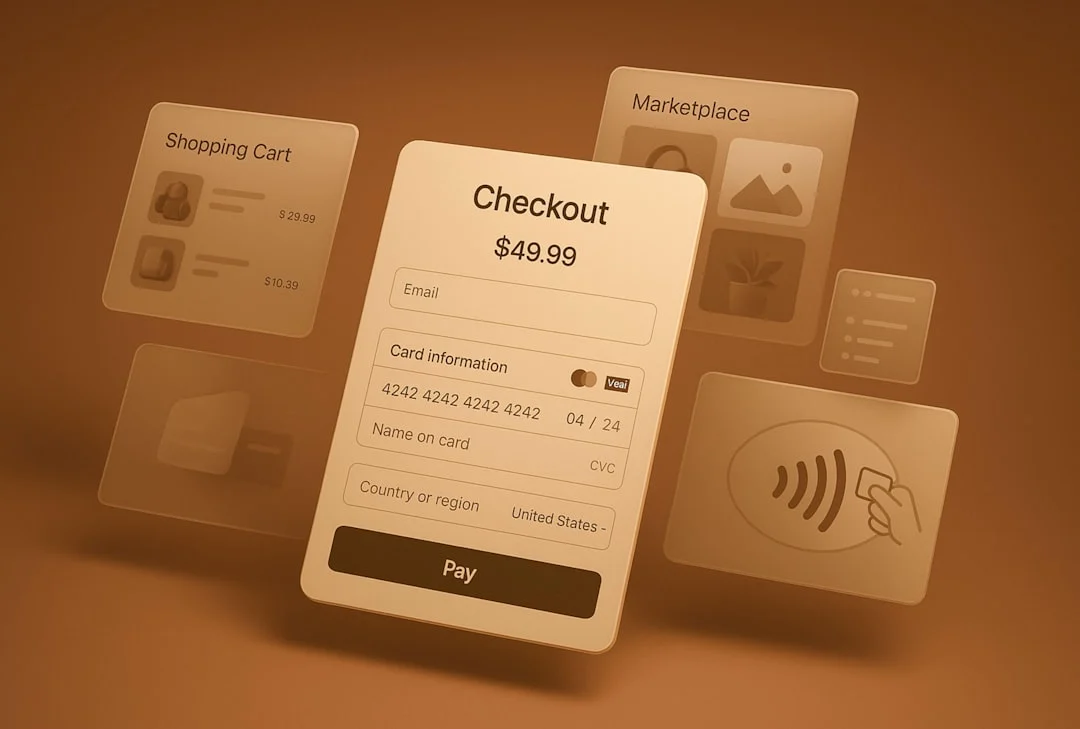
Timing is everything when it comes to customer surveys. Send a survey a week after purchase and your response rate drops to single digits. Pop up a survey before checkout and you risk cart abandonment. But right after a customer completes a purchase? That is the sweet spot.
At the moment of purchase confirmation, the customer is engaged, invested, and still thinking about why they bought. Their memory is fresh. Their attention is on your store. And they have just demonstrated the ultimate trust signal: spending money with you.
Post-purchase surveys consistently achieve response rates of 30 to 50 percent compared to the 5 to 15 percent typical of email-based surveys sent days later. The data is also higher quality because customers are responding in context rather than trying to recall an experience from memory.
In this guide, we will walk through how to hook multi-question surveys directly into the WooCommerce order flow using WB Polls as the survey engine. By the end, you will have a system that collects structured feedback from customers at the exact moment they are most willing to give it.
Understanding the WooCommerce Order Flow
Before adding surveys, you need to understand where they fit in the order process. WooCommerce has several stages where you can inject custom content.
Key Hook Points
- woocommerce_thankyou: Fires on the order-received (thank you) page. This is the most common hook for post-purchase surveys because the customer sees it immediately after payment.
- woocommerce_order_status_completed: Fires when an order status changes to completed. Useful for triggering email-based surveys after delivery.
- woocommerce_email_after_order_table: Adds content to order confirmation emails. You can embed a survey link here as a backup for customers who skip the thank you page.
- woocommerce_account_orders_endpoint: The orders section in My Account. You can add a survey prompt next to each completed order.
Choosing the Right Hook
For maximum response rates, use the thank you page hook as your primary collection point. Add a follow-up link in the order confirmation email for customers who navigate away before completing the survey. This two-pronged approach catches the majority of customers.
Setting Up WB Polls for Multi-Question Surveys
WB Polls is not just for single-question polls. You can chain multiple polls together to create a multi-step survey flow that feels natural and does not overwhelm the customer.
Designing Your Survey Questions
Keep post-purchase surveys focused. Three to five questions is the sweet spot. Here is a proven question structure:
- Discovery question: “How did you first hear about us?” (Options: search engine, social media, friend referral, blog post, advertisement, other)
- Decision question: “What was the main reason you chose us over alternatives?” (Options: price, features, reviews, brand trust, recommendation, no alternative)
- Experience question: “How would you rate your checkout experience?” (Options: 5-star scale)
- Improvement question: “What could we improve?” (Options: product selection, pricing, website speed, shipping options, payment methods, nothing)
- Loyalty question: “How likely are you to recommend us to a friend?” (NPS-style 0-10 scale)
Creating the Survey Polls
In your WordPress admin, create each survey question as a separate WB Poll. Group them with a shared category like “Post-Purchase Survey” so you can query them programmatically. For each poll:
- Set the poll to restrict voting to logged-in users.
- Configure it to allow only one vote per user per poll.
- Enable the option to show results after voting so customers get immediate feedback.
Hooking Surveys into the Order Complete Flow
Now the technical work begins. You need to display the survey on the WooCommerce thank you page and link responses to the specific order.
The Thank You Page Integration
Add a custom section to the WooCommerce thank you page that loads your survey polls. The implementation hooks into the woocommerce_thankyou action and renders the poll shortcodes in a styled container.
The key technical considerations are:
- Check if already completed: Before displaying the survey, check order meta to see if this customer already submitted responses. Do not show the survey twice.
- Pass the order ID: Store the order ID alongside the survey response so you can connect feedback to specific transactions.
- Progressive display: Show one question at a time rather than all five at once. After the customer answers question one, slide in question two. This keeps the interface clean and improves completion rates.
Handling the Response Flow
When a customer votes on a poll, WB Polls handles the AJAX submission automatically. You need to add a layer on top that:
- Captures the vote event for each poll in the sequence.
- Stores the response linked to the order ID in a custom meta table.
- Advances the survey to the next question.
- Shows a thank you message after the final question.
- Marks the order as “survey completed” so it does not display again.
Email Follow-Up for Incomplete Surveys
If a customer leaves the thank you page without completing all questions, schedule a follow-up email. WooCommerce’s action scheduler makes this straightforward. Queue an email to send 24 hours after purchase that includes a link back to the survey, pre-populated with the order ID.

The activity feed tracks all survey responses in real time, giving you immediate visibility into customer feedback as it comes in.
Storing Responses Linked to Orders
The real value of post-purchase surveys comes from linking responses to order data. When you know that a customer who bought product X found you through Instagram and rates the checkout 3 out of 5, that is actionable intelligence.
Data Structure
Create a custom database table to store survey responses with these fields:
- response_id: Auto-increment primary key
- order_id: Links to the WooCommerce order
- user_id: The WordPress user who responded
- poll_id: Which survey question this response is for
- answer_id: Which option they selected
- created_at: Timestamp of the response
This structure lets you run queries like “What percentage of customers who bought running shoes found us through Instagram?” or “Do customers who spend over $100 rate checkout higher than those who spend under $50?”
Order Meta Integration
In addition to the custom table, store a summary of the survey responses as order meta. This makes the data visible directly in the WooCommerce order admin screen without requiring a separate database query. Add a custom meta box to the order edit page that displays the customer’s responses.
Data Retention and Privacy
Survey responses are personal data under GDPR and CCPA. Ensure your data handling includes:
- Disclosure in your privacy policy that you collect survey responses.
- The ability to export survey data when a customer requests their data.
- The ability to delete survey data when a customer requests erasure.
- Integration with WooCommerce’s built-in data export and erasure tools.
Building the Analytics Dashboard
Raw survey data is useless without analysis. Build an admin dashboard that turns responses into insights your team can act on.
Key Metrics to Track
- Response rate: What percentage of customers complete the survey? Track this over time to see if design changes improve participation.
- Discovery channels: Where are customers finding you? This directly informs your marketing spend allocation.
- Decision drivers: Why do customers choose you? This shapes your messaging and positioning.
- Checkout satisfaction: Are customers happy with the buying experience? Dips here need immediate investigation.
- NPS score: Your net promoter score from the loyalty question. Track weekly to spot trends.
Visualization Approaches
For the admin dashboard, use these visualization types:
- Pie charts: For discovery channels and decision drivers (categorical data).
- Bar charts: For checkout satisfaction ratings (ordinal data).
- Line charts: For NPS score and response rate over time (trend data).
- Tables: For drill-down into individual responses with order details.
WordPress has Chart.js and other JavaScript charting libraries readily available. Enqueue the library on your admin page and feed it the aggregated data from your survey responses table.
Segmenting by Product
The most valuable analysis comes from segmenting responses by product or product category. Compare survey results across product lines to find patterns:
- Do customers buying category A find you through different channels than category B?
- Is checkout satisfaction lower for products that require shipping configuration?
- Do higher-priced products generate better NPS scores?
Conditional Logic Based on Product
Not every customer should see the same survey. A customer buying a digital download has a different experience than one buying a physical product with shipping. Conditional logic lets you tailor the survey to the purchase context.
Product-Specific Questions
Map different survey question sets to different product categories. For example:
- Physical products: Include questions about shipping expectations and packaging.
- Digital products: Include questions about download experience and documentation quality.
- Subscriptions: Include questions about renewal expectations and feature priorities.
- Services: Include questions about booking experience and communication preferences.
Order Value-Based Logic
Adjust the survey length based on order value. For orders under $25, keep it to two questions maximum. For orders over $100, you can ask up to five questions because higher-value customers are typically more invested and willing to provide feedback.
Repeat Customer Detection
Check if the customer has purchased before. First-time buyers should get the discovery and decision questions. Repeat buyers already answered those, so show them experience improvement questions instead. This prevents survey fatigue and keeps each survey interaction fresh and relevant.
Performance Considerations
Adding surveys to the checkout flow introduces additional database queries and JavaScript. Here is how to keep the impact minimal.
Lazy Loading the Survey
Do not load the survey immediately when the thank you page renders. Instead, load the order confirmation content first and then inject the survey with a slight delay (500 milliseconds). This ensures the customer sees their order details instantly while the survey loads in the background.
AJAX Response Handling
WB Polls already uses AJAX for vote submission, which means the page does not reload between questions. This is critical for maintaining the progressive disclosure flow. Each answer submission happens in the background, and the next question slides in without any page flicker.
Caching Considerations
The WooCommerce thank you page is already excluded from page caching by most caching plugins because it contains order-specific data. Your survey inherits this behavior, so you do not need to worry about stale surveys being served from cache.
However, the analytics dashboard in the admin can benefit from transient caching. Cache the aggregated survey data for 15 minutes so that repeated dashboard views do not hit the database each time.
Database Query Optimization
When querying survey responses for analytics, avoid running complex queries on every dashboard load. Instead:
- Use WordPress transients to cache aggregated results.
- Run summary calculations on a cron schedule (hourly or daily).
- Store pre-calculated metrics in an options table for instant dashboard loading.
- Add database indexes on the order_id, poll_id, and created_at columns in your survey responses table.
Testing Your Survey Integration
Before going live, test thoroughly to ensure the survey does not interfere with the order process.
Critical Test Cases
- Survey does not block order completion: If the survey JavaScript fails, the order should still process normally.
- Guest checkout compatibility: If you allow guest checkout, the survey should work without a WordPress user account. Fall back to storing responses by email or session.
- Mobile responsiveness: Test the survey on phones and tablets. Each question should be easily readable and answerable on a small screen.
- Payment gateway compatibility: Test with every payment gateway you use. Some gateways redirect to external pages before returning to the thank you page, which can affect survey timing.
- Multiple items in cart: If the order contains products from different categories, ensure the conditional logic handles the mixed case gracefully.
Extending the System: Advanced Use Cases
Once the basic post-purchase survey is running, consider these extensions.
A/B Testing Survey Questions
Run different survey versions for different customer segments. Show version A to 50 percent of customers and version B to the other 50 percent. Compare response rates and data quality to optimize your survey over time.
Triggered Follow-Up Sequences
Use survey responses to trigger automated email sequences. If a customer rates checkout satisfaction as 1 or 2, automatically alert your support team. If they give a high NPS score, trigger a review request email a week later.
Integration with CRM
Push survey responses to your CRM system so that sales and support teams have context about each customer’s experience. When a customer contacts support, the agent can see their survey responses alongside their order history.
Seasonal Comparison Reports
Build quarterly comparison reports that show how survey metrics change over time. Are customers finding you through different channels during holiday seasons? Does checkout satisfaction drop during high-traffic periods? These insights drive long-term strategic decisions.
Start Collecting Post-Purchase Feedback Today
Post-purchase surveys are one of the highest-ROI feedback mechanisms available to WooCommerce store owners. The data you collect directly informs marketing spend, product development, and customer experience improvements.
WB Polls gives you the polling engine with built-in AJAX voting, duplicate prevention, and results display. Combined with WooCommerce’s hook system, you can have a fully functional post-purchase survey running in a single afternoon.
The customers who just gave you their money are the ones most willing to give you their feedback. All you have to do is ask at the right time.
Get WB Polls and start turning every WooCommerce order into a feedback opportunity.
Plugins we build and run
We maintain these ourselves, which is why we can support them on your site.
- BuddyNextThe self-hosted community engine for WordPress
- BuddyXFree community theme, Pro when you outgrow it
- ReignPremium community theme. Add pieces, build anything
- JetonomyCommunity forum and Q&A for WordPress
- EventonomyEvents and RSVPs for WordPress communities
- LearnomyCourses and learning communities on WordPress
- ListoraDirectories and listings your members can browse
- SnipShareCode sharing built for developer communities
- WB Ad ManagerAd placements that turn traffic into revenue
- WP Career BoardA job board your community actually uses
- WP Sell ServicesSell services with offers, orders, and payouts
- MediaVersePhotos, video, and media albums for members
- WB GamificationPoints, badges, and rewards that keep members active
- Product RoadmapPublic roadmaps with voting your users trust