Add Photo and Video Sharing to WooCommerce Communities
Give your WooCommerce community native photo and video sharing without a separate platform. Build style lookbooks, inspiration galleries, and customer showcases with frontend uploads, built-in editing, and privacy controls using WP Stories.


When Customers Want to Share, Not Just Buy
Something interesting happens when a WooCommerce store builds enough of a following. Customers stop being passive buyers and start wanting to participate. They want to show off their purchases, share styling ideas, post reviews with photos, and connect with other customers who share their interests.
You see it in the support tickets and feature requests: “Can customers upload photos of their outfits?” “We want a gallery where buyers can share their setups.” “Our community wants to post project photos.” “Is there a way for customers to share videos of our product in use?”
The standard response has been to point customers to Instagram or Facebook and create a branded hashtag. But that approach has fundamental problems. You are building your community on rented land. The algorithm decides who sees what. You have no control over the adjacent content. And the engagement you generate benefits the platform, not your store.
A growing number of WooCommerce store owners want to keep that community engagement on their own site. They want the photo and video sharing experience that social platforms provide, but within their store where they control the data, the moderation, and the customer relationship. As the ecommerce growth landscape shifts, community-driven stores are finding new ways to stand out.
WP Stories makes this possible without building a custom media sharing platform from scratch. It provides frontend upload capabilities, built-in media editing, privacy controls, and multiple display options that turn a WooCommerce store into a community hub where customers share visual content alongside their shopping experience.
Building a Customer Photo Gallery Without a Separate Platform
The first challenge with customer media sharing is the upload mechanism. WordPress has a media library, but it is an admin-side tool. Giving customers access to the WordPress admin is a non-starter for security and usability reasons. You need a frontend solution that feels as natural as posting to Instagram.
The Upload Experience
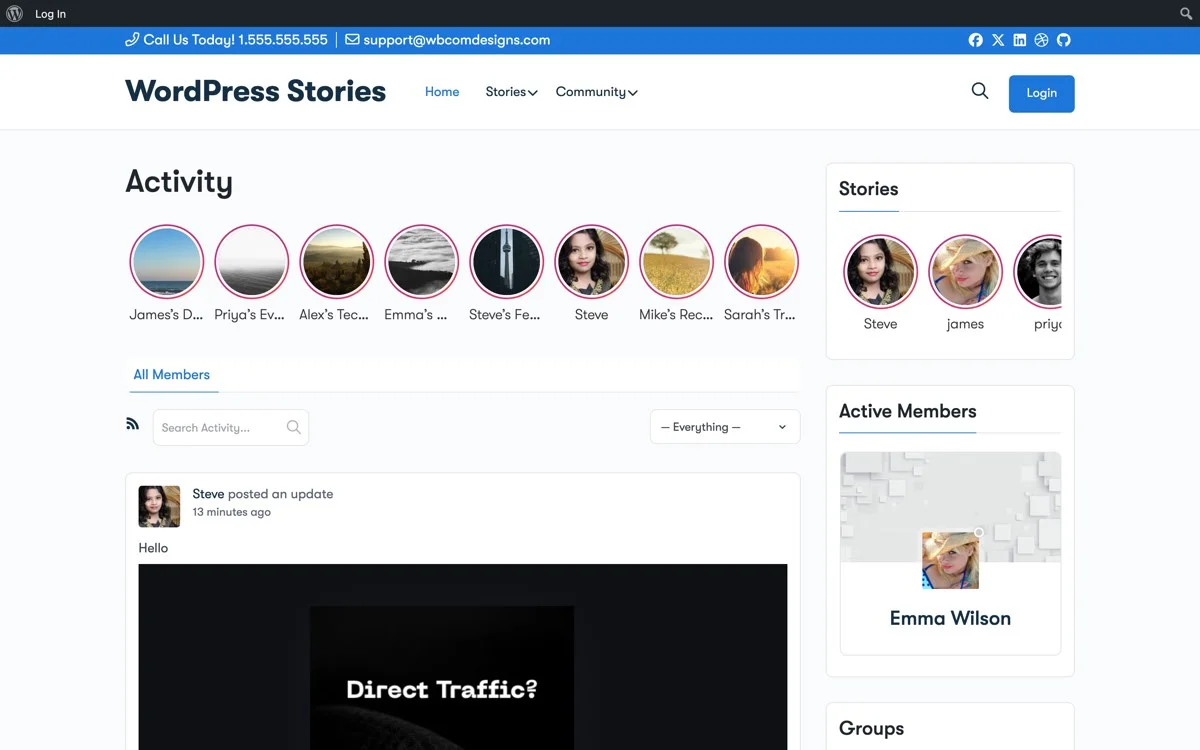
WP Stories includes a frontend upload interface that lets logged-in users create stories directly from the front of the site. The upload flow is deliberately simple: select photos or videos, add captions and text overlays, arrange the slides in order, and publish. No admin access required.
The interface handles the technical details that would take weeks to build from scratch. Image resizing happens automatically so customers cannot upload a forty-megabyte DSLR photo that crashes the page. Video format conversion ensures playback works across all browsers. EXIF data is stripped for privacy. And upload size limits are configurable so you maintain control over storage usage.
For the customer, the experience feels familiar. If they have ever posted an Instagram Story, they understand the flow. Select media, add text, share. The learning curve is effectively zero, which is critical for adoption. A sharing feature that requires a tutorial will not get used.
Organizing Customer Content
As customer submissions grow, organization becomes essential. WP Stories uses categories and tags to keep content browsable. You can create categories like “Style Lookbooks,” “Home Setups,” “Project Showcases,” and “Product Reviews” that customers select when creating their stories.
This categorization serves double duty. For customers browsing the gallery, it provides a filter mechanism to find content that interests them. For store owners, it creates a structured content library that can be displayed selectively across the site. You might show “Style Lookbooks” on clothing category pages and “Home Setups” on furniture product pages, using shortcodes filtered by category.
The tagging system adds a second layer of organization. Customers can tag their stories with product names, occasions, or themes. Other customers can browse by tag to find related content. This organic taxonomy grows with the community and reflects how customers actually think about and use your products, which is often different from how you categorize them internally.
Frontend Upload with Built-In Editing
Uploading a raw photo is only the beginning. What makes social media platforms engaging is the ability to enhance and personalize content before sharing. WP Stories includes editing capabilities that bridge the gap between raw upload and polished presentation.
Image Enhancement Tools
The built-in editor lets customers crop their photos to fit the story format, adjust brightness and contrast for better visibility, and apply basic filters that give their content a cohesive look. These are not professional photo editing tools. They are the kind of quick adjustments that make the difference between a dark, poorly framed photo and one that looks good in the gallery.
For store owners who care about visual consistency, this is a practical benefit. Customer-uploaded content is inherently variable in quality. The editing tools give customers the means to improve their submissions without requiring store owners to manually edit every upload. The result is a gallery that looks better overall without adding moderation workload.
Text and Overlay Options
Customers can add text overlays to their story slides, positioning them wherever they want on the image. This lets them annotate their photos with context: product names, styling notes, tips for other customers, or personal commentary. The text is rendered as part of the story rather than as a separate caption, which keeps the visual format consistent with the social media Stories pattern that users expect.
Sticker and badge overlays add another layer of personalization. Store owners can create custom stickers like “Verified Purchase,” “Staff Pick,” or seasonal badges that customers can place on their stories. These branded elements tie customer content back to the store identity and provide visual cues for other shoppers browsing the gallery.
Multi-Slide Story Creation
Customers are not limited to single photos. They can create multi-slide stories that tell a more complete narrative. A fashion customer might create a five-slide story showing different ways to style a single piece. A home goods customer might show their room transformation from before to after. A food customer might share a recipe sequence using products from the store.
Multi-slide stories are more engaging than single images because they create a narrative arc. Viewers who tap through all five slides have spent significantly more time with the content than they would spend glancing at a single photo in a gallery grid. That deeper engagement translates to stronger community connection and, for content that features products, higher conversion potential.
Privacy Controls That Protect Your Community
Opening up media sharing to customers introduces privacy and safety considerations that you must address before launch. WP Stories provides granular privacy controls that protect both your community members and your store’s reputation.
Visibility Settings
Customers can control who sees their stories. Options include public visibility where anyone visiting the store can view the content, community visibility where only logged-in members can see it, and private visibility where only the creator can view their own stories. These settings mirror what users expect from social platforms and give them confidence that their content sharing is on their terms.
Store owners can also set default visibility levels. For a members-only community, you might default all new stories to community visibility. For a public-facing inspiration gallery, public visibility makes sense. The default can be overridden by individual customers on a per-story basis.
Content Moderation Controls
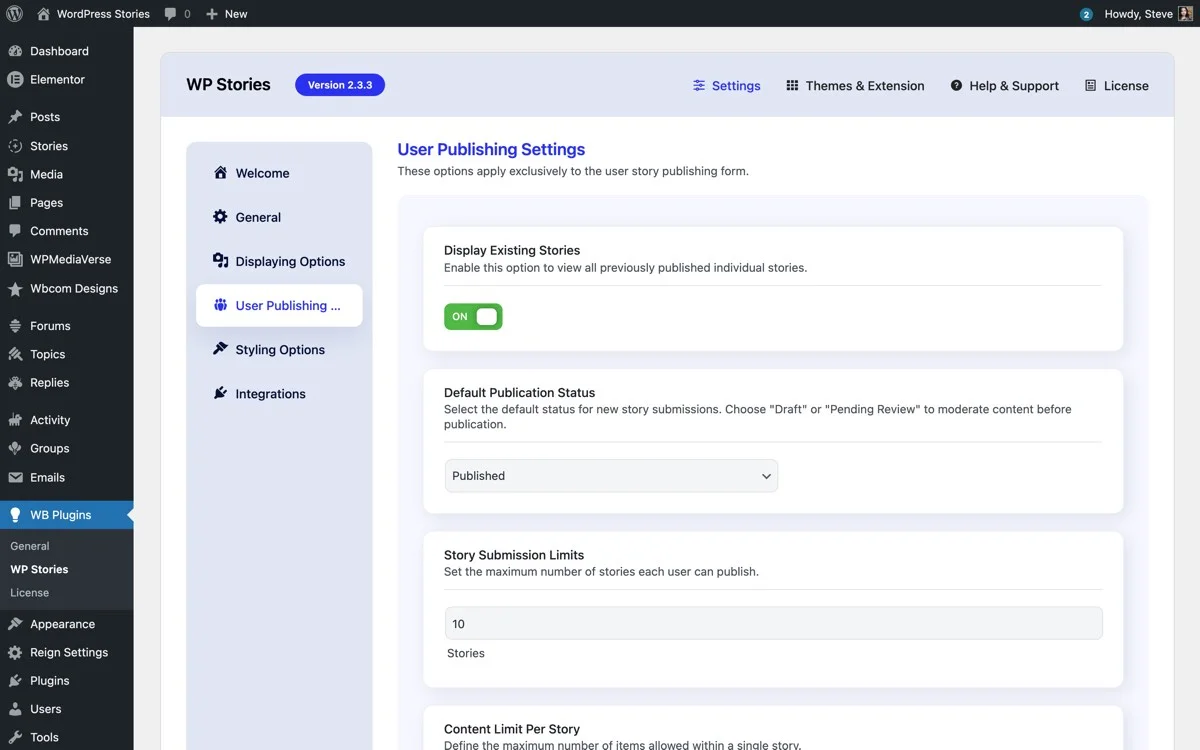
Moderation is critical for any user-generated content system. WP Stories supports three moderation approaches: pre-moderation where all submissions are reviewed before publishing, post-moderation where content publishes immediately but can be flagged and removed, and trusted-user moderation where established community members can post freely while new users require approval.
The trusted-user approach is the most practical for stores with active communities. It avoids the bottleneck of reviewing every submission while still protecting against spam and inappropriate content from new accounts. You can configure how many approved stories a user needs before they graduate to trusted status.
Flagging tools let community members report problematic content. When a story receives a configurable number of flags, it is automatically hidden and queued for admin review. This community-driven moderation scales better than manual review as your user base grows.
Data Privacy Compliance
For stores operating under GDPR or similar privacy regulations, WP Stories handles the data privacy requirements of user-generated content. Users can delete their own stories at any time. Export tools let users download their content and metadata. And the plugin respects WordPress’s built-in privacy tools for data export and erasure requests.
EXIF stripping on uploaded photos is enabled by default. This removes GPS coordinates, camera information, and other metadata that could compromise user privacy. It is the kind of detail that most custom implementations miss but that privacy regulations require.
Style Lookbooks and Inspiration Galleries
With the upload and privacy infrastructure in place, the exciting part begins: building the content experiences that make customers want to share and browse.
Customer Style Lookbooks
For fashion, beauty, and lifestyle stores, customer style lookbooks are the highest-value application of photo sharing. Encourage customers to create multi-slide stories showing how they style your products. A dress paired with different shoes and accessories. A skincare routine using multiple products from your line. A room decorated with items from your home goods collection.
Display these lookbooks using the Snapgram format for individual viewing and the Snapssenger strip for browsing. On product pages, show lookbooks that feature the current product. On category pages, show lookbooks from that category. This creates a peer recommendation system that is more persuasive than professional product photography because it shows real people using real products in real contexts.
The social proof effect is powerful. When a shopper sees twenty other customers styling the same jacket in different ways, it answers the question “will this work for me?” more convincingly than any product description or model photo. It also reduces return rates because customers have a more accurate expectation of what the product looks like in everyday use.
Inspiration Galleries
Beyond individual lookbooks, aggregate customer stories into curated inspiration galleries. Use the Vemdezap display style to create a browsing experience where visitors can scroll through customer content organized by theme, season, or product category.
An inspiration gallery works for virtually any product category. A garden supply store can showcase customer garden transformations. An art supply store can display customer artwork. A cooking equipment store can feature customer recipes and plated dishes. A pet supply store can collect customer photos of pets enjoying their products.
The key to a successful inspiration gallery is volume and freshness. Encourage submissions through post-purchase emails, loyalty program incentives, and prominent placement of the gallery itself. When customers see an active gallery with recent submissions, they are more likely to contribute. When they see a stale gallery with six-month-old content, they assume nobody participates and move on.
Product-Linked Customer Content
The most commercially valuable feature of customer photo sharing is the ability to link content directly to products. When a customer creates a story featuring your products, those products can be tagged and linked. Viewers who see a customer photo they like can tap to go directly to the product page and purchase the same item.
This creates a shoppable user-generated content experience that mirrors what platforms like Instagram and Pinterest offer, but it happens on your store where you own the conversion path. There is no algorithm between the inspiration and the purchase. No external platform taking a cut. The customer sees it, wants it, and buys it, all within your WooCommerce store.
Moderating and Curating Customer Submissions
A successful community photo gallery requires ongoing curation, not just moderation. Moderation catches the bad content. Curation elevates the great content. Both are necessary for a gallery that attracts and retains community participation.
Moderation Best Practices
Set clear community guidelines before launching the sharing feature. Publish them on a dedicated page and reference them during the upload flow. Effective guidelines cover what kinds of content are welcome, what is not allowed, expectations around originality and copyright, and consequences for violations.
Keep moderation fast. Content that sits in a moderation queue for days creates a frustrating experience for the creator and signals to the community that the feature is not a priority. Aim for same-day approval during business hours. If that is not feasible with manual review, consider the trusted-user approach where established members can post immediately.
When you do need to reject content, provide a reason. A generic rejection with no explanation feels arbitrary and discourages future submissions. A brief note like “Photo was too dark to display well, try resubmitting with better lighting” is constructive and keeps the contributor engaged.
Curation Strategies
Curation is about surfacing the best content to maximize its impact. WP Stories lets you feature stories by pinning them to the top of galleries or including them in curated collections. Use this to highlight content that is particularly well-made, that features new or popular products, or that represents the diversity of your customer base.
Create regular curated roundups like a weekly “Community Picks” or monthly “Best Of” story that compiles the best customer submissions into a single multi-slide story. This serves multiple purposes: it rewards contributors with recognition, it provides high-quality browsing content for visitors, and it sets a quality standard that encourages better submissions from the community.
Reach out to customers who consistently create great content and invite them to become community ambassadors. Give them early access to new products to photograph. Feature their stories prominently. This creates a tier of power users who generate a disproportionate amount of the best content and serve as role models for other community members. Tracking these high-value contributors is easier when you integrate your store with a CRM that segments customers by engagement level.
Handling Scale
As your community grows, manual curation becomes impractical. Build systems that scale. Use the trusted-user moderation model so established contributors bypass the review queue. Create category-specific landing pages that self-organize as new content is published. Use the story analytics to automatically surface high-engagement content.
Consider appointing community moderators, customers who have demonstrated good judgment and commitment to the community. WP Stories integrates with WordPress user roles, so you can create a “Community Moderator” role with permission to approve, feature, and flag stories without accessing the full WordPress admin.
Setting Up Community Photo Sharing with WP Stories
Here is the practical implementation path for adding photo and video sharing to a WooCommerce community store.
Step 1: Enable Frontend Uploads
In the WP Stories settings, enable the frontend upload feature and configure the basic parameters. Set maximum file sizes for images and videos. Choose which user roles can upload, at minimum registered customers, but you might also include subscribers and custom community roles. Set the default moderation mode based on your available moderation bandwidth.
Step 2: Create Content Categories
Set up the story categories that match your community’s content types. Keep the initial list small and focused: three to five categories that cover the main types of content your customers will create. You can add more as the community grows and new content patterns emerge.
Step 3: Build the Gallery Pages
Create one or more pages that serve as the community gallery hub. Use the Vemdezap display style for the main gallery page, with category filters so visitors can browse by content type. Add Snapssenger strips to product pages and category pages, filtered to show relevant community content.
Step 4: Configure Privacy and Moderation
Set your visibility defaults, moderation rules, and community guidelines. Test the moderation workflow by creating test submissions from a customer account. Make sure the approval and rejection process works smoothly before launching to your community. Pay attention to common setup mistakes during this phase to avoid launching with configuration gaps.
Step 5: Seed the Gallery
Launch with some initial content so the gallery does not feel empty. Create stories featuring your own products. Ask loyal customers or brand ambassadors to submit early content. Ten to fifteen quality stories provide enough critical mass that new visitors see an active community rather than an empty gallery.
Step 6: Promote and Encourage Submissions
Add calls-to-action in post-purchase emails inviting customers to share photos of their purchases. Include a link to the upload interface in your account dashboard. Run a launch campaign offering a discount code to anyone who submits a story. The first month is about building momentum, and direct incentives help overcome the initial adoption hurdle.
Step 7: Iterate Based on Activity
Monitor what categories get the most submissions. Watch which gallery placements drive the most views. Pay attention to the types of content that generate the most engagement. After the first month, adjust your categories, placements, and curation strategy based on real data rather than assumptions.
The Community Advantage
Adding photo and video sharing to your WooCommerce store does more than give customers a place to post pictures. It transforms the store from a transactional platform into a community destination. Customers who share content have a deeper relationship with your brand. They visit more often, they buy more frequently, and they refer other customers at higher rates.
The content they create is also a durable marketing asset. Customer photos and videos are authentic, diverse, and free. They provide social proof that no amount of professional photography can replicate. And because they live on your site rather than a social platform, they contribute to your SEO, your page content, and your domain authority.
WP Stories provides the infrastructure for all of this without the custom development cost. The frontend upload system, the privacy controls, the display styles, and the moderation tools are all built and maintained. Your job is to configure them for your specific community, seed the initial content, and nurture the participation that follows.
The stores that build community now will have a significant advantage over those that remain purely transactional. Customer-generated content compounds over time. A gallery with a thousand customer photos is a powerful asset that cannot be replicated overnight. Start building that asset now, and it will pay dividends for years.
Ready to build a sharing community around your store? Get WP Stories and give your customers the photo and video sharing tools they have been asking for.
Plugins we build and run
We maintain these ourselves, which is why we can support them on your site.
- BuddyNextThe self-hosted community engine for WordPress
- BuddyXFree community theme, Pro when you outgrow it
- ReignPremium community theme. Add pieces, build anything
- JetonomyCommunity forum and Q&A for WordPress
- EventonomyEvents and RSVPs for WordPress communities
- LearnomyCourses and learning communities on WordPress
- ListoraDirectories and listings your members can browse
- SnipShareCode sharing built for developer communities
- WB Ad ManagerAd placements that turn traffic into revenue
- WP Career BoardA job board your community actually uses
- WP Sell ServicesSell services with offers, orders, and payouts
- MediaVersePhotos, video, and media albums for members
- WB GamificationPoints, badges, and rewards that keep members active
- Product RoadmapPublic roadmaps with voting your users trust