Running a WooCommerce marketplace means you are not just processing payments for yourself. Every sale involves at least two parties: your platform and a vendor. Getting money from a buyer to the right vendor, after deducting your platform fee, is the core problem that split payments solve. Stripe Connect is the most developer-friendly way to do it.
This guide covers everything you need to implement split payments in a WooCommerce marketplace: Stripe Connect account types, API setup, the payment splitting math, vendor payout schedules, refund coordination, KYC verification, and a working WooCommerce order hook. This is Article 4 in our WooCommerce Multi-vendor & Marketplace Series.
Why Split Payments Matter for Marketplaces
A traditional WooCommerce store collects full payment and pays suppliers via bank transfer later. That works when you own the inventory. In a marketplace, vendors own the products and expect automatic payouts. Three things break without a proper split payment system:
- Platform fees go uncollected. If you move money manually, your commission is always at risk of being forgotten or miscalculated.
- Vendor trust collapses. Vendors who do not see automated, on-schedule payouts look for other platforms quickly.
- Buyer protection becomes impossible. Coordinating refunds across multiple bank accounts is a support nightmare that ends in chargebacks.
Stripe Connect solves all three. It lets your platform collect the full payment, take a percentage as a platform fee, and route the remainder to the vendor’s Stripe account in real time or on a schedule you control.
Stripe Connect Account Types: Which One Fits a Marketplace?
Stripe offers three connected account types. Picking the wrong one causes compliance headaches later.
Standard Accounts
The vendor creates their own full Stripe account and grants your platform access via OAuth. They see all Stripe’s standard branding and manage their own dashboard. Stripe handles all identity verification directly. Your platform has limited control over the payout flow.
Best for: Marketplaces where vendors are already Stripe users or where you want minimal compliance liability. The trade-off is that vendors can disconnect your platform at any time.
Express Accounts
Stripe handles identity verification and the onboarding UI via a hosted flow. The vendor does not need a pre-existing Stripe account. Your platform controls the payout schedule, and Stripe is responsible for KYC compliance. This is the most popular choice for WooCommerce marketplaces.
Best for: Most marketplace builds. Express accounts give you 90% of Custom’s flexibility with 10% of the compliance work. Vendors complete Stripe-hosted onboarding in under five minutes.
Custom Accounts
Full white-label. You build the onboarding UI, collect KYC data, and submit it to Stripe via API. Stripe is invisible to your vendors. Your platform is fully responsible for compliance, including KYC disputes and identity failure handling.
Best for: Platforms with a large engineering team, a need for fully branded vendor experience, and legal counsel specializing in payment compliance. Not recommended for most WooCommerce projects.
For the rest of this guide, we use Express accounts as the reference implementation.
Setting Up Stripe Connect with WooCommerce
Step 1: Create a Stripe Platform Account
Your WooCommerce site is the platform. Log into your Stripe dashboard, go to Settings > Connect settings, and complete the platform profile. Set your platform name, icon, and the redirect URI for OAuth callbacks. You will receive a platform_application_id that you will store in WordPress options.
Step 2: Store API Keys in WordPress
Add your Stripe keys to wp-config.php rather than the database to keep them out of exported SQL dumps:
define( 'STRIPE_SECRET_KEY', 'sk_live_your_key_here' );
define( 'STRIPE_PUBLISHABLE_KEY', 'pk_live_your_key_here' );
define( 'STRIPE_WEBHOOK_SECRET', 'whsec_your_webhook_secret' );
define( 'STRIPE_CLIENT_ID', 'ca_your_connect_client_id' );
Step 3: Configure Webhooks
In the Stripe dashboard, go to Developers > Webhooks and add an endpoint pointing to your site:
https://yoursite.com/wp-json/marketplace/v1/stripe-webhookSubscribe to these events at minimum:
payment_intent.succeededpayment_intent.payment_failedtransfer.createdaccount.updated(for KYC status changes)charge.refunded
Step 4: Vendor Account Creation Flow
When a vendor registers on your marketplace, redirect them through Stripe’s Express onboarding using an account link:
 'express',
        'country'      => 'US',
        'email'        => get_userdata( $vendor_user_id )->user_email,
        'capabilities' => [
            'card_payments' => [ 'requested' => true ],
            'transfers'     => [ 'requested' => true ],
        ],
    ]);

    // Store the Stripe account ID against the vendor's WP user.
    update_user_meta( $vendor_user_id, '_stripe_connect_account_id', $account->id );

    // Generate a one-time onboarding link.
    $account_link = AccountLink::create([
        'account'     => $account->id,
        'refresh_url' => home_url( '/vendor/stripe-refresh/' ),
        'return_url'  => home_url( '/vendor/stripe-complete/' ),
        'type'        => 'account_onboarding',
    ]);

    return $account_link->url;
}
Redirect the vendor to $account_link->url. Stripe hosts the entire identity verification flow. When they finish, they land on your return_url and you mark their account as onboarded.
Payment Splitting Logic: How to Split a $100 Order
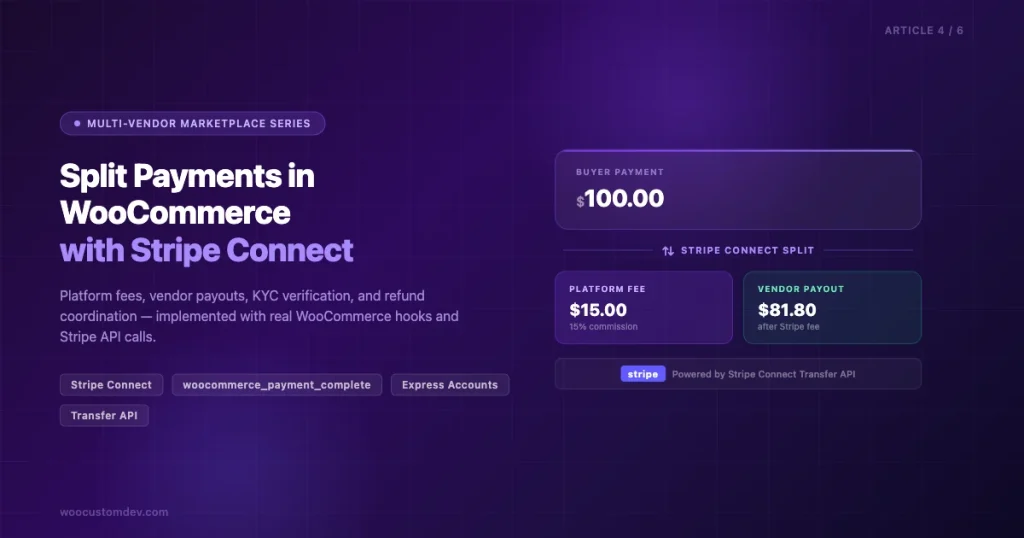
Here is the math behind a typical split. Assume your platform takes a 15% commission on a $100 order:
| Component | Amount | Notes |
|---|---|---|
| Buyer pays | $100.00 | Full order total |
| Stripe fee | $3.20 | 2.9% + $0.30 (standard US card) |
| Platform commission (15%) | $15.00 | Stays in your Stripe balance |
| Vendor payout | $81.80 | $100 – $3.20 – $15.00 |
You implement this as a Stripe destination charge or a separate charges and transfers pattern. For WooCommerce marketplaces, separate charges and transfers gives you more control over multi-vendor orders.
Destination Charge (Single Vendor Per Order)
get_total() * 100 ); // e.g. 10000
    $platform_fee_percent = 0.15;
    $platform_fee_cents   = intval( $order_total_cents * $platform_fee_percent ); // e.g. 1500

    $payment_intent = PaymentIntent::create([
        'amount'               => $order_total_cents,
        'currency'             => strtolower( get_woocommerce_currency() ),
        'payment_method_types' => [ 'card' ],
        'transfer_data'        => [
            'destination' => $stripe_acct_id,
        ],
        'application_fee_amount' => $platform_fee_cents,
        'metadata'               => [
            'wc_order_id' => $order_id,
            'vendor_id'   => $vendor_user_id,
        ],
    ]);

    // Store the PaymentIntent ID on the order for later reference.
    $order->update_meta_data( '_stripe_payment_intent_id', $payment_intent->id );
    $order->save();

    return $payment_intent->client_secret;
}
WooCommerce Order Hook to Trigger the Transfer
Hook into woocommerce_payment_complete to fire the transfer as soon as payment confirmation lands:
get_meta( '_stripe_transfer_id' ) ) {
        return;
    }

    $vendor_user_id = $order->get_meta( '_vendor_user_id' );
    $stripe_acct_id = get_user_meta( $vendor_user_id, '_stripe_connect_account_id', true );

    if ( ! $stripe_acct_id ) {
        $order->add_order_note( 'Stripe transfer skipped: vendor has no connected account.' );
        return;
    }

    Stripe::setApiKey( STRIPE_SECRET_KEY );

    $order_total_cents    = intval( $order->get_total() * 100 );
    $platform_fee_percent = 0.15;
    $platform_fee_cents   = intval( $order_total_cents * $platform_fee_percent );
    $stripe_fee_cents     = intval( $order_total_cents * 0.029 ) + 30; // Approximate Stripe processing fee
    $vendor_payout_cents  = $order_total_cents - $platform_fee_cents - $stripe_fee_cents;

    try {
        $transfer = Transfer::create([
            'amount'          => $vendor_payout_cents,
            'currency'        => strtolower( get_woocommerce_currency() ),
            'destination'     => $stripe_acct_id,
            'transfer_group'  => 'ORDER_' . $order_id,
            'metadata'        => [
                'wc_order_id'      => $order_id,
                'vendor_id'        => $vendor_user_id,
                'platform_fee'     => $platform_fee_cents,
                'stripe_fee_est'   => $stripe_fee_cents,
            ],
        ]);

        $order->update_meta_data( '_stripe_transfer_id', $transfer->id );
        $order->add_order_note(
            sprintf(
                'Stripe transfer %s created. Vendor payout: %s',
                $transfer->id,
                wc_price( $vendor_payout_cents / 100 )
            )
        );
        $order->save();

    } catch ( \Stripe\Exception\ApiErrorException $e ) {
        $order->add_order_note( 'Stripe transfer failed: ' . $e->getMessage() );
        wc_get_logger()->error( 'Stripe transfer error for order ' . $order_id . ': ' . $e->getMessage(), [ 'source' => 'marketplace-stripe' ] );
    }
}

/**
 * Also hook into order status completed as a fallback for manual order completion.
 *
 * @param int      $order_id The WooCommerce order ID.
 * @param WC_Order $order    The order object.
 */
add_action( 'woocommerce_order_status_completed', 'marketplace_trigger_vendor_transfer_on_complete', 10, 2 );

function marketplace_trigger_vendor_transfer_on_complete( $order_id, $order ) {
    // Only fire if payment_complete did not already handle it.
    if ( ! $order->get_meta( '_stripe_transfer_id' ) ) {
        marketplace_trigger_vendor_transfer( $order_id );
    }
}
Vendor Payout Schedules: Immediate, Daily, and Weekly
Stripe Connect lets you control when the vendor’s Stripe balance becomes available for withdrawal. You set this via the connected account’s payout schedule.
Immediate Payouts
Money moves to the vendor’s bank as soon as the transfer clears. This is the most attractive option for vendors but leaves you no window to hold funds for dispute resolution. Use this only if your fraud rate is very low and your average order value is small.
 [ 'interval' => 'daily' ],
        'weekly'  => [ 'interval' => 'weekly', 'weekly_anchor' => 'friday' ],
        'monthly' => [ 'interval' => 'monthly', 'monthly_anchor' => 1 ],
        'manual'  => [ 'interval' => 'manual' ],
    ];

    $payout_config = $settings[ $schedule ] ?? $settings['daily'];

    Account::update(
        $stripe_account_id,
        [ 'settings' => [ 'payouts' => [ 'schedule' => $payout_config ] ] ]
    );
}

// Set vendor to weekly payouts on Fridays:
marketplace_set_payout_schedule( 'acct_123abc', 'weekly' );
Recommended for most marketplaces: daily payouts with a 2-day delay (Stripe’s default). This gives you a 48-hour dispute window while still giving vendors fast access to funds. Set delay_days to 2 in the schedule settings for Express accounts.
Manual Payouts
Set the schedule to manual to hold all funds until you explicitly trigger a payout via the API. This gives maximum platform control. Use it if you have a milestone-based marketplace (e.g., freelancer platforms where payment releases when the buyer approves the work).
Refund Handling: Who Eats the Cost?
Refunds in a split payment system are more complex than single-party refunds. When a buyer requests a refund after a Stripe transfer has already gone to the vendor, you need to coordinate two actions: reversing the transfer and issuing the refund to the buyer’s card.
Full Refund Flow
get_meta( '_stripe_payment_intent_id' );
    $transfer_id        = $order->get_meta( '_stripe_transfer_id' );

    if ( ! $payment_intent_id ) {
        return new WP_Error( 'no_payment_intent', 'Cannot locate the original payment.' );
    }

    Stripe::setApiKey( STRIPE_SECRET_KEY );

    try {
        // Reverse the vendor transfer first (pulls money back from vendor).
        if ( $transfer_id ) {
            \Stripe\Transfer::createReversal(
                $transfer_id,
                [ 'refund_application_fee' => true ] // Also returns platform fee.
            );
        }

        // Then refund the buyer's card.
        $refund = Refund::create([
            'payment_intent' => $payment_intent_id,
            'reason'         => 'requested_by_customer',
        ]);

        $order->add_order_note(
            sprintf( 'Full refund issued. Stripe refund ID: %s', $refund->id )
        );
        $order->update_status( 'refunded', 'Order fully refunded via Stripe Connect.' );

        return true;

    } catch ( \Stripe\Exception\ApiErrorException $e ) {
        return new WP_Error( 'stripe_refund_failed', $e->getMessage() );
    }
}
Who Pays Stripe’s Non-Refundable Fee?
Stripe refunds the card processing fee on refunds issued within 90 days of the original charge. After 90 days, the 2.9% + $0.30 fee is not returned. You need a clear policy in your vendor agreement about who absorbs this cost for late refunds. Most platforms split it 50/50 or make the vendor responsible if the refund was due to a vendor error (wrong item shipped, etc.).
Partial Refunds
For a partial refund (e.g., buyer returns one item from a two-item order), pass an amount parameter to both the transfer reversal and the Refund object. Calculate the pro-rated vendor portion using the same split percentage used on the original transfer.
KYC Verification: Handling Stripe’s Identity Checks on Vendors
Stripe requires identity verification for any connected account that receives payouts. For Express accounts, Stripe handles the entire KYC flow. Your job is to listen for the outcome and respond accordingly.
What Stripe Verifies
- Identity documents: Government-issued ID (passport, driver’s license) for individuals.
- Business verification: EIN/company registration for business entities.
- Bank account: Routing and account numbers are verified via micro-deposits or Plaid instant verification.
- SSN last 4 digits (US only): For sole proprietors.
Listening for Verification Status Changes
When a vendor’s KYC status changes, Stripe fires an account.updated webhook. Parse it and update the vendor’s profile in WordPress:
data->object;
    $account_id = $account->id;

    // Find the WP user with this Stripe account ID.
    $vendor_query = new WP_User_Query([
        'meta_key'   => '_stripe_connect_account_id',
        'meta_value' => $account_id,
        'number'     => 1,
    ]);

    $vendors = $vendor_query->get_results();
    if ( empty( $vendors ) ) {
        return;
    }

    $vendor_user_id = $vendors[0]->ID;

    // Map Stripe requirements_disabled to WP vendor status.
    $has_requirements = ! empty( $account->requirements->currently_due );
    $payouts_enabled  = $account->payouts_enabled;
    $charges_enabled  = $account->charges_enabled;

    if ( $payouts_enabled && $charges_enabled && ! $has_requirements ) {
        // Vendor is fully verified.
        update_user_meta( $vendor_user_id, '_stripe_kyc_status', 'verified' );
        update_user_meta( $vendor_user_id, '_vendor_can_sell', true );
    } elseif ( $has_requirements ) {
        // Vendor has outstanding verification items.
        update_user_meta( $vendor_user_id, '_stripe_kyc_status', 'pending' );
        update_user_meta( $vendor_user_id, '_stripe_kyc_requirements', $account->requirements->currently_due );
        update_user_meta( $vendor_user_id, '_vendor_can_sell', false );

        // Notify the vendor by email.
        marketplace_notify_vendor_kyc_incomplete( $vendor_user_id, $account->requirements->currently_due );
    } else {
        // Account restricted.
        update_user_meta( $vendor_user_id, '_stripe_kyc_status', 'restricted' );
        update_user_meta( $vendor_user_id, '_vendor_can_sell', false );
    }
}

/**
 * Email the vendor about outstanding KYC requirements.
 *
 * @param int   $vendor_user_id WP user ID.
 * @param array $requirements   Array of Stripe requirement strings.
 */
function marketplace_notify_vendor_kyc_incomplete( $vendor_user_id, $requirements ) {
    $vendor = get_userdata( $vendor_user_id );
    $to     = $vendor->user_email;

    $subject = 'Action required: Complete your seller verification';
    $message = sprintf(
        "Hi %s,\n\nYour seller account needs additional information before you can receive payouts.\n\nRequired items: %s\n\nLog in to complete your verification: %s\n\nIf you have questions, contact our support team.",
        $vendor->display_name,
        implode( ', ', $requirements ),
        home_url( '/vendor/dashboard/' )
    );

    wp_mail( $to, $subject, $message );
}
Handling Failed Verifications
When Stripe cannot verify a vendor, payouts_enabled is set to false and the account gets a requirements.disabled_reason. Common reasons include:
rejected.fraud: Stripe has flagged this account for fraud. Do not re-onboard this vendor.rejected.terms_of_service: Vendor did not accept Stripe’s terms. Send them a new account link.under_review: Stripe’s risk team is manually reviewing. This can take 1-3 business days.listed: The vendor matched a government-mandated watchlist (OFAC, etc.). Legal review required.
For under_review and rejected.terms_of_service, you can generate a new account link and prompt the vendor to complete the flow again. For rejected.fraud and listed, disable the vendor account on your platform and do not allow re-registration.
Complete WooCommerce Order Hook Implementation
Here is a production-ready plugin file that ties together the payment trigger and status tracking. Place this in a custom plugin or your theme’s functions.php (plugin is preferred for maintainability).
get_meta( '_stripe_transfer_id' ) ) {
            return; // Already processed.
        }

        $this->process_transfer( $order );
    }

    /**
     * Fire the transfer on order status completed (fallback for manual completion).
     *
     * @param int      $order_id WooCommerce order ID.
     * @param WC_Order $order    WooCommerce order object.
     */
    public function create_vendor_transfer_fallback( $order_id, $order ) {
        if ( ! $order->get_meta( '_stripe_transfer_id' ) ) {
            $this->process_transfer( $order );
        }
    }

    /**
     * Core transfer logic.
     *
     * @param WC_Order $order The WooCommerce order object.
     */
    private function process_transfer( WC_Order $order ) {
        $vendor_user_id = $order->get_meta( '_vendor_user_id' );
        $stripe_acct_id = get_user_meta( $vendor_user_id, '_stripe_connect_account_id', true );
        $kyc_status     = get_user_meta( $vendor_user_id, '_stripe_kyc_status', true );

        if ( ! $stripe_acct_id ) {
            $order->add_order_note( '[Stripe] Transfer skipped: no connected account found for vendor.' );
            return;
        }

        if ( 'verified' !== $kyc_status ) {
            $order->add_order_note( '[Stripe] Transfer skipped: vendor KYC status is ' . $kyc_status . '.' );
            return;
        }

        Stripe::setApiKey( STRIPE_SECRET_KEY );

        $order_total_cents   = intval( round( $order->get_total() * 100 ) );
        $commission_rate     = floatval( get_option( 'marketplace_commission_rate', 15 ) ) / 100;
        $platform_fee_cents  = intval( round( $order_total_cents * $commission_rate ) );
        $stripe_fee_cents    = intval( round( $order_total_cents * 0.029 ) ) + 30;
        $vendor_payout_cents = $order_total_cents - $platform_fee_cents - $stripe_fee_cents;

        if ( $vendor_payout_cents <= 0 ) {
            $order->add_order_note( '[Stripe] Transfer skipped: calculated payout is zero or negative.' );
            return;
        }

        try {
            $transfer = Transfer::create([
                'amount'         => $vendor_payout_cents,
                'currency'       => strtolower( get_woocommerce_currency() ),
                'destination'    => $stripe_acct_id,
                'transfer_group' => 'ORDER_' . $order->get_id(),
                'metadata'       => [
                    'wc_order_id'    => $order->get_id(),
                    'vendor_user_id' => $vendor_user_id,
                    'commission_pct' => ( $commission_rate * 100 ) . '%',
                ],
            ]);

            $order->update_meta_data( '_stripe_transfer_id', $transfer->id );
            $order->update_meta_data( '_stripe_vendor_payout_cents', $vendor_payout_cents );
            $order->update_meta_data( '_stripe_platform_fee_cents', $platform_fee_cents );
            $order->add_order_note(
                sprintf(
                    '[Stripe] Transfer created: %s | Vendor payout: %s | Platform fee: %s',
                    $transfer->id,
                    wc_price( $vendor_payout_cents / 100 ),
                    wc_price( $platform_fee_cents / 100 )
                )
            );
            $order->save();

        } catch ( \Stripe\Exception\ApiErrorException $e ) {
            $order->add_order_note( '[Stripe] Transfer failed: ' . $e->getMessage() );
            wc_get_logger()->critical(
                'Stripe transfer error, Order ' . $order->get_id() . ': ' . $e->getMessage(),
                [ 'source' => 'marketplace-stripe' ]
            );
        }
    }

    /**
     * Register the Stripe webhook REST endpoint.
     */
    public function register_webhook_endpoint() {
        register_rest_route( 'marketplace/v1', '/stripe-webhook', [
            'methods'             => 'POST',
            'callback'            => [ $this, 'handle_webhook' ],
            'permission_callback' => '__return_true',
        ]);
    }

    /**
     * Verify and dispatch incoming Stripe webhook events.
     *
     * @param WP_REST_Request $request The REST request object.
     * @return WP_REST_Response
     */
    public function handle_webhook( WP_REST_Request $request ) {
        $payload   = $request->get_body();
        $sig       = $request->get_header( 'stripe-signature' );
        $secret    = STRIPE_WEBHOOK_SECRET;

        try {
            $event = Webhook::constructEvent( $payload, $sig, $secret );
        } catch ( \Exception $e ) {
            return new WP_REST_Response( [ 'error' => 'Invalid signature' ], 400 );
        }

        switch ( $event->type ) {
            case 'account.updated':
                marketplace_handle_account_updated( $event );
                break;
            case 'charge.refunded':
                // Log refund for reconciliation.
                wc_get_logger()->info( 'Stripe charge refunded: ' . $event->data->object->id, [ 'source' => 'marketplace-stripe' ] );
                break;
        }

        return new WP_REST_Response( [ 'received' => true ], 200 );
    }
}

new Marketplace_Stripe_Handler();
Testing Your Integration Before Going Live
Stripe’s test mode mirrors the production API exactly. Use these test card numbers during development:
| Card Number | Scenario |
|---|---|
| 4242 4242 4242 4242 | Successful payment |
| 4000 0000 0000 9995 | Card declined (insufficient funds) |
| 4000 0025 0000 3155 | 3D Secure authentication required |
| 4000 0000 0000 0077 | Charge succeeds, payout fails |
Use Stripe’s CLI to forward webhook events to your local development environment:
stripe listen --forward-to localhost:8080/wp-json/marketplace/v1/stripe-webhook
This gives you a local webhook secret you can drop into your test wp-config.php without exposing your live keys.
Common Mistakes to Avoid
- Not storing the PaymentIntent ID on the order. Without it, you cannot tie a Stripe charge back to a WooCommerce order when a webhook arrives. Always store it in order meta on creation.
- Calculating Stripe fees incorrectly. The 2.9% + $0.30 is an estimate. International cards and card-not-present transactions have different rates. Pull the actual fee from the Stripe balance transaction object when exact reconciliation matters.
- Skipping idempotency keys on transfers. If your server times out and retries, you can create duplicate transfers. Pass an
idempotency_keyequal to'transfer-order-' . $order_idon every Transfer::create call. - Allowing vendors to sell before KYC is complete. Always check
_vendor_can_sellbefore creating product listings. Stripe will reject transfers to unverified accounts, but you still need to block the order from completing on your side. - Not handling webhook failures gracefully. If your webhook endpoint returns a 5xx, Stripe retries for up to 72 hours. Make your handler idempotent and log every event ID to avoid processing duplicates.
What Comes Next in the Series
This article covers the payment layer. The next two articles in the WooCommerce Multi-vendor Marketplace Series go deeper on the vendor experience and platform operations:
- Article 5: Building the Vendor Dashboard: Order management, earnings reports, and dispute handling inside WooCommerce admin.
- Article 6: Marketplace Analytics: Tracking platform revenue, vendor performance, and buyer lifetime value with WooCommerce reporting hooks.
For a broader look at how to structure the entire marketplace data model, see our complete guide on building a WooCommerce multi-vendor marketplace. Once your payment layer is working, the next step is building the vendor-facing experience, our guide on custom vendor dashboards in WooCommerce covers order management, earnings reports, and product CRUD in detail. You should also automate the onboarding side: our guide on WooCommerce vendor onboarding workflows covers document verification, approval flows, and vendor agreements. And if you are concerned about your payment gateway holding funds, our breakdown of WooPayments fund holds and safer alternatives is worth reading before going live.
Summary
Split payments with Stripe Connect give WooCommerce marketplaces a production-ready path for handling platform fees, vendor payouts, and refund coordination without building a custom payment processor from scratch. The key implementation points:
- Use Express accounts for most marketplace builds. Custom accounts require significant compliance investment.
- Hook into woocommerce_payment_complete as the primary transfer trigger, with woocommerce_order_status_completed as a fallback for manually processed orders.
- Store the PaymentIntent ID and Transfer ID on every order. You need them for refunds, reconciliation, and webhook correlation.
- Listen for account.updated webhooks to track KYC status and block selling for unverified vendors.
- Use idempotency keys on all Transfer::create calls to prevent duplicate payouts on retry.
- Test with Stripe’s CLI webhook forwarding before going live. Test card
4000 0000 0000 0077simulates a charge that succeeds but payout fails, a scenario you must handle.
If you need a custom Stripe Connect integration built for your specific marketplace requirements, get in touch with our WooCommerce development team. We build and audit marketplace payment systems regularly.