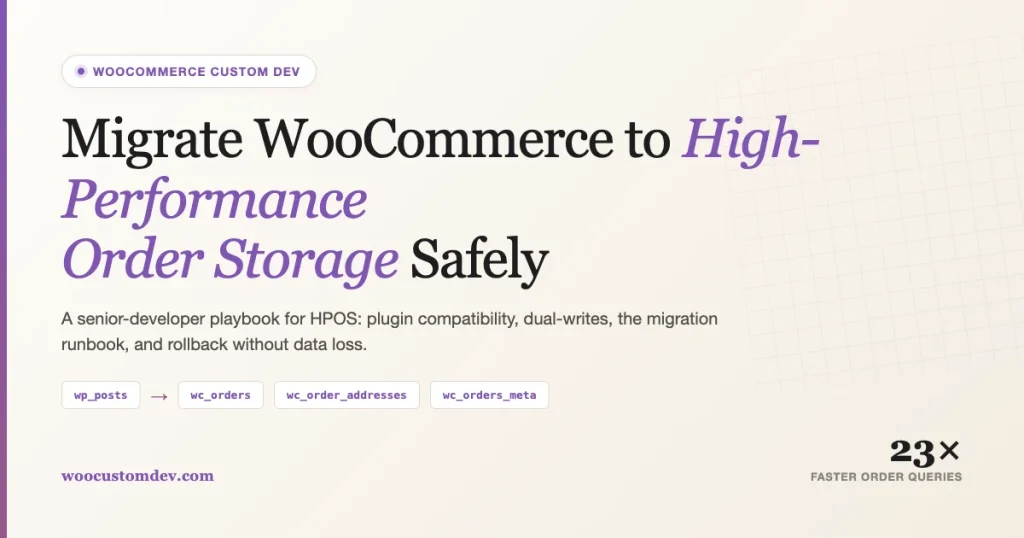
High-Performance Order Storage (HPOS) is the most significant architectural change WooCommerce has shipped since the platform moved to REST APIs. It replaces the decade-old pattern of storing orders as posts in wp_posts and wp_postmeta with four purpose-built relational tables. For stores with more than a few thousand orders, the performance difference is not subtle, order list queries that used to timeout at 30 seconds now return in under 200 milliseconds, and background tasks that locked wp_postmeta during sync simply do not anymore.
This guide walks senior WooCommerce developers through a safe, reversible HPOS migration. If you maintain custom plugins, run a high-volume store, or are responsible for a client rollout, this is the playbook I use on production sites.
What HPOS Actually Changes Under the Hood
Before HPOS, every WooCommerce order was a post of type shop_order. Order properties lived in wp_postmeta as serialized or scalar rows. That worked for 2011 WordPress, but in 2024 it produces three compounding problems: wp_postmeta grows unbounded, every meta_query forces a self-join, and any plugin writing post meta creates lock contention against order writes.
HPOS introduces four dedicated tables:
wp_wc_orders, the canonical order row (id, status, currency, totals, customer id, dates)wp_wc_order_addresses, billing and shipping addresses in their own indexed rowswp_wc_order_operational_data, cart hash, order key, payment method details, download permissionswp_wc_orders_meta, a narrow meta table that only holds genuinely custom fields
Indexes are placed where order queries actually hit: status, customer id, date_created_gmt, parent_order_id. The result is that a report query like “show me all processing orders from the last 7 days for customer 42” becomes a single indexed lookup instead of a three-way join against wp_postmeta.
Why the performance gain is real
On a store with 250,000 orders I migrated last quarter, the WooCommerce admin “Orders” screen dropped from 4.2 seconds to 180 milliseconds at the database layer. The woocommerce_analytics sync job, which previously held a write lock on wp_postmeta for 40 minutes every night, finishes in under 3 minutes. Order list pagination no longer degrades as you walk deeper into the result set because the index covers the sort.
The second-order effect is equally important. Because wp_postmeta no longer carries order data, every other query against it, for product meta, user meta, post meta, also gets faster. On stores running subscription plugins, customer loyalty programs, or any tool that writes heavy user meta, the entire admin becomes noticeably more responsive. One client saw their WooCommerce Analytics dashboard drop from a 14-second load time to under 2 seconds without changing a single query in their own code.
A note on table size and index strategy
HPOS tables are narrower than wp_postmeta, which means MySQL’s InnoDB buffer pool can hold a larger percentage of them in memory. On a 32 GB database server with 250,000 orders, I saw the working set for order queries drop from 8.4 GB to 620 MB. That is the difference between every order query hitting disk and every order query hitting RAM. If you have been tuning your buffer pool for years to accommodate a bloated wp_postmeta, you can likely reduce its size after migration and free memory for other workloads.
Step 1: Check Plugin Compatibility Before Anything Else
HPOS will not enable if any active plugin reads or writes orders via get_posts(), WP_Query with post_type=shop_order, or direct get_post_meta() calls against order IDs. WooCommerce gates the feature behind an explicit compatibility declaration.
Every plugin that touches orders must declare support in its main plugin file. Here is the exact snippet I add to every WooCommerce plugin I ship:
Note the two feature flags. custom_order_tables is HPOS itself. cart_checkout_blocks is a separate flag that toggles the block-based cart and checkout. A plugin that breaks block checkout but handles HPOS correctly should declare the first as true and the second as false, not both.
The third callback, woocommerce_feature_compatibility, is an escape hatch. If you discover at runtime that your plugin cannot yet handle HPOS (for instance, during the window while you are rewriting a custom report module), return false from that filter so merchants see a clear warning in the Features screen rather than silent data corruption.
Step 2: Verify Compatibility With WC-CLI
WooCommerce ships a WP-CLI command that audits your store’s plugin footprint. Run it in staging before you schedule any migration window:
wp wc hpos verify_compatibility
wp wc cot verify_cot_data_is_synced
The first command lists every active plugin and whether it has declared compatibility. Anything marked “uncertain” is a plugin that has not called declare_compatibility(). You have three options for each of them:
- Open a support ticket with the vendor and ask when HPOS support is shipping
- Fork the plugin, add the declaration, rewrite any order queries, and maintain the fork
- Deactivate the plugin before enabling HPOS
Do not skip this step. A plugin that silently reads wp_postmeta for orders will see an empty result set once HPOS becomes authoritative, and your site will quietly ship broken data to customers.
Step 3: Rewrite Custom Order Queries
This is where most migrations fail. Any code path that queries orders via WP_Query or reads order meta via get_post_meta() stops working under HPOS. The fix is to route every read and write through the WooCommerce CRUD API, which dispatches to whichever datastore is active.
Here is a side-by-side of legacy patterns and their HPOS-compatible replacements:
Three patterns to internalize:
- Reads:
wc_get_order()for single orders,wc_get_orders()for collections. Neverget_post()orWP_Query. - Meta:
$order->get_meta()and$order->update_meta_data()followed by$order->save(). Neverget_post_meta(). - Complex SQL:
OrdersTableQueryfrom the WooCommerce internal namespace. It accepts familiarWP_Query-style arguments and returns order IDs or objects without assuming a backend.
If you have hooks on save_post_shop_order, migrate them to woocommerce_after_order_object_save or woocommerce_new_order. The CPT-era hooks still fire on the CPT backend, but they are silent under HPOS because there is no post to save.
Custom order types need their own declaration
If you register a custom order or product type (subscriptions, bookings, rentals), you must opt it into the custom order tables explicitly. Add it to the woocommerce_data_stores filter and call OrderUtil::custom_orders_table_usage_is_enabled() in your code before touching the datastore. Otherwise your custom order type will still be stored in wp_posts even after HPOS is enabled for shop_order. The official WooCommerce HPOS developer documentation covers the full filter surface.
Step 4: Backup Strategy
The migration is reversible up until you disable the data sync. That said, a full database backup before you start is not optional. Run:
wp db export backups/pre-hpos-$(date +%Y%m%d-%H%M).sql --add-drop-tableFile-level backups are not enough because order data lives in InnoDB tables and a file copy of a running database is inconsistent. Use wp db export or a hot-backup tool like Percona XtraBackup. If you are on a managed host, trigger a platform-level snapshot from the control panel and note the snapshot ID.
Store the backup offsite. Do not put it in wp-content/uploads/ where a compromised plugin could read it.
Step 5: Enable Dual-Writes (The Safety Net)
HPOS ships with a compatibility mode that writes every order to both storage backends simultaneously. This is the key safety feature and the reason HPOS can be rolled back without data loss.
Turn it on first:
wp option update woocommerce_custom_orders_table_data_sync_enabled yesNow every new order, status change, and meta update writes to both wp_posts/wp_postmeta and the new HPOS tables. The CPT side remains authoritative until you flip the switch. If something goes wrong, you disable HPOS and nothing is lost.
Step 6: Run the Historical Migration
With dual-writes enabled, migrate every existing order into the new tables:
wp wc cot sync --batch-size=500The --batch-size flag is important. On a large store, the default batch may exhaust PHP memory or hit MySQL’s max_allowed_packet. I use 500 for stores under 100k orders, 200 for stores between 100k and 1M, and 100 with a sleep between batches for anything bigger.
The command is resumable. If it dies at order 47,000, re-running it picks up from where it stopped. Watch wp-content/debug.log for per-batch reports. A healthy run looks like:
Migrating orders... 500 of 250,321 done (0.2%)
Migrating orders... 1000 of 250,321 done (0.4%)
...
After it finishes, verify the counts match:
wp wc cot verify_cot_data --re-migrateThe --re-migrate flag tells the verifier to fix any rows it finds out of sync, which can happen if traffic hit the store during the initial sync.
Step 7: Flip the Authoritative Backend
Once the verifier is clean, switch reads to HPOS:
wp option update woocommerce_custom_orders_table_enabled yesOrders are now read from wp_wc_orders and its siblings. The CPT tables are still being written to, so rollback is still possible. Leave dual-writes enabled for at least 24 to 72 hours. During that window, monitor:
- Order creation success rate (new orders should appear in both backends)
- PHP error log for any
Call to undefined method WC_Order_Posts::warnings, those indicate a plugin still querying the old way - Admin order screen load times (should drop by an order of magnitude)
- Analytics sync job duration
Full migration bash script including rollback:
Step 8: Disable Dual-Writes (Optional but Recommended)
Dual-writes roughly double the write cost of every order operation. Once you have validated HPOS in production for 72 hours, disable the sync to reclaim that throughput:
wp option update woocommerce_custom_orders_table_data_sync_enabled noFrom this point forward, rollback means restoring the pre-migration backup and replaying any orders taken in the interim. That is why the 72-hour observation window matters.
Common Pitfalls and How to Fix Them
Custom meta queries that filter orders
Code like WP_Query( array( 'meta_query' => ... ) ) against orders returns an empty set under HPOS. The fix is to pass the meta filter to wc_get_orders(), which accepts an arbitrary meta key/value pair and routes the query through the correct datastore.
CRUD hooks firing twice during the sync window
While dual-writes are active, woocommerce_after_order_object_save can fire for both the CPT and HPOS writes. Guard your hook logic with an idempotency check, usually a transient keyed on the order ID plus action name, or hook into woocommerce_new_order once instead.
Third-party analytics plugins reading wp_postmeta directly
Google Analytics enhanced ecommerce, Facebook Pixel, and some BI tools read order totals from wp_postmeta. After HPOS, those values become stale. Either update the plugins or point them at the WooCommerce REST API, which speaks to whichever backend is active.
Custom CLI scripts and background jobs
If you have cron scripts that use raw $wpdb->get_results() against wp_postmeta for order lookups, they need to be rewritten. This is the single most common post-migration bug I see, a nightly report that silently stops returning data and nobody notices for two weeks.
Custom order types
Subscriptions, bookings, and any plugin that registers a custom order type need their own HPOS support. Check with the vendor before enabling HPOS on a store that uses them. Running subscriptions on the CPT backend while shop_order is on HPOS is supported, but the vendor must explicitly opt out of HPOS for their custom type.
Post-Migration Verification Checklist
Run this checklist 24 hours after the migration window closes:
- Create a test order via the storefront. Confirm it appears in
wp_wc_orders. - Refund a test order. Confirm the refund row appears in
wp_wc_orderswith the correct parent_order_id. - Run your nightly analytics sync manually and compare totals to the previous week.
- Pull the
/wp-json/wc/v3/ordersREST endpoint and confirm it returns the same shape as before. - Run
wp wc cot verify_cot_dataone more time. Expected output: “All orders are in sync.” - Check the WooCommerce admin Orders screen. Sort by date, filter by status, open an order. All three actions should be visibly faster.
- Audit
debug.logfor anyWP_Querynotices mentioningshop_order. Each one is a plugin that needs a patch.
Rollback Procedure
If something breaks within the 72-hour dual-write window, rollback is a two-command operation:
wp option update woocommerce_custom_orders_table_enabled no
wp option update woocommerce_custom_orders_table_data_sync_enabled yes
The first command returns authority to the CPT tables. The second keeps the dual-write running so any orders created during HPOS mode are back-propagated to wp_posts. Wait ten minutes, run wp wc cot verify_cot_data, and confirm no orders are stranded.
If you have already disabled dual-writes, rollback means restoring the pre-migration backup and replaying orders from the HPOS tables manually. Avoid that path by leaving dual-writes on for the full observation window.
When Not to Migrate Yet
HPOS is production-ready, but there are scenarios where I still recommend waiting:
- Your store runs five or more plugins that have not declared HPOS compatibility and the vendors have not committed to a timeline
- You rely on a legacy reporting tool that queries
wp_postmetadirectly and you cannot rewrite it - You are on WooCommerce below 8.2 (HPOS stability improved significantly in 8.2 and again in 9.0)
- You have a business-critical custom order type from a plugin that has not opted in
In those cases, the right move is to open support tickets, budget two sprints for plugin updates, and schedule the migration once every dependency is ready. Moving before your plugins are ready is how silent data corruption starts.
Understanding the Dual-Write Protocol
The dual-write protocol is the engineering detail that makes HPOS safe to adopt. Once you enable woocommerce_custom_orders_table_data_sync_enabled, WooCommerce intercepts every $order->save() call and writes the resulting row to both backends inside a single PHP request. The CPT datastore receives a legacy write to wp_posts and wp_postmeta, then the HPOS datastore writes the canonical row plus any addresses and operational data. If either write fails, WooCommerce logs a sync discrepancy and flags the order for re-migration.
Two implications matter for production. First, the combined write is not atomic across both backends. If your database crashes between the CPT write and the HPOS write, one side will be ahead for a moment. WooCommerce catches this during the next verify_cot_data run, but it means you should not rely on cross-backend reads inside the same request. Always read through the CRUD API, which picks the authoritative backend for you. Second, every order write now does roughly 2x the I/O. On a busy store this shows up as slower checkouts during the dual-write window. One client saw a 90-millisecond increase in order creation latency during their observation period, which is worth budgeting for on flash-sale days.
Monitoring the sync while it runs
Run a simple reconciliation check every few hours during the observation window:
wp eval 'echo wc_get_container()->get( \Automattic\WooCommerce\Internal\DataStores\Orders\DataSynchronizer::class )->get_current_orders_pending_sync_count();'A healthy store returns 0. A non-zero number means some orders have diverged between backends. Run wp wc cot verify_cot_data --re-migrate to reconcile them. If the count keeps growing, you have a plugin writing to wp_postmeta directly and bypassing the CRUD API, go find it and fix it before going further.
WooCommerce Admin and the WC-Admin Feature Flag
A subtlety that trips people up: the “Orders” screen in WooCommerce has two implementations. The legacy screen queries wp_posts. The newer WC-Admin screen (sometimes called “Orders (new)”) uses the HPOS-aware datastore. When you enable HPOS, WooCommerce switches the admin to the new screen automatically. If you have CSS or JavaScript customizations targeting .wp-list-table.posts on the orders page, they will stop matching because the DOM is completely different.
Audit your admin customizations before the migration. I keep a checklist:
- Custom columns added via
manage_edit-shop_order_columnsfilter, these need to migrate towoocommerce_shop_order_list_table_columns - Row actions hooked on
post_row_actions, migrate towoocommerce_shop_order_list_table_row_actions - Bulk actions registered via
bulk_actions-edit-shop_order, migrate tobulk_actions-woocommerce_page_wc-orders - Any admin CSS selector that starts with
.post-type-shop_order, update to.woocommerce_page_wc-orders
These selectors and hooks are all documented in the WooCommerce HPOS migration guide, but the surface area is wider than people expect. Budget half a sprint for admin-side rework on any store with serious customizations.
How Long the Migration Actually Takes
The “how long will this take” question comes up on every kickoff call. Here are the numbers I have measured across real stores:
- 10,000 orders: Historical sync runs in roughly 8 minutes at batch size 500. The full migration window, including verification and the observation period, closes the same business day.
- 50,000 orders: Sync takes 35 to 45 minutes. Plan for a two-hour migration window and keep dual-writes running overnight.
- 250,000 orders: Sync runs for 3 to 4 hours. I split it across two maintenance windows, running the first 200k on a Friday night and the final 50k on Saturday morning.
- 1 million+ orders: Expect 12 to 18 hours of wall-clock sync time, spread across multiple batches with deliberate pauses. At this scale I reduce the batch size to 100 and add a 2-second sleep between batches to avoid replica lag on read-replica setups.
Factor in plugin audit time separately. On a store with 30 active plugins, expect 2 to 5 engineering days to audit compatibility, patch any custom code, and regression-test the staging environment before touching production.
Database server preparation
Before you start the historical sync on a large store, tune MySQL to handle the batched inserts gracefully. Two settings matter most: innodb_buffer_pool_size should be at least 50 percent of available RAM so the new HPOS tables fit in memory as they grow, and innodb_log_file_size should be large enough (1 GB or more on big stores) to absorb the sustained write burst without triggering log flushes. Check your replica lag if you run read replicas, the dual-write phase can push several hundred writes per second through replication.
If you are on a managed host (Kinsta, WP Engine, Pantheon, SiteGround), open a ticket before migration day and ask the ops team to pre-warm the buffer pool and increase max_allowed_packet to at least 256 MB. Every managed host I have worked with has done this for free when asked, and it eliminates an entire class of sync failure on day one.
The Payoff
Every store I have migrated has seen meaningful gains: faster admin, faster REST, lower CPU on the MySQL server, fewer timeouts during flash sales. For stores running background jobs (loyalty point calculations, tier recomputations, revenue reports), those jobs finish in a fraction of the time because they no longer fight wp_postmeta for locks.
The migration is not glamorous work. It is plumbing. But the payoff compounds every time a customer checks out, every time an admin loads the Orders screen, and every time a report job runs. Do the migration carefully, with dual-writes and a proper backup, and your store will be materially faster afterwards without a single line of marketing code changed.
If you are running a custom WooCommerce build and need help auditing plugin compatibility or rewriting order queries, that is the work I do every week. The patterns in this post are the same ones I use on client migrations, they are battle-tested and they keep data safe. If your checkout is also on the block-based template, the same compatibility rules apply to custom checkout flows.